Connecting a smartphone to a TV: wired and wireless methods
Connecting a smartphone to a TV is one of the easiest ways to watch videos, share photos, join video calls on a bigger screen, or present mobile content without a laptop. The best method depends on your phone, TV, Wi-Fi network, and whether you want to mirror the whole screen or cast only media. This guide explains the most reliable wired and wireless options for Android phones and iPhones, with simple setup steps, troubleshooting tips, and answers to common questions.
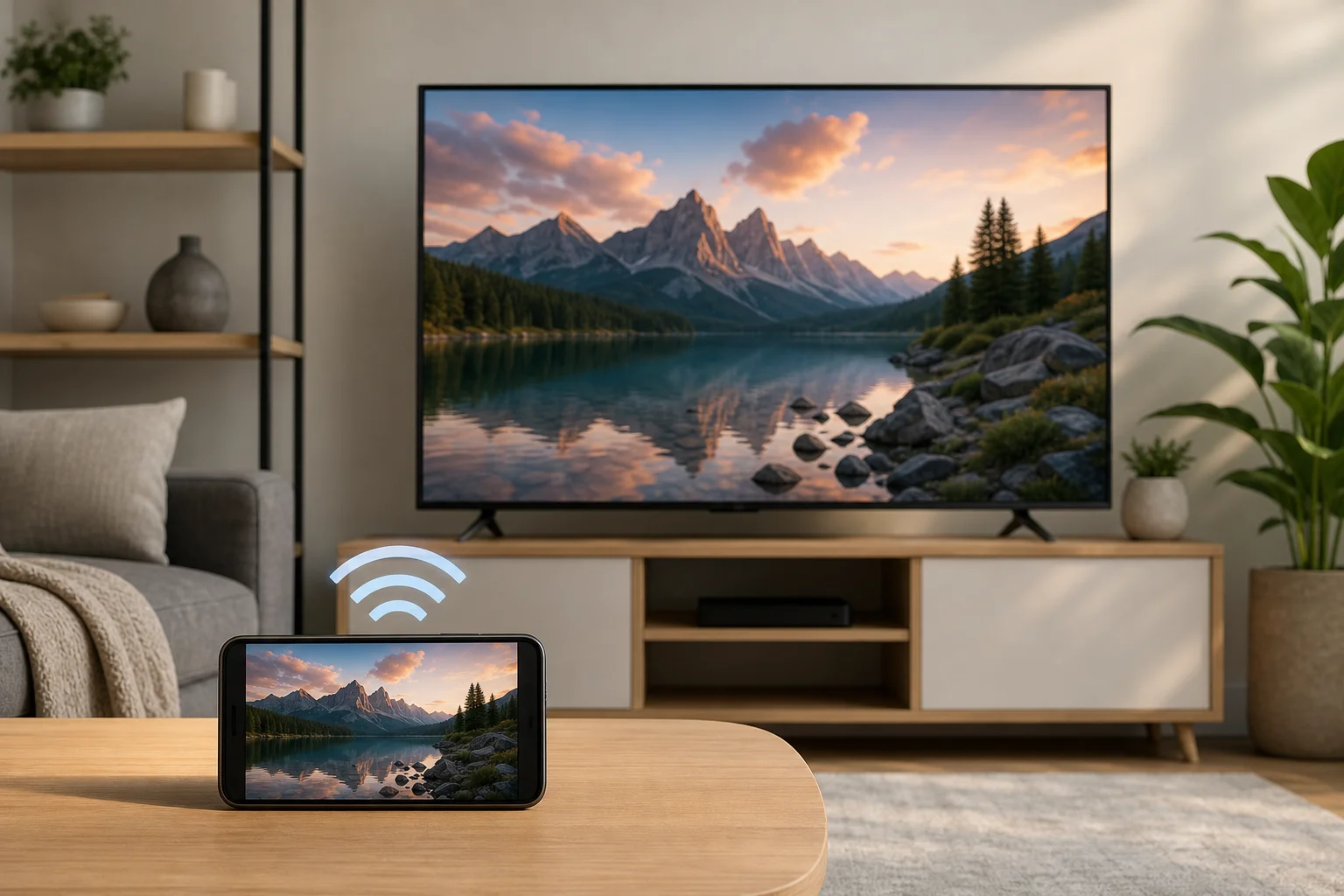
Quick ways to connect a phone to a TV
There are four main ways to connect a mobile phone to a television:
- Cast media wirelessly using Chromecast, Google TV, YouTube, Netflix, or another app with a cast button.
- Use AirPlay to stream or mirror from an iPhone to an Apple TV or compatible smart TV.
- Mirror the screen with Miracast, Smart View, Screen Cast, or a TV brand’s built-in sharing feature.
- Connect by cable using USB-C to HDMI, Lightning to HDMI, or another supported adapter.
In most homes, wireless casting is the most convenient option. However, a cable is often better for gaming, travel, presentations, and places where Wi-Fi is weak or unavailable.
Choose the best method
Use this comparison table to pick the right connection method quickly.
| Method | Best for | Works with | Main requirement | Pros | Limits |
|---|---|---|---|---|---|
| Chromecast or Google Cast | Streaming apps and casual viewing | Many Android phones, iPhones, Chromecast, Google TV, Android TV | Same Wi-Fi network | Easy, stable, phone can be used separately | Not every app supports casting |
| AirPlay | iPhone and iPad users | iPhone, Apple TV, AirPlay-compatible smart TVs | Same Wi-Fi network | Smooth Apple integration | Limited on non-Apple devices |
| Miracast or screen mirroring | Showing the entire phone screen | Many Android phones and smart TVs | Compatible phone and TV | Mirrors almost anything | Can lag with games or high-motion video |
| USB-C to HDMI | Low-lag viewing and presentations | Phones with video output over USB-C | Compatible adapter and HDMI cable | Reliable, no Wi-Fi needed | Not all USB-C phones support video out |
| Lightning to HDMI | Older iPhones with Lightning | iPhones with Lightning port | Apple Lightning Digital AV Adapter or compatible adapter | Simple wired option | Adapter may be required; some apps restrict playback |
If you mainly watch YouTube, Netflix, Disney+, or local media apps, start with casting. If you need to show your exact phone screen, use screen mirroring. If you need the most stable connection, use HDMI.
How to connect wirelessly
Wireless connection is the cleanest setup because it avoids cables. Before starting, connect your phone and TV or streaming device to the same Wi-Fi network. Also make sure your TV firmware and mobile apps are up to date.
Cast from an Android phone with Chromecast or Google TV
Chromecast and Google Cast work with many smart TVs, Google TV devices, Android TV boxes, and Chromecast dongles. This method sends the video stream to the TV while your phone acts like a remote.
- Turn on the TV and select the correct HDMI input if you use a Chromecast device.
- Connect the phone and TV device to the same Wi-Fi network.
- Open a supported app, such as YouTube or Netflix.
- Tap the cast icon in the app.
- Choose your TV or streaming device from the list.
- Use your phone to pause, skip, adjust volume, or stop casting.
This is usually better than full screen mirroring because it can preserve quality and reduce battery use. In addition, you can often lock your phone or use other apps while the video continues on the TV.
Mirror an iPhone with AirPlay
AirPlay is the main wireless option for iPhone users. It works with Apple TV and many newer smart TVs that support AirPlay.
To mirror the full iPhone screen:
- Connect the iPhone and TV to the same Wi-Fi network.
- Open Control Center on the iPhone.
- Tap Screen Mirroring.
- Select your Apple TV or AirPlay-compatible TV.
- Enter the code shown on the TV if prompted.
To stream only a video, open a supported app and tap the AirPlay icon. This can be smoother than full mirroring and may allow better playback controls.
Use Miracast or screen mirroring on compatible TVs
Many Android phones include a screen mirroring feature. The name varies by brand. It may be called Smart View, Screen Cast, Wireless Display, Cast, or Screen Share. Many smart TVs from Samsung, LG, Sony, TCL, Hisense, and other brands include a compatible receiver.
General steps:
- Enable screen mirroring or screen share mode on the TV.
- On your Android phone, open quick settings.
- Tap the screen casting or mirroring option.
- Choose your TV.
- Confirm the connection on the TV if asked.
Screen mirroring shows everything on your phone, including notifications. For privacy, turn on Do Not Disturb before mirroring.
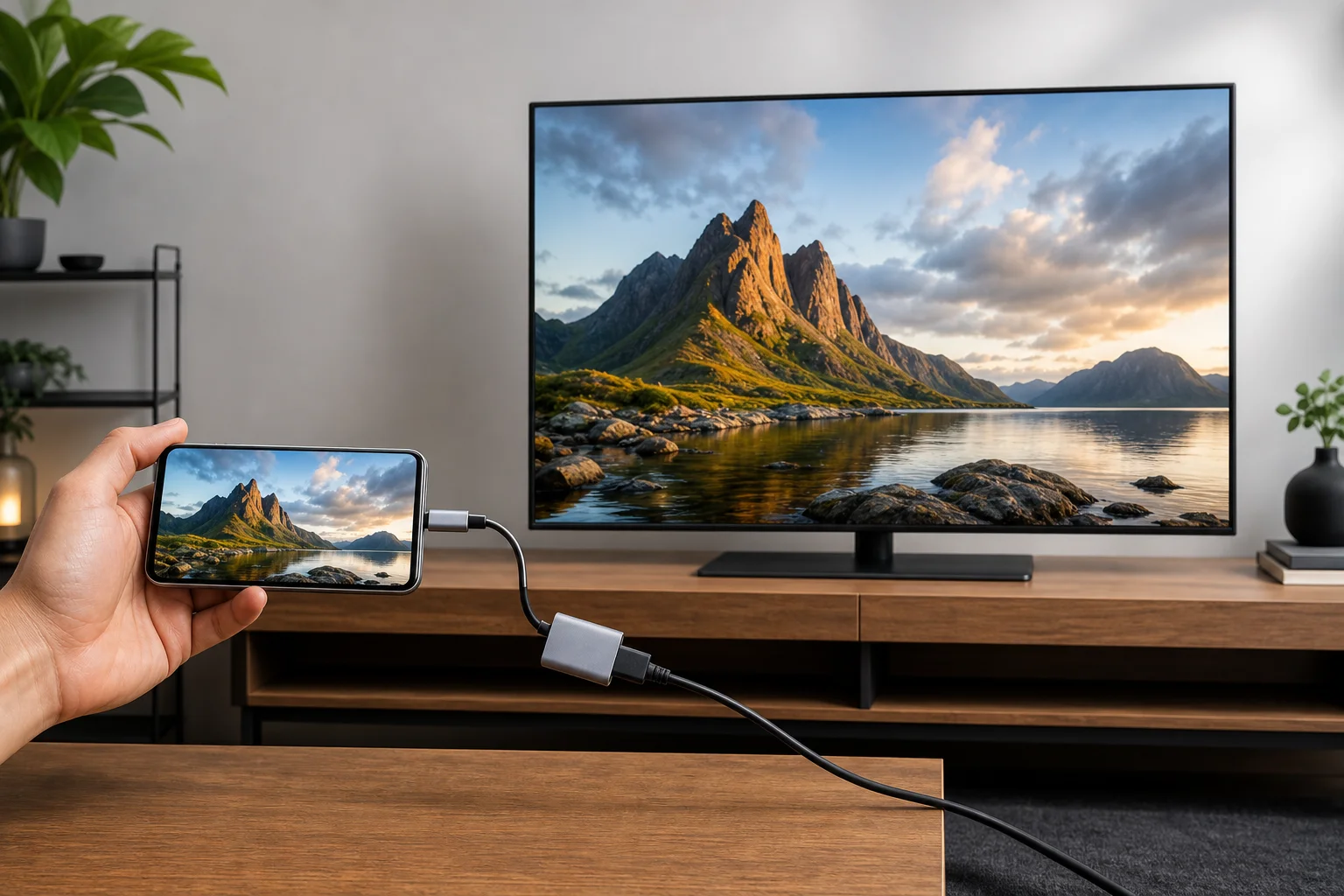
How to connect with a cable
A wired connection is useful when wireless casting fails, the network is crowded, or you want lower latency. It is also a smart choice for hotels, offices, classrooms, and gaming sessions.
Use USB-C to HDMI
Many modern Android phones and some tablets can output video through USB-C. However, not every USB-C port supports video. Look for support for DisplayPort Alt Mode, HDMI Alt Mode, Samsung DeX, Motorola Ready For, or desktop mode in your phone’s specifications.
You will need:
- A USB-C to HDMI adapter or USB-C hub with HDMI.
- An HDMI cable.
- A TV with an available HDMI port.
Steps:
- Plug the USB-C adapter into the phone.
- Connect an HDMI cable between the adapter and TV.
- Switch the TV to the correct HDMI input.
- Wait for the phone screen to appear.
- If prompted, choose screen mirroring, desktop mode, or media output.
If nothing appears, your phone may not support video output over USB-C. In that case, use wireless casting or a streaming device instead.
Use Lightning to HDMI for older iPhones
For iPhones with a Lightning port, use a Lightning Digital AV Adapter and an HDMI cable. Connect the adapter to the iPhone, plug the HDMI cable into the adapter and TV, then select the right HDMI input.
This is a simple option for travel and presentations. Still, some streaming services may block or limit HDMI playback due to content protection rules. If a specific app shows a black screen, try AirPlay or the app built into your smart TV.
Step-by-step setup checklist
Follow this checklist if you want the fastest path to a working connection.
- Identify your TV type. Check whether it has built-in Chromecast, AirPlay, Miracast, or only HDMI inputs.
- Choose wireless or wired. Use wireless for convenience. Use HDMI for stability and low lag.
- Update software. Install updates for your phone, TV, streaming device, and video apps.
- Join the same Wi-Fi network. For casting and AirPlay, the phone and TV device usually must be on the same network.
- Open the right feature. Use the cast icon for media, Screen Mirroring on iPhone, or Screen Cast on Android.
- Select the TV. Pick the correct TV name from the phone’s device list.
- Confirm permissions. Accept pairing prompts or enter the code shown on the TV.
- Test audio and video. Play a short video, then adjust volume on both the phone and TV.
- Reduce interruptions. Enable Do Not Disturb if you are mirroring the full screen.
- Save the setup. Rename your TV device clearly if multiple TVs appear on the network.
Troubleshooting common connection problems
If your smartphone does not connect to the TV, start with simple fixes. Restart the phone, TV, router, and streaming device. Then try again.
If the TV does not appear in the device list, make sure both devices are on the same Wi-Fi network. Some routers create separate 2.4 GHz and 5 GHz networks. Guest networks can also block device discovery.
If video stutters, move the phone and TV device closer to the router. You can also reduce network traffic by pausing large downloads. For the best result, connect the TV or streaming box to the router with Ethernet if possible.
If there is a black screen in a streaming app, content protection may be the cause. Try casting directly from the app instead of mirroring the screen. You can also use the app installed on the TV itself.
If audio plays on the phone instead of the TV, check the app’s output setting and the TV input. Disconnect Bluetooth headphones or speakers from the phone, then reconnect to the TV.
Security and privacy tips
Screen sharing can expose messages, emails, photos, and app notifications. Before mirroring, close private apps and enable Do Not Disturb. Also avoid casting sensitive content on public or shared TVs.
On shared Wi-Fi networks, use device names that are clear but not too personal. For example, “Living room TV” is better than a full name. After using a hotel or office TV, remove the device from your phone’s casting history if the option is available.
For meetings, open the file, photo, or browser tab you need before you connect. This reduces the chance of showing private content while searching.
FAQ about connecting a smartphone to a TV
Can I connect my phone to a TV without Wi-Fi?
Yes. Use a USB-C to HDMI adapter, a Lightning to HDMI adapter, or a streaming device that supports a direct connection mode. A wired HDMI connection is the most reliable option without Wi-Fi.
Why is there no sound on the TV?
Check the TV volume, the phone volume, and the selected input. Also disconnect Bluetooth headphones from the phone. If you are using HDMI, unplug and reconnect the adapter and cable.
Does screen mirroring reduce video quality?
It can. Full screen mirroring often depends on Wi-Fi strength and may add lag or compression. Casting directly from an app usually gives better quality because the TV streams the video itself.
Can I use my phone while casting?
Usually, yes. When you cast from an app such as YouTube, your phone works as a remote. When you mirror the screen, the TV shows whatever is on the phone, so private activity will also appear.
What is the best cable for connecting a smartphone to a TV?
For compatible Android phones, use a good USB-C to HDMI adapter or hub. For Lightning iPhones, use a Lightning Digital AV Adapter. Always check that the adapter supports video output, not just charging.
Conclusion: choose the connection that fits your setup
The best way of connecting a smartphone to a TV depends on what you want to watch and the devices you own. Use Chromecast, Google Cast, or AirPlay for easy wireless streaming. Use screen mirroring when you need to show the full phone display. Choose HDMI when you need a stable, low-lag connection. Start with the method your TV already supports, test it with a short video, and keep the right adapter nearby for times when Wi-Fi is not available.