Remote functions in the app: how to control your TV from your phone
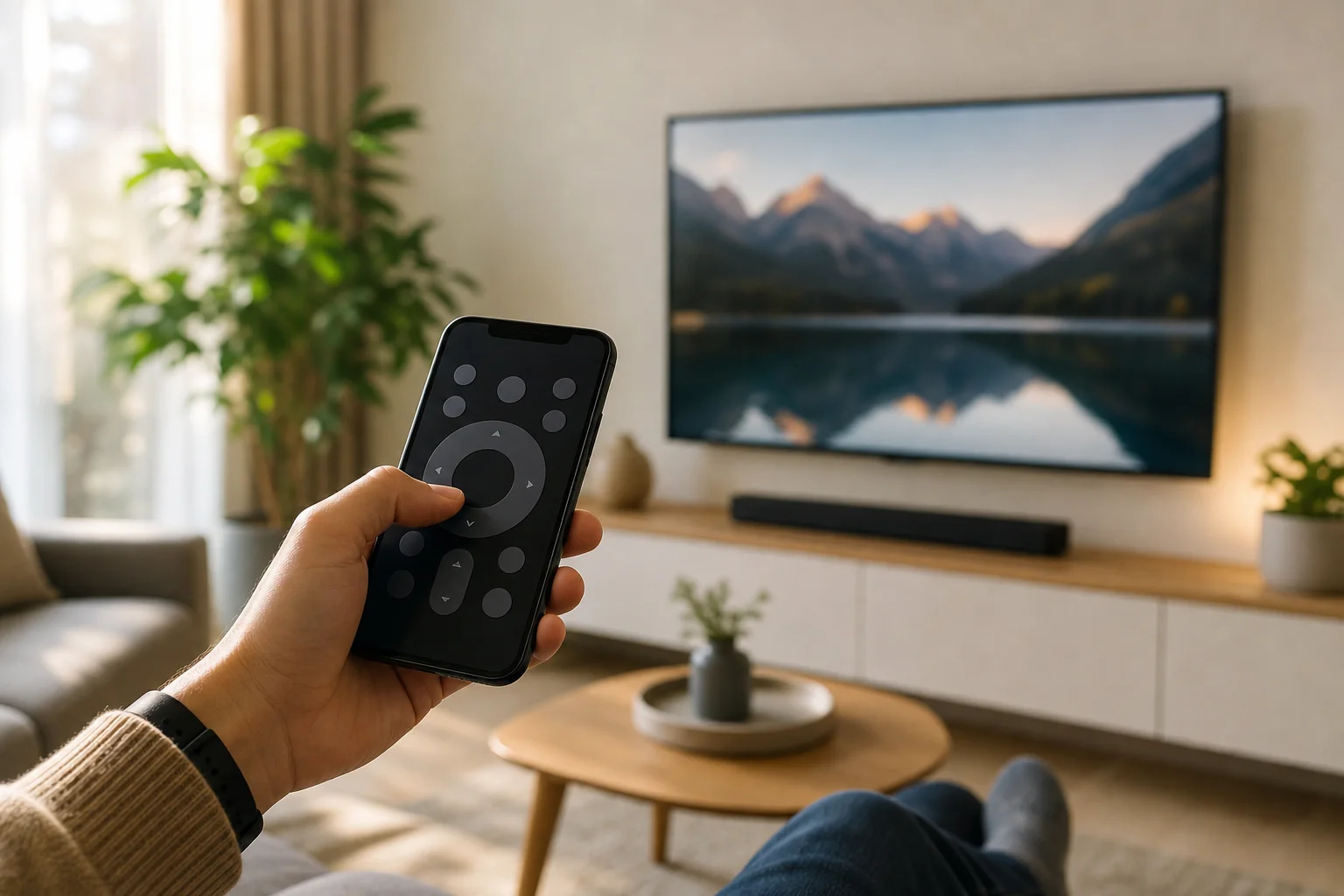
Remote functions in the app let you use a smartphone as a practical replacement or companion for a physical TV remote. In many smart TV, streaming box, and media player apps, you can change channels, adjust volume, enter text, launch apps, use voice search, and control playback without looking for the remote under the sofa. This guide explains the most useful app-based remote features, how to set them up, what to check when they fail, and how to use them safely.
What remote functions in a mobile app usually include
A remote control app works by sending commands from your phone to a TV, set-top box, streaming stick, projector, or media player. Depending on the device, it may connect through Wi-Fi, Bluetooth, infrared, or a cloud account.
Most modern remote apps include several core controls:
- Power and standby controls for turning a device on or off when supported.
- Directional navigation with up, down, left, right, select, back, and home buttons.
- Playback controls such as play, pause, rewind, fast-forward, and skip.
- Volume and mute controls when the TV or audio system allows them.
- Keyboard input for faster searching, sign-ins, and password entry.
- Voice search through the phone microphone.
- App shortcuts for opening streaming services or device settings.
- Casting or screen sharing on devices that support it.
- Touchpad gestures as an alternative to arrow buttons.
The exact feature list depends on the app and hardware. For example, a manufacturer app for a Samsung, LG, or Sony TV may offer settings and input controls, while a platform app for Google TV, Apple TV, Fire TV, or Roku may focus on media navigation and search.
Why use an app remote instead of a physical remote
A phone-based remote is not just a backup. In many situations, it is faster and easier than a traditional controller.
First, typing with a phone keyboard is much quicker than selecting letters one by one on a TV screen. This matters when you search for movies, enter Wi-Fi passwords, or sign in to streaming apps.
Second, an app can combine remote control with extra features. You may see recently watched content, installed apps, device settings, or casting options in the same place. Some apps also support private listening through headphones connected to your phone.
Third, a mobile remote is useful when several people share one TV. A family member can control playback without passing around a single remote. However, this also means you should manage permissions and avoid connecting unknown devices.
Finally, an app remote helps when the physical remote is lost, damaged, out of batteries, or paired to another device. It is a simple emergency tool if the phone and TV are already on the same network.
How to set up remote control in an app
The setup process is usually simple, but the details vary by brand. Use this step-by-step checklist to connect your phone reliably.
-
Connect both devices to the same network. Make sure your phone and TV or streaming device use the same Wi-Fi network. If your router has separate 2.4 GHz and 5 GHz names, place both devices on the same one when possible.
-
Install the official app. Use the app recommended by the device maker or platform. Examples include Google TV for compatible Android TV and Google TV devices, Apple TV Remote in Control Center for Apple TV, the Roku app for Roku devices, or the Fire TV app for Fire TV devices.
-
Open the remote section. Look for labels such as Remote, Control, Devices, Connect, or Cast. Some apps show nearby devices automatically.
-
Select your TV or media device. Choose the correct device name. If you have several TVs, rename them in settings to avoid confusion.
-
Confirm pairing on the TV screen. Many devices show a code. Enter it in the app to prove that you can see the screen and have permission to connect.
-
Test basic controls. Try home, back, volume, and play or pause. If these work, test keyboard input and voice search next.
-
Adjust permissions. Allow microphone access only if you want voice search. Allow local network access if your phone asks for it, because the app may need it to find the TV.
If pairing fails, restart both devices and check that VPNs, guest Wi-Fi, and router isolation settings are not blocking local connections.
Key remote functions and when to use them
Different app remote features solve different problems. The table below shows the most common functions and their best use cases.
| Function | What it does | Best use case |
|---|---|---|
| Directional pad | Moves through menus with arrows and select | Basic navigation in TV menus and apps |
| Touchpad | Lets you swipe and tap on the phone screen | Fast browsing through long rows of content |
| Keyboard | Sends typed text from your phone | Searches, email addresses, passwords, and account codes |
| Voice control | Uses the phone microphone for commands or search | Finding content without typing |
| Playback buttons | Controls play, pause, rewind, and fast-forward | Streaming films, shows, music, and live TV replays |
| Volume and mute | Adjusts sound output | Quick sound control without the physical remote |
| App launcher | Opens installed apps from the phone | Switching between streaming services |
| Input selection | Changes HDMI or TV source | Moving between console, cable box, and streaming device |
| Private listening | Routes audio to phone headphones when supported | Watching quietly at night |
| Casting | Sends media from the phone to the TV | Showing videos, photos, or music on a larger screen |
Not every app supports every function. For example, input selection may require a TV manufacturer app, while private listening is more common in certain streaming platform apps.
Useful settings to check after pairing
After the app remote works, spend a few minutes checking settings. This prevents common problems later.
Device name
Rename your TV or streaming device to something clear, such as “Living room TV” or “Bedroom projector.” Clear names make it easier to connect the right device from the app.
Wake over network
Some TVs can wake from standby through Wi-Fi or Ethernet. This may be called Wake on LAN, network standby, quick start, instant on, or mobile device power on. If you want to turn on the TV from the app, enable the matching setting. Keep in mind that power-saving modes may disable it.
HDMI-CEC
HDMI-CEC lets connected devices control each other over HDMI. It may allow a streaming stick remote app to change TV volume or power. Brands use different names for this feature, such as Anynet+, Simplink, Bravia Sync, or Viera Link. If volume or power controls do not work, HDMI-CEC is worth checking.
Privacy permissions
Review app permissions on your phone. A remote app may need local network access, Bluetooth, microphone access, or notifications. If you do not use voice control, you can often deny microphone access. Also remove old paired phones from the TV settings if they are no longer used.
Troubleshooting app remote problems
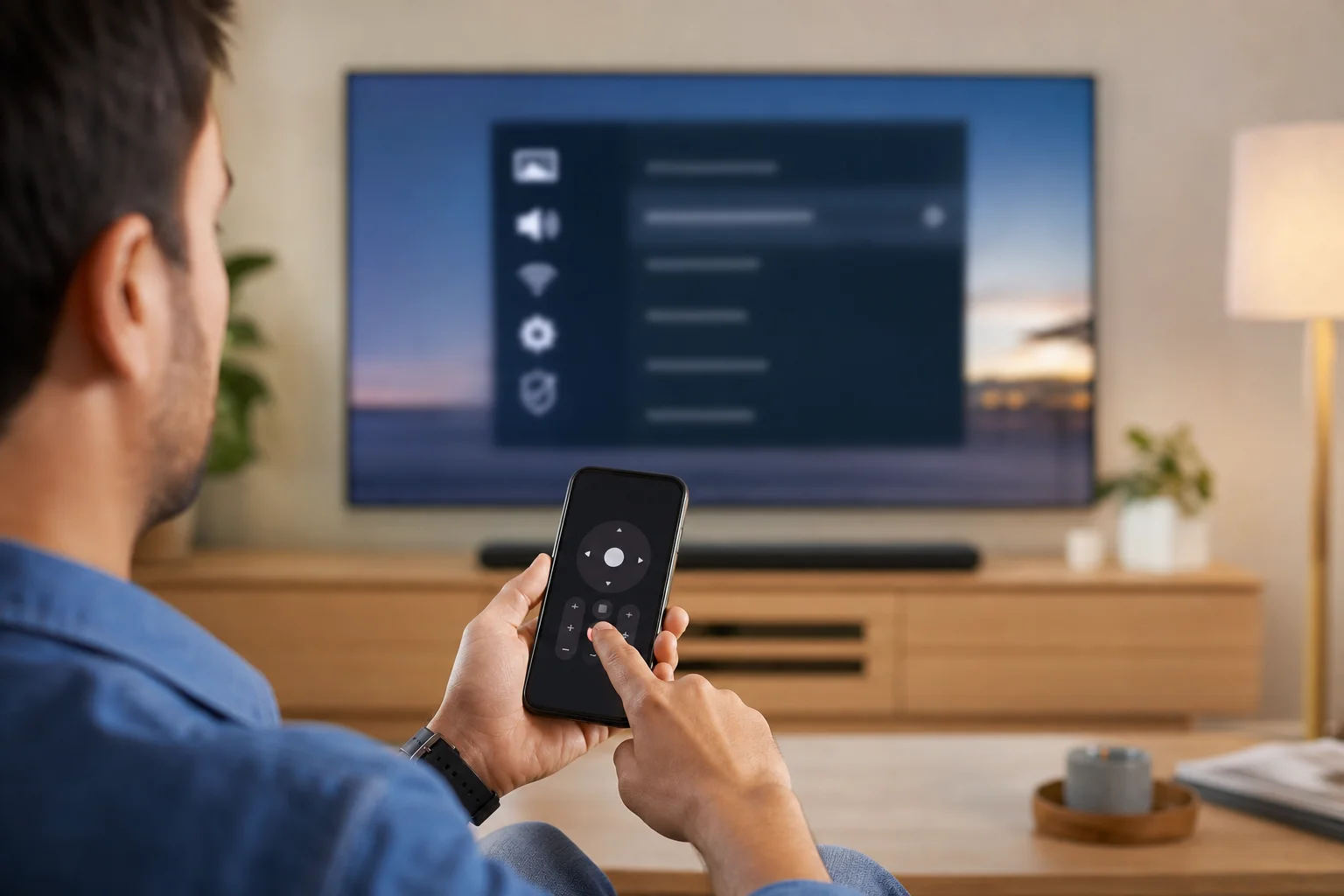
When remote functions in the app stop working, the cause is usually a connection, permission, or pairing issue. Start with the simple fixes before changing advanced router settings.
The app cannot find the TV
Check that the TV is on and connected to the same Wi-Fi network as your phone. Disable guest Wi-Fi, mobile hotspot mode, or VPN temporarily. On iPhone, make sure the app has Local Network permission. On Android, check nearby devices, Bluetooth, or location permissions if the app requests them for device discovery.
The remote connects but buttons do not work
Close and reopen the app. Then restart the TV or streaming device. If only volume and power fail, check HDMI-CEC, infrared requirements, or TV compatibility. Some streaming devices can navigate menus but cannot control sound unless the TV supports the right control method.
Keyboard input does not appear
Open a search field or text box on the TV first. Many apps only show the keyboard when the TV is ready for text entry. If the keyboard still does not work, update the remote app and device firmware.
Voice search fails
Confirm microphone permission on the phone. Also check the app language and the device language. Voice search may not work in every app or region, and some services only search inside their own catalog.
The app disconnects often
Weak Wi-Fi is a common reason. Move the router closer, switch to a less crowded Wi-Fi band, or connect the TV by Ethernet if possible. Also disable aggressive battery-saving settings for the remote app, because some phones pause background network activity.
Security and privacy tips for app-based remotes
A remote app has access to your entertainment device, and sometimes to account features. Treat it like any other connected tool.
Use official apps from trusted stores. Avoid unknown remote apps that ask for excessive permissions or promise universal control without explaining how they connect. Keep your TV and app updated, because updates often fix pairing and security issues.
Protect your home network with a strong Wi-Fi password. Do not allow guests to control your main TV unless you trust them. If your router offers a guest network, remember that devices on it may not be able to control the TV because local network discovery is often blocked.
Also, remove old devices from the paired remote list. This is important after selling a phone, replacing a tablet, or sharing access with visitors. If you suspect unwanted control, reset paired devices in the TV settings and pair only the phones you use.
Accessibility benefits of remote functions in the app
Mobile remote features can improve accessibility. A phone keyboard may be easier for users who find on-screen TV keyboards slow or difficult. Voice control can reduce the need for repeated button presses. Larger phone screens may also provide better contrast and touch targets than small remote buttons.
Some users benefit from screen readers, magnification, or switch control on their phones. When the remote app supports standard mobile accessibility features, it can make TV navigation more comfortable. Still, results vary by app, so it is worth testing the official app before relying on it as the only remote.
Frequently asked questions about app remote functions
Can I use remote functions in the app without Wi-Fi?
Sometimes. A few phones and devices support Bluetooth or infrared control, but most smart TV remote apps need Wi-Fi or the same local network. Without Wi-Fi, basic control may not be available unless your phone has an infrared blaster and a compatible remote app.
Can the app turn on my TV?
It can if the TV supports wake over network, Bluetooth wake, HDMI-CEC, or another standby control method. If the TV is fully powered off or deep sleep mode is enabled, the app may not be able to turn it on.
Is a remote app better than a universal remote?
It depends on your setup. A remote app is great for typing, voice search, and streaming navigation. A universal remote may be better if you control many devices, such as a TV, receiver, cable box, and Blu-ray player, with one physical controller.
Why does the app ask for microphone permission?
Microphone access is usually needed for voice search or voice commands. If you do not use those features, you can deny the permission and still use basic buttons in many apps.
Can several phones control the same TV?
Yes, many smart TVs and streaming devices allow multiple paired phones. However, the exact limit depends on the device. For privacy, remove phones you no longer use from the paired device list.
Conclusion
Remote functions in the app make everyday TV control faster, especially for search, typing, playback, volume, and app switching. Start with the official app, connect your phone and TV to the same network, pair with the on-screen code, and test the features you use most. Then review permissions and device settings so the remote stays reliable and secure. If your physical remote is missing or inconvenient, set up the app remote today and keep it ready before you need it.