How to control a smart TV with your phone: complete guide
Learning how to control a smart TV with your phone is useful when the remote is lost, the batteries are dead, or you simply want faster typing and easier streaming. Most modern TVs work with a mobile remote app over Wi-Fi, Bluetooth, or a casting protocol such as Google Cast or AirPlay. This guide explains the easiest setup methods for Android and iPhone, how to choose the right app, what to do if pairing fails, and how to keep your TV connection secure.
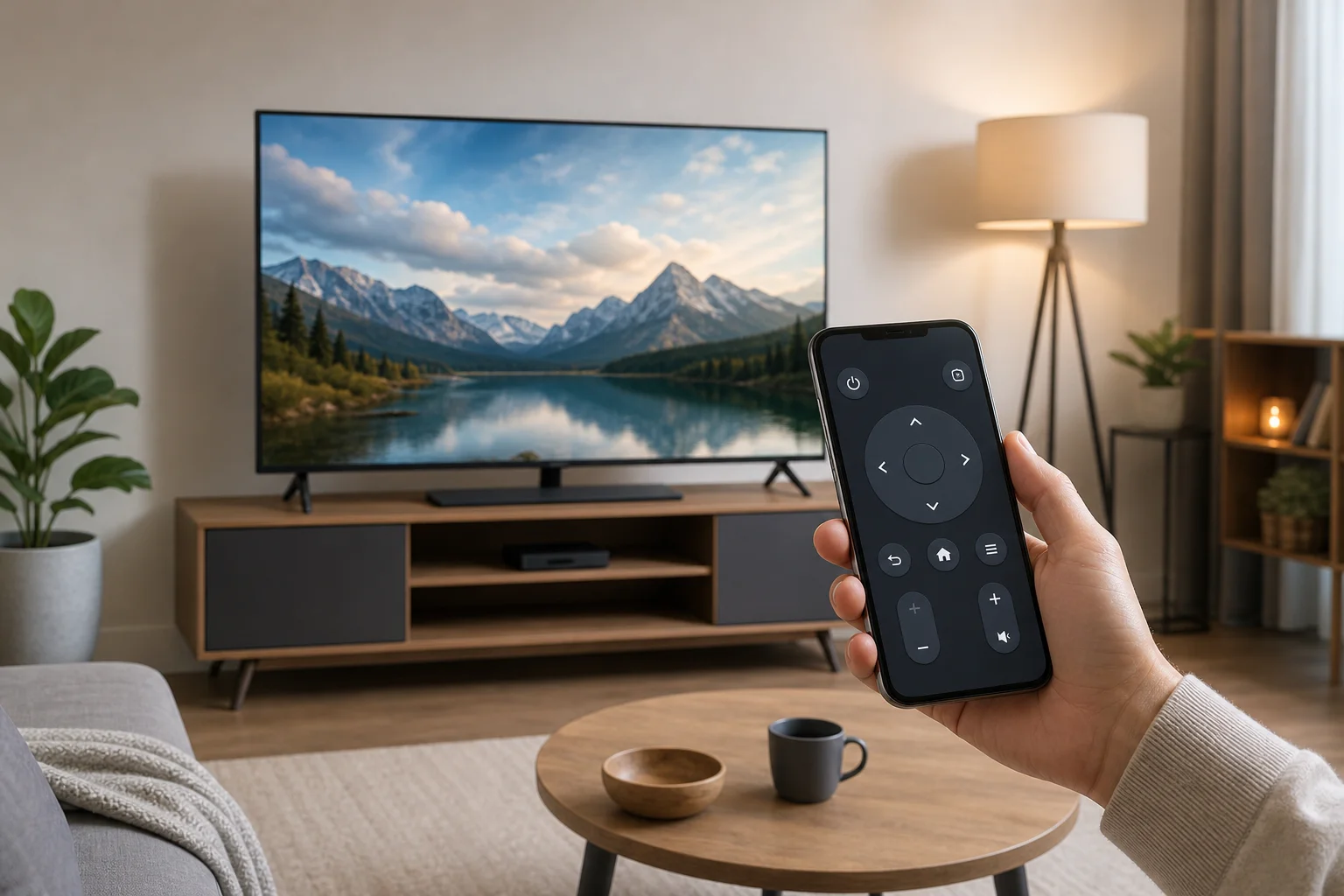
What you need before you start
In most cases, you do not need extra hardware. You only need a compatible smart TV, a smartphone, and a stable home network. However, the exact method depends on your TV system and phone.
Check these basics first:
- Your TV is powered on and connected to the internet.
- Your phone and TV are on the same Wi-Fi network.
- Bluetooth is enabled if the app asks for it.
- Your TV software and mobile app are up to date.
- You know which platform your TV uses, such as Google TV, Android TV, Roku, Fire TV, Tizen, webOS, or Apple TV.
If your TV is older and does not support Wi-Fi remote control, you may still have options. Some Android phones include an infrared blaster, which can work like a traditional remote. You can also add a streaming device, such as Chromecast, Roku, Fire TV Stick, or Apple TV, and control that device from your phone.
Easiest ways to use your phone as a TV remote
The best method depends on what you want to do. If you only need volume and navigation, the official remote app is usually enough. If you want to send videos from your phone to the big screen, casting or screen mirroring may be better.
| Method | Best for | Works with | Main advantage |
|---|---|---|---|
| Official TV remote app | Full remote control, settings, typing | Most smart TV brands | Most reliable option |
| Google TV app | Google TV and Android TV control | Android and iPhone | Easy navigation and keyboard input |
| Apple AirPlay and Apple Remote | Apple TV and AirPlay TVs | iPhone and iPad | Smooth Apple device integration |
| Roku, Fire TV, or Samsung apps | Brand-specific control | Matching TV or streaming device | Extra features for that platform |
| Screen mirroring | Showing your phone screen | Many TVs and streaming devices | Good for photos, apps, and presentations |
| Infrared remote app | Older TVs without Wi-Fi control | Some Android phones | Works without pairing over Wi-Fi |
How to control a smart TV from your phone step by step
Follow these steps first. They work for many TVs, including Google TV, Android TV, Samsung, LG, Roku, and Fire TV models.
- Connect both devices to the same Wi-Fi network. Open the network settings on your TV and confirm the Wi-Fi name. Then check the Wi-Fi settings on your phone.
- Install the correct remote app. Use the official app when possible. Examples include Google TV, Samsung SmartThings, LG ThinQ, Roku, Amazon Fire TV, and Apple TV Remote in Control Center on iPhone.
- Open the app and search for your TV. The app should scan your local network and show available devices.
- Select your TV. Tap the TV name that matches your device.
- Enter the pairing code. Many TVs display a code on the screen. Type it into the phone app to confirm the connection.
- Allow permissions when needed. The app may ask for local network access, Bluetooth access, or microphone access for voice search.
- Test basic controls. Try power, volume, home, back, and the on-screen touchpad or directional buttons.
- Use the phone keyboard for search. When a text field appears on the TV, the app may let you type from your phone, which is much faster than using arrow keys.
If the TV does not appear, restart both devices and check that they are not connected to different Wi-Fi bands or a guest network.
Best apps for controlling popular smart TVs
Google TV and Android TV
For TVs and streaming devices that run Google TV or Android TV, the Google TV app is usually the simplest choice. It lets you navigate, search, type, and use voice controls. On many Android phones, remote control can also appear in quick settings after setup.
To pair it, open the Google TV app, tap the remote icon, choose your TV, and enter the code shown on the screen. This works with many Sony, TCL, Hisense, Philips, and Chromecast with Google TV devices.
Samsung smart TVs
Samsung smart TVs usually work with the SmartThings app. After you sign in, the app can discover your TV and add it to your home devices. You can then use your phone as a remote, launch apps, change inputs, and sometimes automate TV behavior with other smart home devices.
If your Samsung TV asks for permission, approve the connection on the TV screen. Also, make sure mobile device control is enabled in the TV settings if discovery fails.
LG smart TVs
LG TVs with webOS commonly use the LG ThinQ app. After pairing, your phone can work as a remote with navigation buttons, volume control, channel controls, and app shortcuts. Some models also support voice commands through the app.
For best results, keep the TV in standby mode with network wake enabled if you want to turn it on from your phone.
Roku TVs and Roku devices
The Roku mobile app is one of the most practical phone remote options. It includes a simple remote, private listening with headphones connected to your phone, voice search in supported regions, and a keyboard for text entry.
Make sure your Roku TV or device and your phone are on the same network. If the app cannot find the TV, check whether control by mobile apps is disabled in the Roku settings.
Amazon Fire TV
The Amazon Fire TV app controls Fire TV Stick, Fire TV Cube, and Fire TV Edition televisions. It includes a touchpad, keyboard, Alexa voice button, and app launcher. Pairing usually requires choosing your Fire TV device and entering a code.
This option is ideal if you mainly use Prime Video, Netflix, YouTube, and other apps through a Fire TV interface.
Apple TV and AirPlay-compatible TVs
On iPhone, Apple TV Remote is built into Control Center. Open Control Center, tap the remote icon, choose your Apple TV or compatible smart TV, and enter the code if prompted. It works especially well for navigation, Siri search, and typing.
For AirPlay-compatible TVs, you can also stream videos, photos, music, or mirror your iPhone screen without using a separate remote app.
How casting and screen mirroring are different
Casting and mirroring are often confused, but they do different things.
Casting sends media from an app to the TV. For example, you can tap the cast icon in YouTube, Netflix, or Spotify. The TV then plays the content directly, while your phone acts like a controller. This saves phone battery and lets you use other apps while the video keeps playing.
Screen mirroring shows your phone screen on the TV. This is useful for photos, web pages, presentations, or apps that do not support casting. However, it can use more battery and may show notifications unless you enable Do Not Disturb.
Use casting for streaming video. Use mirroring when you need to display exactly what is on your phone.
Troubleshooting when your phone cannot find the TV
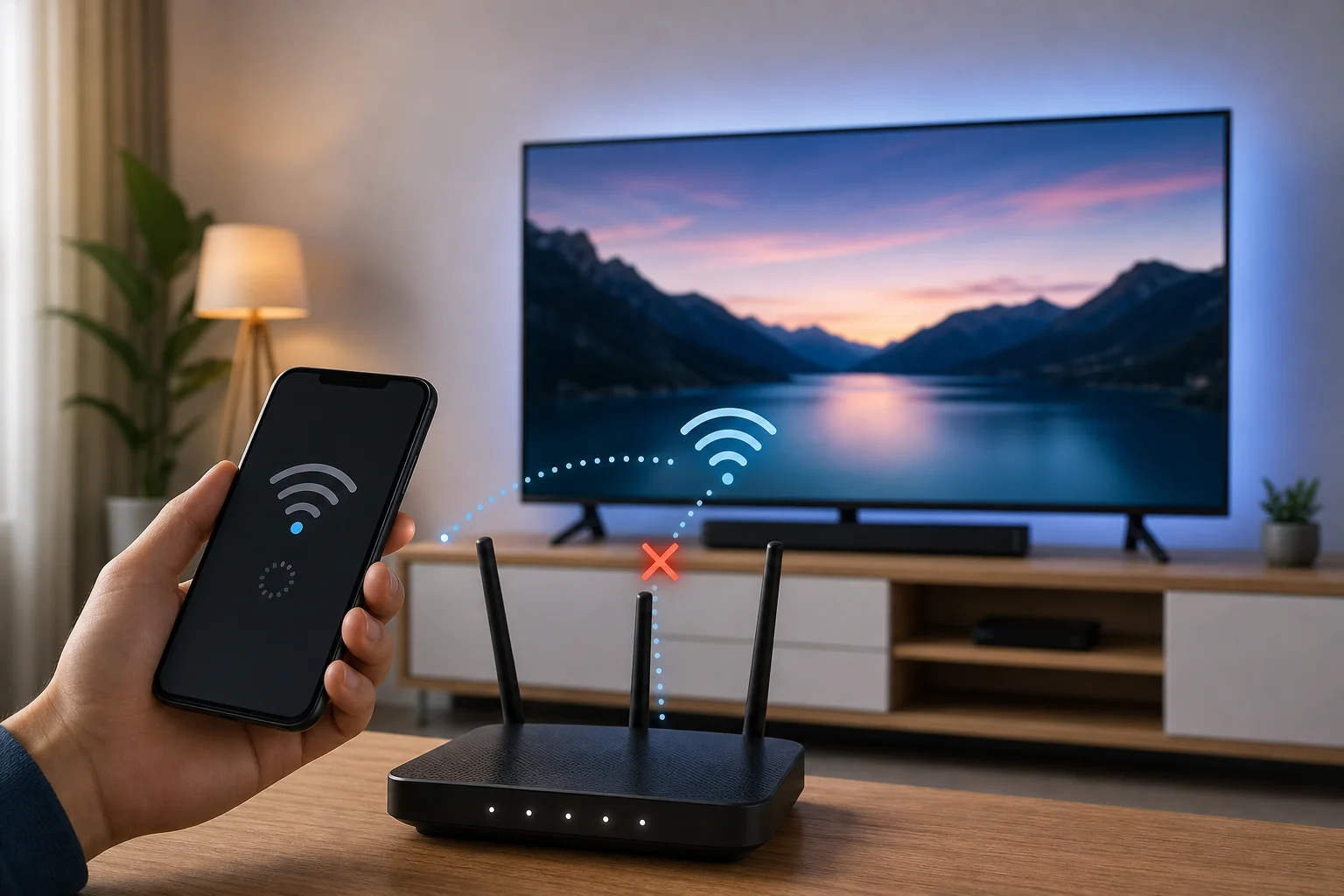
If your phone remote app cannot detect the smart TV, the cause is usually network-related. Work through these fixes in order.
Check the Wi-Fi network
Both devices must usually be on the same local network. If your phone is on mobile data or a guest Wi-Fi network, the app may not see the TV. Also check mesh Wi-Fi systems, because some isolate devices across network segments.
Restart the TV, phone, and router
A quick restart often clears discovery issues. Turn the TV off, unplug it for about 30 seconds, then plug it back in. Restart your phone and router as well if needed.
Update the app and TV software
Outdated software can break pairing. Update the remote app from the App Store or Google Play. Then check the TV system update menu.
Allow local network permissions
On iPhone, go to Settings, find the remote app, and allow Local Network access. On Android, check app permissions and allow nearby devices or Bluetooth if requested.
Disable VPN or private relay temporarily
A VPN, firewall app, or private relay feature can block local device discovery. Turn it off briefly while pairing. After pairing works, you can test whether it still functions with your privacy tools enabled.
Reset the TV app connection
If the app once worked but stopped, remove the TV from the app and pair it again. You can also delete old paired devices in the TV settings, then start fresh.
Security and privacy tips
A phone remote is convenient, but it also connects your TV to your home network. Use a few simple habits to keep control safe.
- Pair only with apps from trusted stores and official developers.
- Keep your TV firmware updated.
- Do not approve unknown pairing requests on the TV screen.
- Use a strong Wi-Fi password.
- Avoid leaving your TV on an open guest network.
- Review app permissions and remove apps you no longer use.
- Turn off voice recording or ad personalization if you do not want those features.
Also, remember that anyone on the same network may be able to request pairing on some TVs. If you share Wi-Fi with guests, use a separate guest network that blocks access to your main devices.
FAQ about controlling a smart TV with a phone
Can I control my smart TV with any phone?
Usually, yes. Most modern Android phones and iPhones can control smart TVs through Wi-Fi apps, casting features, or built-in remote tools. The TV model matters more than the phone model.
Can I use my phone as a remote without Wi-Fi?
Sometimes. If your Android phone has an infrared blaster, you can use an IR remote app without Wi-Fi. Otherwise, most smart TV remote apps need Wi-Fi or Bluetooth for pairing and control.
Why does my TV not show up in the remote app?
The most common reasons are different Wi-Fi networks, disabled local network permissions, outdated software, VPN interference, or router settings that isolate devices. Start by putting both devices on the same Wi-Fi and restarting them.
Can I turn on my TV from my phone?
Many TVs support power-on from a phone if network standby, Wake on LAN, or quick start is enabled. If the TV fully disconnects from the network when off, you may need the physical remote or power button to turn it on.
Is it better to use the official TV app or a universal remote app?
Use the official app first. It is usually more reliable and safer. Universal remote apps can help when the official app is not available, but choose carefully and avoid apps with excessive permissions or intrusive ads.
Conclusion
The fastest way to control a smart TV with your phone is to connect both devices to the same Wi-Fi network, install the official remote app for your TV platform, and pair it with the code shown on the screen. Once connected, use your phone for navigation, typing, voice search, casting, and screen mirroring. Start with the official app, keep your devices updated, and use the troubleshooting steps above if pairing fails.