How to use a TV remote over the internet
A TV remote over the internet lets you control a television from a phone, tablet, or computer even when you are not holding the physical remote. Depending on your TV and network setup, you can change apps, adjust volume, launch streaming services, or help a family member from another location. This guide explains the safest and most practical ways to set up remote TV control, compares your options, and shows what to check when it does not work.
What a TV remote over the internet can and cannot do
Internet-based TV control sounds simple, but the details matter. Some solutions work only when your phone and TV are on the same Wi-Fi network. Others can work from outside the home through a cloud account, smart home hub, VPN, or remote support tool.
In general, you can expect to control common functions such as:
- Power on and off, if the TV supports wake features
- Volume and mute
- Input selection
- App launching
- Playback controls such as play, pause, and rewind
- Navigation with arrows, touchpad, or voice commands
However, there are limits. A standard infrared remote needs line of sight, so it cannot directly work over the internet without extra hardware. Also, some TVs disable network control while fully powered off. In that case, standby mode, Wake-on-LAN, HDMI-CEC, or a smart plug may be needed.
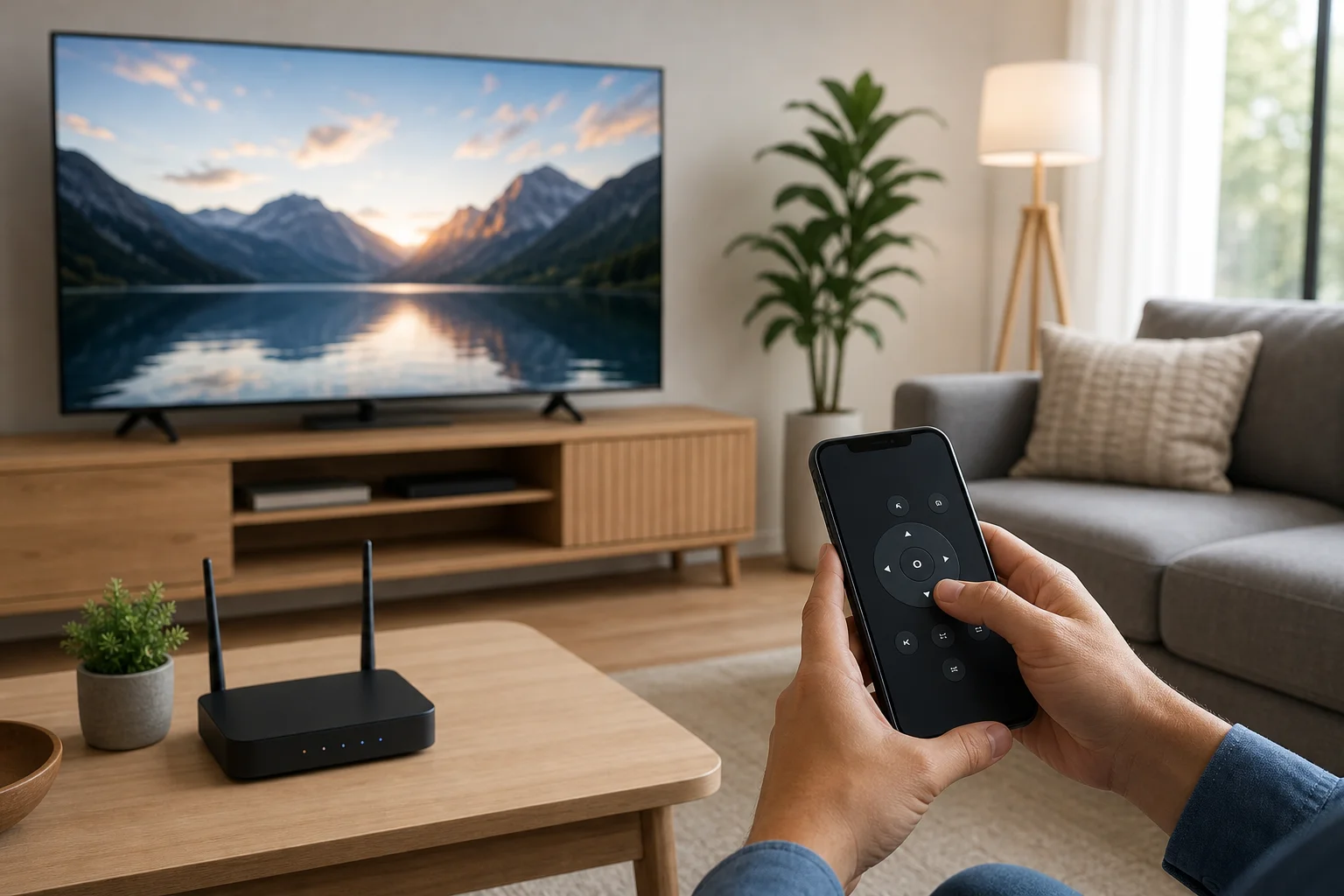
Best ways to control your TV online
There is no single best remote app for every home. The right choice depends on your TV brand, streaming device, security needs, and whether you want local or long-distance control.
Official smart TV apps
Most major TV platforms offer companion apps. Examples include apps for Samsung SmartThings, LG ThinQ, Google TV, Roku, Fire TV, and Apple TV. These apps usually provide the smoothest experience because they are designed for the device.
They are best for everyday use at home. Some also support remote access through your account, but features vary by region, TV model, and software version. Always check the app permissions and sign in only through official app stores.
Streaming device apps
If your TV is older or the built-in smart system is slow, a streaming device can be the easiest upgrade. Roku, Fire TV, Apple TV, Chromecast with Google TV, and similar devices all have mobile apps that work like a remote.
This option is especially useful when your main goal is to control Netflix, YouTube, Prime Video, Disney+, or other apps. Even if the TV itself cannot be controlled online, the streaming device can often handle playback, navigation, and voice search.
IR blasters and smart home hubs
An IR blaster is a small device that sends infrared commands to your TV, soundbar, or set-top box. When the IR blaster connects to Wi-Fi, you can control traditional remote functions through an app. Popular examples include smart remote hubs and some universal remote systems.
This is a strong choice for older televisions, cable boxes, air conditioners, and audio receivers. Place the device where it has a clear path to the TV’s IR receiver. Then add the TV model inside the app and test the buttons.
Remote desktop or casting tools
Sometimes the goal is not to press remote buttons but to guide someone through a screen. For example, you may need to help a parent open a streaming app or fix an input problem. In that case, a video call, screen sharing tool, or remote support app may help.
Be careful with this method. Do not give broad remote access to a computer or phone unless you trust the person and understand the security settings. For routine TV control, a dedicated smart TV app or hub is usually safer.
Step-by-step setup for remote TV control
Use this checklist to set up a TV remote over the internet without unnecessary complexity.
- Identify your TV platform. Check whether your TV uses Google TV, Android TV, Roku TV, webOS, Tizen, Fire TV, or another system.
- Install the official app. Download the matching remote app from the Apple App Store or Google Play. Avoid unofficial apps with excessive ads or unclear permissions.
- Connect to the same Wi-Fi first. Pair the phone and TV while both are on the home network. This step often creates the trusted connection needed for later control.
- Sign in to the required account. Some services need a Samsung, LG, Google, Amazon, Roku, or Apple account for remote features.
- Enable network control. In the TV settings, look for options such as mobile control, remote start, Wake-on-LAN, quick start, or device connection.
- Test basic buttons. Try power, volume, input, navigation, and app launch while you are still at home.
- Test from mobile data. Turn off Wi-Fi on your phone and use cellular data. If the app still connects, remote access is working through the internet.
- Add hardware if needed. If the app only works locally, consider an IR blaster, smart home hub, or secure VPN into the home network.
- Document the setup. Save the app name, account used, and any hub location so another household member can troubleshoot later.
This process reduces guesswork. It also helps you find the exact point where remote access fails.
Comparison of internet TV remote options
| Option | Best for | Works away from home | Extra hardware | Main limitation |
|---|---|---|---|---|
| Official smart TV app | Modern smart TVs | Sometimes | No | Depends on brand and model |
| Streaming device app | Streaming apps and media playback | Often | Yes, if not already installed | May not control every TV function |
| IR blaster | Older TVs and set-top boxes | Usually | Yes | Needs line of sight to the TV |
| Smart home hub | Voice routines and mixed devices | Usually | Yes | Setup can be more complex |
| VPN to home network | Secure local-style access | Yes | Sometimes | Requires networking knowledge |
| Remote support tools | Helping another person | Yes | No, if using phone or computer | Not ideal for daily remote control |
For most people, the best path is simple: start with the official app. If that fails, use a streaming device app. If you need to control an older TV or cable box, add an IR blaster.
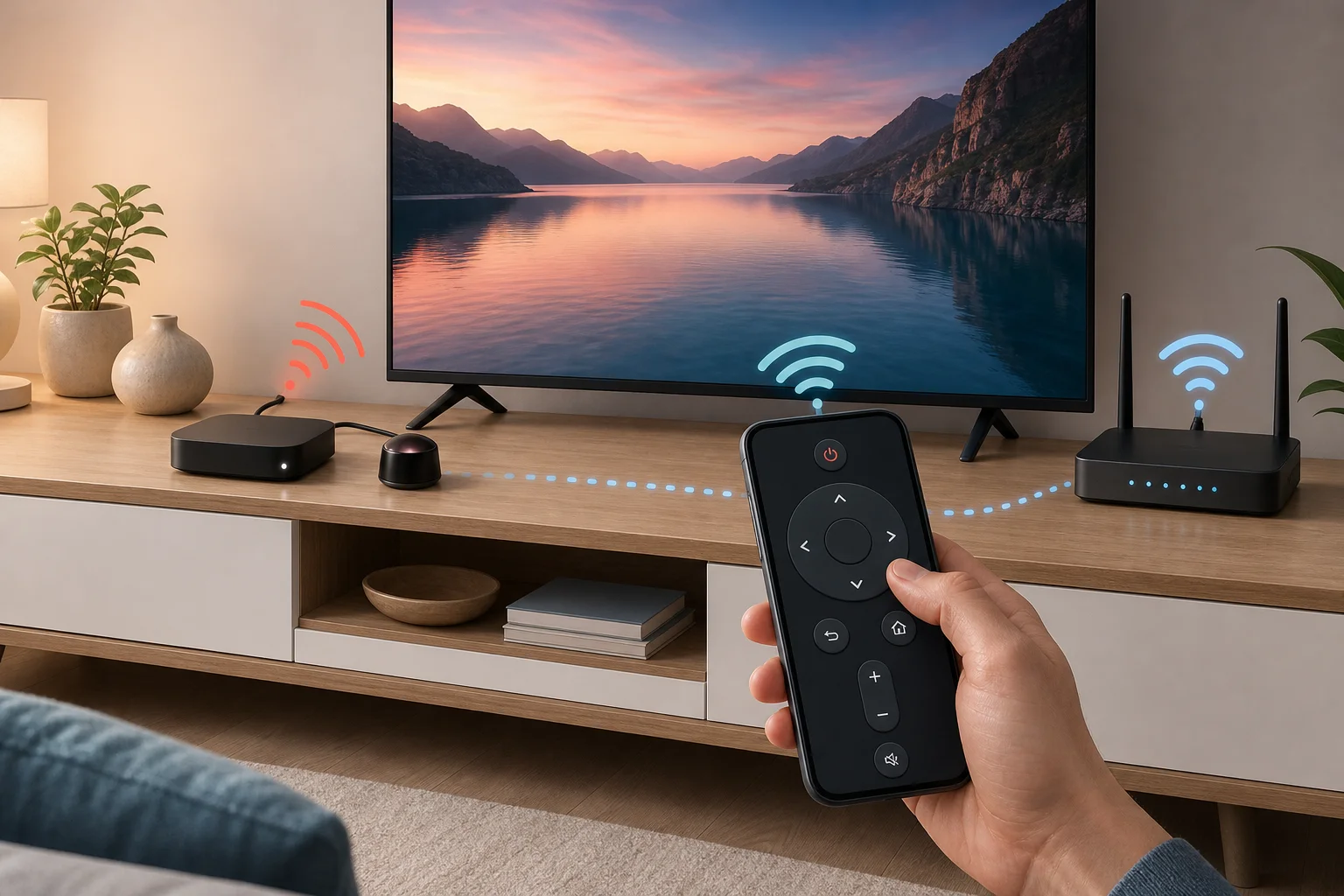
Security and privacy tips
Remote control over the internet should be convenient, not risky. Because your TV may be linked to paid streaming accounts, microphones, cameras, or smart home devices, secure the setup from the start.
Follow these rules:
- Use official apps from trusted stores only.
- Update your TV, streaming device, and phone regularly.
- Use strong, unique passwords for TV platform accounts.
- Turn on two-factor authentication when available.
- Remove old paired phones and unknown devices.
- Avoid opening router ports directly to the TV.
- Prefer a reputable VPN over port forwarding if you need home-network access.
- Do not share your account login with people who only need temporary help.
Also review app permissions. A remote app may need local network access, Bluetooth, or microphone access for voice commands. It should not need unrelated permissions such as contacts or call logs.
Troubleshooting common problems
If your internet TV remote does not connect, start with the basics. Many issues are caused by sleep settings, network isolation, or account mismatch.
First, confirm that the TV and phone are on the same Wi-Fi network during pairing. Guest Wi-Fi networks often block device discovery. Next, restart the TV, router, and app. Then check whether the TV has a setting for mobile control or quick start mode.
If the remote works at home but not away from home, the app may support only local control. In that case, check whether cloud control is available for your model. If not, consider an IR blaster with cloud access or a secure VPN.
If the TV will not turn on remotely, it may be fully powered down. Enable standby network features if available. On some setups, HDMI-CEC can help a streaming device wake the TV. A smart plug can cut and restore power, but it does not replace a proper power command and may not be suitable for all TVs.
If volume does not work, check whether audio is routed through a soundbar, receiver, or HDMI-ARC device. You may need to add that device to the remote app or IR blaster as a separate component.
FAQ about using a TV remote over the internet
Can I use my phone as a TV remote from another city?
Yes, but only with the right setup. Some smart TV and streaming apps support cloud control. If yours does not, you may need an IR blaster, smart home hub, or VPN connected to the home network.
Do I need Wi-Fi to control a TV through the internet?
The TV usually needs a home internet connection, most often through Wi-Fi or Ethernet. Your phone can use Wi-Fi or mobile data. For initial pairing, many systems require the phone and TV to be on the same local network.
Can I turn on a TV remotely?
Sometimes. The TV must support wake features such as quick start, Wake-on-LAN, HDMI-CEC, or cloud power control. If the TV is completely off and its network adapter is asleep, remote power may not work.
Is an internet remote safe for older relatives?
It can be very helpful if set up carefully. Use official apps, limit account sharing, and write simple instructions. For support, choose tools that require approval before each session so the person stays in control.
What is the easiest remote app for a lost TV remote?
Start with the official app for your TV or streaming device. If you have Roku, Fire TV, Google TV, Apple TV, Samsung, or LG, the official app is usually the safest first option. If your TV is not smart, use an IR blaster.
Conclusion: choose the simplest reliable setup
A TV remote over the internet works best when you match the solution to your equipment. Try the official smart TV or streaming device app first, then add an IR blaster or smart home hub if you need broader control. Secure your accounts, test remote access before you need it, and keep the setup simple so it remains reliable every day.