TV remote on PC: Practical ways to control your television from a computer
A TV remote on PC can be useful when the original remote is lost, the batteries are dead, or you want easier control from a desk or media center. In most cases, a computer can control a smart TV over Wi-Fi, through casting tools, with HDMI-CEC hardware, or by using a web-based remote interface. However, not every TV supports every method. This guide explains the practical options, setup steps, limits, and troubleshooting tips so you can choose the right solution for your television and computer.
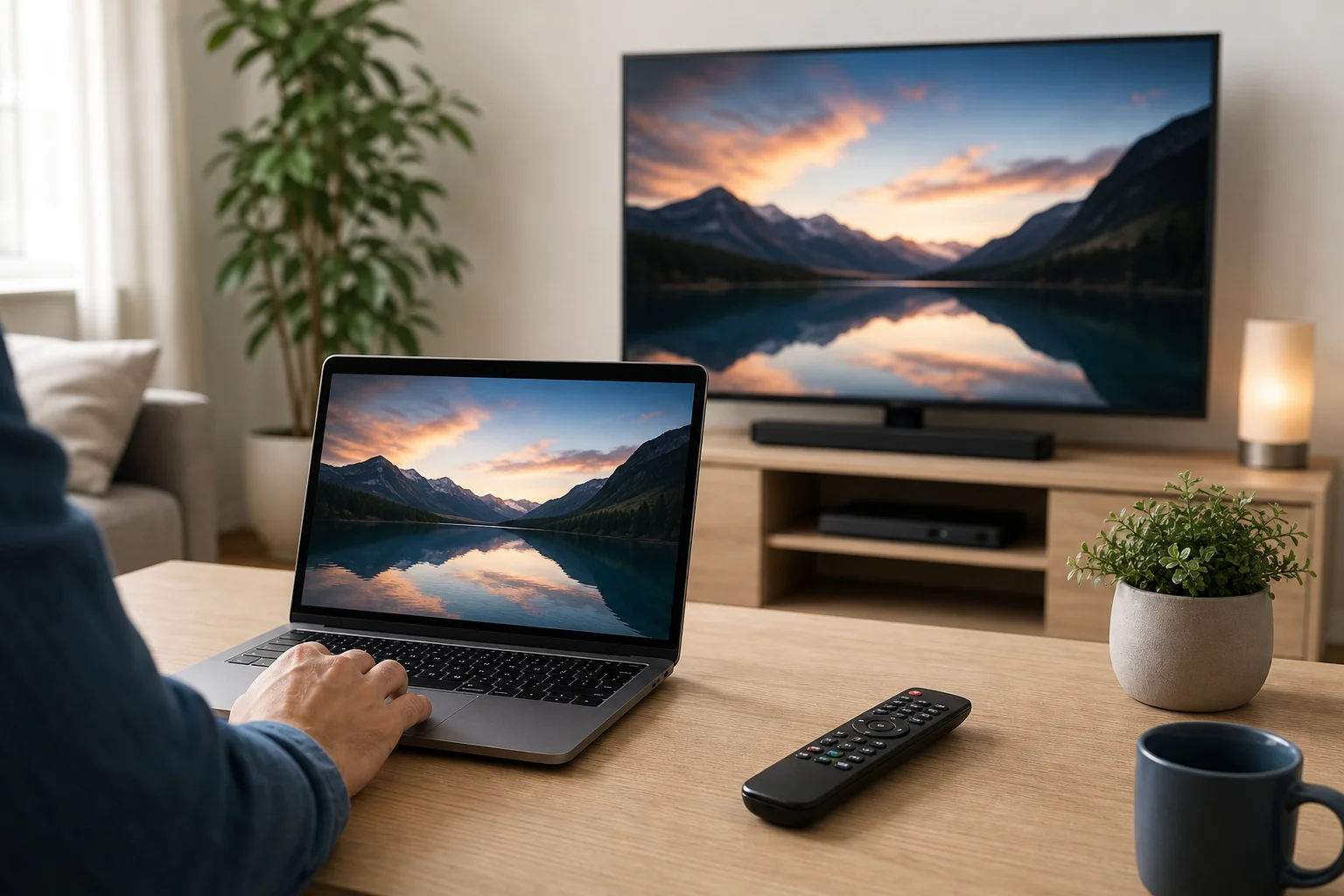
What a TV remote on PC can and cannot do
Before installing apps or buying accessories, it helps to understand how TV control works.
A traditional remote usually sends infrared signals. Most laptops and desktop PCs do not include an infrared transmitter, so they cannot directly replace a standard IR remote without extra hardware. Smart TVs, however, often support network control. If your PC and TV are on the same Wi-Fi or wired network, you may be able to control power, volume, input, playback, and apps from the computer.
A PC-based TV remote can usually help with:
- Navigating menus on supported smart TVs
- Controlling media playback
- Casting video, music, or browser tabs
- Adjusting volume on compatible devices
- Switching inputs when HDMI-CEC is available
- Typing search terms faster than with a remote keypad
It may not work for:
- Turning on older TVs without network standby or HDMI-CEC
- Controlling non-smart TVs without an IR blaster
- Accessing service menus or brand-specific hidden settings
- Replacing all remote buttons on every TV model
Therefore, the best method depends on your TV brand, operating system, and whether you need full remote control or only media control.
Best ways to use a PC as a TV remote
There is no single universal solution that works for every setup. The table below compares the most common options.
| Method | Best for | What you need | Main limitation |
|---|---|---|---|
| Smart TV web or network control | Modern smart TVs | Same Wi-Fi network and compatible TV | Support varies by brand and model |
| Casting from browser or media apps | YouTube, streaming, presentations | Chromecast, Google TV, Miracast, AirPlay, or built-in casting | Controls are usually limited to playback |
| HDMI-CEC adapter | Home theater PCs connected by HDMI | CEC-compatible TV and hardware adapter | Extra hardware may be required |
| Manufacturer software or apps | Brand-specific smart TV control | Supported Samsung, LG, Sony, Roku, or other TV ecosystem | PC versions are not always available |
| USB infrared blaster | Older TVs and set-top boxes | IR transmitter and compatible software | Setup can be technical |
| Remote desktop to a media PC | Controlling content on a PC connected to TV | PC attached to TV and remote access app | Controls the PC, not the TV itself |
For most users, the easiest starting point is network control or casting. If you run a home theater PC, HDMI-CEC is often more flexible.
Option 1: Control a smart TV from a PC over Wi-Fi
Many smart TVs can receive commands over the local network. This is the closest software-only replacement for a physical remote. The PC and TV must be connected to the same router. In some cases, the TV will show a pairing request the first time you connect.
How to set it up
- Connect both devices to the same network. Use the same Wi-Fi network, or connect both devices by Ethernet to the same router.
- Enable network control on the TV. Look in settings for options such as mobile control, remote device control, IP control, network standby, or external device manager.
- Find your TV on the network. Some remote tools discover the TV automatically. Others require the TV’s IP address.
- Pair the PC and TV. Accept the pairing request on the TV screen if prompted.
- Test basic buttons. Start with volume, mute, arrows, OK, back, and home.
- Enable wake features if needed. If you want to turn the TV on from the PC, enable settings such as Wake on LAN, quick start, or network standby if your TV supports them.
This method is convenient because it does not require extra hardware. However, it depends heavily on the TV model. Some brands limit network commands, while others allow broad control.
Option 2: Use casting as a simple remote control
If your goal is to play videos, show photos, or stream music, casting may be enough. With casting, the PC tells the TV what to play. Then the TV streams or displays the content directly, while the computer acts as a controller.
Common casting options include:
- Chromecast or Google TV from Chrome, YouTube, and supported apps
- Miracast for wireless display from many Windows PCs
- AirPlay from Apple devices and compatible TVs
- DLNA or media server playback for local video and music files
- Roku or smart TV app casting from supported websites and apps
Casting is not a full remote replacement. Still, it is often the quickest way to pause, play, skip, and change content from a PC. It also avoids the need to navigate the TV interface manually.
Option 3: Control a TV connected to a PC with HDMI-CEC
HDMI-CEC lets devices send control commands through an HDMI cable. Depending on the TV, it may be called Anynet+, Simplink, Bravia Sync, VIERA Link, EasyLink, or another brand name.
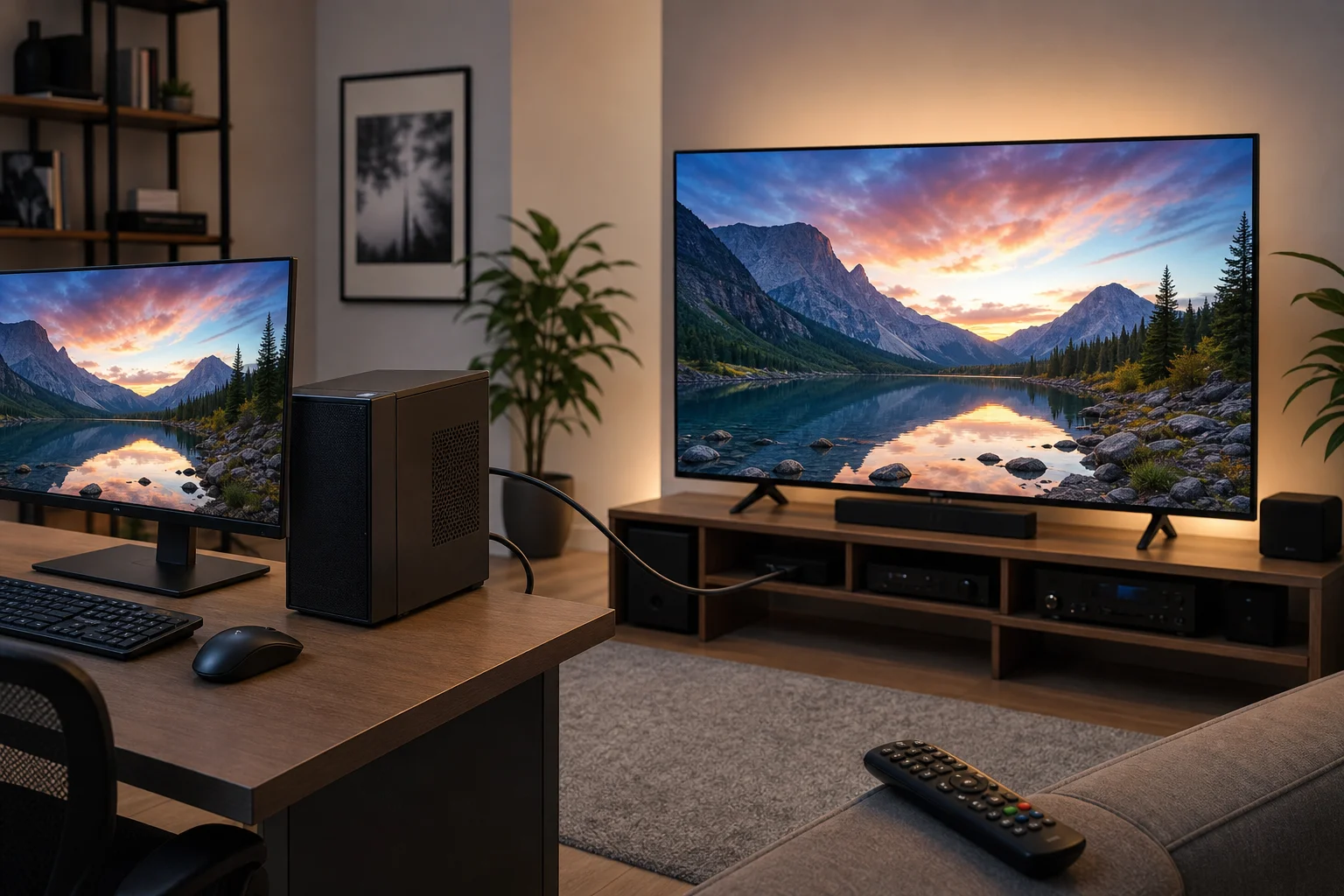
Standard PC graphics cards do not always support HDMI-CEC directly. Because of this, a dedicated USB HDMI-CEC adapter may be needed. Once configured, it can allow a home theater PC to control TV power, input selection, and sometimes volume.
HDMI-CEC is a strong choice if your computer is permanently connected to the TV. For example, it works well for a living room PC running Kodi, Plex, Steam Big Picture, or a media library. However, CEC behavior can differ between TV models and HDMI ports, so expect some testing.
Option 4: Use an infrared blaster for older TVs
If your TV is not smart, a PC cannot normally control it over Wi-Fi. In that case, an infrared blaster is the most direct replacement for a physical remote. The IR blaster sends the same type of signal as a normal remote control.
You will need:
- A USB IR transmitter or compatible hub
- Software that supports your device
- The correct remote code for your TV model
- Clear line of sight between the IR emitter and the TV sensor
This approach can work with older televisions, soundbars, AV receivers, and cable boxes. The downside is that setup is less user-friendly than network control. Also, some low-cost IR devices have limited software support, so check compatibility before buying.
Option 5: Control a media PC instead of the TV
Sometimes the best solution is not to control the TV at all. If your computer is connected to the TV by HDMI, you can control the PC from another laptop, phone, keyboard, or mouse. The TV simply acts as a display.
Useful tools include:
- Wireless keyboard with touchpad
- Bluetooth mouse or trackpad
- Remote desktop software on the same network
- Media center remote apps for Kodi, Plex, or similar software
- Game controllers for media navigation
This is ideal when most of your viewing happens through the computer. You can browse, stream, play files, and launch apps without relying on the TV’s smart interface.
How to choose the right PC TV remote method
Use this quick decision path:
- Do you have a smart TV? If yes, try network control or brand-specific options first.
- Do you mainly want to play online video? If yes, use casting from Chrome, YouTube, or a streaming app.
- Is the PC connected to the TV by HDMI? If yes, consider HDMI-CEC or simply control the PC with a wireless keyboard.
- Is the TV older or not connected to Wi-Fi? If yes, look at a USB IR blaster.
- Do you need power-on control? Check whether the TV supports network standby, Wake on LAN, or HDMI-CEC power commands.
- Do you need full menu navigation? Choose network control, IR, or HDMI-CEC rather than casting alone.
This process helps avoid unnecessary purchases. Start with free software methods, then add hardware only if needed.
Common setup problems and fixes
The PC cannot find the TV
First, confirm that both devices are on the same network. Guest Wi-Fi networks often block device discovery. Also check whether VPN software, firewall rules, or router isolation settings are preventing local connections. Restarting the TV, PC, and router can also help.
The TV asks for pairing but the code does not work
Remove old paired devices in the TV settings, then try again. Make sure the TV screen is active and not in a screensaver mode. If the remote tool uses an IP address, confirm that the address has not changed.
Volume control does not work
Some TVs allow navigation but block volume commands over the network. If your sound goes through a receiver or soundbar, you may need to control that device separately. HDMI-CEC can help when the TV and audio device both support it.
The PC can turn the TV off but not on
This is common. When the TV is off, its network chip may sleep. Enable quick start, network standby, Wake on LAN, or similar settings if available. If the TV does not support wake control, use HDMI-CEC or the original remote for power-on.
Casting works, but full remote buttons are missing
That is normal. Casting tools are designed for playback, not full TV navigation. Use a dedicated network remote tool, HDMI-CEC, or IR blaster if you need arrow keys, home, settings, and input switching.
Security and privacy tips
Network remote control is convenient, but it should stay inside your trusted home network. Do not expose TV control ports to the internet. Keep your router secured with a strong Wi-Fi password. Also, review paired devices on the TV from time to time and remove anything you no longer use.
If you use third-party remote software, download it from a reputable source. Be careful with tools that ask for unnecessary permissions or require account access when local control should be enough.
Frequently asked questions
Can I use my PC as a universal remote for any TV?
Not by default. A PC usually lacks an infrared transmitter. It can control many smart TVs over Wi-Fi or use an IR blaster for older models, but there is no guaranteed universal PC remote for every television.
Is there a free TV remote app for Windows?
There are free tools and web-based options for some smart TVs, but availability depends on the TV brand and model. Built-in casting from browsers and media apps is often free, though it offers limited remote functions.
Can a laptop control a TV without Wi-Fi?
Yes, but only in certain setups. If the laptop is connected by HDMI, you may control content on the laptop. For direct TV commands without Wi-Fi, you usually need HDMI-CEC hardware or an infrared blaster.
Can I turn on my TV from a PC?
Sometimes. It requires support for network standby, Wake on LAN, or HDMI-CEC power control. Many TVs can be turned off from a PC more easily than they can be turned on.
What is the easiest method for beginners?
Start with casting or the TV’s official ecosystem. If you only want to watch online videos, casting is simple. If you need menu control, try network remote control on the same Wi-Fi network.
Conclusion
A TV remote on PC is practical when you match the method to your hardware. Try Wi-Fi control for a smart TV, casting for media playback, HDMI-CEC for a home theater PC, or an IR blaster for older televisions. Start with the simplest free option, test the basic buttons, and add hardware only when you need deeper control. With the right setup, your computer can become a reliable control center for watching, streaming, and managing your TV.