TV remote over WiFi: setup, apps, and troubleshooting
A TV remote over WiFi lets you use a phone, tablet, or smart speaker to control a compatible television through your home network. It is useful when the original remote is lost, the batteries are dead, or you want easier typing for searches and passwords. This guide explains how WiFi TV remote apps work, which devices support them, how to set one up, and what to do when your phone cannot find the TV.
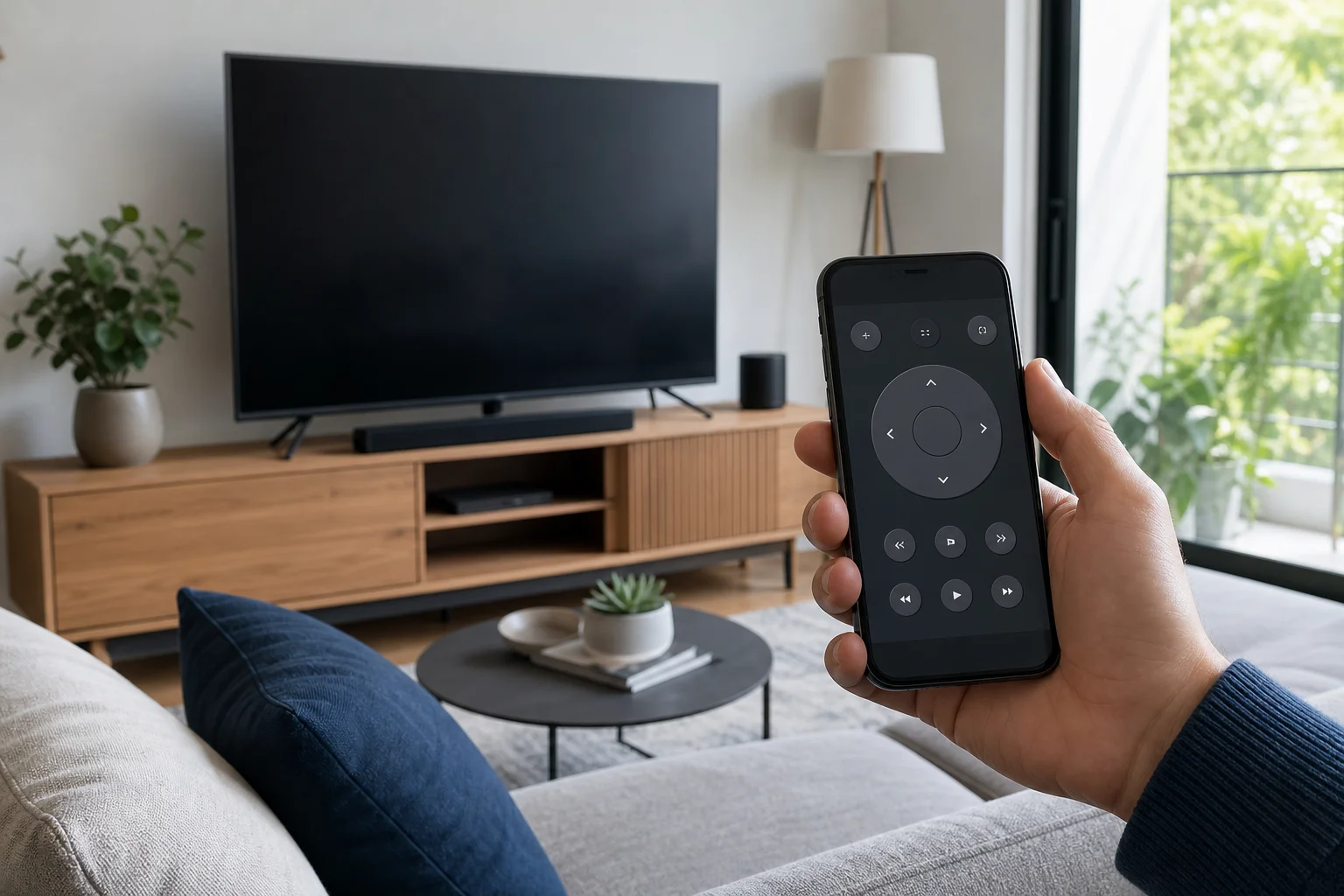
What a TV remote over WiFi means
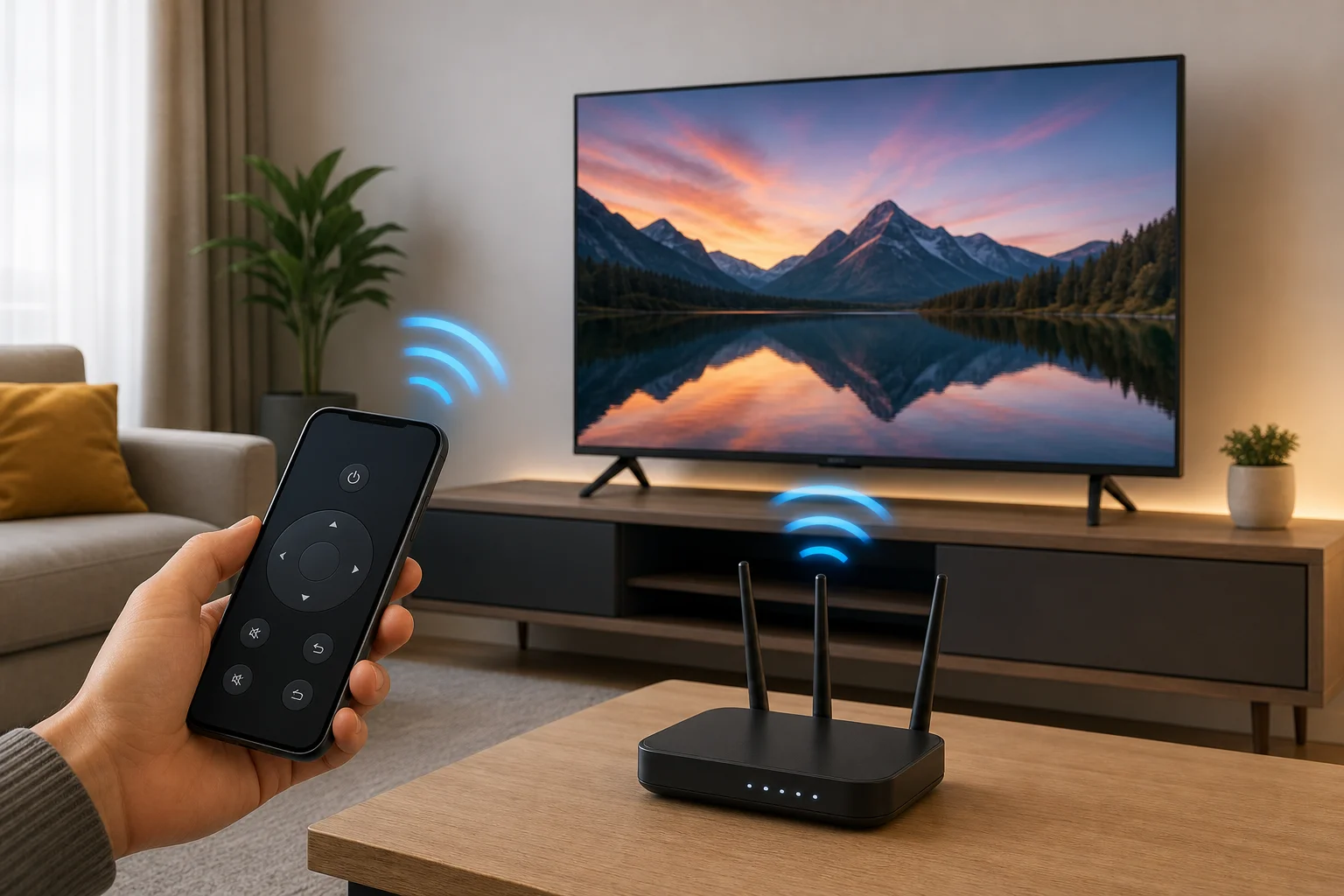
A WiFi TV remote is not the same as a basic infrared remote. An infrared remote sends light pulses directly to the TV, so it needs line of sight. A WiFi remote sends commands through your router or local network. Because of that, your phone can often control the TV from another part of the room, and sometimes from another room.
Most modern smart TVs support some form of network control. The exact method depends on the platform. For example, Google TV and Android TV devices can work with the Google TV app. Roku devices use the Roku mobile app. Samsung, LG, Sony, TCL, Hisense, Apple TV, Fire TV, and other brands may have their own apps or support casting controls.
In most cases, “via WiFi” means the phone and TV must be connected to the same WiFi network. Some services also allow limited control through a cloud account, but local network control is usually faster and more reliable.
When a WiFi remote is the best option
A remote control app is especially helpful in everyday situations. It can replace simple buttons, but it can also do things that are awkward with a standard remote.
Common uses include:
- Turning the TV on or off, if the model supports network wake.
- Changing volume, channels, inputs, and playback.
- Typing search terms, email addresses, and passwords with a phone keyboard.
- Launching streaming apps more quickly.
- Using voice search through the phone.
- Controlling a streaming box, such as Roku, Apple TV, Fire TV, or Chromecast with Google TV.
- Replacing a lost or broken remote until you buy a new one.
However, a WiFi remote is not always a full replacement. Some TVs cannot be powered on from the app after they are fully shut down. Also, first-time setup may still require the original remote or physical buttons to connect the TV to WiFi.
Compatibility checklist before you start
Before installing apps, check the basics. This avoids most setup problems.
| Requirement | Why it matters | What to check |
|---|---|---|
| Smart TV or streaming device | Network commands need compatible software | TV menu, model page, or device platform |
| Same WiFi network | The app must discover the TV locally | Phone and TV should use the same router |
| Local network permission | Phones may block device discovery | Allow local network access in phone settings |
| Updated software | Old firmware can break app pairing | Update TV, phone app, and streaming device |
| Wake-on-network support | Needed to turn on the TV from standby | Look for “mobile TV on,” “quick start,” or similar setting |
If your TV is old and has no smart features, a WiFi remote app will not control it directly. In that case, you can use a streaming device with its own app, or buy a smart infrared blaster that connects to WiFi and sends IR commands to the TV.
How to set up a TV remote app over WiFi
Follow these steps for the most reliable setup. The menu names may differ by brand, but the process is similar.
- Connect the TV to your WiFi network. Open the TV network settings and join your home WiFi. If possible, use the same router and frequency band as your phone.
- Connect your phone to the same network. Avoid mobile data, guest WiFi, or a VPN during setup. These can block local discovery.
- Install the official remote app. Use the app from your TV or streaming device maker when available. Examples include Google TV, Roku, Amazon Fire TV, LG ThinQ, Samsung SmartThings, and Apple TV Remote in Control Center on iPhone.
- Open the app and scan for devices. The TV should appear automatically. If it does not, keep the TV awake and on the home screen.
- Pair the phone with the TV. Many TVs show a code on screen. Enter it in the app to confirm that you are nearby and authorized.
- Allow permissions. On iPhone, allow local network access. On Android, allow nearby device permissions if requested.
- Test core controls. Try volume, navigation, text input, and playback. Then check power control from standby.
- Enable quick start if needed. Some TVs need settings such as quick start, instant on, mobile wake-up, or network standby to turn on via WiFi.
After pairing, the app may remember the TV. Still, if your router changes the TV’s IP address or you reset the TV, you may need to pair again.
Choosing the right app for your TV
The best app is usually the official one. It is more likely to support power, input switching, volume, and text entry. Third-party apps can be useful, but they may show ads, require subscriptions, or support only basic features.
Google TV and Android TV
The Google TV app can control many Android TV and Google TV devices. It offers a touch remote, keyboard input, and voice features. Make sure the TV and phone are on the same network and signed in where required.
Roku TV and Roku streaming players
The Roku mobile app is one of the most complete WiFi remote options. It supports navigation, search, private listening on supported devices, and channel launching. If the app cannot find your Roku, check whether network access is disabled in Roku settings.
Samsung smart TVs
Samsung SmartThings can control many Samsung TVs. It may also connect the TV with other smart home devices. Some older models have limited support, so check the model year if pairing fails.
LG smart TVs
LG ThinQ supports many LG webOS TVs. It can provide remote controls and smart home features. For best results, update webOS and enable mobile TV control or similar settings.
Fire TV and Apple TV
Amazon Fire TV has an official mobile app with navigation, keyboard entry, and voice controls. Apple TV can be controlled from the iPhone or iPad Control Center. Both work best when devices are on the same home network and signed into the correct account.
Troubleshooting when the phone cannot find the TV
Discovery problems are common, but they are usually caused by network settings rather than the app itself. Work through these checks in order.
Make sure both devices are on the same network
Your phone may be on mobile data, while the TV is on WiFi. Or the phone may be connected to a guest network that blocks access to other devices. Turn off mobile data temporarily and connect to the main home WiFi.
Disable VPN or private relay during pairing
A VPN can route traffic away from your local network. Some privacy features can also interfere with discovery. Pause them while pairing the remote app. After setup, you can test whether they can be turned back on without breaking control.
Restart the TV, phone, and router
A simple restart can refresh device discovery. Turn the TV off and unplug it for a minute. Restart your phone. If needed, reboot the router and wait until WiFi is stable again.
Check app permissions
On iOS, go to privacy settings and allow local network access for the remote app. On Android, check nearby devices, location, and WiFi permissions if the app requests them. Without these permissions, the app may not see the TV.
Update firmware and apps
Install updates for the TV, streaming device, phone operating system, and remote app. Updates often fix pairing, discovery, and connection bugs.
Check router isolation settings
Some routers have client isolation, access point isolation, or guest network protection. These settings stop devices from talking to each other. Disable isolation on your main network if you want a phone to control a TV over WiFi.
WiFi remote, infrared remote, or smart IR blaster
Each option has strengths. A WiFi remote is convenient for smart TVs, but it is not the only choice.
- WiFi remote app: Best for smart TVs and streaming devices. It offers typing, app shortcuts, and no line-of-sight requirement.
- Infrared remote: Best for reliability with older TVs. It works without WiFi but needs line of sight.
- Smart IR blaster: Best for non-smart TVs or mixed home theater setups. It connects to WiFi and sends infrared commands to TVs, soundbars, and set-top boxes.
If your goal is to replace one missing TV remote, the official app may be enough. If you want to control an older TV, soundbar, and cable box from your phone, a WiFi IR blaster may be the better choice.
Security and privacy tips
A TV remote over WiFi uses your home network, so basic security matters. Keep your router password strong and avoid open WiFi networks. Use the official app store, and be cautious with remote apps that request unrelated permissions.
Also, remove old paired phones from the TV settings if you sell a device or share your network with guests. If your TV supports PIN pairing, use it. Finally, keep firmware updated, because smart TVs can receive important security patches.
Frequently asked questions
Can I use my phone as a TV remote without infrared?
Yes, if your TV or streaming device supports WiFi control. Your phone does not need an infrared emitter. It sends commands through the same WiFi network instead.
Can a WiFi remote turn on the TV?
Sometimes. The TV must support wake-on-network, quick start, instant on, or a similar feature. If the TV fully powers down and disconnects from WiFi, the app may not turn it on.
Does the TV remote app work without internet?
Often, yes. Many apps can control the TV over the local network without internet access. However, account login, voice search, updates, and streaming services may still need internet.
Why does my remote app work one day and fail the next?
The TV may have changed networks, the router may have assigned a new address, or the phone may be on a VPN or guest WiFi. Restart the devices and confirm they are on the same network.
Is a third-party universal TV remote app safe?
Some are safe, but you should be selective. Prefer official apps. If you use a third-party app, check reviews, permissions, ads, and subscription terms before pairing it with your TV.
Conclusion
A TV remote over WiFi is a practical way to control a smart TV, streaming stick, or media box from your phone. Start with the official app, keep both devices on the same network, allow local permissions, and enable wake features if you need power control. If your TV is not smart, consider a WiFi IR blaster instead. Set it up carefully today, and you can replace missing buttons with a faster, more flexible remote experience.