Android TV remote control guide for Android phones
An Android TV remote can be a physical handset, a mobile app, or a voice-enabled controller built into your Android phone. This guide explains how to use your phone as a TV remote, which apps work best, how to pair them, and what to do when the remote does not connect. You will also learn when a replacement remote is better than an app.
Using a phone as a remote is practical. It is helpful when the original remote is lost, the batteries are dead, or typing a password with arrow keys feels too slow. However, the best option depends on your TV system, network, and the features you need.
What an Android TV remote is
An Android TV remote is any remote control method designed for a TV or streaming device running Android TV or Google TV. It can be:
- A standard infrared or Bluetooth remote supplied with the TV.
- The remote feature inside the Google TV app.
- A manufacturer app from brands such as Sony, Philips, TCL, Xiaomi, Hisense, or Nvidia Shield.
- A third-party remote control app for Android.
- A universal remote that supports Android TV devices.
Android TV and Google TV are closely related. Google TV is a newer interface built on Android TV. In many cases, the same remote apps and pairing steps work for both.
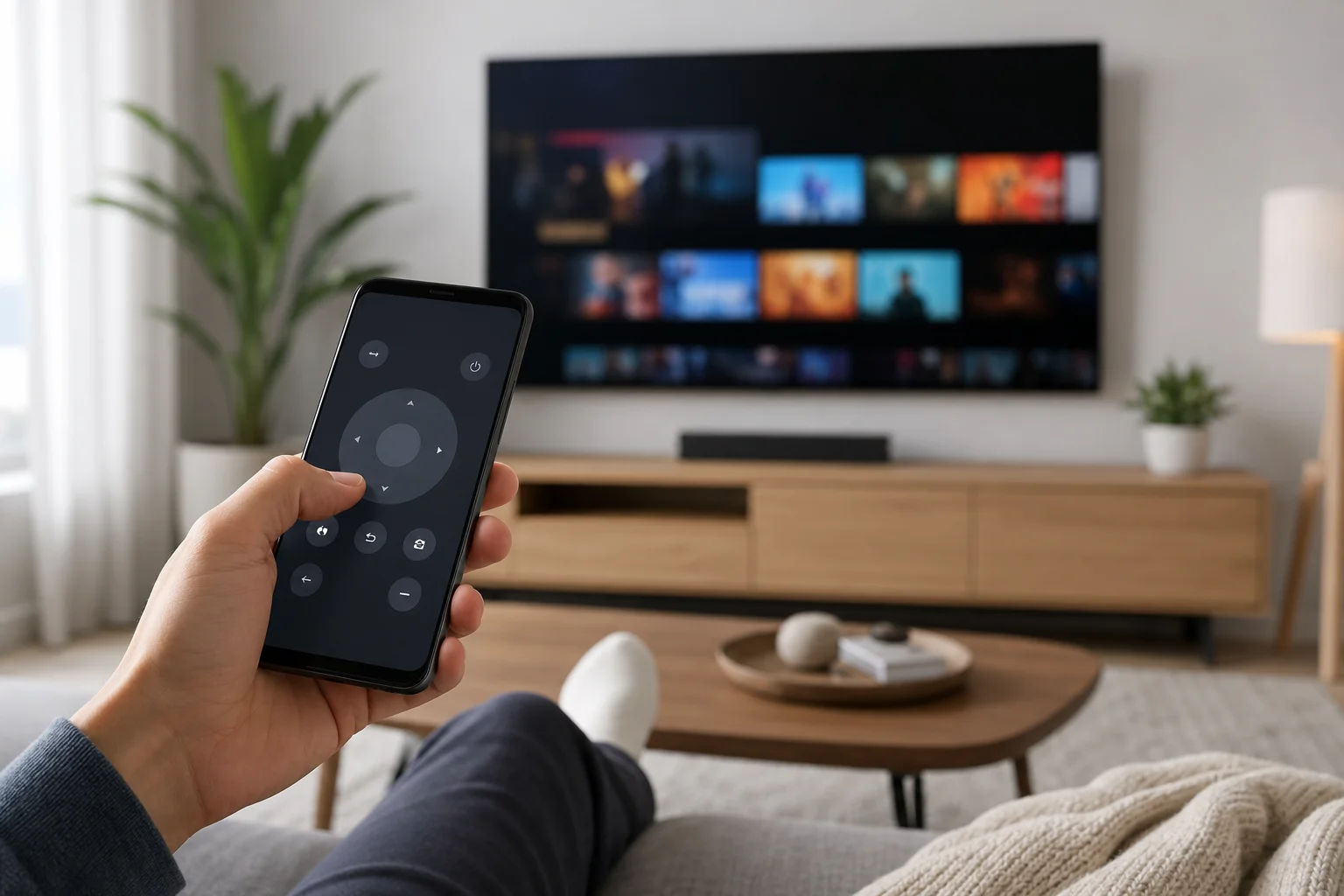
Best ways to use an Android phone as a TV remote
There are several reliable ways to control an Android TV from an Android phone. Start with the official Google TV app because it is widely supported and does not require extra hardware.
Option 1: Use the Google TV app
The Google TV app includes a remote control feature for Android TV and Google TV devices. It usually works over Wi-Fi, so your phone and TV must be connected to the same network.
Key benefits include:
- Simple pairing with a code shown on the TV.
- A touchpad or directional pad for navigation.
- A keyboard for entering search terms, passwords, and app names.
- Voice input through your phone’s microphone, if supported.
- No need for infrared hardware.
This is the best first choice for most users.
Option 2: Use a brand app
Some TV makers offer their own remote apps. These can add brand-specific features, such as input switching, picture settings, or quick access to installed apps.
Examples include apps for Sony Bravia, Philips Android TV, TCL, Xiaomi TV, and other smart TV platforms. Availability and features vary by region and model, so check the app description before installing.
Option 3: Use a third-party remote app
Third-party Android TV remote apps can work well, especially if they support both Wi-Fi and infrared. Still, choose carefully. A good remote app should have clear permissions, recent updates, and a reasonable privacy policy.
Avoid apps that ask for unrelated permissions, show excessive ads, or require paid upgrades before basic functions work.
Option 4: Use a physical replacement remote
A phone app is convenient, but a physical remote may still be better for daily use. It has dedicated buttons, works quickly, and does not depend on your phone battery.
A replacement remote is a good idea if:
- Several people use the TV every day.
- You need fast volume and power controls.
- Your Wi-Fi network is unreliable.
- You want dedicated buttons for streaming apps.
- You prefer tactile controls.
How to set up an Android TV remote app step by step
Follow these steps to pair your Android phone with an Android TV or Google TV device.
- Connect both devices to the same Wi-Fi network. Your phone and TV must usually be on the same home network. If your router has separate 2.4 GHz and 5 GHz networks, use the same one where possible.
- Install or open the Google TV app. On many Android phones, it may already be installed. If not, install it from Google Play.
- Open the remote feature. In the Google TV app, look for the remote icon or remote control option.
- Select your TV. The app should scan your network and show compatible Android TV or Google TV devices.
- Enter the pairing code. A code will appear on the TV screen. Type it into your phone when prompted.
- Choose a control layout. You may be able to switch between a swipe touchpad and a directional pad.
- Test the main controls. Try navigation, back, home, volume, and keyboard input.
- Keep the app updated. Updates often fix pairing issues and improve device support.
If the TV does not appear, restart both devices and check that they are on the same network.
Comparison of Android TV remote options
Use this table to choose the best remote control method for your setup.
| Remote option | Best for | Main advantage | Possible drawback |
|---|---|---|---|
| Google TV app | Most Android TV and Google TV users | Easy pairing and keyboard input | Requires same Wi-Fi network |
| TV brand app | Owners of supported smart TVs | May include extra TV settings | Support varies by model |
| Third-party app | Users who need special features | Can support many devices | Quality and privacy vary |
| Physical replacement remote | Everyday family use | Fast, tactile, reliable | Must match the TV model |
| Universal remote | Multiple devices in one room | Controls TV, box, and sound system | Setup can take longer |
In most cases, start with the Google TV app. Then consider a brand app or replacement remote if you need more reliable buttons or deeper TV controls.
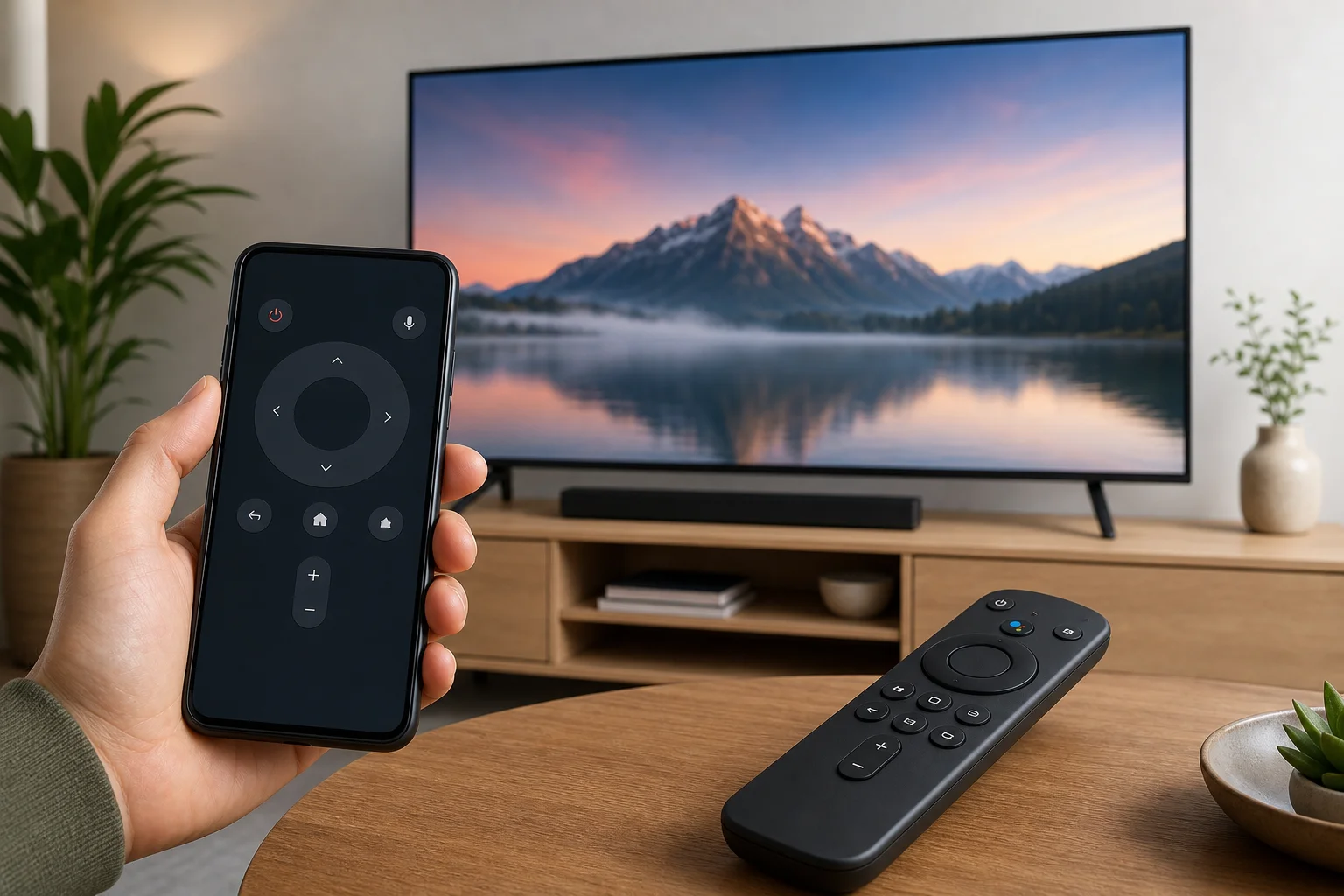
Useful features to look for
A good Android TV remote should do more than move up, down, left, and right. Look for these features if you plan to use it often.
Keyboard input
Keyboard input is one of the biggest advantages of using an Android phone as a remote. It makes it much easier to enter Wi-Fi passwords, search terms, account logins, and app names.
Voice control
Voice control can help you search for shows, open apps, and control playback. It is especially useful if your physical remote does not have a microphone button.
Volume and power controls
Some app remotes control volume and power. Others only work after the TV is already on. This depends on the TV model, HDMI-CEC settings, and whether the app uses Wi-Fi, Bluetooth, or infrared.
Touchpad or directional pad
A touchpad can feel fast when browsing menus. A directional pad can be more precise. The best remote apps let you switch between both.
App shortcuts
Quick access to streaming apps can save time. However, do not choose an app only because it has many shortcut buttons. Stability matters more.
Troubleshooting when the Android TV remote app does not work
Remote app problems are usually caused by network, pairing, or software issues. Try these fixes in order.
Check the Wi-Fi connection
Make sure your phone and TV are on the same Wi-Fi network. Guest networks, VPNs, and router isolation settings can prevent devices from seeing each other.
If you use a VPN on your phone, disconnect it while pairing. After pairing, you can test whether the remote still works with the VPN enabled.
Restart the phone and TV
A simple restart often fixes discovery problems. Turn the TV off, unplug it for about 30 seconds, then plug it back in. Restart your phone as well.
Update the app and TV software
Open Google Play and update the Google TV app or your chosen remote app. Then check the TV settings for system updates. Old software can break pairing or cause delayed controls.
Clear the app cache
On your Android phone, go to the app settings and clear the cache for the remote app. Do not clear storage unless you are ready to pair the device again.
Remove and pair again
If the remote worked before but stopped, remove the paired device from the app and pair it again. Also check the TV’s remote and accessories settings for old pairings.
Check Bluetooth and location settings
Some apps use Bluetooth or local device discovery. On certain Android versions, location permission may be needed for nearby device scanning. Grant only the permissions required for pairing and control.
Security and privacy tips
Remote control apps can see device information and may interact with your local network. Therefore, choose apps carefully.
Follow these basic rules:
- Prefer official apps from Google or your TV manufacturer.
- Download apps only from trusted stores.
- Review permissions before pairing.
- Avoid apps that request contacts, SMS, or unrelated access.
- Keep your TV and phone updated.
- Remove old paired devices you no longer use.
Also, secure your home Wi-Fi with a strong password. If someone can access your network, they may be able to discover and control connected devices.
When a phone remote is better than a physical remote
A phone remote is ideal when you need speed and convenience. It is especially useful for typing, searching, and controlling a TV from another part of the room. It also reduces clutter because your phone is usually nearby.
It is also helpful for shared spaces. For example, if the physical remote is missing, another person can still open the app and control the TV.
However, a phone remote is not perfect. It depends on battery power, Wi-Fi, and app support. For quick volume changes or turning the TV on, a physical remote may feel simpler.
Frequently asked questions
Can I use my Android phone as a TV remote?
Yes. If your TV runs Android TV or Google TV, you can often use the Google TV app as a remote. Your phone and TV usually need to be on the same Wi-Fi network.
Does an Android TV remote app work without Wi-Fi?
Most Android TV remote apps need Wi-Fi. Some phones with an infrared blaster can control certain TVs without Wi-Fi, but many modern Android phones do not include infrared hardware.
Why is my Android TV not showing in the remote app?
The most common reason is that the phone and TV are not on the same network. Also check guest network settings, VPN connections, outdated apps, and whether the TV is fully powered on.
Can I turn on my TV with an Android remote app?
Sometimes. It depends on the TV model and network standby settings. If the TV disconnects from the network when off, the app may not wake it. A physical remote is more reliable for power control.
Is the Google TV app the same as the old Android TV remote app?
The Google TV app replaced or absorbed remote features that were previously handled by older Android TV remote apps in many regions. For most users, the Google TV app is now the best official option.
Final advice
For most people, the best Android TV remote is the Google TV app on an Android phone. It is easy to set up, supports keyboard input, and works well for everyday navigation. If you need stronger reliability, add a compatible physical remote or a brand-specific app. Start by pairing your phone today, test the key controls, and keep a backup remote option ready for the moments when Wi-Fi or batteries fail.