Best paid TV remote apps for smart TVs and streaming devices
The best paid TV remote apps can replace a lost handset, add a better keyboard, control several TVs, and make streaming boxes easier to use. This guide compares premium remote control apps for smart TVs, Roku, Fire TV, Google TV, Apple TV-style setups, and media center PCs. You will also learn when a paid app is worth it, when the free official app is enough, and how to choose a safe option.
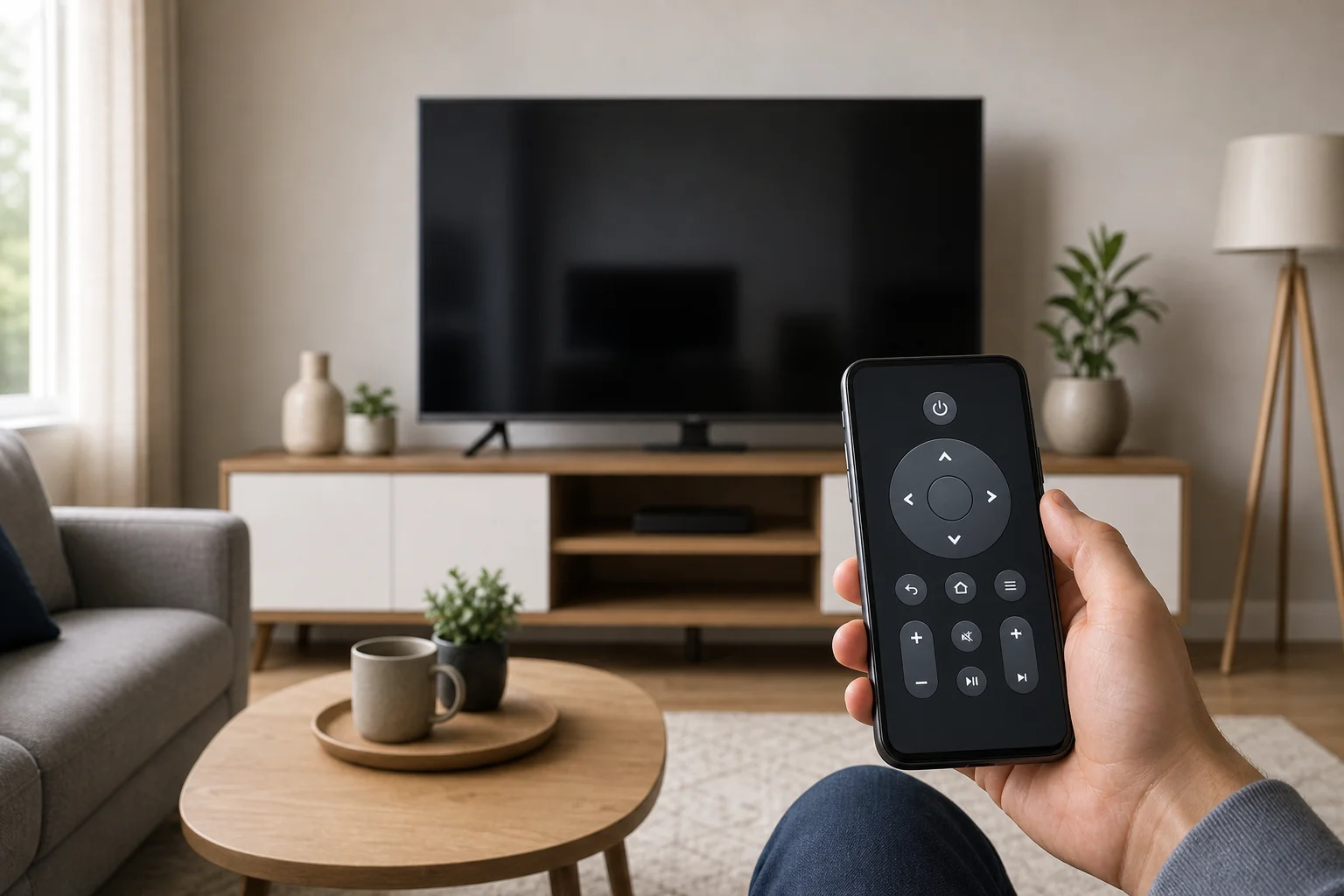
Before paying, remember one rule: compatibility matters more than features. A remote app must support your TV brand, your streaming device, and your phone’s operating system. Prices and app names can change, so always check the current App Store or Google Play listing before subscribing.
What makes a paid TV remote app worth buying
A paid remote app should do more than copy the basic buttons on your physical remote. In most homes, the best premium features are practical ones:
- Ad-free control: No full-screen ads while changing volume or opening an app.
- Fast keyboard input: Useful for passwords, YouTube searches, and app logins.
- Touchpad or gesture control: Helpful on Android TV, Google TV, and web browsers.
- Multiple device support: One phone can control TVs in different rooms.
- Widgets and shortcuts: Quick access to volume, power, inputs, and favorite apps.
- Screen mirroring or casting tools: Useful when supported, but not always essential.
- IR blaster support: Important for older non-smart TVs, but only available on some Android phones.
However, a paid app is not always better. Official apps from Roku, Google TV, Samsung SmartThings, LG ThinQ, and Amazon Fire TV are usually free. They are often the safest starting point. Choose a paid third-party app when you need a cleaner interface, universal control across brands, or advanced shortcuts.
Quick comparison of the best paid remote apps
The table below focuses on widely used premium remote app categories and well-known examples. Availability may vary by country, device, and app store.
| App or app type | Best for | Platforms | Paid model | Key strengths | Watch out for |
|---|---|---|---|---|---|
| Universal Remote TV Smart | iPhone users with several smart TVs | iOS | Subscription or in-app purchase | Polished design, broad smart TV support, keyboard tools | Check exact brand support before paying |
| TV Remote: Universal Control apps | Multi-brand smart TV homes | iOS and Android | Subscription or pro upgrade | Simple setup, touchpad, channel and volume control | Several apps have similar names |
| Rokie: Remote for Roku | Roku TVs and Roku streaming players | iOS and Android | Premium upgrade | Strong Roku-focused controls, keyboard, channels | Official Roku app is free |
| Remote for Fire TV and Fire Stick apps | Fire TV users wanting extras | iOS and Android | Subscription or lifetime option, depending on app | Keyboard, touchpad, mirroring in some apps | Use the official Amazon app first if privacy is a concern |
| SURE Universal Remote | Android users and mixed devices | Android, limited availability elsewhere | Premium or ad-free options | Wi-Fi and IR control on supported phones | IR requires compatible hardware |
| Unified Remote Full | TVs connected to a PC or media server | iOS and Android | One-time paid app | Excellent PC media control, mouse, keyboard, custom remotes | Not a direct smart TV remote |
Best paid TV remote apps by use case
Universal Remote TV Smart
Universal Remote TV Smart is a strong choice for iPhone and iPad users who want a polished universal remote app. It is designed for smart TVs connected to the same Wi-Fi network as your phone. Depending on your TV model, it can provide power controls, volume, navigation, app shortcuts, and a keyboard.
It works best in homes with newer smart TVs from major brands. It is also useful when the original remote is slow or missing. The main drawback is common to many premium iOS remote apps: some features may sit behind a subscription. For that reason, test pairing and basic controls before you commit.
TV Remote: Universal Control apps
Several app stores include premium apps with names close to “TV Remote” or “Universal Control.” These apps target people who want one remote for Samsung, LG, Sony, TCL, Hisense, Roku TV, Android TV, or Google TV devices. The best versions offer a clean button layout, touchpad navigation, keyboard input, and saved devices.
This category is a good fit if you have a mixed household. For example, you may have an LG TV in the living room, a Roku TV in a bedroom, and a Google TV streamer in another room. A paid universal app can reduce app switching. Still, read recent reviews carefully. Many low-quality clones use similar names and aggressive subscription prompts.
Rokie: Remote for Roku
Rokie is one of the better-known third-party remote apps for Roku players and Roku TVs. It is useful if you like Roku but want a more flexible phone remote than the basic experience. Premium features can include an ad-free interface, keyboard entry, quick channel access, and easier navigation.
If you only need standard Roku control, try the official Roku app first. It is free and reliable for most users. Rokie becomes more appealing if you dislike ads, want a different layout, or manage multiple Roku devices often.
Remote for Fire TV and Fire Stick apps
Fire TV and Fire TV Stick users have many third-party paid remote apps to choose from. The better ones add a touchpad, typing support, app shortcuts, and sometimes screen mirroring. These features are helpful if you search often, use sideloaded apps, or lose the small Fire TV remote regularly.
However, Fire TV control can involve account permissions, local network access, and device discovery. Start with Amazon’s official Fire TV app. If it does not meet your needs, choose a paid app with recent updates, clear privacy information, and a trial period.
SURE Universal Remote
SURE Universal Remote is worth considering for Android users, especially if the phone has an IR blaster. That feature lets the phone send infrared commands like a traditional remote. It can help with older TVs, set-top boxes, projectors, and air conditioners, not just smart TVs.
For Wi-Fi devices, SURE can also work as a network remote when supported. Its value depends heavily on your hardware. If your phone lacks an IR blaster and your TV is already supported by a free official app, you may not need it.
Unified Remote Full
Unified Remote Full is different from typical TV remote apps. It controls a Windows, macOS, or Linux computer from your phone. That makes it excellent for home theater PCs, Plex servers, browser-based streaming, presentations, and living-room gaming setups.
It is not the right choice if you want direct control of a Samsung, LG, or Roku TV. But if your TV is mainly a display connected to a PC, Unified Remote Full can be more useful than a standard smart TV remote. It offers mouse control, keyboard input, media buttons, and custom remote layouts.
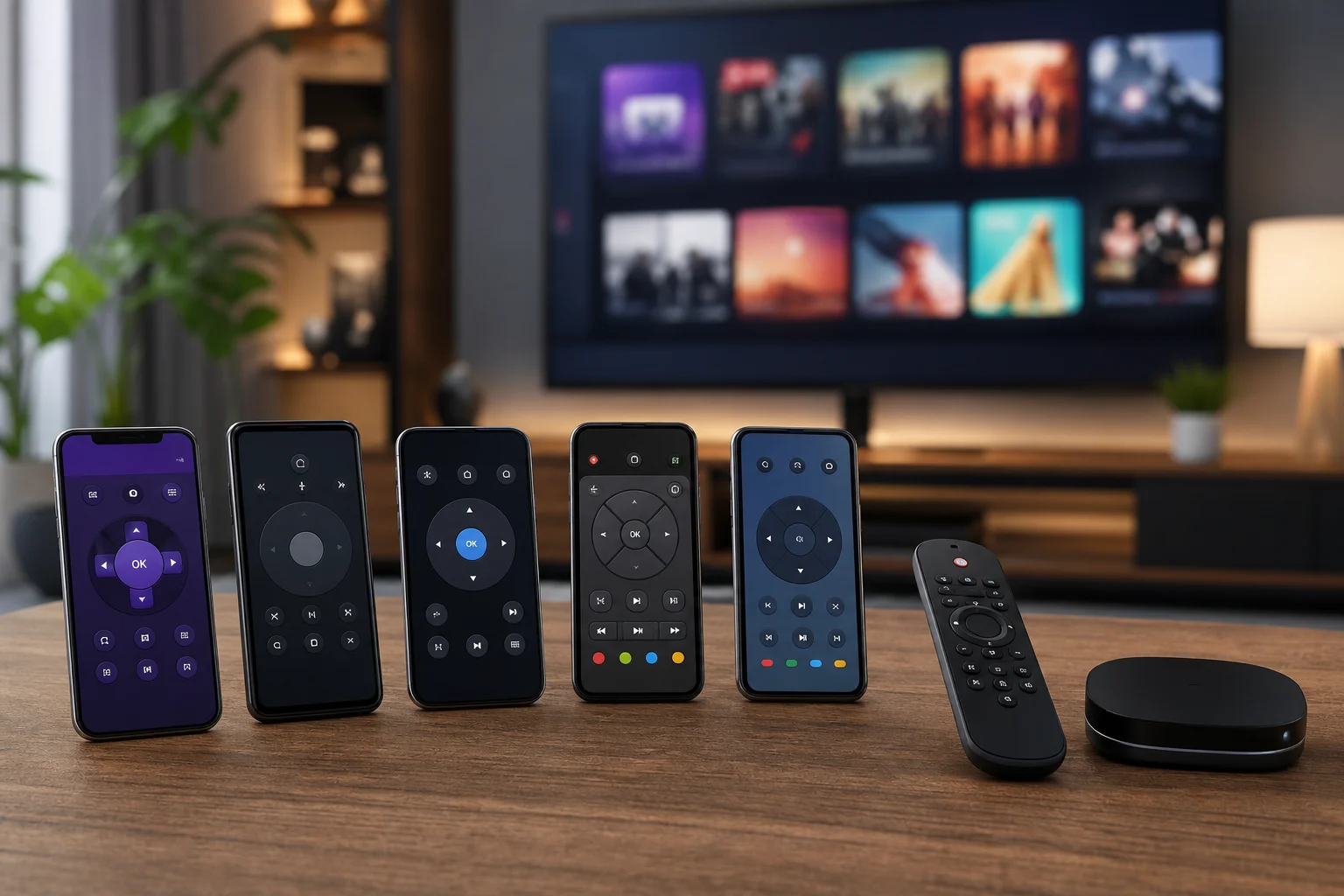
How to choose the right paid TV remote app
Follow these steps before spending money:
- Identify your device type. Note whether you use a smart TV, Roku, Fire TV, Google TV, Apple TV, cable box, or PC.
- Try the official app first. Download the free app from the TV or streaming device maker.
- Check connection requirements. Most smart TV remote apps need your phone and TV on the same Wi-Fi network.
- Confirm brand and model support. Do not rely only on screenshots. Read the app description and recent reviews.
- Test pairing before upgrading. A good app should let you confirm basic control before payment.
- Compare subscription and lifetime options. A one-time purchase may be better if you plan to use the app for years.
- Review privacy permissions. Be cautious with apps that request unrelated permissions.
- Keep the physical remote available. Some TVs still need the original remote for first-time setup, pairing, or factory resets.
This process takes a few minutes and can save you from paying for an app that looks good but does not control your exact TV.
Paid versus free TV remote apps
Paid TV remote apps are best for convenience. They can remove ads, combine several remotes, and add faster input. Free official apps are best for trust and basic reliability.
Choose a paid app if you want one app for multiple TVs, hate ads, use keyboard search daily, or need a better touchpad. Choose a free official app if you only control one device, rarely type, or prefer the lowest privacy risk.
Also consider your household. If guests, children, or older relatives use the TV, a simple paid app with large buttons may be worth the cost. If only you use it, the official remote app may be enough.
Privacy and safety tips for remote control apps
Remote apps often need local network access to find your TV. Some may also request Bluetooth, notifications, microphone access, photos, or screen recording. Not every request is suspicious, but each one should make sense.
Use these safety tips:
- Install apps only from the App Store or Google Play.
- Avoid apps with unclear developer information.
- Read the privacy policy before subscribing.
- Deny permissions that are not needed for remote control.
- Use a guest Wi-Fi network for unknown devices when possible.
- Cancel free trials immediately if the app does not work.
A remote app should make your TV easier to use, not create a privacy problem.
FAQ about paid TV remote apps
Are paid TV remote apps better than official apps?
Not always. Official apps are usually free, safe, and reliable. Paid apps are better when they offer ad-free use, universal device control, shortcuts, or a better keyboard.
Can a phone remote app turn on a TV?
Sometimes. Many smart TVs support power-on over Wi-Fi only after the setting is enabled. Older TVs may need infrared, HDMI-CEC, or the original remote.
Do TV remote apps work without Wi-Fi?
Most smart TV remote apps need Wi-Fi. An Android phone with an IR blaster can control some TVs without Wi-Fi, but iPhones do not include IR blasters.
What is the best paid remote app for Roku?
Rokie is a popular paid third-party option for Roku devices. Still, try the free official Roku app first because it covers most everyday needs.
What is the best paid remote app for a TV connected to a computer?
Unified Remote Full is a strong choice for home theater PCs. It controls the computer, not the TV itself, which is ideal for browser streaming, Plex, and media playback.
Conclusion
Start with the official free remote app for your TV or streaming device, then upgrade only if you need more convenience. For iPhone users, Universal Remote TV Smart is a good premium shortlist option. For Roku, consider Rokie. For Fire TV, test the official Amazon app before trying paid alternatives. For PC-based media centers, choose Unified Remote Full. Check compatibility, test pairing, review permissions, and pick the paid TV remote app that solves your exact problem today.