How to use your phone as a remote for TV
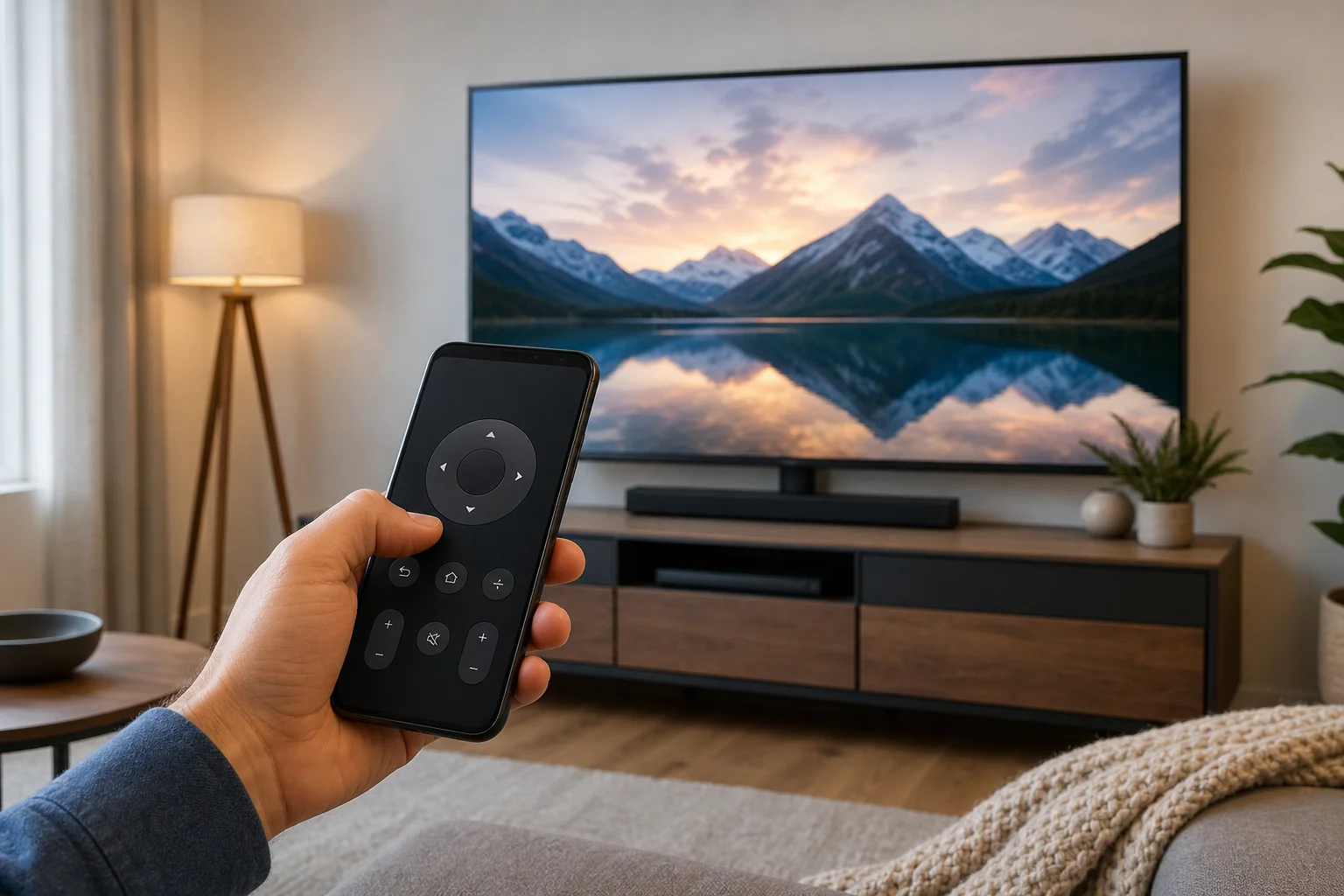
Using your phone as a remote for TV is one of the easiest ways to replace a lost remote, type searches faster, and control streaming apps without extra hardware. In most cases, you only need the right app, the same Wi-Fi network, and a quick pairing code from the TV screen. This guide explains the best options for Android phones, iPhones, smart TVs, streaming sticks, and older TVs with infrared support.
Before you connect your phone
Before installing apps or changing settings, check what type of TV or streaming device you have. The setup method depends on the platform, not only on the phone.
You will usually need:
- A smart TV, streaming stick, or set-top box connected to your home network.
- An Android phone or iPhone.
- The TV and phone on the same Wi-Fi network.
- Bluetooth enabled in some cases, especially for Android TV and Google TV pairing.
- The official app for your TV brand or streaming platform.
If your TV is not smart, you may still be able to use a phone remote app if your Android phone has an IR blaster. However, most modern iPhones and many newer Android phones do not include infrared hardware.
How to set up a phone as a TV remote
Follow these steps first. They work for many smart TVs and streaming devices, including Google TV, Android TV, Roku, Fire TV, Samsung TVs, LG TVs, and Apple TV.
- Connect the TV to Wi-Fi. Open the network settings on the TV and make sure it is connected to your home Wi-Fi.
- Connect your phone to the same network. Use the same router and, if possible, the same Wi-Fi band.
- Install the correct remote app. Choose the official app for your TV platform or brand.
- Open the app and search for devices. The app should detect your TV or streaming device automatically.
- Select your TV. Tap the TV name when it appears in the app.
- Enter the pairing code. Many TVs show a code on screen. Type it into the app.
- Test the controls. Try power, volume, home, back, navigation, and keyboard input.
- Keep the app updated. Updates often fix connection and pairing problems.
If the TV does not appear, restart the TV, phone, and router. Then check that both devices are on the same network and not using a guest Wi-Fi connection.
Best app for your TV type
The most reliable choice is usually the official app from the TV maker or platform owner. Third-party remote apps can work, but they may show ads, request broad permissions, or fail after TV software updates.
| TV or device | Recommended app | Works on | Notes |
|---|---|---|---|
| Google TV or Android TV | Google TV app | Android, iPhone | Includes remote, keyboard, and voice features where supported |
| Apple TV | Apple TV Remote in Control Center | iPhone, iPad | Built into iOS and iPadOS |
| Roku TV or Roku player | Roku app | Android, iPhone | Includes private listening on supported devices |
| Amazon Fire TV | Amazon Fire TV app | Android, iPhone | Useful if the Fire TV remote is lost |
| Samsung smart TV | SmartThings | Android, iPhone | Also controls other Samsung smart devices |
| LG smart TV | LG ThinQ | Android, iPhone | Supports many webOS TVs |
| Sony, TCL, Hisense, Philips Android TV models | Google TV app | Android, iPhone | Works if the TV runs Android TV or Google TV |
| Older non-smart TV | IR remote app | Android only, if phone has IR | Requires infrared hardware |
Set up an Android phone as a remote
Android phones work well with Google TV, Android TV, Roku, Fire TV, Samsung, and LG apps. The exact menus differ, but the process is similar.
For Google TV and Android TV
- Install or open the Google TV app.
- Tap the remote icon.
- Choose your TV from the list.
- Enter the pairing code shown on the TV.
- Use the touchpad or directional controls to navigate.
If you do not see the remote icon, update the Google TV app and Google Play services. Also check that your TV has network access.
For Samsung and LG TVs
For Samsung TVs, install SmartThings. Sign in, tap Add device, and select your TV. Once paired, you can control volume, launch apps, and use basic navigation.
For LG TVs, install LG ThinQ. Add your TV, confirm the pairing prompt on screen, and use the remote panel inside the app. Some features depend on the TV model and webOS version.
Set up an iPhone as a remote
An iPhone can control many TVs, but the best method depends on the device.
For Apple TV
Apple TV remote control is built into iPhone. You do not need a separate app.
- Open Control Center.
- Tap Apple TV Remote.
- Select your Apple TV or AirPlay-compatible smart TV.
- Enter the code shown on the TV if prompted.
- Use the iPhone screen as a touch remote.
If the Apple TV Remote button is missing, add it in Settings > Control Center.
For Google TV, Roku, Fire TV, Samsung, and LG
Install the same official apps used on Android: Google TV, Roku, Amazon Fire TV, SmartThings, or LG ThinQ. Make sure local network permission is allowed when iOS asks for it. Without that permission, the app may not find your TV.
Use infrared if your TV is not smart
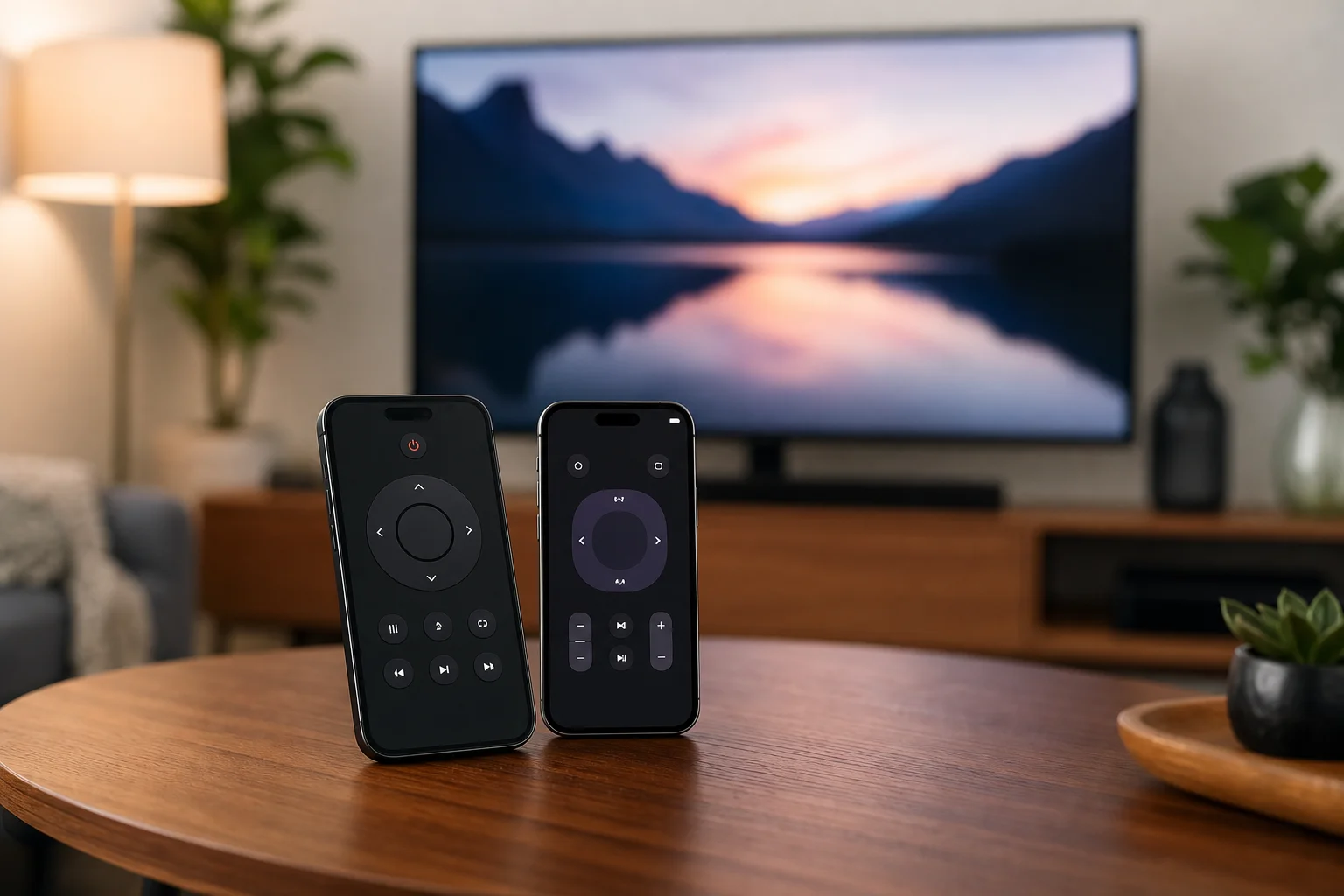
Some Android phones include an IR blaster. This lets the phone send the same infrared signals as a traditional remote. If your phone has IR hardware, you can use an IR remote app to control older TVs, air conditioners, projectors, and other devices.
However, infrared has limits:
- The phone must be pointed at the TV.
- Control works only within line of sight.
- iPhones do not have built-in IR blasters.
- Many modern Android phones also lack IR hardware.
- App quality varies by phone brand and region.
If your TV is old and your phone has no IR blaster, consider adding a streaming device such as Roku, Fire TV, Chromecast with Google TV, or Apple TV. After setup, your phone can control the streaming device over Wi-Fi.
Troubleshooting when the phone remote will not connect
Connection problems are common, but they are usually easy to fix. Try these checks in order.
Make sure both devices use the same network
Your phone and TV should be on the same home Wi-Fi. Avoid guest networks, public Wi-Fi, and mobile hotspot setups unless the device specifically supports them. Some routers isolate devices on guest networks, which blocks discovery.
Restart everything
Restart the TV, phone, and router. This clears temporary network issues and often makes the TV appear in the remote app again.
Allow local network access
On iPhone, go to Settings, find the remote app, and enable Local Network. On Android, check that the app has the required nearby devices or network permissions.
Update the TV and app
Install updates for the TV firmware and the remote app. If one device is outdated, pairing can fail or controls may stop working.
Disable VPN or private DNS temporarily
A VPN, private DNS service, or strict firewall can block local device discovery. Turn it off briefly and try pairing again. After pairing, you can re-enable it and test whether the remote still works.
Check the TV power mode
Some TVs cannot be turned on by phone if they are fully powered off. Enable settings such as quick start, mobile TV on, wake on LAN, or network standby if your TV supports them. Names vary by brand.
Security and privacy tips
Remote apps can access devices on your home network, so choose carefully. Use official apps whenever possible. Avoid apps that request unrelated permissions, such as access to contacts or messages.
Also, secure your Wi-Fi with a strong password. Anyone connected to the same network may be able to request access to your TV. If your TV shows an unknown pairing request, deny it.
For shared homes, review paired devices in the TV settings from time to time. Remove old phones you no longer use.
Frequently asked questions
Can I use my phone as a remote for any TV?
Not every TV supports phone control. Smart TVs and streaming devices usually work over Wi-Fi. Older TVs need an infrared signal, which requires an Android phone with an IR blaster or an external accessory.
Why cannot my phone find my TV?
The most common reason is that the phone and TV are not on the same Wi-Fi network. Other causes include guest network isolation, missing local network permission, outdated apps, or a VPN blocking discovery.
Can I turn on the TV with my phone?
Sometimes. Many smart TVs support wake over network if quick start or network standby is enabled. If the TV is fully powered off, phone control may not work until you turn it on manually.
Do I need Wi-Fi to use a phone remote?
For most smart TV remote apps, yes. Wi-Fi lets the phone and TV communicate. Infrared remote apps do not need Wi-Fi, but they only work on phones with IR hardware.
Is a third-party TV remote app safe?
Some are safe, but official apps are usually better. Check permissions, reviews, developer name, and privacy details before installing. Avoid apps that request access unrelated to remote control.
Conclusion
To use your phone as a remote for TV, start with the official app for your TV platform, connect both devices to the same Wi-Fi network, and complete the on-screen pairing step. If the app does not connect, check permissions, restart your devices, and update the software. Once paired, your phone becomes a convenient backup remote with faster typing, app shortcuts, and simple control whenever the original remote is missing.