How to choose a remote control app for your TV and smart devices
Choosing the right remote control app can turn your phone into a practical replacement for a lost TV remote, a faster way to type on a streaming box, or a simple controller for several devices at once. The best choice depends on your device brand, phone features, home network, privacy expectations, and the functions you use most. This guide explains what to check before installing an app, how to compare options, and which features matter for TVs, streaming sticks, set-top boxes, and smart home media devices.
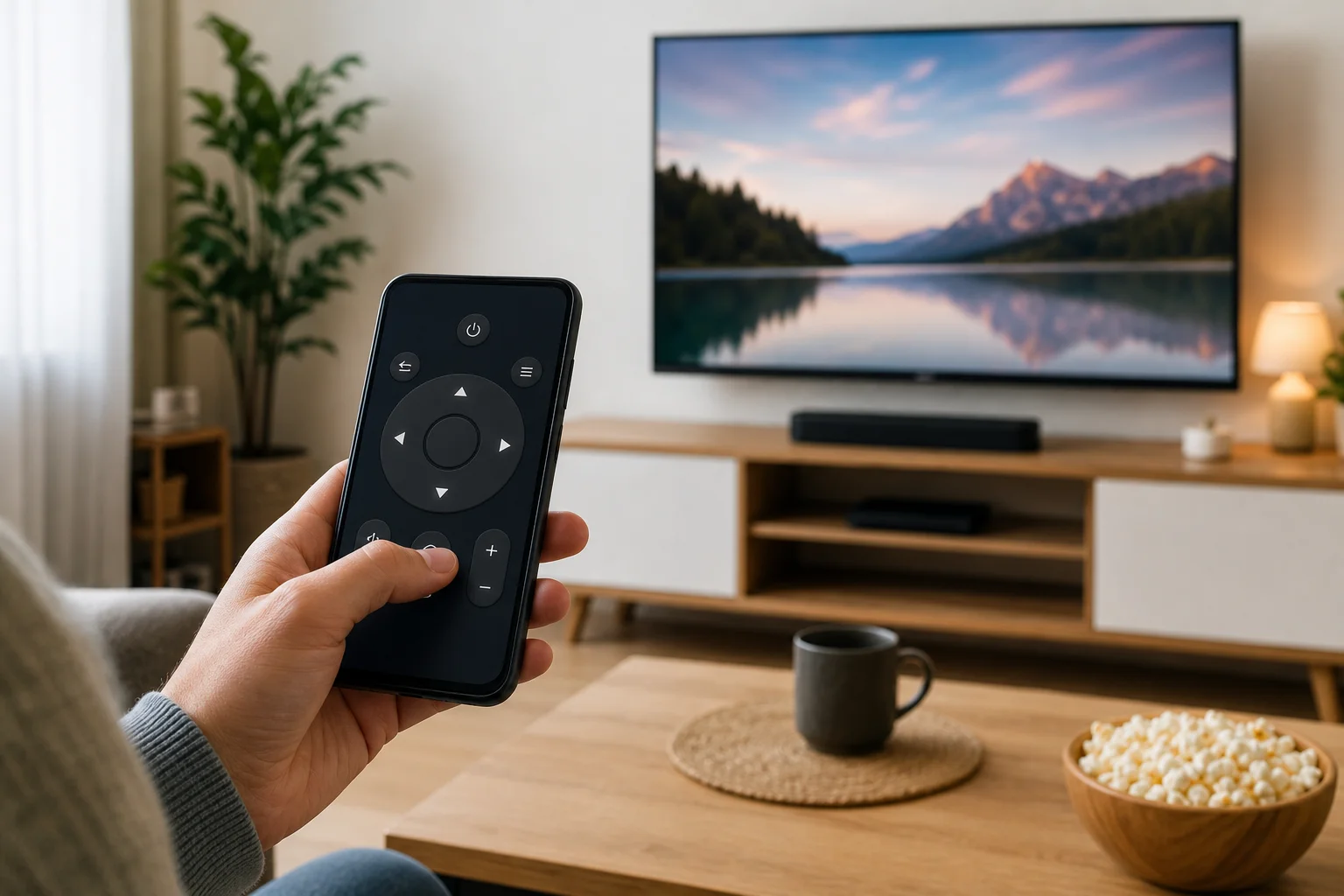
What a remote control app can do
A remote control app lets a smartphone or tablet send commands to another device. In most homes, that device is a smart TV, streaming stick, Android TV box, Apple TV, soundbar, or air conditioner. Some apps work only with one brand. Others aim to control many devices.
Common features include:
- Power, volume, mute, and input controls
- Directional pad and media playback buttons
- Keyboard input for search fields and passwords
- Voice search, when supported by the device
- Touchpad or mouse-style navigation
- App shortcuts for services such as Netflix or YouTube
- Screen mirroring or casting tools
- Smart home routines and device grouping
However, not every app can do every task. For example, many Wi-Fi remote apps cannot turn on a TV if the TV is fully powered off and not listening on the network. Similarly, a phone without an infrared transmitter cannot control older non-smart devices unless you use a separate hub.
Start with compatibility
Compatibility is the most important factor when you choose a remote control app. A polished app is useless if it cannot connect to your device reliably.
Check the device brand and platform
First, identify what you want to control. A Samsung smart TV, LG TV, Roku device, Fire TV Stick, Apple TV, and Google TV device may all need different apps or connection methods.
For many users, the safest starting point is the official app from the device maker:
- Samsung TVs: SmartThings
- LG TVs: LG ThinQ
- Roku players and TVs: The Roku App
- Fire TV devices: Amazon Fire TV app
- Apple TV: Apple TV Remote in Control Center on iPhone or iPad
- Google TV and Android TV: Google TV app or Google Home, depending on the device
Official apps are usually better for pairing, updates, account integration, and long-term support. Third-party universal remote apps can still be useful, but you should treat compatibility claims with caution.
Know the difference between Wi-Fi and infrared
Remote control apps usually work in one of two ways: Wi-Fi or infrared.
| Connection type | Best for | Requirements | Main limitation |
|---|---|---|---|
| Wi-Fi remote app | Smart TVs and streaming devices | Phone and device on the same network | May not work if the device is offline or fully powered off |
| Infrared remote app | Older TVs, projectors, AC units, some set-top boxes | Phone with an IR blaster or an external IR hub | Requires line of sight and device code support |
| Bluetooth remote app | Some streaming devices and media boxes | Pairing support from the device | Often limited to official apps or system features |
Most modern iPhones do not include an IR blaster. Some Android phones have one, but it is less common than it used to be. If you need to control an older TV that is not connected to Wi-Fi, check your phone hardware before downloading multiple apps.
Compare the essential features
After confirming compatibility, compare the features you will actually use. A good TV remote app should reduce friction, not add more steps.
Basic controls
At minimum, the app should provide stable buttons for power, volume, mute, input selection, home, back, menu, and playback. These controls should respond quickly. Delays of one or two seconds can make simple browsing frustrating.
If volume control does not work, it may be because your TV, soundbar, or streaming device handles audio separately. In that case, look for an app that supports HDMI-CEC, soundbar control, or your TV brand directly.
Keyboard and search
One major advantage of a remote app is easier typing. Entering an email address or search query with a physical remote can be slow. A phone keyboard makes it much faster.
Before relying on this feature, test it in several places. Some apps support keyboard input in system search but not inside every streaming service. This limitation is often caused by the TV platform or the streaming app, not the remote app itself.
Voice control
Voice control can help you search for films, open apps, or control playback. It works best when the remote app is part of the same ecosystem as the device. For example, Google TV features tend to work best with Google services, while Fire TV voice features are closely tied to Alexa.
If privacy is a concern, review microphone permissions. A remote app should ask for microphone access only when you use voice features.
Multiple device support
If you want one app for several TVs or devices, look for clear device switching. Good apps let you name each device by room, such as living room TV or bedroom Roku. This prevents accidental commands going to the wrong screen.
Universal remote apps may support several brands, but setup can be uneven. Test each device before paying for a subscription or removing your original remote from the room.
Follow this step-by-step selection process
Use this quick process to choose the best remote control app without wasting time on poor matches.
- Identify the device model. Check the TV or streaming device settings, label, or purchase receipt.
- Decide whether you need Wi-Fi, IR, or Bluetooth. Smart devices usually use Wi-Fi. Older devices may need IR.
- Try the official app first. It is usually the most reliable and safest option.
- Check recent reviews. Focus on reviews from users with the same device model and operating system.
- Review permissions. Be cautious if a simple remote app asks for contacts, location, or unrelated data.
- Test core buttons. Try power, volume, navigation, back, home, and keyboard input.
- Test reconnection. Close the app, reopen it, and see if it reconnects without a full setup.
- Check ads and payment terms. Avoid apps with intrusive ads on basic controls or unclear subscriptions.
- Keep a backup method. Save the physical remote, pairing code, or device manual in case Wi-Fi fails.
This process works whether you need a TV remote app, a streaming device controller, or a universal remote app for mixed equipment.
Privacy and security checks
Remote apps often connect to your home network. Some also require an account, collect usage data, or request permissions. Therefore, privacy should be part of your decision.
Look for these signs of a trustworthy app:
- The developer is the device manufacturer or a well-known company
- The app has a clear privacy policy
- Permissions match the features offered
- Pairing requires confirmation on the TV or device
- The app receives recent updates
- Subscription pricing is visible before purchase
Be careful with apps that use misleading names, copy brand terms, or show full-screen ads before you can press basic buttons. Also avoid installing remote apps from unknown websites. Use the Apple App Store, Google Play, or the device maker’s official download page.
Free vs paid remote control apps
Many official remote control apps are free. They may be all you need. Paid apps can make sense if they add real value, such as advanced universal remote support, widgets, macros, or integration with an IR hub.
Before paying, ask:
- Does the free version control my device reliably?
- Are ads blocking basic use?
- Is the subscription monthly, yearly, or one-time?
- Can I test premium features before payment?
- Does the app support all devices in my home?
- Are recent reviews positive after the latest update?
In many cases, reliability is more important than extra features. A simple official app that connects every time is better than a feature-rich app that fails during setup.
Common mistakes to avoid
A few mistakes cause most problems with remote control apps.
Installing the first app in search results
Search results may include ads or lookalike apps. Always check the developer name, ratings, update history, and screenshots. If you own a Roku, Fire TV, LG, Samsung, Apple TV, or Google TV device, search for the official app first.
Ignoring the network setup
Wi-Fi remote apps usually need the phone and device on the same local network. If your phone is on mobile data, a guest network, or a different router band with isolation enabled, the app may not find the TV. Turn off VPN temporarily during setup if local device discovery is blocked.
Expecting one app to control everything perfectly
Universal control is convenient, but home entertainment setups vary. A TV, soundbar, game console, and streaming stick may each handle commands differently. Sometimes the best setup is one official app for the main streaming device and the physical remote for rare settings.
FAQ about remote control apps
What is the best remote control app for a smart TV?
The best remote control app is usually the official app from your TV or streaming device manufacturer. It is more likely to pair correctly, support key features, and receive updates for your model.
Can I use my phone as a remote without Wi-Fi?
Yes, but only in certain cases. Your phone needs an IR blaster, or you need an external infrared hub. Without Wi-Fi or IR, most phones cannot control a TV directly.
Why does my remote app not find my TV?
The most common reason is network separation. Make sure the phone and TV are on the same Wi-Fi network. Also check that the TV is powered on, remote access is enabled, and the app has local network permission.
Are universal remote apps safe?
Some are safe, but you should check the developer, permissions, privacy policy, and reviews. Avoid apps that ask for unrelated permissions or push unclear subscriptions before basic testing.
Can a remote control app turn on my TV?
Sometimes. It depends on the TV model and power state. Wake-on-LAN, standby network access, HDMI-CEC, or infrared can allow power-on control. If the TV is fully off and not listening, a Wi-Fi app may not turn it on.
Final checklist before you install
Before you settle on an app, confirm these points:
- It supports your exact device or platform
- It uses the connection method your hardware supports
- It comes from a trusted developer
- It offers the basic buttons you need
- It reconnects quickly after closing
- It does not require unnecessary permissions
- Its ads or fees are acceptable
- It has recent, relevant reviews
Choosing a remote control app is easiest when you start with compatibility, then test reliability, privacy, and everyday features. Install the official app first, verify that it handles your core controls, and only try a third-party option if you need broader device support or advanced functions. Take five minutes to test before paying, and you will end up with a remote app that is convenient, secure, and ready when the physical remote disappears again.