Apps for controlling TV from your phone: best options and setup tips
Apps for controlling TV from your phone can replace a lost remote, make typing searches easier, and give you faster access to streaming controls. The best choice depends on your TV brand, streaming device, and home Wi-Fi setup. In this guide, you will learn which TV remote app to use for Samsung, LG, Roku, Fire TV, Apple TV, Google TV, and other devices, plus how to set it up safely and fix common connection problems.
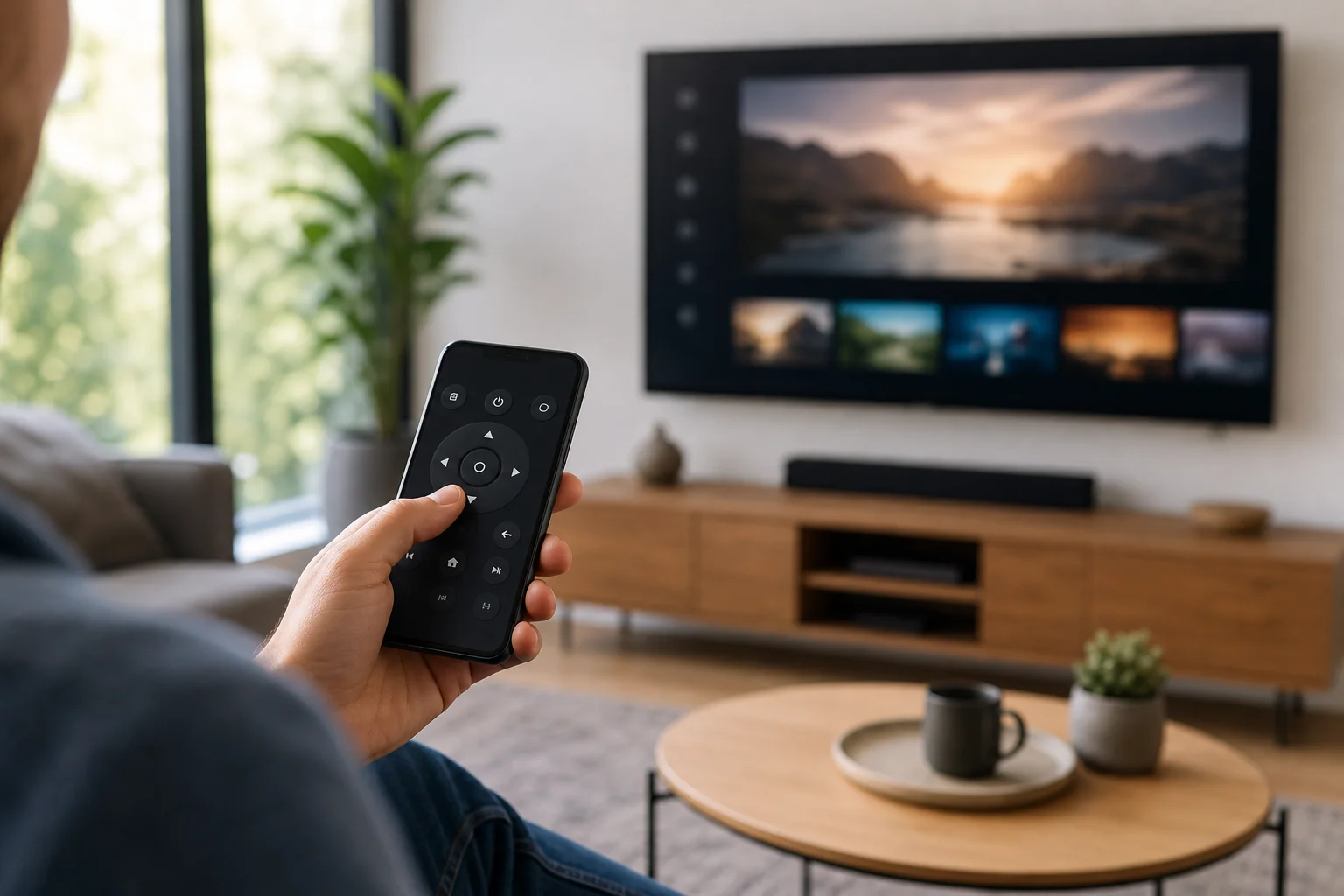
How phone TV remote apps work
A phone can control a TV in several ways. Most modern remote apps use your home Wi-Fi network. Your phone and TV connect to the same router, then the app discovers the TV and sends commands over the local network.
Some phones and apps can also use Bluetooth. This is common with streaming boxes, Android TV devices, and some smart TVs. A smaller number of Android phones include an infrared blaster, also called an IR blaster. If your phone has one, it can send the same type of signal as a classic remote. However, IR blasters are less common on newer phones.
For most people, the easiest route is the official app made by the TV or streaming device brand. Official apps usually support power, volume, navigation, playback, voice search, and keyboard input. They also tend to be safer than unknown third-party remote apps.
Best apps for controlling TV from your phone
Google TV
The Google TV app is one of the best options for TVs and streaming devices that run Google TV or Android TV. It can work as a remote, including a touchpad, D-pad, keyboard, and voice input in supported regions and languages.
Use it for Chromecast with Google TV, many Sony Bravia TVs, TCL Google TV models, Hisense Google TV models, and other Android TV devices. You need both devices on the same Wi-Fi network, and you may need to enter a pairing code shown on the TV.
Apple TV Remote
If you use an iPhone or iPad with an Apple TV, the Apple TV Remote is built into Control Center. You do not need to download a separate app for most recent iOS and iPadOS versions.
It supports navigation, playback, Siri, keyboard input, and app switching. It is the best choice for Apple TV HD and Apple TV 4K. Make sure the Apple TV and iPhone are signed in properly and connected to the same network.
Roku mobile app
The Roku mobile app is a strong choice for Roku TVs and Roku streaming players. It includes a remote, voice search where supported, private listening with headphones connected to your phone, and quick access to channels.
It is especially useful when you want to type a password or search term. However, private listening can drain your phone battery faster, and both devices must be on the same network for normal remote control.
Amazon Fire TV app
The Amazon Fire TV app works with Fire TV Stick, Fire TV Cube, and TVs with Fire TV built in. It includes navigation controls, a keyboard, Alexa voice search, and playback buttons.
It is a practical backup if your Fire TV remote is lost or unresponsive. During setup, your phone should be near the Fire TV device and connected to the same Wi-Fi network. If the Fire TV has never been connected to your current Wi-Fi, you may need the physical remote first.
Samsung SmartThings
Samsung SmartThings is the main app for many Samsung smart TVs. It can act as a remote and also connect your TV with other smart home devices. Depending on the model, you may control power, volume, sources, apps, and connected devices.
SmartThings is best if you own a Samsung TV or already use Samsung smart home products. You may need a Samsung account, and some features vary by model and region.
LG ThinQ
LG ThinQ is the official app for many LG smart TVs. It lets you control basic remote functions, launch apps, change inputs, and use phone keyboard input on supported models.
It is the best first choice for LG webOS TVs. As with other brand apps, make sure your TV firmware and the LG ThinQ app are up to date before troubleshooting.
Third-party universal remote apps
Universal TV remote apps can be useful when your TV brand app is poor or unavailable. Some support many brands through Wi-Fi, while others require a phone with an IR blaster.
Be careful, though. Avoid apps with excessive ads, unclear privacy policies, or requests for permissions that are not needed for remote control. A TV remote app should not need access to your contacts or call history.
Quick comparison of TV remote control apps
| App | Works best with | Key strengths | Watch-outs |
|---|---|---|---|
| Google TV | Google TV and Android TV devices | Easy pairing, keyboard, voice features | Requires same Wi-Fi network |
| Apple TV Remote | Apple TV HD and Apple TV 4K | Built into iPhone and iPad, smooth controls | Only for Apple TV devices |
| Roku mobile app | Roku TVs and players | Private listening, channel shortcuts, voice search | Private listening uses more battery |
| Amazon Fire TV app | Fire TV Stick, Cube, and Fire TV sets | Alexa support, keyboard, simple navigation | Initial Wi-Fi setup may need physical remote |
| Samsung SmartThings | Samsung smart TVs | TV control plus smart home features | Requires Samsung account for many features |
| LG ThinQ | LG webOS TVs | Official LG support, input and app control | Features vary by TV model |
This table is a good starting point. In general, choose the app from the same company as your TV or streaming device. If you use a streaming stick on an older TV, control the streaming stick app, not the TV brand app.
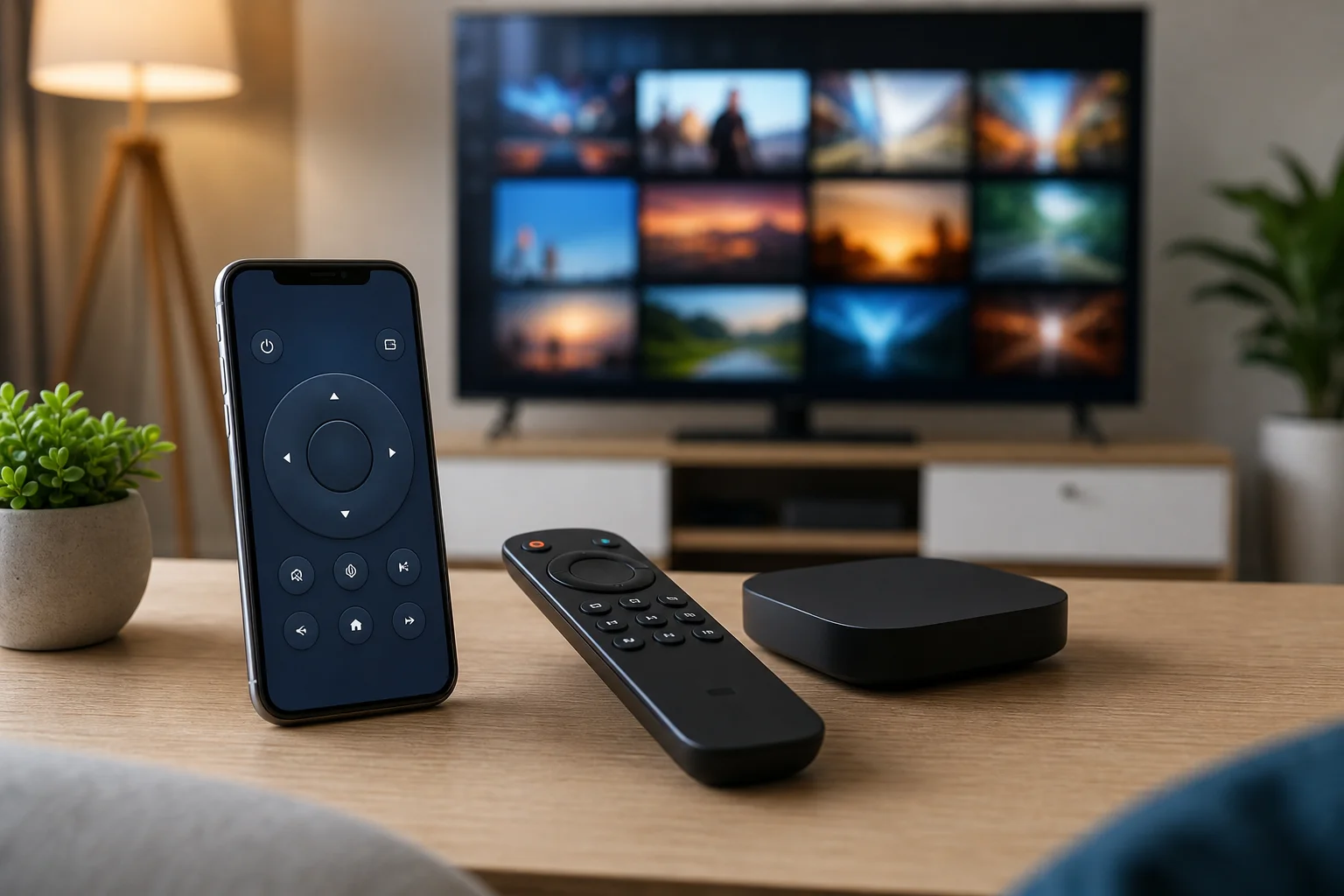
How to set up a TV remote app step by step
Follow these steps before trying advanced fixes:
- Identify your device. Check whether you want to control the TV itself or a streaming device such as Roku, Fire TV, Apple TV, or Chromecast.
- Install the official app. Download it from the Apple App Store or Google Play. Avoid lookalike apps with suspicious names.
- Connect to the same Wi-Fi. Your phone and TV should use the same home network. If your router has separate 2.4 GHz and 5 GHz names, connect both devices to the same one if pairing fails.
- Turn on the TV or streaming device. Some TVs cannot be discovered while fully powered off, especially if quick start is disabled.
- Open the app and scan for devices. Select your TV or streaming player from the list.
- Enter the pairing code. Many devices show a code on the TV screen. Type it into the app.
- Test key controls. Try volume, home, back, playback, and keyboard input.
- Enable useful settings. If available, turn on quick start, mobile device control, or network standby so the app can wake the TV later.
If setup fails, restart the TV, restart your phone, and reboot the router. Then try pairing again.
What to look for in a good TV remote app
A good remote control app should be simple, stable, and privacy-friendly. Before you rely on one, check for these features:
- Official device support. Brand apps usually work better than generic apps.
- Keyboard input. This makes passwords and searches much faster.
- Voice search. Helpful for streaming devices, but not essential.
- Volume and power control. Some apps control playback but not TV volume.
- Input switching. Useful if you move between HDMI devices.
- Low ad load. Too many ads can make a remote app frustrating.
- Clear permissions. The app should request only what it needs.
- Regular updates. Updated apps are more likely to support new phone and TV software.
Also consider who will use the app. A simple button layout may be better for guests or older family members. A touchpad layout may be faster for people who are used to phone gestures.
Privacy and security tips for TV remote apps
Remote apps can see device names, network details, and sometimes viewing-related activity. Therefore, it is worth being selective.
Start with official apps where possible. Download only from trusted app stores. Read permission requests before accepting them. If an app asks for unrelated access, choose another option.
Keep your TV software updated too. Smart TVs often receive firmware updates that fix connection bugs and security issues. If you use a shared Wi-Fi network in a dorm, hotel, or apartment building, avoid pairing your TV with unknown phones. At home, use a strong Wi-Fi password and do not leave your router open.
Troubleshooting when your phone will not control the TV
Connection problems are common, but most are easy to fix.
First, confirm that the TV and phone are on the same Wi-Fi network. Guest networks often block device discovery, so avoid using them for TV remote control. Next, restart the app and check whether the TV appears after a minute.
If the device still does not appear, restart the TV. Unplug it for about 30 seconds if a normal restart is not available. Then restart your router. This clears many local network issues.
Also check the TV settings. Look for options such as “mobile device control,” “remote start,” “network standby,” “quick start,” or “allow control by mobile apps.” The exact name depends on the brand.
Finally, update both the TV firmware and the phone app. If a third-party VPN is active on your phone, pause it briefly during pairing. Some VPN settings can block local network discovery.
FAQ about controlling a TV with a phone
Can I use my phone as a TV remote without Wi-Fi?
Yes, but only in some cases. If your phone has an IR blaster, you can use an infrared remote app without Wi-Fi. Some devices also support Bluetooth control. Most smart TV remote apps, however, need Wi-Fi.
What is the best free app to control a smart TV?
The best free app is usually the official one for your device: Google TV, Apple TV Remote, Roku, Amazon Fire TV, Samsung SmartThings, or LG ThinQ. These apps are free and designed for their own hardware.
Can I turn on my TV with my phone?
Sometimes. The TV must support wake over network, quick start, or a similar feature. If the TV is fully powered down and network standby is off, the app may not be able to turn it on.
Why does my TV remote app disconnect often?
Common causes include weak Wi-Fi, router guest mode, outdated TV firmware, battery-saving settings on the phone, or a VPN blocking local network traffic. Keeping devices updated and close to the router usually helps.
Are universal TV remote apps safe?
Some are safe, but quality varies. Choose apps with clear privacy policies, reasonable permissions, and good recent reviews. Avoid apps that request unrelated access or show aggressive ads.
Conclusion
The easiest way to control your TV from a phone is to use the official app for your TV or streaming device. Start with Google TV, Apple TV Remote, Roku, Fire TV, Samsung SmartThings, or LG ThinQ, depending on your hardware. Then pair both devices on the same Wi-Fi network and enable mobile control settings. If your remote is lost, broken, or just inconvenient, install the right app today and turn your phone into a reliable TV remote.