TV remote on iPhone: how to control your television from iOS
A TV remote on iPhone can replace a lost remote, simplify streaming, and make text entry on a smart TV much easier. Whether you use Apple TV, a Roku, a Fire TV device, Google TV, Samsung, LG, Sony, or another smart TV platform, your iPhone can often control power, volume, playback, navigation, and search. This guide explains the best built-in options, reliable third-party apps, setup steps, troubleshooting tips, and privacy considerations so you can choose the right iPhone TV remote method.
Why use an iPhone as a TV remote?
Using your iPhone as a remote is not just a backup plan. In many cases, it is faster and more convenient than the plastic remote that came with your TV.
Key benefits include:
- Easy typing: Use the iPhone keyboard for passwords, searches, and app logins.
- Fewer devices: Control streaming boxes, smart TVs, and speakers from one phone.
- Findable remote: Your iPhone is easier to locate than a small remote under the sofa.
- Accessibility: Voice control, larger touch targets, and iOS accessibility tools can make navigation easier.
- Quick setup: Many devices connect over Wi-Fi with no extra hardware.
However, there is one important limitation. Most modern iPhones do not have an infrared blaster. That means your iPhone usually controls your TV over Wi-Fi, Bluetooth, AirPlay, or an app from the TV maker. For older TVs with no network features, you may need a streaming device or a separate IR accessory.
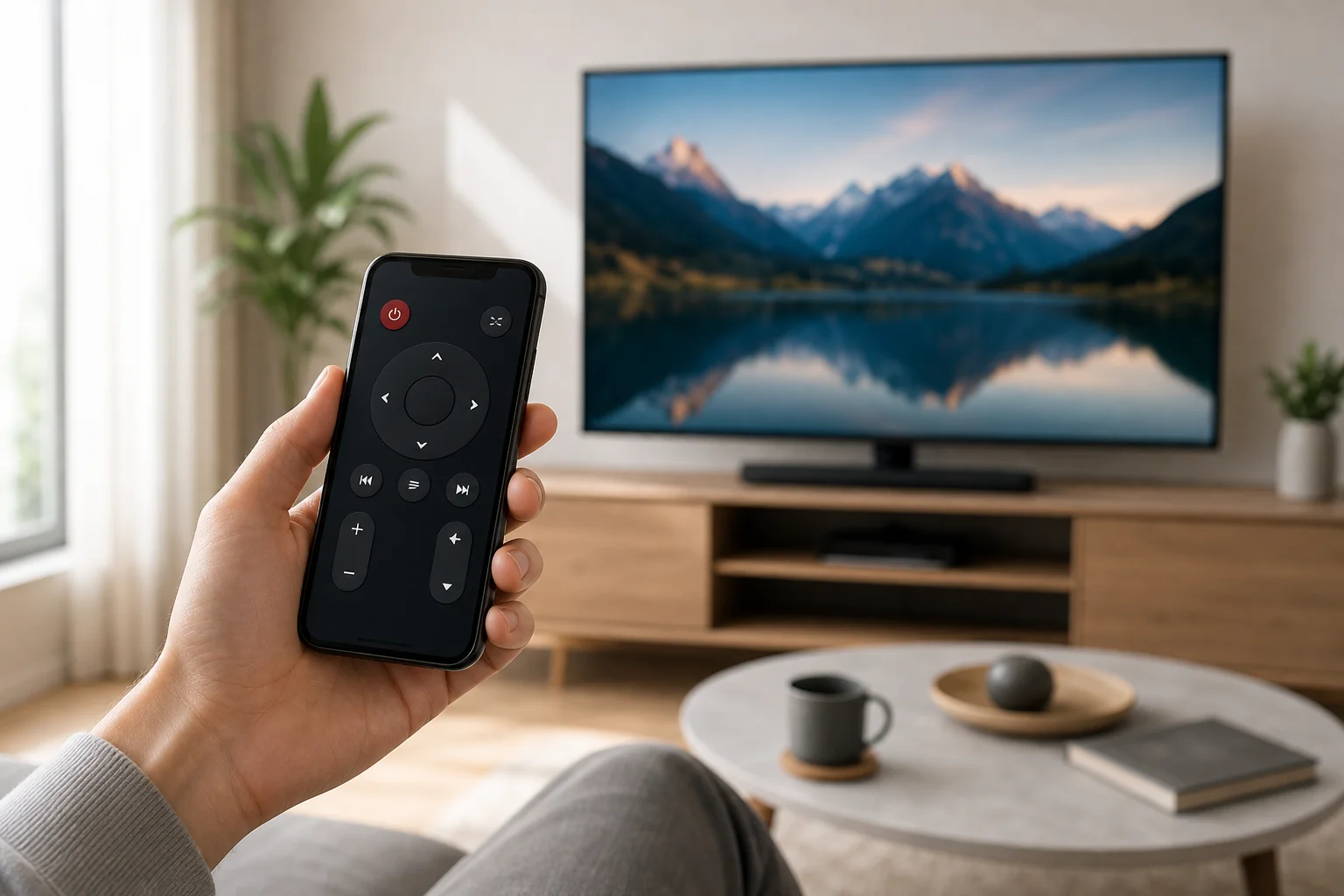
Best ways to set up a TV remote on iPhone
The right method depends on the device connected to your television. Start with the built-in option if you use Apple TV or an AirPlay-compatible smart TV. Then consider brand apps or universal remote apps.
Use Apple TV Remote in Control Center
If you have an Apple TV box or a smart TV that supports Apple TV Remote features, this is the simplest option.
Follow these steps:
- Connect your iPhone and Apple TV to the same Wi-Fi network.
- Open Control Center on your iPhone.
- Tap the Apple TV Remote icon.
- Choose your Apple TV or compatible smart TV from the list.
- Enter the pairing code shown on the TV, if prompted.
- Use the touch area, play controls, keyboard, and Siri button when available.
If you do not see the Apple TV Remote icon, go to Settings > Control Center and add it. On recent iOS versions, it is often included by default.
This option works especially well for Apple TV 4K and Apple TV HD. It supports navigation, playback, search, and text input. Volume control may also work if your TV, receiver, or soundbar supports HDMI-CEC or compatible audio control.
Use the official app for your smart TV
Many TV brands provide their own remote apps. These apps are often the best choice when you want direct control of the TV itself, not just a streaming box.
Common examples include:
- Samsung SmartThings for many Samsung TVs.
- LG ThinQ for many LG webOS TVs.
- Sony remote features through Google TV or related Sony apps, depending on model and region.
- Roku app for Roku TVs and Roku streaming players.
- Amazon Fire TV app for Fire TV devices and Fire TV Edition televisions.
- Google TV app for Google TV and some Android TV devices.
To use one, install the app from the App Store, sign in if required, and make sure your iPhone and TV are on the same Wi-Fi network. Then follow the pairing instructions. You may need to approve the connection on the TV screen with the original remote the first time.
Use AirPlay when you do not need full remote control
AirPlay is not a full remote replacement, but it is useful for sending videos, photos, music, and screen mirroring from iPhone to a compatible TV.
Use AirPlay when you want to:
- Stream video from apps that support AirPlay.
- Share photos or presentations on a large screen.
- Mirror your iPhone screen.
- Send audio to an AirPlay speaker or TV.
To start, tap the AirPlay icon in a supported app or open Control Center and choose Screen Mirroring. Select your TV, then enter the code if needed. For full menu navigation, you may still need a remote app.
Comparison of iPhone TV remote options
Use this quick table to choose the best remote control app for iPhone based on your TV setup.
| Option | Best for | Main advantages | Possible limits |
|---|---|---|---|
| Apple TV Remote in Control Center | Apple TV users | Built into iOS, fast, no extra app | Mostly for Apple TV and compatible devices |
| Roku app | Roku TVs and players | Strong remote controls, private listening on some devices | Requires Roku device on same network |
| Fire TV app | Fire TV Stick, Cube, and Fire TV televisions | Voice search and keyboard entry | Needs Amazon Fire TV hardware |
| Google TV app | Google TV and Android TV devices | Simple navigation and text input | Features vary by device and region |
| Samsung SmartThings | Samsung smart TVs | Smart home integration and TV controls | Requires supported Samsung model |
| LG ThinQ | LG smart TVs | Good for LG webOS features | Requires supported LG model |
| Universal remote app | Mixed devices | Can combine several controls | Quality and privacy vary by app |
In general, official apps are safer and more reliable than unknown universal remote apps. They are more likely to support your model and receive updates.
How to connect your iPhone to a smart TV remote app
Most remote apps use a similar setup process. If you want a featured-snippet answer, here is the short version.
- Update your iPhone and TV. Install the latest iOS and TV firmware updates.
- Connect both devices to the same Wi-Fi. Avoid guest networks because they often block device discovery.
- Install the correct remote app. Use Apple TV Remote, the TV brand app, or the streaming device app.
- Open the app and scan for devices. Your TV should appear automatically.
- Approve pairing on the TV. Enter the code shown on the screen if required.
- Test basic controls. Try navigation, volume, power, search, and playback.
- Enable HDMI-CEC if needed. This can help with volume and power control through connected devices.
If the app cannot find your TV, restart the TV, router, and iPhone. Then confirm that VPN, private relay, or network isolation settings are not blocking local device discovery.
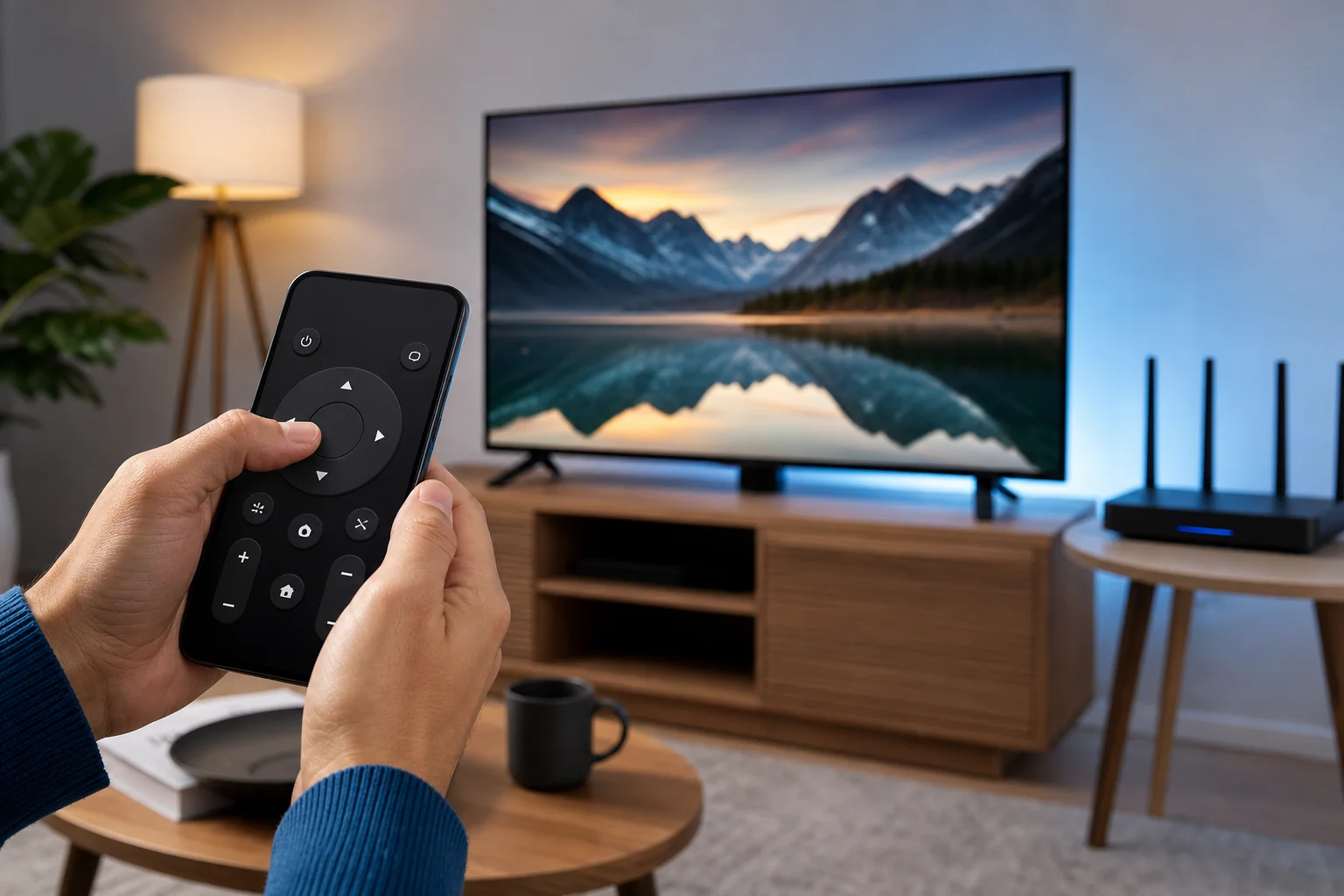
What to check before downloading a universal remote app
There are many universal TV remote apps in the App Store. Some are useful. Others are limited, overloaded with ads, or unclear about subscriptions. Before installing one, check the details carefully.
Look for:
- Clear support for your TV brand and model.
- Recent app updates.
- Transparent pricing before subscription prompts.
- A privacy policy that explains local network access and data use.
- Good reviews that mention your specific TV platform.
- No request for unnecessary permissions.
Be cautious with apps that promise to control every TV instantly. Since iPhones normally lack IR transmitters, an app cannot control a non-smart TV by magic. It must connect through Wi-Fi, a streaming device, a smart home hub, or supported hardware.
Troubleshooting when the iPhone remote does not work
Connection problems are common, but most have simple fixes.
Make sure both devices are on the same network
Your iPhone and TV must usually be connected to the same Wi-Fi network. If your router has separate 2.4 GHz and 5 GHz network names, try placing both devices on the same one. Also avoid guest Wi-Fi, which may block communication between devices.
Restart the devices
Restart your iPhone, TV, streaming stick, and router. This clears many discovery and pairing issues. After restarting, open the remote app again and wait a minute for the TV to appear.
Check local network permission
On iPhone, apps need permission to find devices on your local network. Go to Settings > Privacy & Security > Local Network and make sure your TV remote app is allowed.
Disable VPN temporarily
A VPN can block local network discovery. If your remote app cannot find the TV, turn off the VPN for a moment and try pairing again. Some VPN apps include a setting that allows local network access.
Enable HDMI-CEC for power and volume
If navigation works but power or volume does not, check HDMI-CEC settings. Different brands use different names, such as Anynet+ on Samsung, Simplink on LG, Bravia Sync on Sony, and Viera Link on Panasonic. Enable it on the TV and connected streaming device.
Privacy and security tips
A TV remote on iPhone needs access to your local network so it can discover and control nearby devices. That is normal. Still, you should limit risk by using trusted apps.
Use these basic safeguards:
- Download apps only from the App Store.
- Prefer official apps from Apple, Roku, Amazon, Google, Samsung, LG, or your TV maker.
- Review subscription terms before starting a free trial.
- Remove apps you no longer use.
- Keep your TV software and iOS updated.
- Avoid giving microphone, contacts, or location permissions unless a feature clearly needs them.
Also, secure your home Wi-Fi with a strong password. Anyone on your network may be able to see or request control of smart devices, depending on your settings.
Frequently asked questions
Can I use my iPhone as a TV remote without Wi-Fi?
Usually, no. Most iPhone remote apps rely on Wi-Fi or a local network connection. Bluetooth may work with some devices, but it is not the standard method for controlling smart TVs. For a traditional non-smart TV, you will likely need the original remote, a streaming device, or an IR accessory.
Does iPhone have an infrared remote feature?
Modern iPhones do not include a built-in infrared blaster. Because of that, they cannot directly control most older TVs that only accept infrared commands. Network-based control is the normal solution.
What is the best free TV remote app for iPhone?
The best free option is usually the official app for your device. Use Apple TV Remote for Apple TV, the Roku app for Roku, the Fire TV app for Fire TV, the Google TV app for Google TV, SmartThings for Samsung, or LG ThinQ for LG TVs. These apps are more reliable than generic alternatives.
Why does my iPhone remote app find the TV but not control volume?
Volume control depends on the TV, audio system, streaming device, and HDMI-CEC settings. Make sure HDMI-CEC is enabled. Also check whether your soundbar or receiver is connected correctly and supports control from the streaming device.
Can I turn on my TV with an iPhone remote app?
Sometimes. Many smart TVs support wake over network, but the feature must be enabled and the TV must remain connected to the network in standby mode. If the TV fully disconnects when off, the app may not be able to turn it on.
Conclusion
The easiest way to use a TV remote on iPhone is to start with the remote feature built into iOS for Apple TV, or the official app for your smart TV or streaming device. Connect both devices to the same Wi-Fi, pair them, and test navigation, typing, power, and volume. If something fails, check local network permission, HDMI-CEC, and VPN settings. Choose a trusted app today, and your iPhone can become a practical, reliable remote for everyday TV control.