Remote for LG TV on smartphone
A remote for LG TV on smartphone is one of the easiest ways to control your television when the physical remote is missing, broken, or simply out of reach. With the official LG ThinQ app, your phone can change channels, adjust volume, open apps, use a touchpad, and enter text much faster than a standard remote. This guide explains how to set it up, which phones and TVs are supported, what to do if pairing fails, and when third-party remote apps may be useful.
What you need before you start
Before installing an LG TV remote app, check a few basic requirements. Most connection issues come from network settings, outdated software, or using an app that does not match your TV model.
You will need:
- An LG Smart TV, usually running webOS.
- An Android phone or iPhone.
- The official LG ThinQ app from Google Play or the App Store.
- A shared Wi-Fi network for both the TV and smartphone.
- The TV turned on and connected to the internet.
- Permission to pair a new device on the TV screen.
For the smoothest experience, update your LG TV firmware first. On most LG TVs, you can do this through Settings > Support > Software update. Also update your phone’s operating system and the LG ThinQ app.
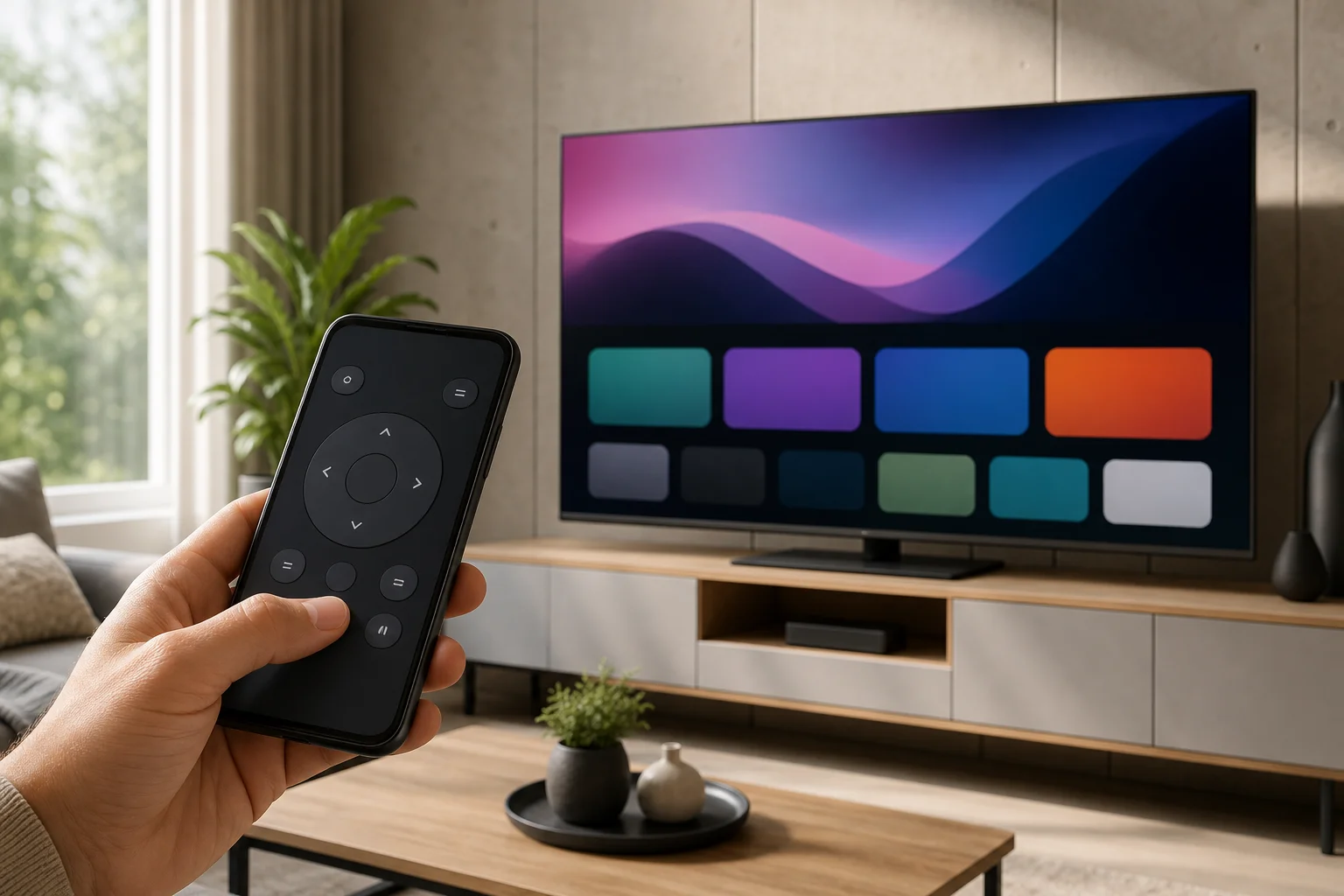
Best app to use as an LG TV remote
The best starting point is the official LG ThinQ app. It is made by LG and is designed to work with LG Smart TVs and other LG smart home devices. It is generally safer than unknown remote apps because it uses LG’s own account and device system.
The LG ThinQ app can usually provide these remote control functions:
- Power control on supported models.
- Volume up and down.
- Channel switching.
- Home menu access.
- App launching.
- Directional navigation.
- Touchpad-style movement on some models.
- Text input from the phone keyboard.
- Voice features where supported.
However, the exact feature list depends on your TV model, region, app version, and webOS version. For example, some TVs may not support power-on from the app unless a setting such as mobile TV control or network standby is enabled.
How to set up a remote for LG TV on a smartphone
Follow these steps to turn your phone into an LG TV remote. The process is similar on Android and iPhone.
-
Connect the TV to Wi-Fi
Open your LG TV network settings and connect it to your home Wi-Fi. Use the same router that your phone uses. -
Connect your smartphone to the same network
Make sure your phone is not using mobile data only. If your router has separate 2.4 GHz and 5 GHz networks, try connecting both devices to the same band if discovery fails. -
Install the LG ThinQ app
Download LG ThinQ from the official Google Play Store or Apple App Store. Avoid unofficial APK files or unknown app stores. -
Sign in or create an LG account
Open the app and sign in. The app may ask for location, Bluetooth, and local network permissions. These permissions help the app discover nearby devices. -
Add your LG TV
Tap the option to add a device, choose TV, and wait for your LG TV to appear. Select it from the list. -
Enter the pairing code
A code may appear on your TV screen. Enter it in the app to confirm pairing. -
Open the remote control screen
Once paired, select the TV in LG ThinQ and open the remote control interface. Test the volume, navigation, and home buttons. -
Enable mobile power features if available
If you want to turn the TV on from your phone, look for settings such as mobile TV control, quick start, or wake via Wi-Fi. Names vary by model.
Android vs iPhone: what is different?
Both Android phones and iPhones can work well as a smartphone remote for LG TV. The main difference is how each system handles permissions and device discovery.
| Feature | Android phone | iPhone |
|---|---|---|
| Official app | LG ThinQ | LG ThinQ |
| Setup difficulty | Easy | Easy |
| Local network permission | Usually handled through Wi-Fi and nearby device permissions | Must allow local network access when prompted |
| Bluetooth discovery | May help during setup | May help during setup |
| Keyboard input | Supported on many models | Supported on many models |
| IR blaster option | Available only on some Android phones | Not available on iPhone |
If you use an iPhone, go to Settings > Privacy & Security > Local Network and make sure LG ThinQ is allowed if the app cannot find your TV. On Android, check app permissions for nearby devices, location, and Wi-Fi access.
Using an IR blaster remote app
Some Android phones include an infrared blaster. This lets the phone act like a traditional remote by sending infrared signals directly to the TV. It does not require Wi-Fi pairing.
An IR remote app may be useful if:
- Your LG TV is not a smart model.
- The TV is not connected to Wi-Fi.
- The official app cannot find the TV.
- You only need basic controls such as power, volume, and input.
However, most modern phones do not include an IR blaster. iPhones do not have one. Also, IR control requires line of sight between the phone and the TV sensor, just like a normal remote.
Useful things you can do with a smartphone remote
A phone remote is not just a backup. In many cases, it is more convenient than the physical LG Magic Remote.
Type faster with the phone keyboard
Searching for films, signing in to streaming apps, and entering Wi-Fi passwords is much easier with a smartphone keyboard. This is one of the biggest benefits of using an LG TV remote app.
Control apps and menus
You can move through webOS menus, open streaming services, switch inputs, and adjust settings without hunting for the physical remote.
Keep a backup remote ready
If your household often loses remotes under cushions, pairing LG ThinQ in advance is smart. Do it while the physical remote still works, because pairing may require confirmation on the TV.
Manage more than one LG device
LG ThinQ can also manage supported LG appliances and other compatible smart devices. If you already use LG smart home products, keeping your TV in the same app is convenient.
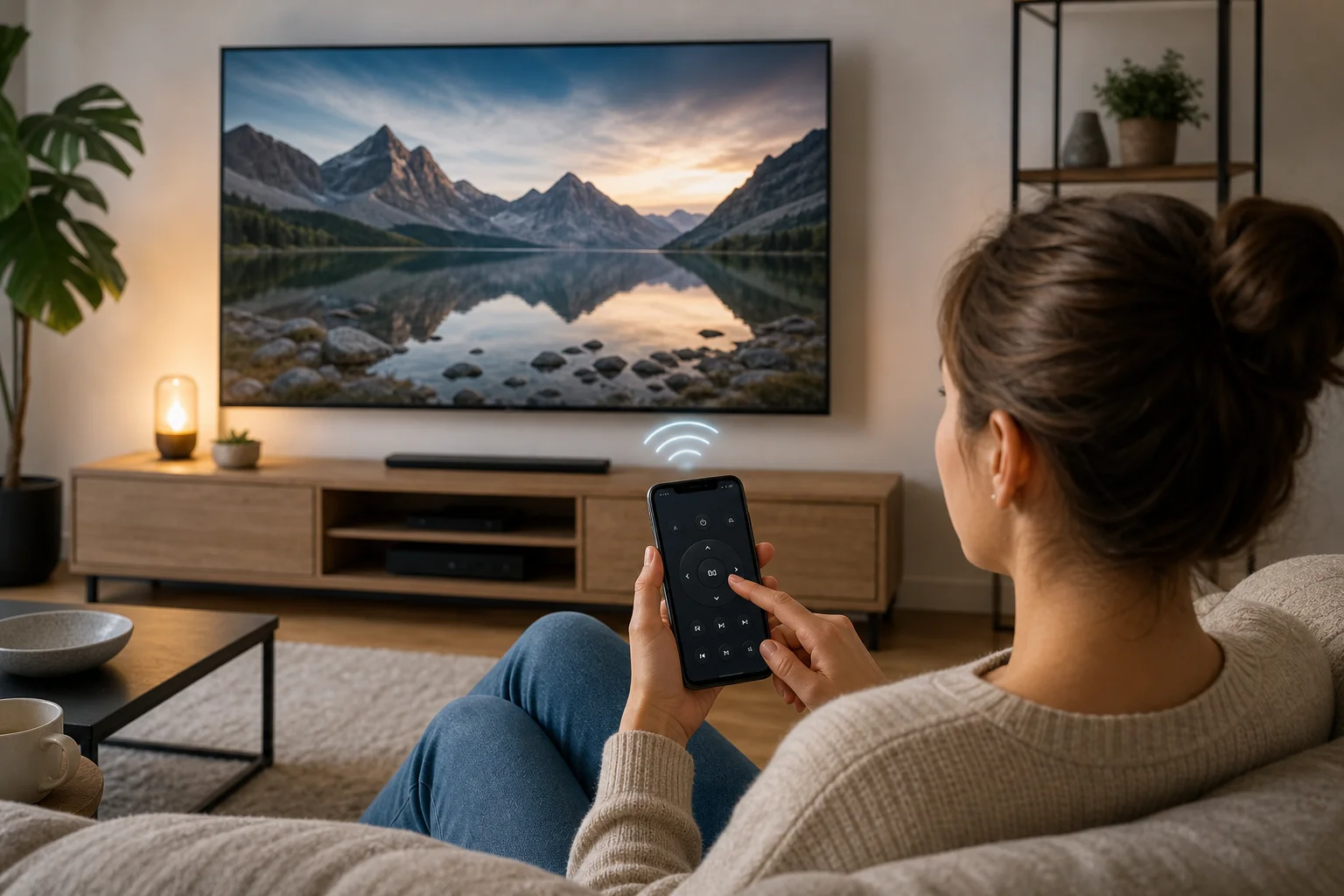
Troubleshooting when the LG TV remote app does not work
If your smartphone cannot find or control your LG TV, try these fixes in order.
Check the Wi-Fi network
Your TV and phone must usually be on the same local network. Guest networks often block device discovery. VPN apps, private DNS tools, and strict router settings can also interfere. Temporarily turn them off and try again.
Restart both devices
Turn the TV off, unplug it for about 30 seconds, and plug it back in. Restart your phone as well. Then reopen LG ThinQ and try pairing again.
Update the TV and app
Outdated software can cause pairing problems. Update the LG TV software and install the latest version of LG ThinQ.
Allow required permissions
On iPhone, allow local network access. On Android, allow nearby devices, location, and Wi-Fi permissions if requested. Without these permissions, the app may not detect the TV.
Disable network isolation
Some routers have settings called AP isolation, client isolation, or guest mode. These prevent devices from seeing each other. Turn these settings off for your main home network.
Re-add the TV
If the app worked before but stopped, remove the TV from LG ThinQ and add it again. You can also reset network settings on the TV if needed, but use this as a later step because you may need to reconnect Wi-Fi.
Security and privacy tips
A remote app can control your TV, so treat it like any other smart home control. Use the official app whenever possible and keep your LG account secure.
Follow these tips:
- Download remote apps only from trusted app stores.
- Avoid apps that request unnecessary permissions.
- Do not share your LG account password.
- Remove old phones from your account if you no longer use them.
- Keep your TV firmware and phone app updated.
- Be cautious with free third-party remote apps that show excessive ads.
Third-party apps can be useful, but they vary in quality. Some are simple ad-supported remotes. Others may collect more data than expected. Read permissions and reviews before installing.
Frequently asked questions
Can I use my phone as a remote for an LG TV without Wi-Fi?
Yes, but only in limited cases. If your Android phone has an IR blaster, you can use an infrared remote app without Wi-Fi. Otherwise, most smartphone remote features require the TV and phone to be on the same Wi-Fi network.
What is the official LG TV remote app?
The official app is LG ThinQ. It supports many LG Smart TVs and is available for Android and iPhone through the official app stores.
Why does LG ThinQ not find my TV?
The most common reason is that the phone and TV are not on the same local network. Other causes include blocked local network permission, guest Wi-Fi, router isolation, outdated software, or a temporary TV network issue.
Can I turn on my LG TV with my smartphone?
Sometimes. It depends on the TV model and settings. Look for options related to mobile TV control, network standby, quick start, or wake on Wi-Fi. If the TV fully disconnects from the network while off, the app may not be able to power it on.
Is a smartphone remote better than the LG Magic Remote?
It depends on how you use the TV. The Magic Remote is better for quick physical control and pointer navigation. A smartphone remote is better for typing, backup control, and managing the TV when the physical remote is missing.
Do universal remote apps work with LG TVs?
Some do, especially if they support webOS or infrared control. Still, the official LG ThinQ app is usually the best first choice because it is designed for LG devices.
Final advice
Setting up a remote for LG TV on smartphone is quick, practical, and worth doing before your physical remote goes missing. Start with the official LG ThinQ app, keep both devices on the same Wi-Fi network, and allow the required permissions. If pairing fails, work through the network and software checks above. Once connected, your phone becomes a reliable LG TV remote for everyday control, faster typing, and a useful backup when you need it most.