Remote controls for Android TV: how to choose, pair, and troubleshoot them
Remote controls for Android TV make everyday streaming easier, but not every remote works the same way. Some use infrared, others use Bluetooth, and many add voice search, app shortcuts, or motion control. This guide explains how Android TV remotes work, what to check before buying one, how to pair a replacement, and how to fix common problems. It also covers Google TV devices, universal remotes, smartphone apps, and the features that matter most for comfortable viewing.
What makes an Android TV remote different
An Android TV remote is designed for a smart TV or streaming box that runs Android TV or Google TV. Unlike a basic TV remote, it often controls more than volume and channels. It can navigate apps, launch streaming services, open Google Assistant, type into search fields, and control playback inside apps like YouTube, Netflix, Disney+, or Plex.
Most Android TV remote controls fall into three main types:
- Original manufacturer remotes made for a specific TV, box, or projector.
- Replacement remotes that copy the layout and core functions of the original.
- Universal or third-party remotes that work with many Android TV devices and may add extra features.
The right choice depends on your device, your setup, and how you watch content. For example, a living room TV may need a simple voice remote, while a media box connected to a home theater may benefit from a remote with programmable buttons and HDMI-CEC support.
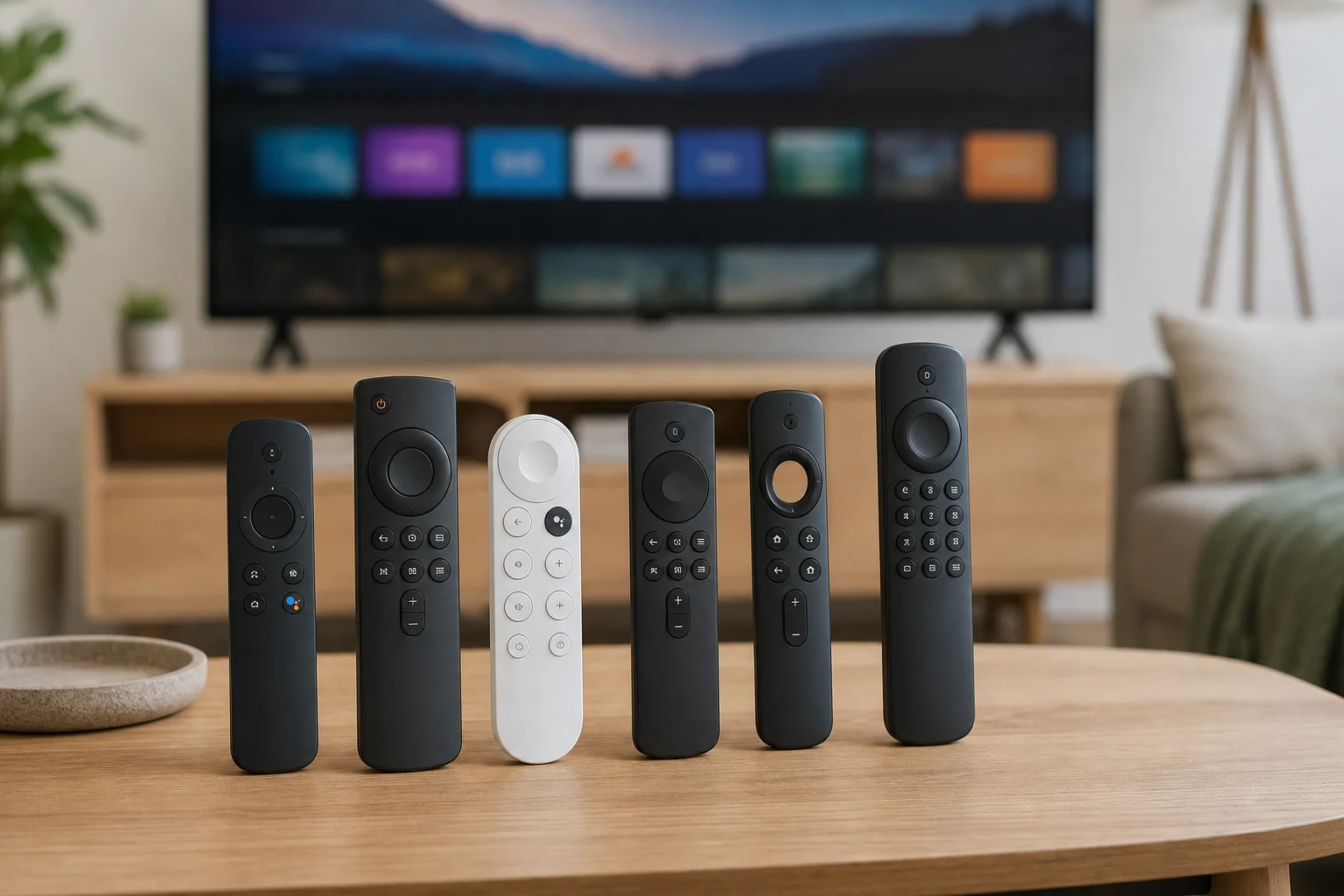
Infrared, Bluetooth, and Wi-Fi remotes compared
Before buying a remote control for Android TV, check the connection type. This affects compatibility, range, pairing, and whether voice control will work.
| Remote type | Best for | Advantages | Limitations |
|---|---|---|---|
| Infrared remote | Basic TV control and simple replacements | Cheap, easy to use, no pairing in many cases | Needs line of sight, usually no voice search |
| Bluetooth remote | Android TV boxes, Google TV devices, modern smart TVs | No line of sight needed, supports voice input | Requires pairing, may need batteries more often |
| Wi-Fi or app remote | Phones and tablets | Good backup option, easy typing | Depends on network connection and phone battery |
| Universal remote | Multi-device setups | Can control TV, soundbar, and streaming box | Setup can be more complex |
In general, Bluetooth is the best option for Android TV and Google TV navigation. It supports Google Assistant, works without pointing directly at the TV, and feels faster in apps. However, infrared is still useful for power and volume commands, especially when controlling older TVs or sound systems.
Key features to look for
A good Android TV remote should be simple, reliable, and comfortable. Extra buttons are not always better. Focus on the features you will use every day.
Voice search and Google Assistant
Voice search is one of the main reasons to choose a Bluetooth Android TV remote. It lets you search for movies, open apps, ask questions, and control playback. On many devices, the microphone button activates Google Assistant.
Before buying, confirm that the remote supports voice input for your exact TV or streaming device. Some low-cost replacements look like voice remotes but do not include a working microphone.
App shortcut buttons
Many remotes include buttons for Netflix, YouTube, Prime Video, or other apps. These are convenient if you use those services often. However, shortcut buttons may not be programmable. If you want custom controls, look for a remote that clearly supports button remapping or programmable keys.
Volume and power control
A useful remote should control the TV power and volume. If you use a soundbar or AV receiver, check whether the remote can control it through infrared, Bluetooth, or HDMI-CEC.
HDMI-CEC can allow one remote to control several connected devices. It is helpful, but behavior varies by brand. You may need to enable it in the TV settings. It may appear under names such as Bravia Sync, Anynet+, Simplink, Viera Link, or CEC.
Comfortable layout and build quality
Look for buttons that are easy to identify by touch. A good directional pad, responsive back button, and clear home button matter more than flashy design. If the remote will be used by children or older family members, a simple layout is usually better.
Also consider battery type. AAA batteries are easy to replace. Rechargeable remotes reduce waste but must be charged regularly.
How to choose a compatible Android TV remote
Use this step-by-step checklist before ordering a replacement remote or universal remote.
- Identify your device model. Check the label on the TV, streaming box, or settings menu. Compatibility often depends on the exact model.
- Check the operating system. Android TV and Google TV are closely related, but remote support can differ by device generation.
- Confirm the connection type. Decide whether you need infrared, Bluetooth, or both.
- Look for voice support. If Google Assistant matters, choose a remote with a real microphone and confirmed pairing support.
- Review power and volume control. Make sure the remote can control your TV, soundbar, or receiver if needed.
- Read the setup instructions. A compatible remote should include clear pairing steps.
- Avoid vague listings. Be careful with products that say “works with all smart TVs” without listing Android TV or specific brands.
If you cannot find an exact match, a universal Bluetooth remote or the official remote app may be a safer temporary solution.
Popular options for Android TV and Google TV
There is no single best remote for every user. The best option depends on your device and budget.
Original remotes from the device brand
An original remote is usually the safest choice. It should support all standard features, including voice search, app shortcuts, power, volume, and settings buttons. This is often the best option for Sony, TCL, Philips, Xiaomi, Hisense, Nvidia Shield, Chromecast with Google TV, and other Android TV or Google TV devices.
The main downside is price. Original remotes can cost more than third-party replacements, and availability may vary by region.
Third-party replacement remotes
A third-party replacement can be affordable and easy to find. Many are designed to mimic the original remote layout. They are useful if your original remote is lost or damaged.
However, check the details carefully. Some replacement remotes only support infrared commands. They may turn the TV on and navigate menus but fail to support Bluetooth pairing or voice input.
Universal remotes
Universal remotes are ideal if you want to reduce clutter. A good universal remote can control the Android TV device, television, soundbar, and other media equipment.
Choose one that supports Bluetooth or Android TV specifically. Traditional infrared-only universal remotes may not fully control Android TV apps or voice functions.
Smartphone remote apps
The Google TV app can work as a remote for many Android TV and Google TV devices. It is useful when your physical remote is missing, the batteries are dead, or you need to type a long password.
To use it, your phone and TV device usually need to be on the same Wi-Fi network. You may also need to pair the phone with a code shown on the TV screen.
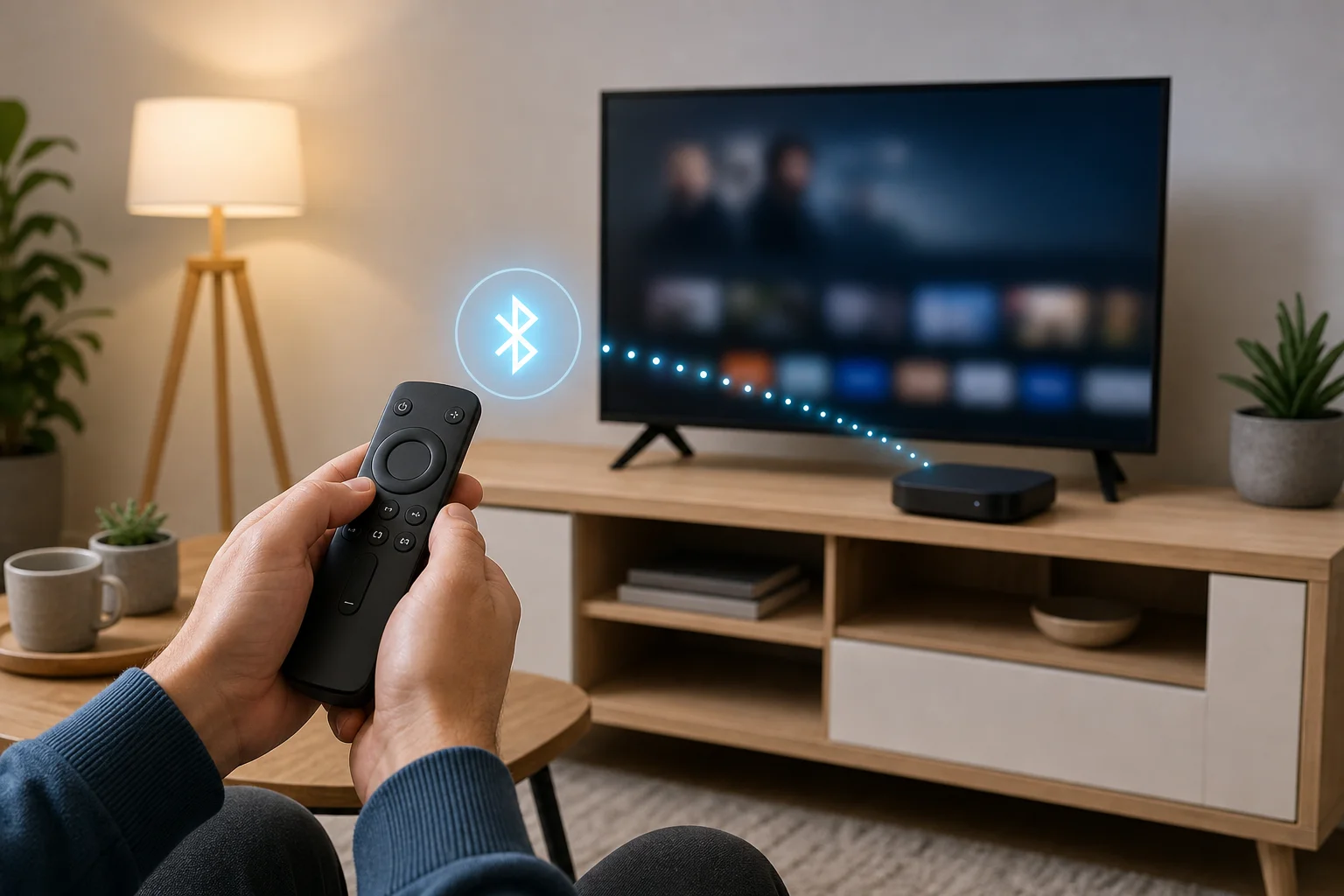
How to pair a Bluetooth remote with Android TV
Pairing steps vary by brand, but the process is usually similar. Try this general method first.
- Turn on your Android TV, Google TV, or streaming box.
- Insert fresh batteries into the remote.
- Open Settings on the TV.
- Go to Remotes and accessories or Bluetooth accessories.
- Choose Pair accessory or Add accessory.
- Put the remote into pairing mode. This often means holding the Home and Back buttons, or the OK and Home buttons, for several seconds.
- Select the remote name when it appears on the screen.
- Test the directional pad, home button, volume, and microphone.
If the remote does not appear, move it closer to the TV, replace the batteries, and restart the TV. Also make sure the remote is not already paired with another device.
Troubleshooting common remote problems
Remote issues are common, but most have simple fixes.
The remote does not respond
Start with the basics. Replace the batteries and check that they are inserted correctly. If the remote uses infrared, point it directly at the TV sensor and remove objects that block the signal.
For Bluetooth remotes, restart the TV and try pairing again. If possible, use the Google TV app as a temporary remote to open the settings menu.
Voice search does not work
Voice search needs a Bluetooth connection and a working microphone. First, check that the remote is paired, not just sending infrared commands. Then check app permissions and system updates.
If only the microphone fails, unpair and re-pair the remote. Also confirm that your device supports voice control with that remote model.
Volume buttons control the wrong device
This often happens in setups with a soundbar or receiver. Open the remote control settings and choose the correct audio device. If you use HDMI-CEC, make sure it is enabled on all connected devices.
If the remote uses infrared for volume, you may need to run a setup wizard and select the TV or soundbar brand.
Buttons are slow or laggy
Lag can come from weak batteries, Bluetooth interference, low system memory, or an overloaded TV. Replace the batteries first. Then restart the TV and close unused apps. If the problem continues, check for system updates.
FAQ about Android TV remote controls
Can any remote work with Android TV?
No. Some basic infrared remotes can control power and volume, but full Android TV control usually needs a compatible Bluetooth remote or a supported universal remote.
Are Android TV and Google TV remotes the same?
Not always. Google TV runs on the same platform family, but remote compatibility depends on the device model, Bluetooth support, and button mapping. Always check the product listing before buying.
Can I use my phone as an Android TV remote?
Yes. The Google TV app can control many Android TV and Google TV devices over Wi-Fi. It is a good backup option and makes text entry easier.
Why does my remote turn on the TV but not control apps?
It may be using infrared for basic TV commands but not Bluetooth for smart TV navigation. Pair the remote in the Android TV settings, or choose a model that supports Bluetooth control.
Is a voice remote worth it?
Yes, if you search often, use multiple streaming apps, or prefer hands-free navigation. If you only watch one app and use basic controls, a simple replacement remote may be enough.
Final buying advice
Choose remote controls for Android TV based on compatibility first, then features. For the most reliable experience, buy the original remote or a clearly supported Bluetooth replacement with voice search. If you have several devices, consider a universal remote with Android TV support. Finally, keep the Google TV app installed as a backup. Check your device model, confirm the connection type, and pick the remote that fits how you actually watch TV.