How to set up a Wi-Fi remote on your phone
If you want to set up a Wi-Fi remote on your phone, you usually need three things: a smartphone, a supported device such as a smart TV or streaming box, and both devices connected to the same Wi-Fi network. This guide explains how Wi-Fi remote control apps work, which app to choose, how to pair your phone, and what to do if the remote does not connect.
A phone-based Wi-Fi remote can replace a lost TV remote, make typing passwords easier, and let you control media devices without pointing at them. Unlike an infrared remote, it works through your local network, so setup depends on your router, app permissions, and device compatibility.
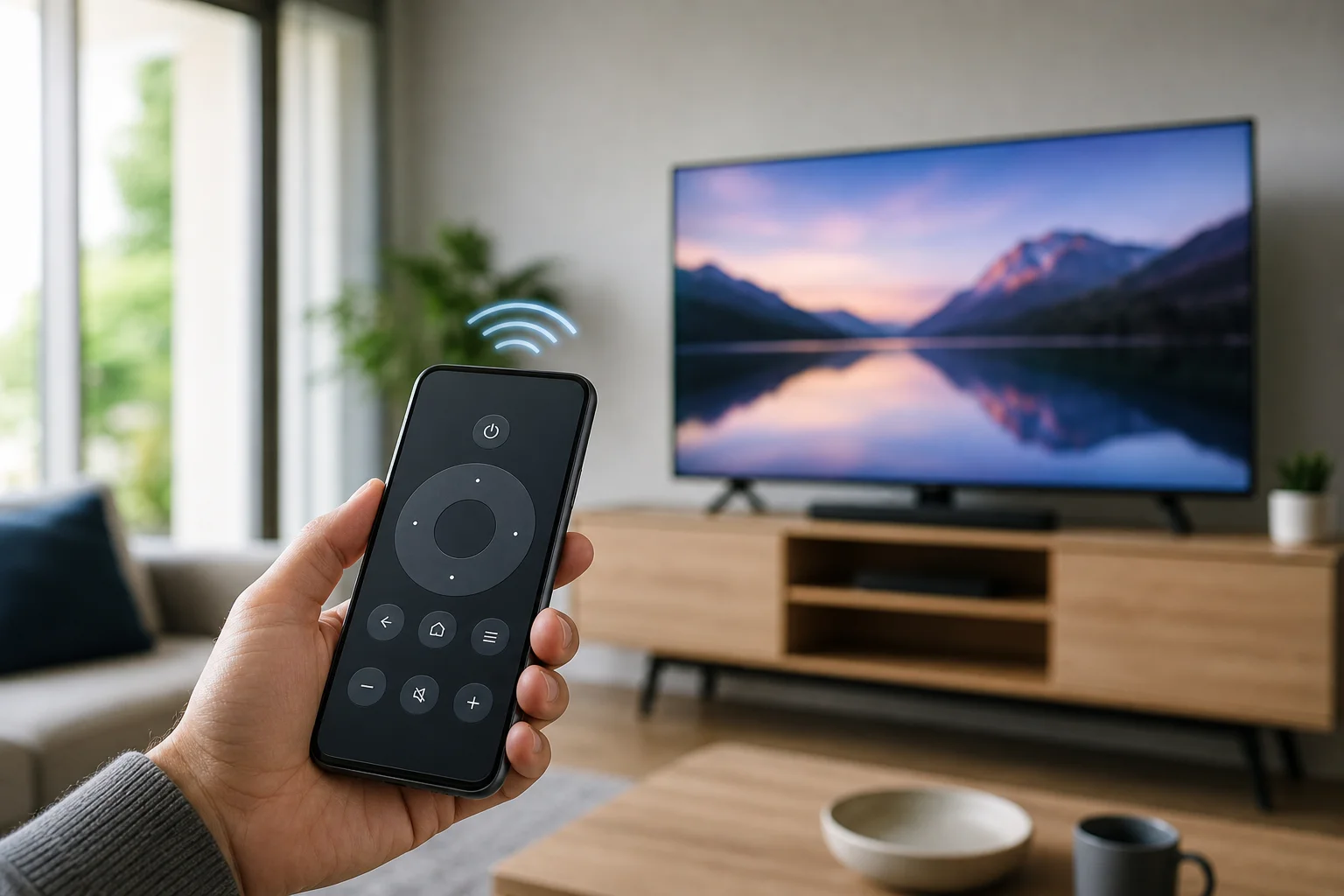
What a Wi-Fi remote on a phone does
A Wi-Fi remote app turns your iPhone or Android phone into a controller for another device on your home network. Most people use it for smart TVs, Android TV or Google TV devices, Roku players, Amazon Fire TV, Apple TV, set-top boxes, projectors, or media players.
Depending on the app and device, your phone may support:
- Power, volume, mute, and input controls
- Directional navigation and selection
- Playback buttons such as play, pause, rewind, and fast-forward
- Keyboard input for searches and passwords
- Voice search, where supported
- Touchpad or mouse-style navigation
- App launching and casting shortcuts
However, not every feature is available on every device. For example, some TVs allow Wi-Fi power-on only if a setting such as “wake on LAN,” “mobile device control,” or “quick start” is enabled.
Wi-Fi remote versus infrared remote
Before installing an app, it helps to know whether you need a Wi-Fi remote or an infrared remote.
| Feature | Wi-Fi remote on phone | Infrared remote on phone |
|---|---|---|
| Connection method | Home Wi-Fi network | Infrared signal |
| Needs same Wi-Fi network | Yes | No |
| Needs line of sight | No | Yes |
| Works through walls | Often yes, if on the same network | No |
| Requires phone IR blaster | No | Yes |
| Best for | Smart TVs and streaming boxes | Older TVs, air conditioners, DVD players |
Most modern iPhones do not have an IR blaster. Many Android phones also do not. Therefore, a Wi-Fi remote app is usually the better option for smart TVs and connected streaming devices.
Before you start
To avoid pairing problems, check these basics first:
- Connect both devices to the same Wi-Fi network. Your phone and TV or streaming box should be on the same router and usually the same band or subnet.
- Update the device software. Install available updates on the TV, streaming device, and phone.
- Enable network control on the TV. Look in settings for options such as mobile remote, remote app, device connection, AirPlay, Google Cast, or network standby.
- Turn off mobile data temporarily if needed. Some phones prefer mobile data when Wi-Fi is weak, which can interrupt discovery.
- Allow local network permissions. On iPhone, remote apps often need permission to find devices on your network.
- Check your router settings. Guest Wi-Fi, client isolation, VPN connections, and strict firewall rules can block pairing.
How to set up a Wi-Fi remote on Android
Follow these steps if you use an Android phone. The exact app depends on the device you want to control.
1. Choose the right remote app
Use the official app when possible. It is usually more reliable and safer than random “universal remote” apps.
Common options include:
- Google TV app for Android TV and Google TV devices
- Roku app for Roku TVs and Roku streaming players
- Amazon Fire TV app for Fire TV devices
- LG ThinQ for LG smart TVs
- Samsung SmartThings for Samsung smart TVs
- Sony | BRAVIA Connect or Google TV controls for supported Sony models
- Apple TV remote in Apple apps for Apple TV, though iPhone is the usual choice
If your TV brand has its own app, start there. If your device runs Android TV or Google TV, the Google TV app is often the easiest method.
2. Connect to the same Wi-Fi
Open Android settings and confirm your phone is connected to your home Wi-Fi. Then check the TV or streaming device network settings and verify it is connected to the same network name.
If your router has separate 2.4 GHz and 5 GHz network names, it is best to put both devices on the same one during setup. After pairing, some systems still work across bands, but same-network setup reduces errors.
3. Open the app and find your device
Launch the remote app. It should scan the local network and show available TVs or players. Tap your device name. If it does not appear, keep the app open for a minute, then restart the TV and try again.
On Android 12 and newer, make sure the app has nearby devices or network permissions if requested.
4. Enter the pairing code
Most devices show a code on the TV screen. Enter that code into the phone app. This confirms that you are pairing with the correct device.
After pairing, test the directional buttons, volume, and keyboard. If the app offers voice control, you may need to grant microphone permission.
5. Save quick access
For convenience, add the remote app to your home screen. On some Android phones, you can also add a quick settings tile or widget for faster access. If you use the Google TV app, the remote may appear in Android quick settings on compatible devices.
How to set up a Wi-Fi remote on iPhone
The setup process on iPhone is similar, but iOS permissions matter more because apps must be allowed to discover devices on the local network.
1. Install the correct app
Download the official app from the App Store. For example:
- Apple TV Remote in Control Center for Apple TV and AirPlay-compatible smart TVs
- Google TV app for Android TV and Google TV
- Roku app for Roku devices
- Amazon Fire TV app for Fire TV
- LG ThinQ for LG smart TVs
- SmartThings for Samsung smart TVs
Avoid apps that request unrelated permissions or show too many ads before setup. A remote app should not need access to contacts or photos for basic control.
2. Allow local network access
When the app asks to find devices on your local network, tap Allow. If you previously denied this permission, open:
Settings > Privacy & Security > Local Network
Then enable access for the remote app.
3. Pair with your TV or streaming device
Open the app, choose your device, and enter the code displayed on the screen. For Apple TV, open Control Center, tap the remote icon, select your Apple TV, and enter the displayed code if asked.
If your TV supports AirPlay but not full remote control, you may be able to cast media but not navigate all menus. In that case, use the manufacturer’s app.
4. Test essential controls
Try navigation, back, home, volume, and text input. If volume does not work, the TV may require HDMI-CEC, audio receiver settings, or a separate brand app. Also check whether your phone is controlling the TV itself or only the streaming box connected to it.
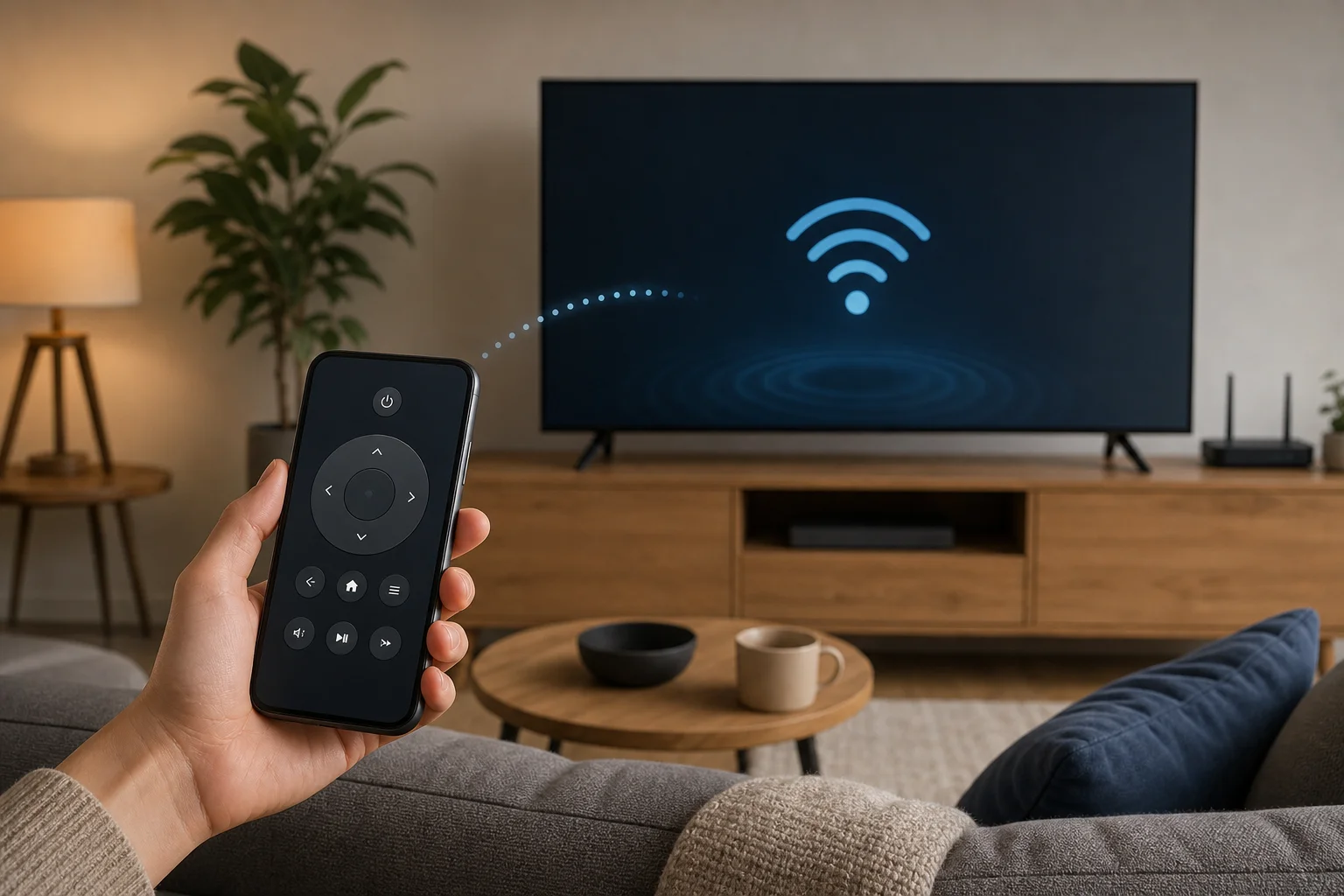
Recommended app by device type
Choosing the correct app is the most common setup issue. Use this quick guide.
| Device | Recommended app | Notes |
|---|---|---|
| Android TV or Google TV | Google TV app | Works with many TVs and streaming boxes |
| Roku TV or Roku player | Roku app | Also supports private listening on some models |
| Fire TV Stick or Fire TV | Amazon Fire TV app | Requires same Amazon account in some cases |
| Apple TV | Apple TV Remote in iPhone Control Center | Built into iOS |
| Samsung smart TV | SmartThings | Sign in may be required |
| LG smart TV | LG ThinQ | TV must allow mobile control |
| Sony smart TV | Google TV app or Sony app | Depends on model and operating system |
| Older non-smart TV | IR remote app only if phone has IR blaster | Wi-Fi remote usually will not work |
Troubleshooting when the phone remote will not connect
If the Wi-Fi remote app cannot find your TV, work through these fixes in order.
Check the network first
Make sure both devices are on the same home Wi-Fi. Do not use guest Wi-Fi unless your router allows devices on that network to see each other. Many guest networks block local device discovery by design.
Also disable VPN on the phone during setup. A VPN can route traffic away from your local network, which stops the app from detecting the TV.
Restart the phone, TV, and router
Restarting clears many discovery problems. Turn off the TV fully, not just standby mode, if possible. Unplug it for 30 seconds, then plug it back in. Restart the phone and router if the device still does not appear.
Enable mobile remote settings on the TV
Some TVs require you to allow remote control from mobile devices. Look under settings such as:
- Network
- External device manager
- Device connection
- Remote app
- Mobile TV on
- IP control
- Wake on LAN
The wording varies by brand. If there is an option to allow control from apps, enable it.
Reinstall or reset the app
If pairing worked before but now fails, remove the old device from the app and pair again. You can also clear the app cache on Android or reinstall the app on iPhone.
Check HDMI-CEC for streaming devices
If you control a streaming stick but volume or power does not work, enable HDMI-CEC on the TV. TV brands use different names for it, such as Anynet+, Simplink, Bravia Sync, VIERA Link, or CEC. This lets the streaming device send basic commands to the TV through HDMI.
Security and privacy tips
A Wi-Fi remote app can control devices on your home network, so treat it like any other connected tool.
- Install apps only from the Google Play Store or Apple App Store.
- Prefer official apps from the device maker.
- Review permissions and deny anything unrelated.
- Keep your router password strong.
- Update your TV and streaming device firmware.
- Remove paired phones you no longer use.
- Avoid pairing on public or shared Wi-Fi networks.
If a universal remote app asks for excessive permissions, shows misleading pop-ups, or requires payment before detecting a device, choose another option.
Frequently asked questions
Can I use my phone as a Wi-Fi remote without the original remote?
Yes, often you can. If the TV or streaming device is already connected to Wi-Fi, the app can usually find it. However, if the device is new, reset, or not connected to a network, you may need the original remote, a USB keyboard, Ethernet, or physical buttons to complete the first setup.
Why does my phone not find my TV?
The most common reason is that the phone and TV are not on the same local network. Other causes include guest Wi-Fi, VPN use, denied local network permission, disabled mobile control settings, or an outdated TV system.
Can a Wi-Fi remote turn on a TV?
Sometimes. The TV must support network wake or standby control. Enable settings such as quick start, mobile power on, wake on LAN, or IP control. If the TV fully disconnects from the network in standby, the phone app cannot turn it on.
Do I need internet for a Wi-Fi remote app?
You usually need Wi-Fi, but not always an active internet connection after setup. Many remote commands work over the local network. However, app sign-in, updates, voice search, and some discovery services may need internet access.
Is a universal Wi-Fi remote app safe?
It can be safe if it is reputable, updated, and uses reasonable permissions. Still, official apps are the safer first choice. Check reviews, developer name, privacy details, and permission requests before installing a universal remote app.
Conclusion
To set up a Wi-Fi remote on your phone, install the official remote app, connect your phone and TV or streaming device to the same Wi-Fi network, allow local network access, and pair with the on-screen code. If it fails, check guest Wi-Fi, VPN settings, app permissions, and the TV’s mobile control options. Start with the steps above, then save the app somewhere easy to reach so your phone is ready whenever the physical remote is missing.