How to download a remote to your phone safely
If you want to know how to download a remote to your phone, the safest option is to install an official remote control app from Google Play or the Apple App Store. Your phone can then control a smart TV, streaming device, set-top box, or even some air conditioners, depending on the app and hardware. This guide explains which app to choose, how to install it, how to connect it to your device, and what to do if the virtual remote does not work.
What a phone remote app can control
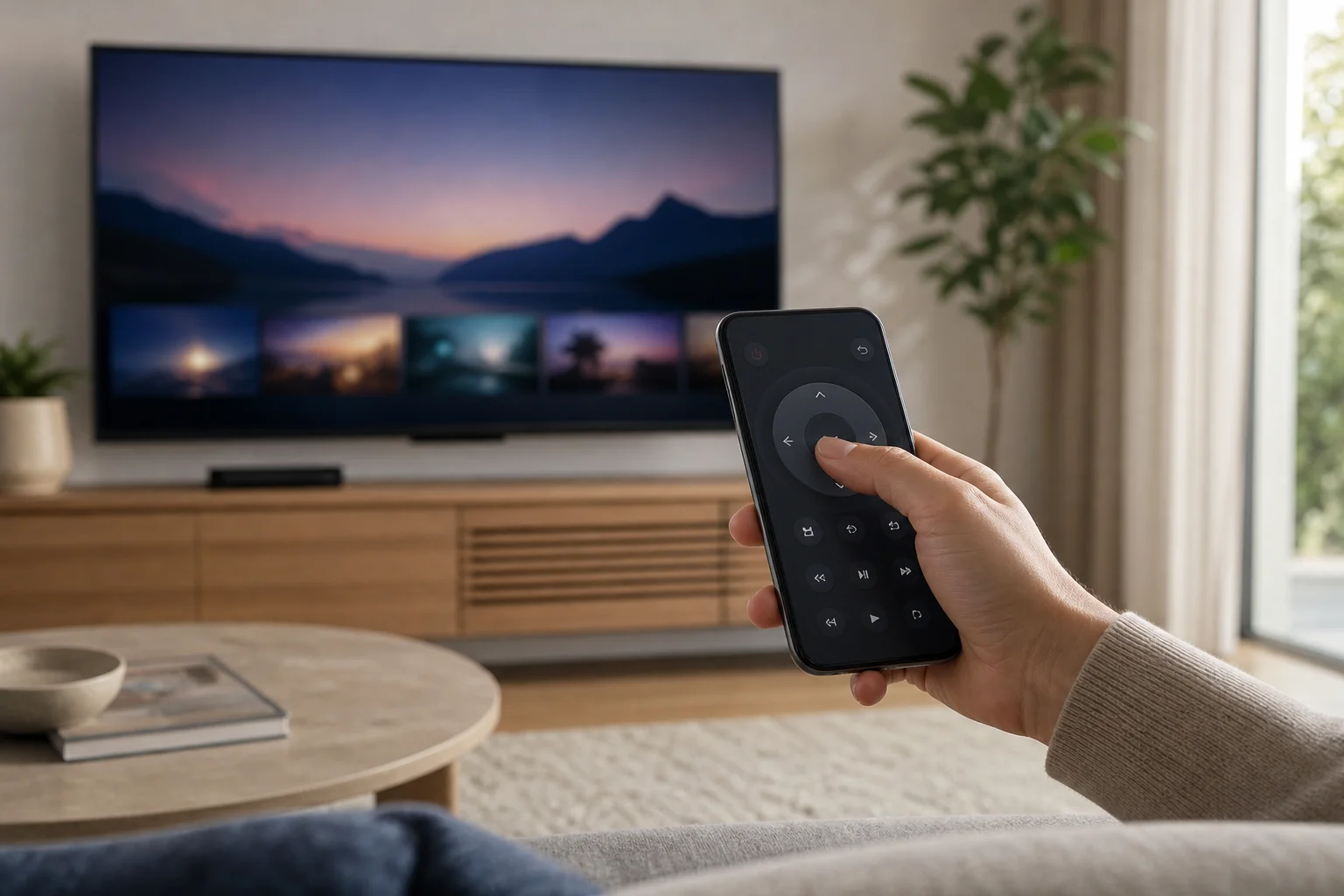
A remote control app turns your Android phone or iPhone into a virtual remote. Most apps work over Wi-Fi, Bluetooth, or infrared. The right method depends on the device you want to control.
Common uses include:
- Controlling a smart TV from Samsung, LG, Sony, TCL, Hisense, Philips, or other brands.
- Navigating Android TV or Google TV devices.
- Controlling streaming sticks and boxes such as Roku, Fire TV, Chromecast with Google TV, and Apple TV.
- Typing search terms and passwords faster with your phone keyboard.
- Casting media or opening streaming apps.
- Replacing a lost or broken physical remote.
However, not every app works with every device. For example, a Roku remote app will not control an LG TV menu unless the TV also supports Roku features. Before downloading anything, identify the exact device you want to control.
How to choose the right remote app
Start with the official app whenever possible. Official apps are more likely to receive updates, support the correct buttons, and avoid unnecessary permissions.
Use this comparison to choose the best option:
| Device you want to control | Best app to try first | Connection usually needed |
|---|---|---|
| Android TV or Google TV | Google TV app | Same Wi-Fi network |
| Roku TV or Roku player | Roku official app | Same Wi-Fi network |
| Fire TV Stick or Fire TV | Amazon Fire TV app | Same Wi-Fi network |
| Apple TV | Apple TV Remote in Control Center or Apple TV app features | Same Wi-Fi network and Apple ID setup |
| Samsung smart TV | SmartThings | Same Wi-Fi network and Samsung account may be needed |
| LG smart TV | LG ThinQ | Same Wi-Fi network and LG account may be needed |
| TV with no smart features | IR remote app, only if your phone has an IR blaster | Infrared line of sight |
Third-party universal remote apps can be useful, but check the reviews, permissions, and developer information first. Avoid apps that request access to contacts, messages, or files when they only need to control a TV.
Step-by-step: how to download a remote control app
Follow these steps to download a remote control app to your phone and connect it safely.
- Identify your device. Check the brand and model of your TV, streaming stick, receiver, or set-top box. If possible, look in the device settings for the exact model name.
- Open the official app store. On Android, use Google Play. On iPhone, use the Apple App Store. Avoid random APK sites unless you fully understand the risks.
- Search for the official app. Try terms such as “Google TV remote,” “Roku remote,” “Fire TV remote,” “SmartThings,” or “LG ThinQ.”
- Check the developer name. Make sure the app is published by the correct company, such as Google LLC, Roku, Amazon, Samsung, or LG Electronics.
- Review permissions. A remote app may need local network access, Bluetooth, or location for device discovery. It should not need sensitive permissions without a clear reason.
- Install the app. Tap Install on Android or Get on iPhone. Wait for the download to finish.
- Connect to the same Wi-Fi. Your phone and TV or streaming device usually must be on the same home network.
- Open the app and pair. Select your device from the list. A code may appear on the TV screen. Enter it on your phone.
- Test basic controls. Try power, volume, home, navigation arrows, and back. Then test typing and voice search if supported.
- Save the app in an easy place. Move it to your home screen so you can find the remote quickly.
If the app cannot find your TV, do not immediately install several unknown remote apps. First, check your Wi-Fi, device settings, and app permissions.
How to set up a TV remote on Android
Android phones work well as TV remotes, especially with Android TV, Google TV, Roku, Fire TV, and many smart TV brands.
For Android TV or Google TV, open the Google TV app. Tap the remote icon if available, choose your TV, and enter the pairing code shown on the screen. Your phone and TV must be on the same Wi-Fi network. Some devices also require Bluetooth to be enabled.
For Samsung TVs, install SmartThings from Google Play. Sign in, tap Add device, select your TV, and follow the pairing steps. For LG TVs, use LG ThinQ in a similar way.
Some Android phones have an infrared blaster. If yours does, you may be able to control older TVs without Wi-Fi. In that case, use the manufacturer’s built-in remote app if available. Keep in mind that many modern Android phones no longer include infrared hardware.
How to set up a TV remote on iPhone
On iPhone, the best app depends on the device. For Apple TV, open Control Center and use the built-in Apple TV Remote if it is available. Make sure your iPhone and Apple TV are on the same Wi-Fi network. You may need to select the Apple TV and enter a code.
For Roku, Fire TV, Samsung, LG, and Google TV devices, install the official app from the App Store. The setup is similar: connect both devices to the same Wi-Fi network, open the app, select your TV or streaming device, and complete pairing.
When an iPhone asks for Local Network permission, allow it for trusted remote apps. Without this permission, the app may not see your TV. If you denied it earlier, go to Settings, find the app, and enable local network access.
Safety tips before installing a universal remote app
Remote apps often need access to your local network. That makes it important to choose carefully.
Use these safety checks:
- Download only from Google Play or the Apple App Store.
- Prefer official apps from the device manufacturer.
- Read recent reviews, not only the star rating.
- Check whether the app shows too many ads or asks for subscriptions before basic use.
- Avoid apps that ask for contacts, SMS, call logs, or storage access without a clear need.
- Keep your phone, TV, and apps updated.
- Remove remote apps you no longer use.
Also, be careful with apps that claim to control every device instantly. Some universal remote apps are legitimate, but others may be low quality or overloaded with ads. If you only need to control one TV, the official app is usually the cleaner choice.
Troubleshooting when the phone remote does not work
If the remote app is installed but not connecting, try these fixes in order.
Check the Wi-Fi network
Most phone remote apps require both devices to be on the same network. If your phone is on mobile data and your TV is on home Wi-Fi, the app may not find it. Also check whether one device is on a guest network. Guest networks often block local device discovery.
Restart the devices
Restart your phone, TV, router, or streaming device. This simple step often fixes discovery and pairing issues. After the restart, open the app again and scan for devices.
Allow required permissions
On Android, open the app settings and check permissions such as nearby devices, Bluetooth, location, and local network features. On iPhone, check Settings for local network access and Bluetooth. Only enable permissions that make sense for the app.
Update the app and device software
An old TV firmware version or outdated mobile app can break pairing. Check for updates in your TV settings and in the app store. Then try pairing again.
Re-pair the device
If the app used to work but stopped, remove the TV from the app and pair it again. Some devices also let you clear paired remote apps in their system settings.
Check power and standby settings
Some TVs cannot be turned on by an app if they are fully powered off. Enable quick start, network standby, or wake-on-LAN if your TV supports it. The name of this setting varies by brand.
FAQ about downloading a remote to your phone
Can I download a remote for any TV?
Not always. Smart TVs usually support remote apps over Wi-Fi. Older non-smart TVs need infrared control, and that only works if your phone has an IR blaster or you use a separate smart hub.
What is the best free remote app for a phone?
The best free choice is usually the official app for your device. Use Google TV for Android TV or Google TV, Roku for Roku devices, Amazon Fire TV for Fire TV, SmartThings for Samsung TVs, and LG ThinQ for LG TVs.
Can I use my phone as a remote without Wi-Fi?
Yes, but only in certain cases. If your phone has an infrared blaster, it can control some TVs without Wi-Fi. Otherwise, most modern remote apps need Wi-Fi or Bluetooth to find and control the device.
Why does the remote app ask for location?
On some Android versions, location permission is linked to Bluetooth or nearby device discovery. A trusted remote app may request it to find your TV. If the request seems unrelated or excessive, choose another app.
Is it safe to install a universal remote app?
It can be safe if the app is reputable, well reviewed, and uses reasonable permissions. Still, official apps are safer for most users because they are made for a specific device and usually need fewer extra features.
Can a phone remote replace the original remote completely?
Often, yes, for daily controls such as volume, navigation, search, and playback. However, some setup menus, pairing steps, or service functions may still require the original remote.
Conclusion
To download a remote to your phone, first identify the device you want to control, then install the official remote app from Google Play or the Apple App Store. Connect your phone and TV or streaming device to the same Wi-Fi network, pair them with the on-screen code, and test the controls. If it does not work, check permissions, Wi-Fi, updates, and pairing settings before trying unknown apps. Start with the official option today, and you can turn your phone into a reliable remote in a few minutes.