Connecting a phone to a TV: Wired and wireless methods that work
Connecting phone to TV is one of the easiest ways to watch videos, show photos, join video calls, play mobile games on a bigger screen, or present documents without a laptop. The best method depends on your phone, your TV, and whether you want to mirror the whole screen or cast only media. This guide explains the main wired and wireless options for Android phones and iPhones, plus practical steps to fix common connection problems.
Choose the best way to connect your phone to a TV
Before you start, check three things: your phone model, your TV features, and what you want to display. A recent smart TV may support screen mirroring, Chromecast, AirPlay, or a built-in casting app. An older TV may need an HDMI cable, an adapter, or a streaming device.
Use this quick comparison to choose the right option.
| Method | Best for | Works with | Main requirement | Internet needed |
|---|---|---|---|---|
| HDMI adapter or USB-C to HDMI | Stable video, gaming, travel | Many Android phones, iPhone with adapter | TV with HDMI port | No |
| Chromecast or Google Cast | YouTube, Netflix, photos, browser tabs | Android, iPhone, Chrome browser | Chromecast or Google TV device | Usually yes |
| AirPlay | iPhone, iPad, Apple apps | Apple devices | Apple TV or AirPlay-compatible TV | Usually yes |
| Miracast or wireless display | Full Android screen mirroring | Many Android phones and Windows devices | Miracast-compatible TV or adapter | No local internet required |
| USB cable | Viewing photos or files on some TVs | Some Android phones | TV USB port and file support | No |
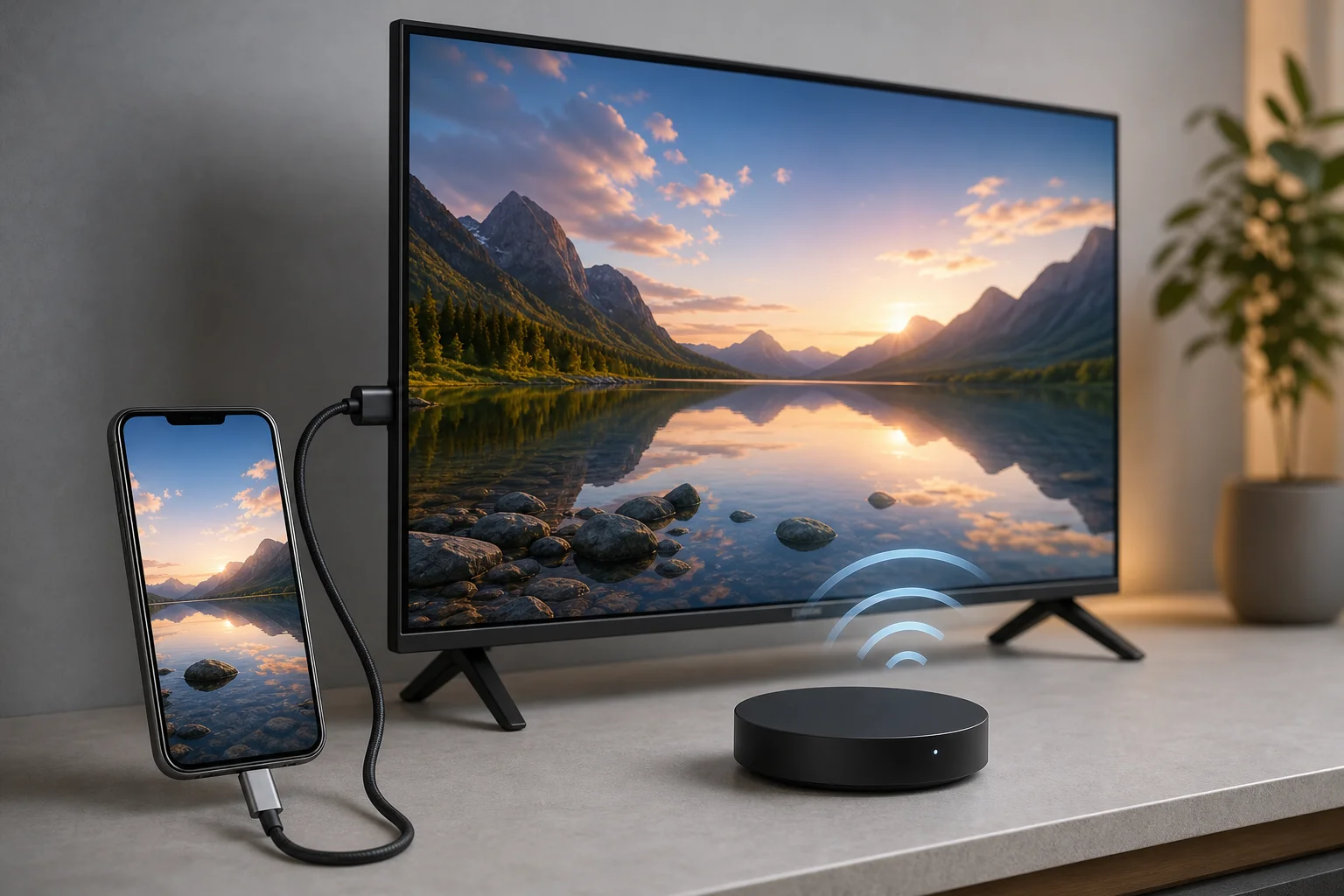
Connect with an HDMI cable for the most reliable result
A wired connection is often the simplest and most stable way to connect a phone to a TV. It has low delay, does not depend on Wi-Fi quality, and works well in hotels, offices, classrooms, and places with crowded networks.
How to connect an Android phone with USB-C to HDMI
Many Android phones can output video through a USB-C port, but not all models support this feature. Look for terms such as “USB-C DisplayPort Alt Mode,” “video output,” or “desktop mode” in your phone’s specifications.
- Plug a USB-C to HDMI adapter into your phone.
- Connect an HDMI cable from the adapter to an HDMI port on the TV.
- Change the TV input to the matching HDMI port.
- Unlock your phone and accept any prompt that appears.
- Rotate the phone if needed for a wider view.
- Open your video app, photos, presentation, or game.
If the TV shows no signal, try another HDMI cable, remove the phone case, reconnect the adapter, and make sure the adapter supports video output rather than charging only.
How to connect an iPhone with HDMI
For iPhone, use an Apple Lightning Digital AV Adapter for older Lightning models or a USB-C to HDMI adapter for newer USB-C iPhones. A certified adapter is usually more reliable, especially for video apps that use copy protection.
- Connect the adapter to your iPhone.
- Plug an HDMI cable into the adapter.
- Connect the other end to the TV.
- Select the correct HDMI input on the TV.
- Unlock the iPhone and start playing content.
Some streaming apps may limit HDMI playback because of licensing rules. If that happens, try the app’s built-in casting option, AirPlay, or the TV’s native app.
Connect wirelessly with Chromecast or Google Cast
Chromecast and Google Cast are good choices when you want to send video from your phone to a TV without a cable. This method does not always mirror everything. Instead, many apps hand off the video stream to the TV, so your phone becomes a remote control.
To use it, both devices usually need to be on the same Wi-Fi network. Your TV may have Chromecast built in, especially if it runs Google TV or Android TV. Otherwise, you can use a Chromecast device plugged into HDMI.
Steps to cast from Android or iPhone
- Connect your phone and TV or Chromecast to the same Wi-Fi network.
- Open a supported app such as YouTube, Netflix, Spotify, or Google Photos.
- Tap the Cast icon in the app.
- Choose your TV or Chromecast device.
- Use your phone to play, pause, change volume, or stop casting.
On Android, you can also mirror the entire screen from the quick settings panel or through the Google Home app. Names vary by brand, but common options include “Cast,” “Screen cast,” “Smart View,” and “Wireless display.”
Connect iPhone to TV with AirPlay
AirPlay is the easiest wireless option for many iPhone users. It works with Apple TV and many modern smart TVs from brands that support AirPlay. It can stream videos from apps, show photos, play music, or mirror the entire iPhone screen.
Steps to use AirPlay screen mirroring
- Connect the iPhone and TV to the same Wi-Fi network.
- Open Control Center on the iPhone.
- Tap “Screen mirroring.”
- Select your Apple TV or AirPlay-compatible smart TV.
- Enter the code shown on the TV if asked.
- To stop, return to Control Center and tap “Stop mirroring.”
For better quality, keep the phone near the router and close unused background apps. If AirPlay is not showing your TV, check that AirPlay is enabled in the TV settings and that both devices are using the same network, not a guest network.
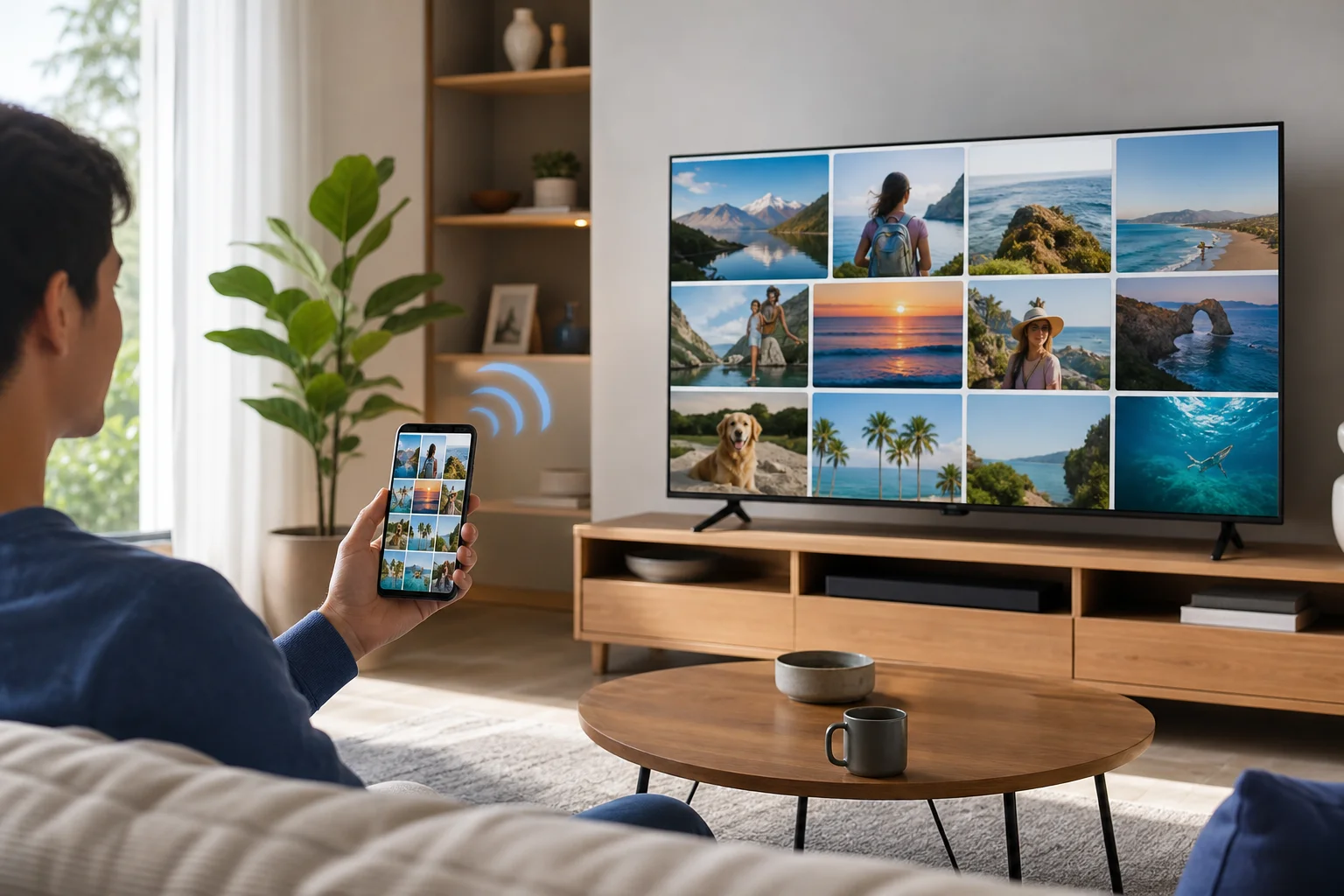
Mirror an Android phone to a smart TV
Android screen mirroring is useful when an app does not have a Cast button or when you need to show the whole phone screen. The exact name depends on the phone brand. Samsung often uses Smart View. Other Android phones may use Cast, Screen share, Wireless projection, or Screen mirroring.
Follow these general steps:
- Turn on the TV and open its screen mirroring or wireless display mode if required.
- Swipe down on the Android phone to open quick settings.
- Tap Cast, Smart View, Screen share, or a similar option.
- Select your TV from the list.
- Confirm the connection on the TV.
- Open the content you want to show.
Mirroring can have more delay than HDMI. Therefore, it is fine for photos, web pages, and presentations, but it may not be ideal for fast gaming.
Use USB for photos, videos, and files
A USB cable can work if you only need to view local photos or video files stored on the phone. However, it is not the same as screen mirroring. Many TVs will treat the phone as a storage device, and some phones block file access unless you unlock them and choose a USB mode.
To try USB playback:
- Connect the phone to the TV with a USB cable.
- Unlock the phone.
- Choose “File transfer” or “Media transfer” if prompted.
- Open the TV’s media player or USB source.
- Browse available folders and select a photo or video.
This method depends heavily on TV support. If your TV cannot read the phone, use HDMI, casting, or a USB flash drive instead.
Fix common phone to TV connection problems
Connection issues are common, but most are easy to solve. Start with the basics before changing settings.
The TV does not appear on the phone
Make sure both devices are on the same Wi-Fi network. Disable VPN apps temporarily because they can block local device discovery. Restart the phone, TV, and router. Also check whether the TV has casting, AirPlay, or mirroring enabled.
The picture lags or freezes
Move closer to the Wi-Fi router, switch to a 5 GHz network if available, and stop downloads on other devices. For gaming or live video calls, use HDMI if possible because it has less delay.
HDMI shows no signal
Confirm that the TV is on the correct HDMI input. Try a different HDMI cable and adapter. Also check whether your phone supports video output over USB-C. Some USB-C adapters only charge or transfer data and cannot send video.
Sound plays on the phone instead of the TV
Open the phone’s audio output menu and select the TV, Chromecast, or AirPlay device. With HDMI, unplug and reconnect the adapter. On some TVs, you may need to change the sound output settings from external speakers to TV speakers.
Security and privacy tips when sharing your phone screen
When you mirror a phone to a TV, everything on the screen may be visible. That includes notifications, messages, search terms, and incoming calls. Before sharing in a meeting or family setting, enable Do Not Disturb and close private apps.
If you are using a public or shared TV, disconnect when finished. In casting apps, tap the Cast icon and choose “Stop casting.” For AirPlay, stop mirroring from Control Center. For smart TVs, remove saved devices if you do not want the TV to remember your phone.
Frequently asked questions
Can I connect my phone to a TV without Wi-Fi?
Yes. Use an HDMI adapter, USB-C to HDMI cable, or Lightning to HDMI adapter. Some Android phones and TVs also support Miracast, which can work through a direct wireless link without a regular internet connection.
Why will my phone charge but not show on the TV?
The cable or adapter may not support video output. Also, the phone itself may not support HDMI over USB-C. Check the phone’s specifications for DisplayPort Alt Mode or use a wireless casting method instead.
Can I connect any phone to any TV?
Not always. Most combinations can work with the right adapter or streaming device, but older TVs may need HDMI hardware, and some phones do not support wired video output. Wireless methods also depend on TV features and app support.
Is casting the same as screen mirroring?
No. Casting usually sends media from an app to the TV, while the phone acts as a controller. Screen mirroring shows the entire phone display on the TV. Mirroring is more flexible, but casting often gives smoother playback.
What is the best method for watching movies?
For most people, Chromecast, AirPlay, or a smart TV app is best for movies. These options are convenient and usually provide good quality. If Wi-Fi is weak, HDMI is the better choice.
Conclusion
The right method for connecting phone to TV depends on your devices and your goal. Use HDMI for a stable wired connection, Chromecast or Google Cast for flexible streaming, AirPlay for iPhone and Apple devices, and Android screen mirroring when you need to show the whole display. Start with the simplest option your TV supports, test the connection, and keep the right adapter or casting setup ready for the next time you want a bigger screen.