How to use a Bluetooth TV remote
A Bluetooth TV remote can make controlling your television faster, cleaner, and more reliable than a traditional infrared remote. Instead of pointing directly at the screen, you can use a Bluetooth connection to control a smart TV, streaming box, or Android TV device from almost anywhere in the room. This guide explains how Bluetooth remotes work, how to pair one with your TV, what to check before buying, and how to fix common connection problems.
What a Bluetooth TV remote is
A Bluetooth TV remote is a remote control that communicates with a television or media device using Bluetooth wireless technology. Unlike an infrared remote, it does not need a direct line of sight. That means the TV can receive commands even if the remote is not aimed perfectly at the screen.
Many modern smart TVs, Google TV devices, Android TV boxes, Apple TV units, Fire TV devices, and some game consoles use Bluetooth for remote control features. Some remotes also combine Bluetooth with infrared. For example, Bluetooth may control the smart interface, while infrared controls power or volume on older equipment.
The main benefit is convenience. You can press buttons from the sofa, under a blanket, or at an angle without worrying about pointing at the TV sensor. In many cases, Bluetooth also supports voice search, keyboard input, and motion controls.
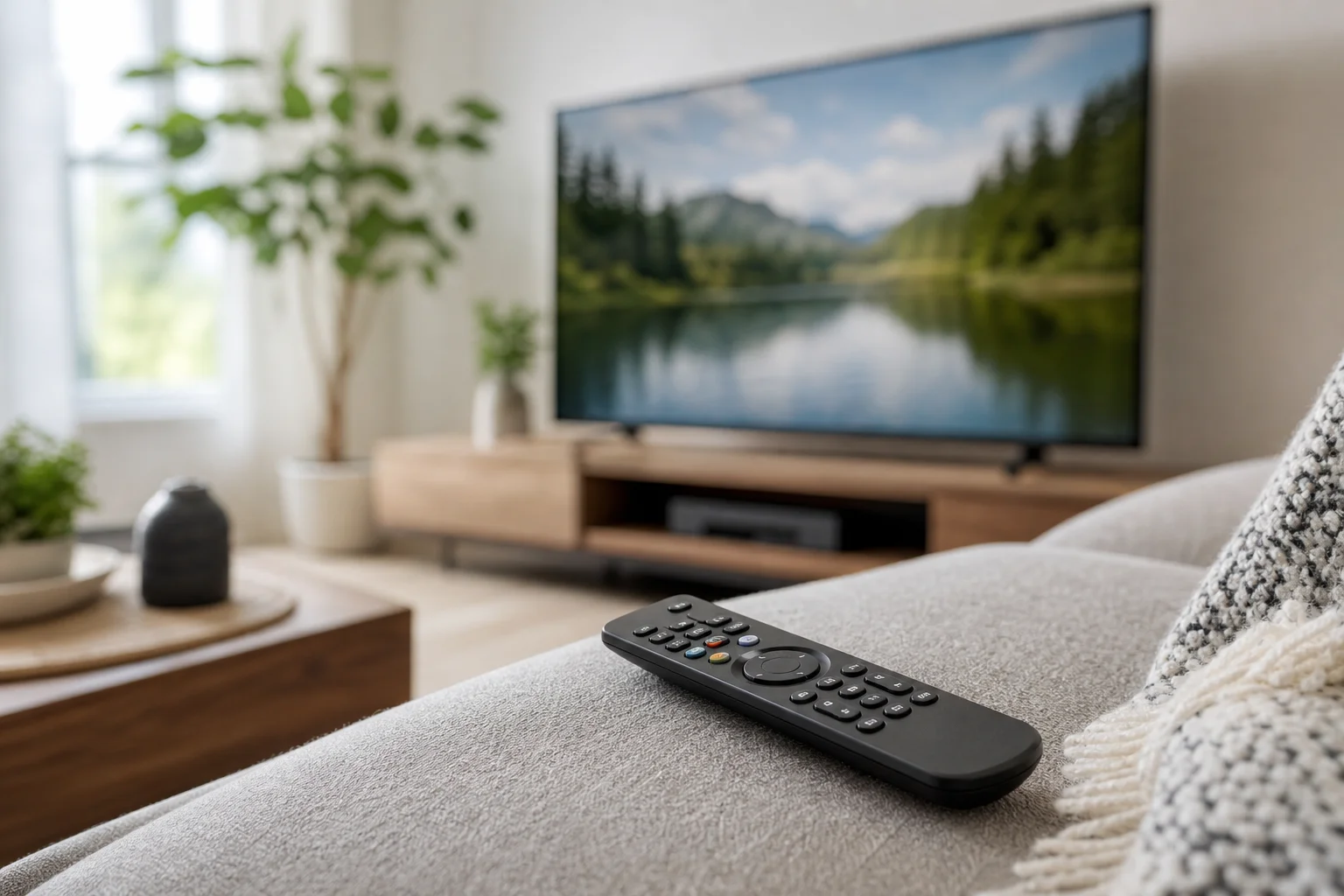
Bluetooth remote vs infrared remote
Bluetooth and infrared remotes both control TVs, but they work in different ways. The right choice depends on your device, room layout, and features you need.
| Feature | Bluetooth TV remote | Infrared TV remote |
|---|---|---|
| Line of sight | Not required | Required |
| Typical range | Around a room, depending on walls and interference | Best in direct view of the TV |
| Pairing needed | Yes, in most cases | Usually no |
| Voice control support | Common on smart remotes | Rare |
| Works with older TVs | Only if supported by the TV or adapter | Very common |
| Setup difficulty | Medium | Easy |
| Interference risks | Other wireless devices may affect it | Bright light or blocked sensors may affect it |
In short, infrared is simple and widely compatible. However, Bluetooth is better for smart TV features, hidden media boxes, and rooms where direct aiming is inconvenient.
How to check if your TV supports Bluetooth remotes
Before buying a Bluetooth remote for your TV, confirm that your television or streaming device can accept one. Not every TV with Bluetooth audio supports Bluetooth remote controls.
Check these places first:
- TV settings: Look for menus called “Remote and accessories,” “Bluetooth devices,” “Controllers,” or “External devices.”
- User manual: Search for “Bluetooth remote,” “pair remote,” or “wireless controller.”
- Manufacturer support page: Model-specific pages often list compatible accessories.
- Existing remote features: If your current remote has voice search, a microphone button, or pairing instructions, it may already use Bluetooth.
- Streaming device settings: If you use Google TV, Android TV, Fire TV, or Apple TV, the remote may pair with that device instead of the TV itself.
Also note the difference between Bluetooth audio and Bluetooth input. A TV may support Bluetooth headphones but not Bluetooth remotes. If the settings menu only mentions speakers or headphones, it may not support remote pairing.
How to pair a Bluetooth remote with your TV
The exact steps vary by brand, but the process is similar on most smart TVs and streaming devices. Use this step-by-step checklist as a starting point.
-
Insert fresh batteries
Weak batteries can interrupt pairing. Use new batteries or fully charge the remote if it has a built-in battery. -
Turn on the TV or streaming device
Keep the remote close to the TV, ideally within one metre during setup. -
Open the Bluetooth or accessory menu
Go to settings and find a section such as “Remotes and accessories,” “Bluetooth,” or “Pair new device.” -
Put the remote in pairing mode
Many remotes require holding two buttons at the same time. Common combinations include Home + Back, OK + Back, or a dedicated pairing button. Check the remote manual if you are unsure. -
Select the remote on screen
When the TV finds the remote, choose it from the list of available devices. -
Confirm the pairing request
Some TVs ask you to confirm a code or press OK. Follow the on-screen instructions. -
Test basic buttons
Try navigation, volume, power, Home, and Back. If voice control is included, test the microphone button too. -
Update device software if needed
If some buttons do not work, check for a TV or streaming device update. Compatibility often improves after firmware updates.
If pairing fails, restart both the TV and the remote. Then remove any old remote entries from the Bluetooth device list and try again.
Can you use a smartphone as a Bluetooth TV remote?
In many cases, yes, but it depends on the TV platform. A phone can act as a remote through Bluetooth, Wi-Fi, or a combination of both. Most official TV remote apps use the home Wi-Fi network rather than direct Bluetooth. Still, the result is similar: you can control the TV from your phone.
Common options include:
- Google TV app: Works with many Google TV and Android TV devices.
- Apple Remote in Control Center: Works with Apple TV and compatible smart TVs using AirPlay features.
- Fire TV app: Controls Fire TV sticks and Fire TV televisions.
- Manufacturer apps: Samsung, LG, Sony, TCL, Hisense, and other brands offer apps for selected models.
A smartphone remote is useful when the physical remote is lost. It also makes text entry easier because you can type on the phone keyboard. However, it may not replace every button. Power control can be limited if the TV is fully off or disconnected from the network.
What to look for when buying a Bluetooth remote
Not all Bluetooth remotes are universal. Compatibility matters more than appearance. Before you buy, review the product description carefully and check your TV model.
Compatibility with your platform
First, match the remote to your device platform. A remote designed for Apple TV will not usually control a Samsung TV directly. A Google TV remote may work with many Android TV devices, but not all buttons are guaranteed.
Look for exact model support. If the seller lists your TV series or device generation, that is a good sign. If the listing only says “universal Bluetooth remote,” read reviews and support notes with care.
Voice control and microphone support
Many Bluetooth TV remotes include a microphone button for voice search. This is useful for finding movies, opening apps, changing inputs, or asking a voice assistant for information.
However, voice features depend on software support. A microphone on the remote does not guarantee that your TV will support Google Assistant, Alexa, Siri, or another assistant. Check both the remote and TV specifications.
Button layout and daily use
A good remote should match how you watch TV. If you use streaming apps every day, dedicated app buttons may help. If you switch between cable, console, and streaming devices, input and settings buttons are important.
Also consider size and feel. Very small remotes look neat but can be hard to use in the dark. Backlit buttons, textured keys, and a clear navigation pad can make a big difference.
Battery life and charging
Bluetooth remotes usually last a long time on standard batteries, but voice search and motion features can drain power faster. Some premium remotes use USB-C charging. That can be convenient, but only if you remember to recharge it.
Troubleshooting Bluetooth TV remote problems
Bluetooth remote issues are usually caused by weak batteries, pairing errors, outdated software, or interference. Start with the simple fixes before replacing the remote.
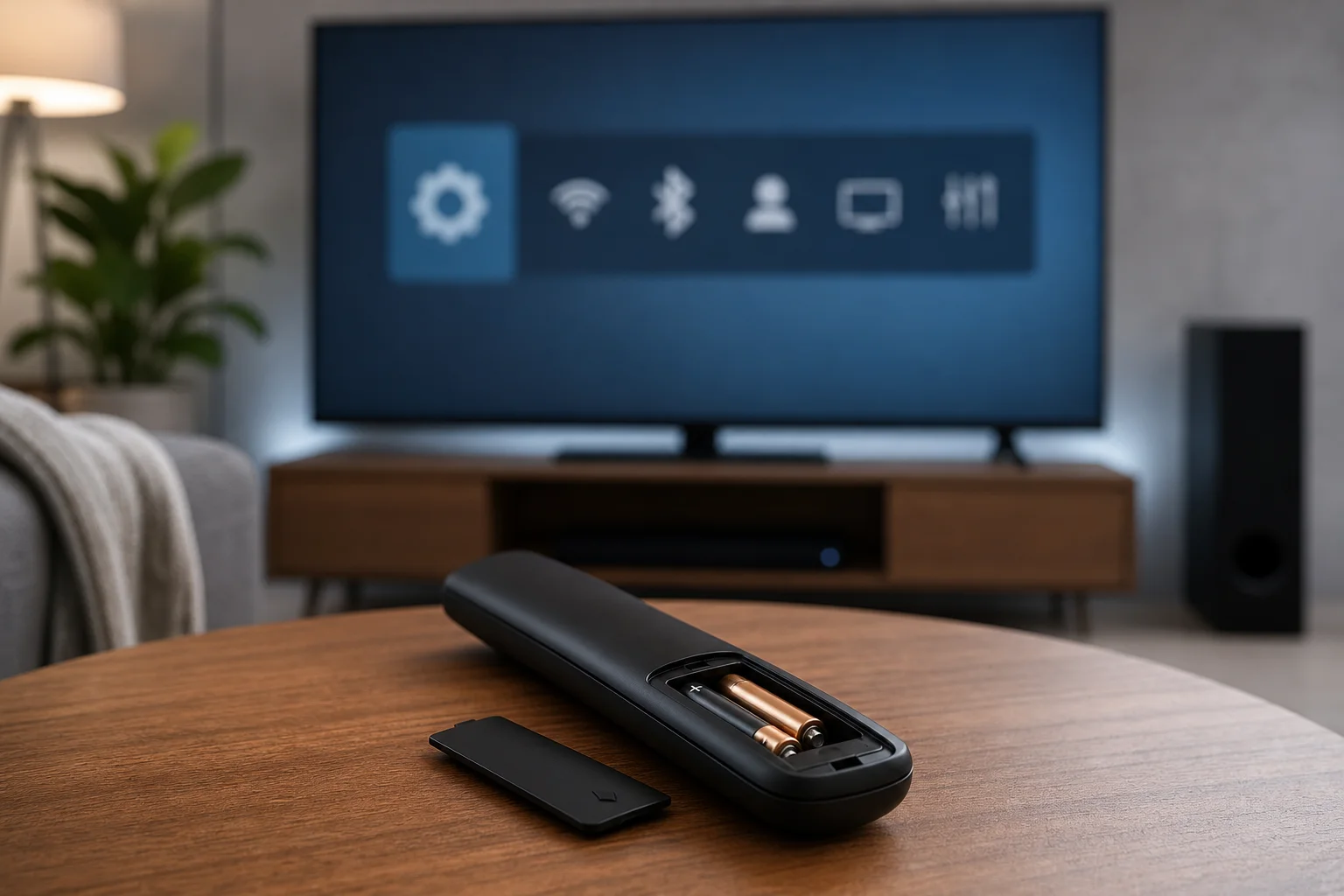
Try these solutions:
- Replace or recharge the batteries: Low power can cause lag, missed clicks, or random disconnections.
- Restart the TV: Unplug it for one minute, then plug it back in.
- Re-pair the remote: Remove the remote from the Bluetooth device list and pair it again.
- Move closer during setup: Pairing works best at close range.
- Reduce wireless interference: Keep routers, game controllers, and other Bluetooth devices away during pairing.
- Update the TV software: Go to system settings and install available updates.
- Reset the remote: Some remotes have a reset button or require holding a button combination.
- Check for physical damage: Sticky buttons, battery corrosion, and drops can cause unreliable control.
If the remote controls some functions but not others, it may be only partly compatible. For example, navigation may work through Bluetooth while volume or power needs infrared programming.
Using Bluetooth adapters for older TVs
Older televisions usually do not support Bluetooth remote control by themselves. A Bluetooth audio transmitter will not solve this because it is made for headphones or speakers, not input commands.
However, you still have options:
- Use a streaming device: A Fire TV Stick, Google TV streamer, Apple TV, or Android TV box can add Bluetooth remote support for apps and streaming.
- Use an HDMI-CEC device: Some streaming remotes can control TV power and volume through HDMI-CEC if the TV supports it.
- Use a universal infrared remote: If you only need basic control, an IR universal remote may be easier.
- Use a smart hub: Some home automation hubs can bridge phone control, infrared, and voice commands.
For most older TVs, the best upgrade is a modern streaming device with its own Bluetooth remote. It gives you smart features without replacing the entire television.
Privacy and security considerations
Bluetooth remotes are low-risk devices, but it is still worth using sensible precautions. Pair remotes only from trusted brands or sellers. Avoid unknown apps that request unnecessary permissions. Also, keep your TV software updated.
If your remote has a microphone, it usually listens only when you press the voice button. Still, voice data handling depends on the TV platform and assistant provider. Review the privacy settings in your TV menu if voice control matters to you.
When selling or giving away a TV or streaming box, reset paired remotes and remove personal accounts. This prevents the next user from accessing your apps or settings.
Frequently asked questions
Do Bluetooth TV remotes work through walls?
Sometimes, but they are not designed for long-distance control through multiple walls. Bluetooth can pass through some obstacles, but range drops with distance, metal, concrete, and interference.
Why does my Bluetooth remote not pair with my TV?
The most common reasons are weak batteries, wrong pairing mode, unsupported TV hardware, or an old device entry blocking a new connection. Restart the TV, replace the batteries, and try pairing again from the settings menu.
Can any Bluetooth remote work with any smart TV?
No. Bluetooth is only the wireless connection method. The remote still needs to support the TV platform, commands, and software. Always check compatibility before buying.
Is a Bluetooth TV remote better than an infrared remote?
It is better for smart features, voice search, and controlling devices without aiming directly at the screen. Infrared is better for simple compatibility with older TVs.
Can I control TV volume with a Bluetooth remote?
Yes, if the TV or connected device supports it. Some remotes control volume through Bluetooth, while others use infrared or HDMI-CEC for volume commands.
Conclusion
A Bluetooth TV remote is a practical upgrade if you use a smart TV, streaming box, or media device and want easier control without pointing at the screen. Start by checking compatibility, then pair the remote through your TV’s accessory settings and test key functions such as power, volume, navigation, and voice search. If your TV is older, consider adding a streaming device with a Bluetooth remote instead. Choose the option that matches your equipment, update your software, and you will get a smoother, more reliable viewing experience.