TV remote in your phone: how to set it up and use it
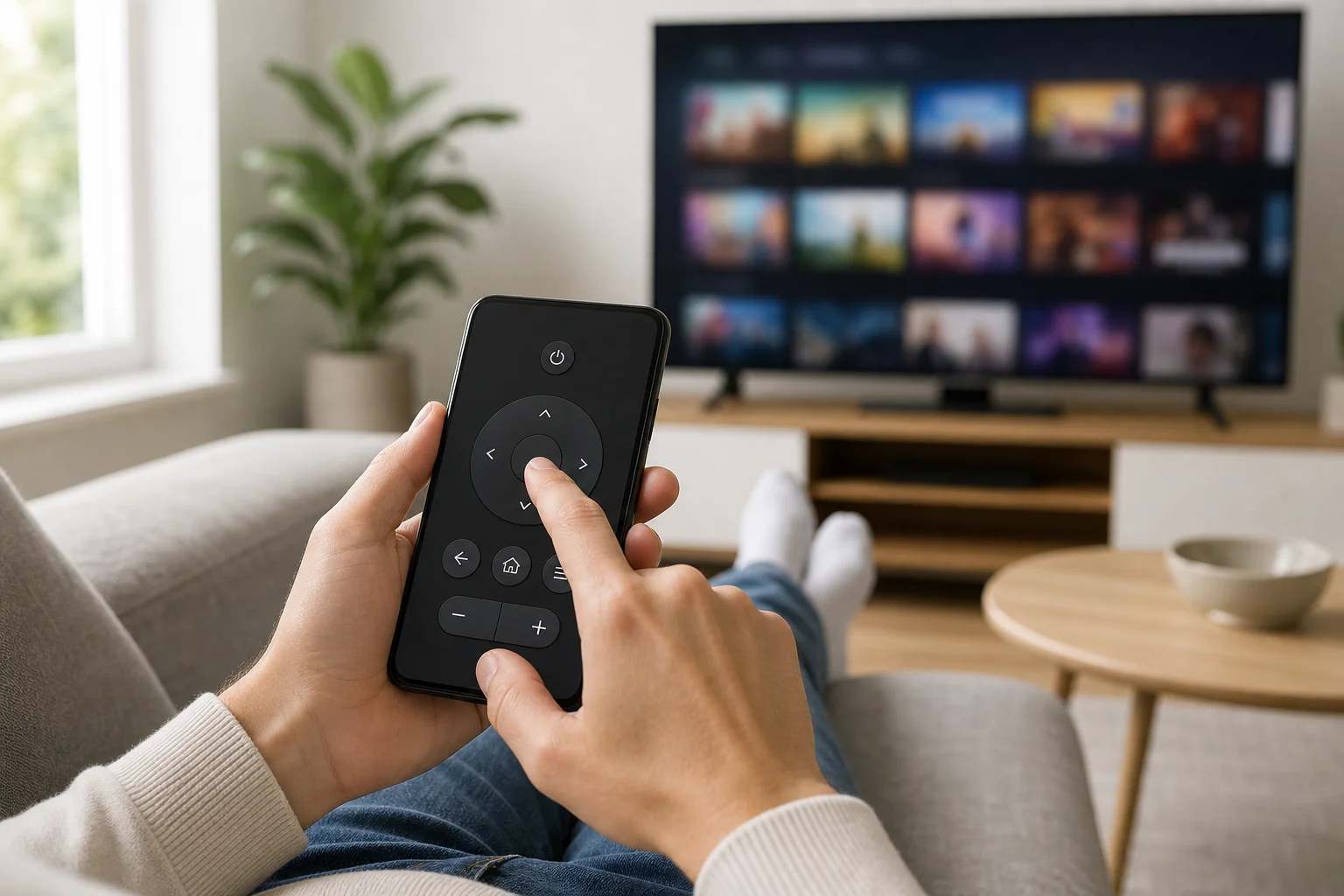
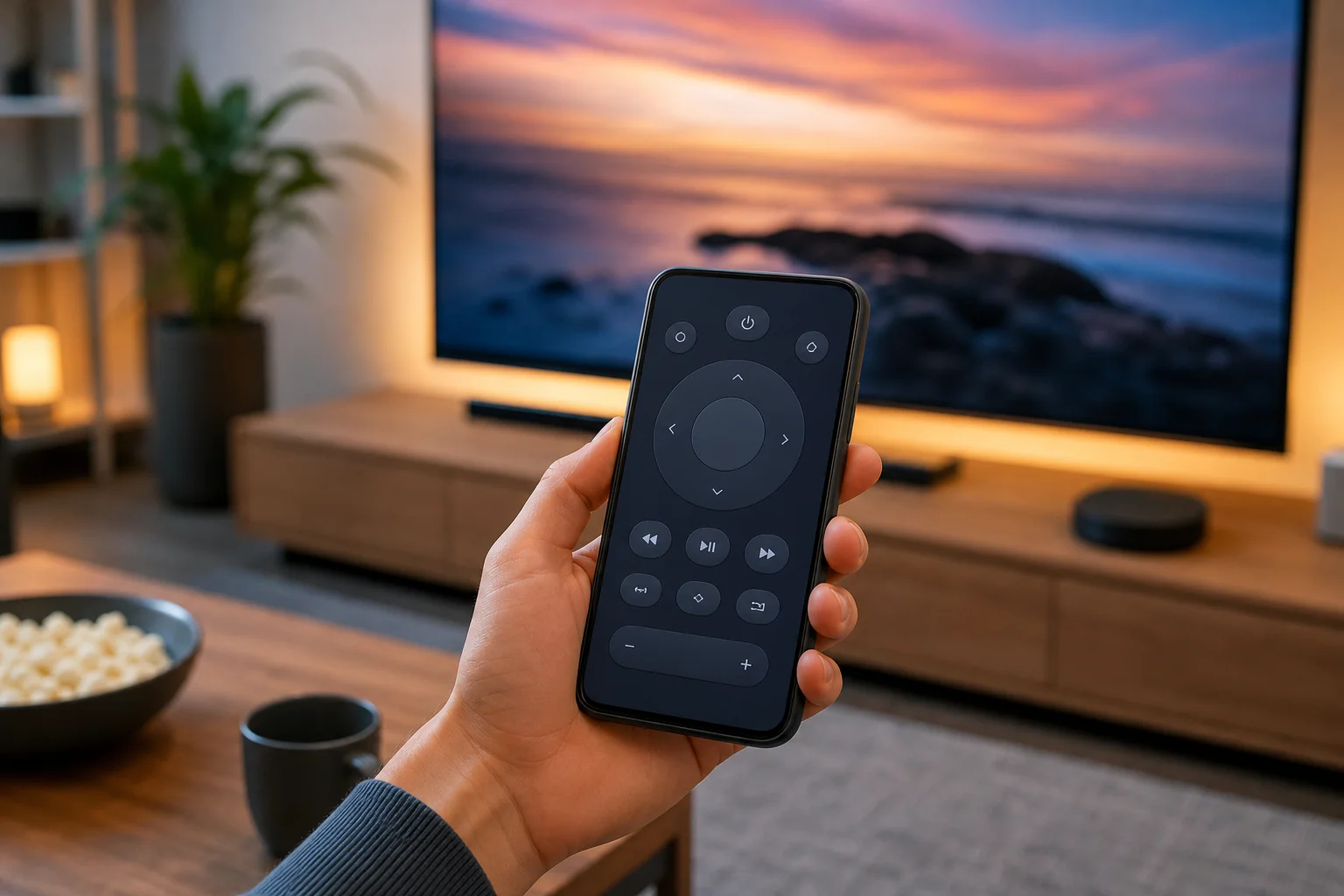
A TV remote in your phone is one of the easiest ways to control a smart TV when the physical remote is lost, broken, or out of reach. In most cases, you only need a compatible app, the same Wi-Fi network, and a few minutes for setup. This guide explains how phone-based TV remotes work, which apps to use, how to connect Android and iPhone devices, and what to do when the remote app does not find your TV.
What a TV remote on your phone can do
A phone remote can replace many everyday remote-control tasks. Depending on your TV and app, you may be able to:
- Turn the TV on or off
- Change volume and mute sound
- Switch channels or HDMI inputs
- Open streaming apps
- Use a touchpad or directional pad
- Type search terms with your phone keyboard
- Use voice search through Google Assistant or Siri where supported
- Control media playback, such as pause, rewind, and fast forward
For smart TVs, a phone remote is often more convenient than a traditional remote. Text entry is faster, app navigation is smoother, and you can keep control even if the original remote is missing.
However, not every phone remote works the same way. Some use Wi-Fi, some use Bluetooth, and a smaller number of Android phones can use infrared. The right option depends on your phone, your TV, and your streaming device.
How phone TV remotes work
Most modern TV remote apps use your home network. Your phone and TV must be connected to the same Wi-Fi network. The app finds the TV, asks you to confirm a pairing code, and then sends control commands over the network.
Some devices, such as Apple TV and certain streaming boxes, may also use Bluetooth during setup or control. In addition, a few Android phones include an IR blaster. This small infrared transmitter lets the phone act like a traditional remote, even for older TVs without Wi-Fi.
Wi-Fi remote control
Wi-Fi is the most common method for smart TVs. It works well with Samsung, LG, Sony, TCL, Hisense, Google TV, Android TV, Roku, Fire TV, and many other connected devices.
The main requirement is simple: your phone and TV should be on the same local network. If your router has separate 2.4 GHz and 5 GHz networks, both devices may still connect if the router bridges them correctly. If discovery fails, connecting both devices to the same Wi-Fi name can help.
Infrared remote control
Infrared, or IR, works like an old remote. You point the phone at the TV and send commands. This is useful for non-smart TVs, older cable boxes, air conditioners, and media players.
The limitation is hardware. Most iPhones do not include an IR blaster. Many Android phones also do not have one, although some models from brands such as Xiaomi and Huawei have included it in certain regions. If your phone has no IR blaster, an IR remote app alone will not add this feature.
Casting and ecosystem control
Sometimes you do not need a full remote app. If you use Chromecast built-in, AirPlay, Roku, or Fire TV, you can start playback from a streaming app and control pause, volume, or casting from your phone. This is not always a full replacement for the TV remote, but it may be enough for daily streaming.
Best apps for using your phone as a TV remote
The best app is usually the official app for your TV or streaming platform. It is more reliable and less likely to show intrusive ads than many generic remote apps.
| TV or device type | Recommended app | Best for | Notes |
|---|---|---|---|
| Google TV or Android TV | Google TV app or Google Home | Navigation, keyboard input, voice search | Works with many TVs and streaming boxes |
| Samsung smart TV | SmartThings | TV control and smart home features | Requires Samsung account for some functions |
| LG smart TV | LG ThinQ | TV remote, inputs, smart features | Compatibility depends on TV model and webOS version |
| Roku TV or player | Roku app | Full remote, private listening, search | Very reliable on the same Wi-Fi network |
| Fire TV | Amazon Fire TV app | Remote control and keyboard input | Useful when the Fire TV remote is lost |
| Apple TV | Apple TV Remote in Control Center | Touch controls and Siri support | Built into iPhone and iPad |
| Older TV with IR support | Manufacturer or IR remote app | Basic power, volume, channel control | Requires a phone with an IR blaster |
When possible, avoid apps that request unnecessary permissions, display too many ads, or ask for payment before you can test basic controls. A remote app should not need access to contacts, photos, or precise location for normal TV control.
How to set up a TV remote in your phone
Follow these steps for the most common Wi-Fi setup. The exact names may vary by brand, but the process is similar.
- Connect the TV to Wi-Fi. Open the TV network settings and make sure it is connected to your home network.
- Connect your phone to the same network. Avoid mobile data during setup. Use Wi-Fi on the phone.
- Install the correct remote app. Choose the official app for your TV brand or platform, such as Google TV, SmartThings, LG ThinQ, Roku, Fire TV, or Apple TV Remote.
- Open the app and search for devices. The app should scan your local network and show your TV or streaming device.
- Select your TV. Tap the device name when it appears.
- Confirm pairing. Many TVs show a code on screen. Enter that code on your phone, or approve the connection on the TV.
- Test basic controls. Try volume, navigation, home, and back buttons.
- Enable extra features if needed. Turn on keyboard input, voice search, or quick access shortcuts if your app supports them.
If the app works after setup, keep it installed. It can save time when the physical remote batteries die or when guests misplace the remote.
How to use an Android phone as a TV remote
Android phones work with a wide range of TV remote options. For smart TVs, start with the official app. For Google TV and Android TV devices, the Google TV app is often the simplest choice.
To use the Google TV app as a remote:
- Install or open the Google TV app.
- Make sure Bluetooth and Wi-Fi are enabled.
- Tap the remote icon.
- Select your TV or streaming device.
- Enter the pairing code shown on the TV.
- Use the on-screen remote, touchpad, or keyboard.
For Samsung TVs, use SmartThings. For LG TVs, use LG ThinQ. For Roku and Fire TV devices, use their dedicated apps. If your Android phone has an IR blaster, you can also try the built-in remote app if the manufacturer provides one.
How to use an iPhone as a TV remote
An iPhone can control many smart TVs and streaming devices over Wi-Fi, but it does not include an infrared blaster. That means it cannot control a basic non-smart TV by IR unless you use a separate accessory or hub.
For Apple TV, the easiest option is built in:
- Open Control Center.
- Tap the Apple TV Remote icon.
- Choose your Apple TV or AirPlay-compatible smart TV.
- Enter the code if prompted.
- Use the touch controls, buttons, and keyboard.
For Roku, Fire TV, Samsung, LG, and Google TV devices, install the matching app from the App Store. As with Android, your iPhone and TV should be on the same Wi-Fi network for discovery and control.
Troubleshooting when the phone remote does not connect
Connection problems are common, but they are usually easy to fix. Work through these checks in order.
Make sure both devices use the same network
Your phone may be on mobile data while the TV is on Wi-Fi. Or the phone may be connected to a guest network that blocks local device discovery. Turn off mobile data temporarily and connect to the same Wi-Fi network as the TV.
Restart the app, phone, and TV
Close the remote app fully and reopen it. If that does not help, restart your phone and unplug the TV for about 30 seconds. This can refresh network discovery.
Check permissions
On Android and iPhone, remote apps may need local network access, Bluetooth access, or nearby device permissions. If you denied these during setup, open your phone settings and allow them for the remote app.
Update the TV and app
Old TV firmware can cause pairing problems. Update the TV software from its settings menu. Then update the remote app from Google Play or the App Store.
Disable VPN or network isolation
A VPN on your phone can block local network discovery. Guest Wi-Fi and some router security modes can also isolate devices from each other. Turn off the VPN during setup and use your main home network.
Check power-on support
Some TVs cannot be turned on from a phone if they are fully powered down or disconnected from the network during standby. Look for settings such as “mobile TV on,” “wake on LAN,” “quick start,” or “network standby.” Names vary by brand.
Security and privacy tips
A TV remote app has access to devices on your home network, so choose it carefully. Use official apps when available. Review permissions before granting access. If an app asks for contacts, call logs, or unrelated data, choose another option.
Also, keep your TV software updated. Smart TVs can receive security patches just like phones and computers. If your TV shows a pairing prompt that you did not request, deny it. This prevents other people on the same network from connecting without permission.
FAQ about using a phone as a TV remote
Can I use my phone as a TV remote without Wi-Fi?
Yes, but only in specific cases. If your phone has an IR blaster, it can control many TVs without Wi-Fi. Otherwise, most smart TV remote apps need Wi-Fi or Bluetooth to work.
Can an iPhone work as an infrared TV remote?
No, not by itself. iPhones do not have built-in IR blasters. You can control smart TVs, Apple TV, Roku, Fire TV, and Google TV devices through apps over Wi-Fi, but basic IR control requires extra hardware.
Why does my remote app not find my TV?
The most common reason is that the phone and TV are not on the same network. Other causes include blocked local network permissions, a VPN, guest Wi-Fi, outdated software, or a TV setting that disables mobile control.
Is a phone remote better than a normal remote?
It depends on your habits. A phone remote is better for typing, searching, and controlling streaming apps. A physical remote is still faster for simple volume and channel changes because it has real buttons.
Can I control any TV with my phone?
Not every TV. Smart TVs and streaming devices are usually easy to control with apps. Older non-smart TVs need infrared, so your phone must have an IR blaster or you need an external smart hub.
Conclusion
Setting up a TV remote in your phone is a practical way to control your smart TV, streaming stick, or media box without hunting for the physical remote. Start with the official app for your device, connect both devices to the same Wi-Fi network, and pair them with the on-screen code. If it does not work at first, check permissions, updates, VPN settings, and network access. Once configured, keep the app ready so you can search faster, type easily, and stay in control whenever the remote disappears.