How to use phone as remote for TV
If you want to know how to use phone as remote for TV, the good news is that most modern TVs and streaming devices support it. You can control volume, open apps, type searches, navigate menus, and cast content from an Android phone or iPhone. In most cases, you only need the right app, the same Wi-Fi network, and a quick pairing code. This guide explains the best methods for smart TVs, Roku, Fire TV, Apple TV, Google TV, and older TVs with an infrared sensor.
Before you start
Using your phone as a TV remote is easiest when your TV and phone can communicate over the same network. Before installing apps, check these basics:
- Your TV or streaming device is turned on.
- Your phone and TV are connected to the same Wi-Fi network.
- Bluetooth is enabled if the remote app asks for it.
- Your TV software is up to date.
- You know the brand and model of your TV or streaming box.
- You can see the TV screen to enter or confirm a pairing code.
Some TVs also support control through an infrared blaster, often called an IR blaster. This is a small sensor on certain Android phones that works like a traditional remote. iPhones do not include built-in IR blasters, so they usually need Wi-Fi, Bluetooth, AirPlay, or a brand-specific app.
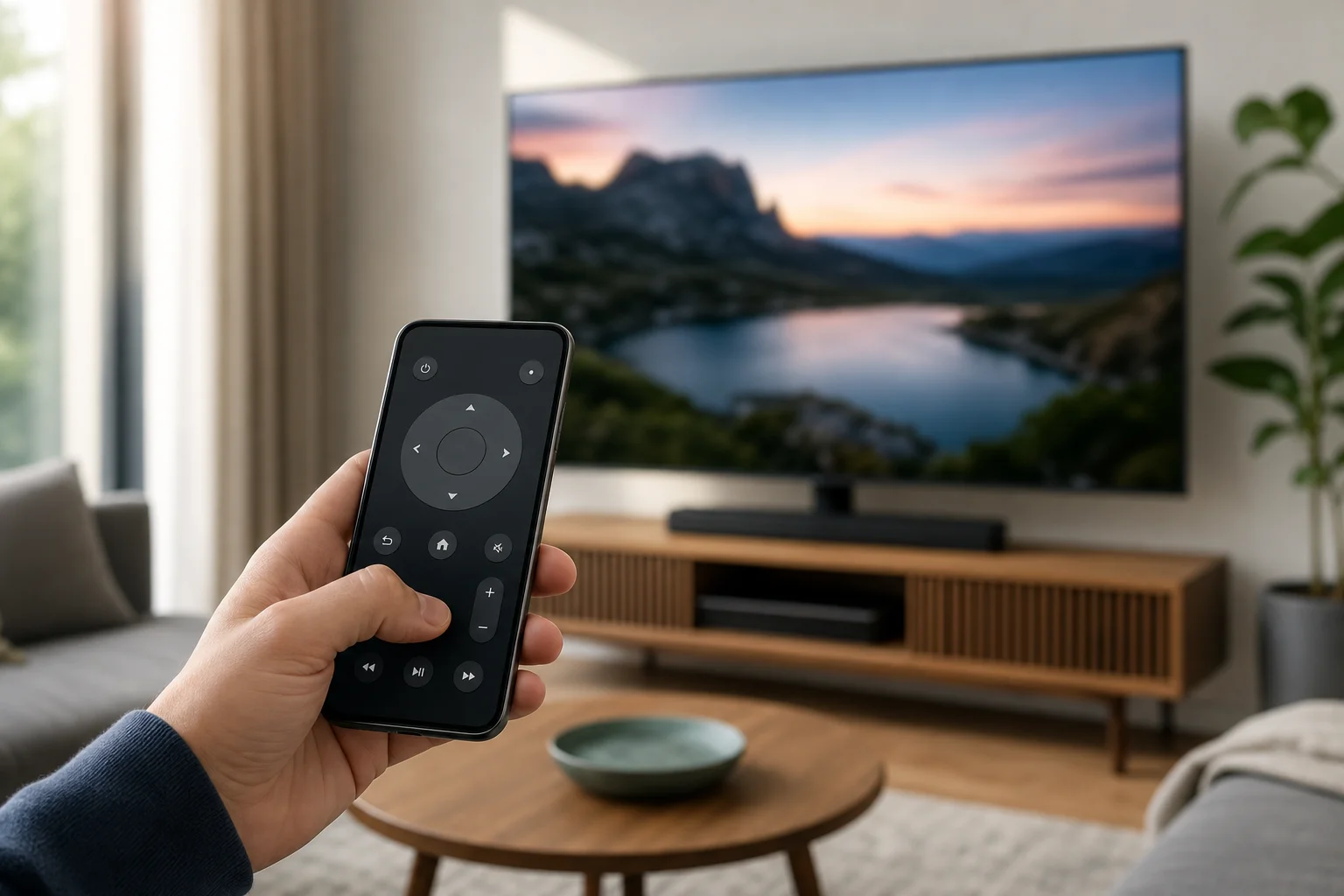
Best ways to use your phone as a TV remote
There is no single app that works perfectly with every TV. The best option depends on your device. Use this quick comparison to choose the right method.
| TV or device type | Recommended app or feature | Works on Android | Works on iPhone | Best for |
|---|---|---|---|---|
| Google TV or Android TV | Google TV app | Yes | Yes | General remote control, keyboard input, voice search |
| Apple TV | Apple TV Remote in Control Center | No | Yes | Apple TV navigation and Siri input |
| Roku TV or Roku player | Roku app | Yes | Yes | Roku channels, private listening, keyboard search |
| Amazon Fire TV | Amazon Fire TV app | Yes | Yes | Fire TV Stick, Fire TV Cube, app navigation |
| Samsung smart TV | SmartThings app | Yes | Yes | Samsung TV control and smart home features |
| LG smart TV | LG ThinQ app | Yes | Yes | LG webOS TV control |
| Older TV with IR receiver | IR remote app and IR blaster phone | Sometimes | No | Basic power, volume, and channel buttons |
If you use a streaming stick, such as Roku or Fire TV Stick, pair your phone with the streaming device rather than the TV itself. The stick controls what appears on screen, so its app usually gives the best result.
How to use an Android phone as a TV remote
Android gives you several options. The Google TV app works with many Android TV and Google TV models, while brand apps cover Samsung, LG, Roku, Fire TV, and others.
Use the Google TV app
Follow these steps if you have a Google TV, Android TV, Chromecast with Google TV, or a compatible smart TV:
- Connect your Android phone and TV to the same Wi-Fi network.
- Install or open the Google TV app on your phone.
- Tap TV remote or the remote icon.
- Choose your TV from the list.
- Enter the pairing code shown on the TV screen.
- Use the on-screen touchpad, directional pad, keyboard, and volume controls.
This method is useful because typing on a phone is much faster than using a remote control with arrow buttons. It also works well for search boxes in YouTube, Netflix, and other supported apps.
Use a TV brand app
If the Google TV app does not find your TV, use the manufacturer’s official app instead. Common options include:
- Samsung SmartThings for Samsung smart TVs.
- LG ThinQ for LG smart TVs.
- Sony | BRAVIA Connect or Google TV app for many Sony TVs.
- Roku app for Roku TVs and Roku players.
- Amazon Fire TV app for Fire TV devices.
- Vizio Mobile for many Vizio smart TVs.
After installation, sign in if required, select your TV, and confirm the connection request on the TV screen. In many cases, you only need to pair once.
Use an IR blaster app for older TVs
Some Android phones from brands such as Xiaomi, Redmi, POCO, Huawei, and older Samsung or LG models may include an IR blaster. If your phone has one, you can control older TVs that do not connect to Wi-Fi.
To set it up:
- Check whether your phone has an IR blaster. It is usually a small dark dot on the top edge.
- Open the built-in remote app, such as Mi Remote, or install a trusted IR remote app.
- Select TV and choose your TV brand.
- Test the power and volume buttons.
- Save the remote profile once it works.
IR control needs line of sight. Point the top of the phone at the TV, just as you would with a normal remote.
How to use an iPhone as a TV remote
An iPhone can control many TVs and streaming devices over Wi-Fi. The exact setup depends on whether you use Apple TV, AirPlay, Roku, Fire TV, or a smart TV brand app.
Use iPhone with Apple TV
For Apple TV, the remote is built into iOS:
- Make sure your iPhone and Apple TV are on the same Wi-Fi network.
- Open Control Center on your iPhone.
- Tap Apple TV Remote.
- Select your Apple TV.
- Enter the code shown on the TV if prompted.
- Use the touch area, play controls, keyboard, and Siri button.
If you do not see Apple TV Remote in Control Center, go to Settings, then Control Center, and add it.
Use iPhone with smart TV apps
For non-Apple TVs, install the official app for your device. Good choices include:
- Roku app for Roku TV and Roku streaming players.
- Amazon Fire TV app for Fire TV devices.
- Google TV app for Google TV and Android TV devices.
- SmartThings for Samsung TVs.
- LG ThinQ for LG TVs.
Open the app, allow local network access when iOS asks, and choose your TV. If you deny local network permission, the app may not discover your TV. You can fix this later in Settings, then the app name, then Local Network.
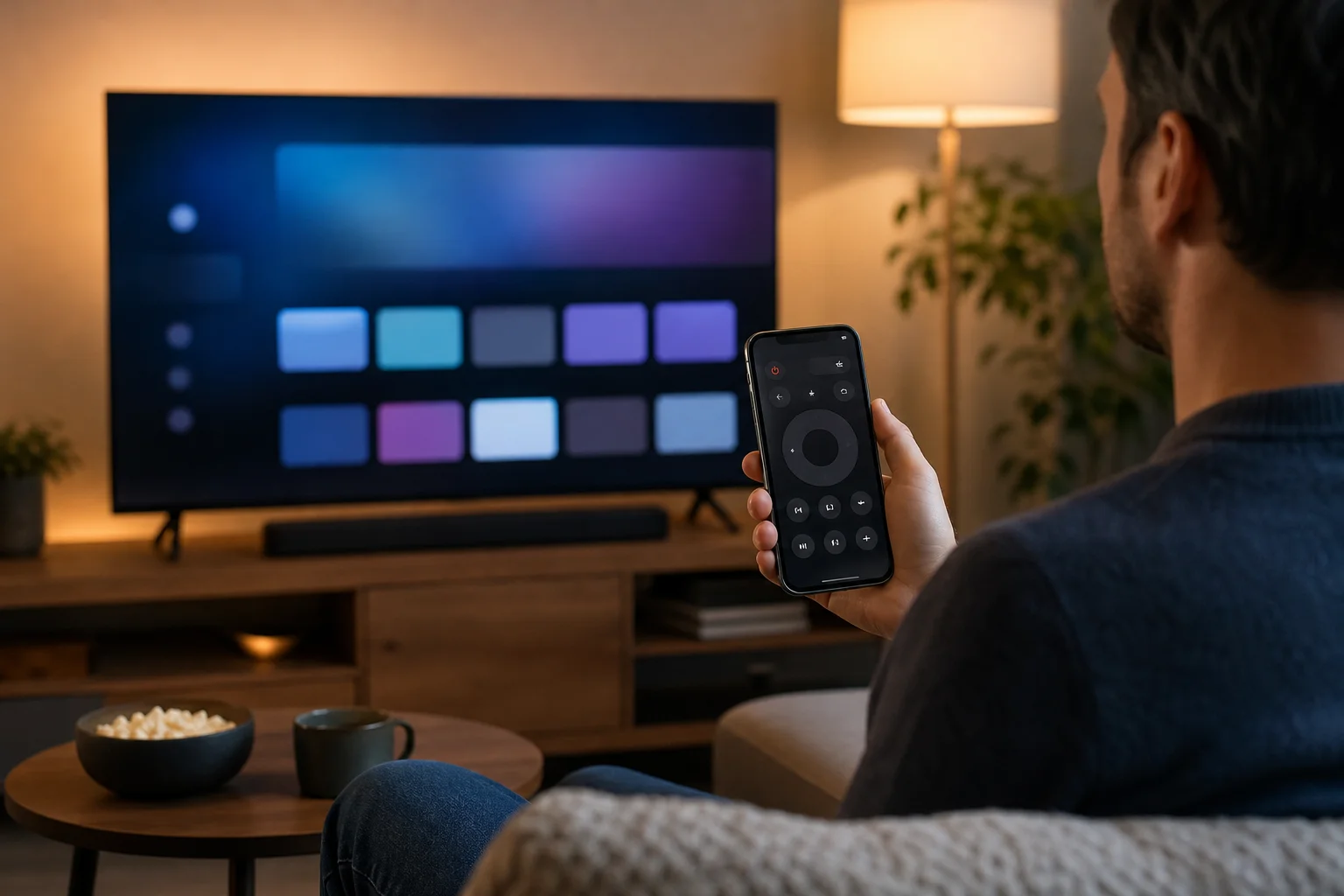
How to control a TV without Wi-Fi
Wi-Fi is the most reliable method, but it is not the only one. If you do not have Wi-Fi, try these options:
- Use an IR blaster phone: This works with many older TVs, but only on phones with infrared hardware.
- Use a mobile hotspot carefully: Some TVs can connect to a phone hotspot, but the same phone may not always control the TV while hosting the network.
- Use Bluetooth if supported: A few devices support Bluetooth remote apps, but setup usually still requires Wi-Fi first.
- Use HDMI-CEC through a streaming device: If your streaming remote app controls the box, HDMI-CEC may pass some commands to the TV, such as power and volume.
For most users, restoring Wi-Fi or connecting both devices to the same router is the quickest fix.
Troubleshooting when your phone remote does not work
If the app cannot find your TV, start with simple checks. Most problems come from network settings or permissions.
Check the same network
Your phone and TV must usually be on the same Wi-Fi network. If your router has separate 2.4 GHz and 5 GHz names, connect both devices to the same one. Also avoid guest Wi-Fi, because it often blocks devices from seeing each other.
Allow local network permission
On iPhone, remote apps need local network permission. Go to Settings, choose the app, and turn on Local Network. On Android, allow nearby devices, location, or Bluetooth permissions if the app requests them. These permissions help the app discover devices near you.
Restart and update devices
Restart the TV, phone, router, and streaming device. Then update the app and TV firmware. A stuck network service or outdated app can prevent pairing.
Re-pair the remote app
Remove the TV from the app and pair it again. If your TV has a device management menu, delete old paired phones. Then open the app, select the TV, and enter the new pairing code.
Security and privacy tips
A phone remote is convenient, but it also connects to devices on your home network. Use it safely:
- Install only official apps from Google Play or the App Store.
- Avoid unknown “universal remote” apps with excessive permissions.
- Keep your TV and phone updated.
- Do not pair your phone with TVs you do not trust.
- Remove old devices from your TV’s paired device list.
- Secure your Wi-Fi with a strong password.
These steps reduce the risk of unwanted access and keep your smart TV setup cleaner.
FAQ
Can I use my phone as a remote for any TV?
Not every TV supports phone control. Smart TVs and streaming devices usually work through Wi-Fi apps. Older TVs need a phone with an IR blaster or a separate smart hub.
What is the best universal TV remote app?
The best app is usually the official one for your device, such as Google TV, Roku, Amazon Fire TV, SmartThings, LG ThinQ, or Apple TV Remote. Official apps are more reliable and safer than generic remote apps.
Can I turn on my TV with my phone?
Sometimes. If your TV supports wake-on-LAN, Bluetooth wake, HDMI-CEC, or standby network control, the app may turn it on. If the TV fully disconnects from the network when off, you may need the physical remote or power button.
Why does my phone remote control volume but not the TV menu?
You may be controlling a streaming device rather than the TV itself. For full TV settings, use the TV manufacturer’s app. For streaming apps and playback, use the streaming device app.
Do I need internet to use my phone as a TV remote?
You usually need a local Wi-Fi network, but not always active internet. Many remote apps work if the phone and TV are on the same router. However, app sign-in, updates, and streaming services may require internet.
Conclusion
To use your phone as a remote for TV, start by connecting your phone and TV to the same Wi-Fi network, then choose the official app for your device. Use Google TV for Android TV and Google TV, Apple TV Remote for Apple TV, Roku or Fire TV apps for streaming players, and brand apps for Samsung or LG TVs. If you have an older TV, check whether your Android phone has an IR blaster. Install the right app, pair it once, and keep it ready as a fast backup remote.