How to install a TV remote on a smartphone
If you want to know how to install a TV remote on a smartphone, the process is usually simple: choose the right remote app, connect your phone and TV to the same Wi-Fi network, pair the devices, and start controlling your TV. This guide explains the best options for Android and iPhone, including official apps for Samsung, LG, Roku, Fire TV, Google TV, and Apple TV. You will also learn when an infrared remote app works, how to fix pairing problems, and how to choose a safe app.
Before you install a TV remote app
A smartphone can control a TV in two main ways. The first method uses Wi-Fi. This is the most common option for smart TVs and streaming devices. Your phone sends commands through your home network, so the TV and phone must usually be on the same Wi-Fi network.
The second method uses infrared, often called IR. This works like a classic remote control. However, only some Android phones have an IR blaster. Most iPhones do not have built-in infrared hardware, so they cannot work as a traditional IR remote without extra accessories.
Before you begin, check these points:
- Your TV or streaming device is powered on.
- Your smartphone is connected to Wi-Fi.
- Your TV is connected to the same Wi-Fi network.
- Bluetooth is enabled if the app requires it.
- You know your TV brand and model, or the streaming platform you use.
- Your phone has enough battery and storage for the app.
For the best results, use an official app from your TV or streaming device maker. Official apps are usually more reliable and reduce the risk of installing unnecessary or intrusive software.
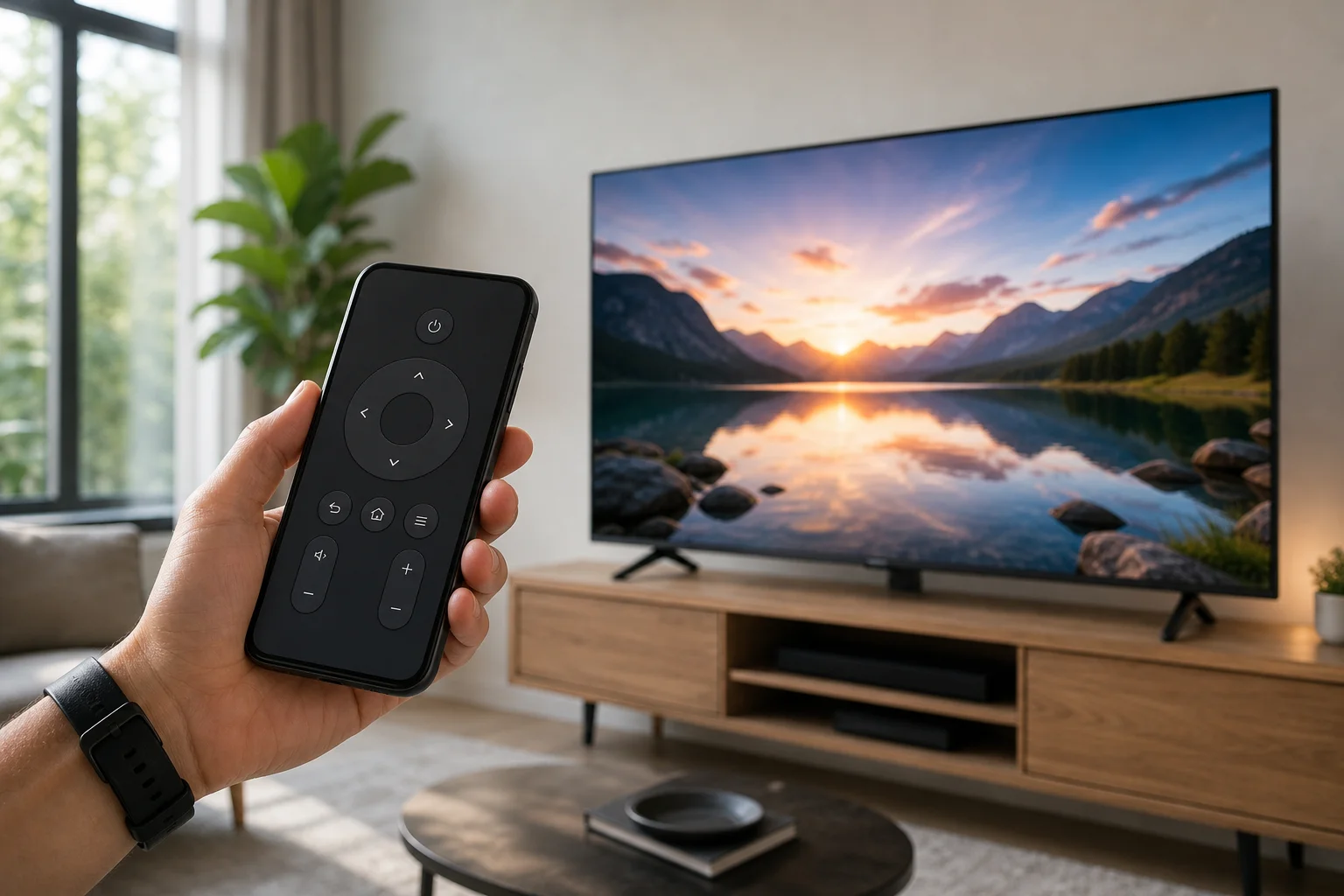
Best apps to use as a TV remote on your phone
The right app depends on your TV brand or streaming device. In many cases, you do not need a universal remote app. A dedicated app will give you better pairing, voice search, keyboard input, and app shortcuts.
| Device or TV platform | Recommended app | Works on | Best for |
|---|---|---|---|
| Google TV or Android TV | Google TV app | Android, iPhone | Basic remote, keyboard, voice features where supported |
| Samsung smart TV | SmartThings | Android, iPhone | Samsung TVs and smart home devices |
| LG smart TV | LG ThinQ | Android, iPhone | LG webOS TVs and connected appliances |
| Roku TV or Roku device | Roku app | Android, iPhone | Roku control, private listening on supported devices |
| Amazon Fire TV | Amazon Fire TV app | Android, iPhone | Fire TV Stick, Fire TV Cube, Fire TV televisions |
| Apple TV | Apple TV Remote in Control Center | iPhone, iPad | Apple TV and AirPlay-compatible control |
| Older non-smart TV | IR remote app, if supported | Some Android phones | TVs controlled by infrared |
If you are not sure what platform your TV uses, look at the home screen. You may see labels such as Google TV, Roku TV, Fire TV, Samsung Tizen, or LG webOS. You can also check the settings menu or the model information on the back of the TV.
How to install a TV remote on an Android phone
Follow these steps to set up a TV remote app on Android. The exact names may vary slightly by phone model and Android version.
- Identify your TV or streaming device. Check whether you use a Samsung TV, LG TV, Roku, Fire TV, Google TV, Android TV, or another platform.
- Open Google Play. Use the official Play Store app on your Android phone.
- Search for the official remote app. For example, search for Google TV, SmartThings, LG ThinQ, Roku, or Amazon Fire TV.
- Check the developer name. Make sure the app is published by the expected company, such as Google LLC, Samsung Electronics, LG Electronics, Roku, or Amazon.
- Install the app. Tap Install and wait for the download to finish.
- Connect to the same Wi-Fi network. Your phone and TV should be on the same network. Avoid guest networks unless device discovery is allowed.
- Open the app and sign in if needed. Some apps work without an account, while others need one for full features.
- Select your TV. The app should scan for nearby devices. Tap your TV name when it appears.
- Enter the pairing code. Many TVs show a code on the screen. Type it into the phone app.
- Test the controls. Try volume, navigation, back, home, and power controls.
If the app does not find your TV, restart the app first. Then confirm that both devices are on the same Wi-Fi band or router. Some routers separate 2.4 GHz and 5 GHz networks, which can block discovery in certain setups.
How to install a TV remote on an iPhone
On iPhone, the setup depends on whether you control Apple TV, a smart TV, or a streaming device.
For Apple TV
The easiest option is the built-in Apple TV Remote feature.
- Open Control Center on your iPhone.
- Tap the Apple TV Remote icon.
- Choose your Apple TV or compatible smart TV.
- Enter the code shown on the TV, if asked.
- Use the touch controls, buttons, keyboard, or Siri features where available.
If you do not see the Apple TV Remote icon, go to Settings, then Control Center, and add Apple TV Remote.
For smart TVs and streaming devices
For other devices, use the App Store:
- Open the App Store.
- Search for the official app for your TV or streaming device.
- Install apps such as Google TV, SmartThings, LG ThinQ, Roku, or Amazon Fire TV.
- Connect the iPhone and TV to the same Wi-Fi network.
- Open the app and follow the pairing instructions.
- Enter the on-screen pairing code if required.
An iPhone usually cannot control an old non-smart TV by infrared because it does not include an IR blaster. If your TV is not smart, consider a streaming device such as Roku, Fire TV, Google TV Streamer, Chromecast with Google TV, or Apple TV. After setup, your iPhone can control that device through its app.
How to use your phone as a remote after setup
Once paired, your smartphone remote can often do more than a basic physical remote. Features vary by app and TV model, but common options include:
- Directional navigation for menus.
- Volume and mute controls.
- Power on and off, when supported.
- Home, back, and input buttons.
- Text input using your phone keyboard.
- Voice search through the app or phone assistant.
- App shortcuts for streaming services.
- Playback controls such as play, pause, rewind, and fast-forward.
The keyboard feature is especially useful. It saves time when entering Wi-Fi passwords, searching for films, or signing in to streaming apps.
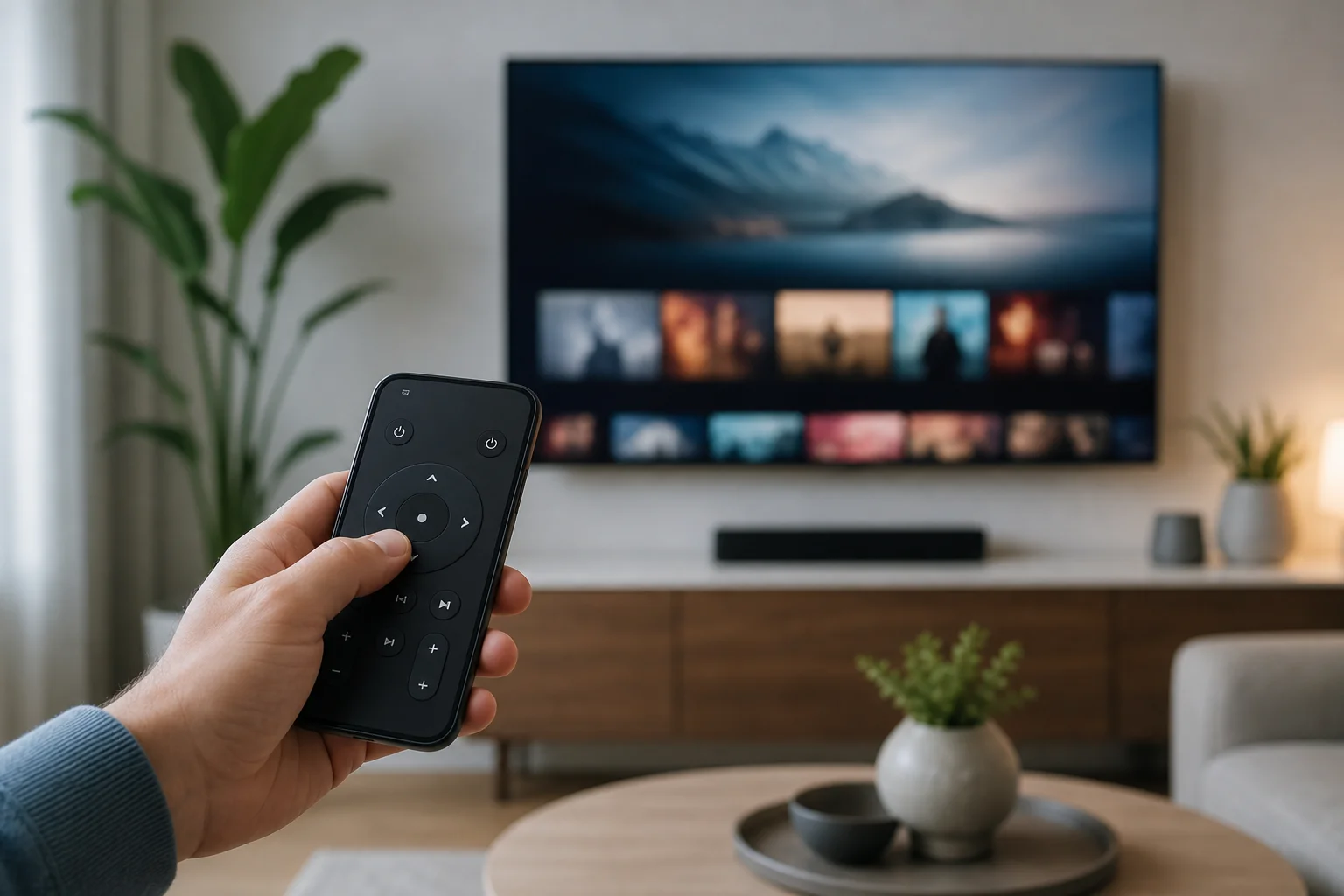
Using an infrared remote app
An infrared remote app can be useful if you have an older TV without Wi-Fi. However, it only works when your phone has the required infrared hardware. Some Android phones from brands such as Xiaomi, Huawei, and older Samsung or LG models may include an IR blaster, but many current phones do not.
To check if your Android phone has infrared, search your phone model plus “IR blaster” on the manufacturer’s website. You can also look for a small dark window on the top edge of the phone, although design varies.
If your phone has an IR blaster, install a reputable IR remote app from Google Play. Then choose your TV brand and test several remote profiles until one works. Keep in mind that infrared requires line of sight. Point the top of the phone toward the TV, just like a normal remote.
Safety tips for choosing a remote control app
Remote apps can request permissions, so choose carefully. A TV remote app normally needs access to your local network, Wi-Fi, Bluetooth, or microphone if you use voice search. It should not need unrelated access to your contacts, messages, or call history.
Use these safety checks before installing:
- Prefer official apps from known developers.
- Read recent reviews, not only the star rating.
- Check the app permissions before accepting.
- Avoid apps with excessive ads or unclear subscription terms.
- Keep your phone and TV software updated.
- Remove apps you no longer use.
Also be careful with apps that promise to control every TV model instantly. Some universal apps are legitimate, but many are ad-heavy and less reliable than official options.
Troubleshooting when your phone remote does not work
If your smartphone TV remote fails to connect, start with simple fixes. Most problems are caused by network settings, outdated software, or a missed pairing step.
The app cannot find my TV
Make sure the phone and TV are on the same Wi-Fi network. Disable mobile data temporarily if the app keeps using it. Then restart the TV, restart the router, and reopen the remote app. If your router has a guest network, avoid it unless local device access is enabled.
The pairing code does not appear
Open the TV settings and look for remote app, mobile device, network, or device connection settings. Some TVs require you to allow mobile control first. Also confirm that your TV software is up to date.
The remote connects but buttons do not respond
Close and reopen the app. Then unpair the TV and pair it again. If only volume or power does not work, that feature may not be supported on your TV model or may require HDMI-CEC settings.
The app disconnects often
Weak Wi-Fi can cause delays and disconnections. Move closer to the router or restart it. If possible, connect the TV to the router with Ethernet. This can make app-based remote control more stable.
FAQ about installing a TV remote on a smartphone
Can I install a TV remote on any smartphone?
You can install remote apps on most Android phones and iPhones. However, the TV must support app control over Wi-Fi, or the phone must have an IR blaster for infrared control.
Do I need Wi-Fi to use my phone as a TV remote?
For most smart TVs and streaming devices, yes. The phone and TV usually need to be on the same Wi-Fi network. Infrared remote apps do not need Wi-Fi, but they require an IR blaster.
What is the best free TV remote app?
The best free option is usually the official app for your device: Google TV, SmartThings, LG ThinQ, Roku, Amazon Fire TV, or Apple TV Remote. These apps are designed for their own platforms.
Can I use my phone remote if I lost the original remote?
Yes, if the TV is already connected to Wi-Fi and supports app control. If the TV is not connected to Wi-Fi, you may need the physical remote, TV buttons, Ethernet, or a USB keyboard to complete setup.
Why does my iPhone not work as an infrared TV remote?
Most iPhones do not have an infrared transmitter. They control TVs through Wi-Fi, Bluetooth, AirPlay, or device-specific apps instead of classic IR signals.
Conclusion
To install a TV remote on a smartphone, start with the official app for your TV or streaming device, connect both devices to the same Wi-Fi network, and complete the pairing code step. If you have an older TV, check whether your Android phone has an IR blaster. Choose a trusted app, test the main buttons, and keep the app installed as a backup for your physical remote.