Can you use iPhone as a remote for TV?
Yes, you can use iPhone as a remote for TV in several ways. The best method depends on your television model, streaming device, and Wi-Fi setup. If you use Apple TV or an AirPlay-compatible smart TV, the built-in Apple TV Remote in Control Center is usually the easiest option. For Samsung, LG, Sony, TCL, Roku, Fire TV, and Google TV devices, official apps often provide full remote controls. This guide explains the main options, setup steps, limitations, and fixes when your iPhone remote is not working.
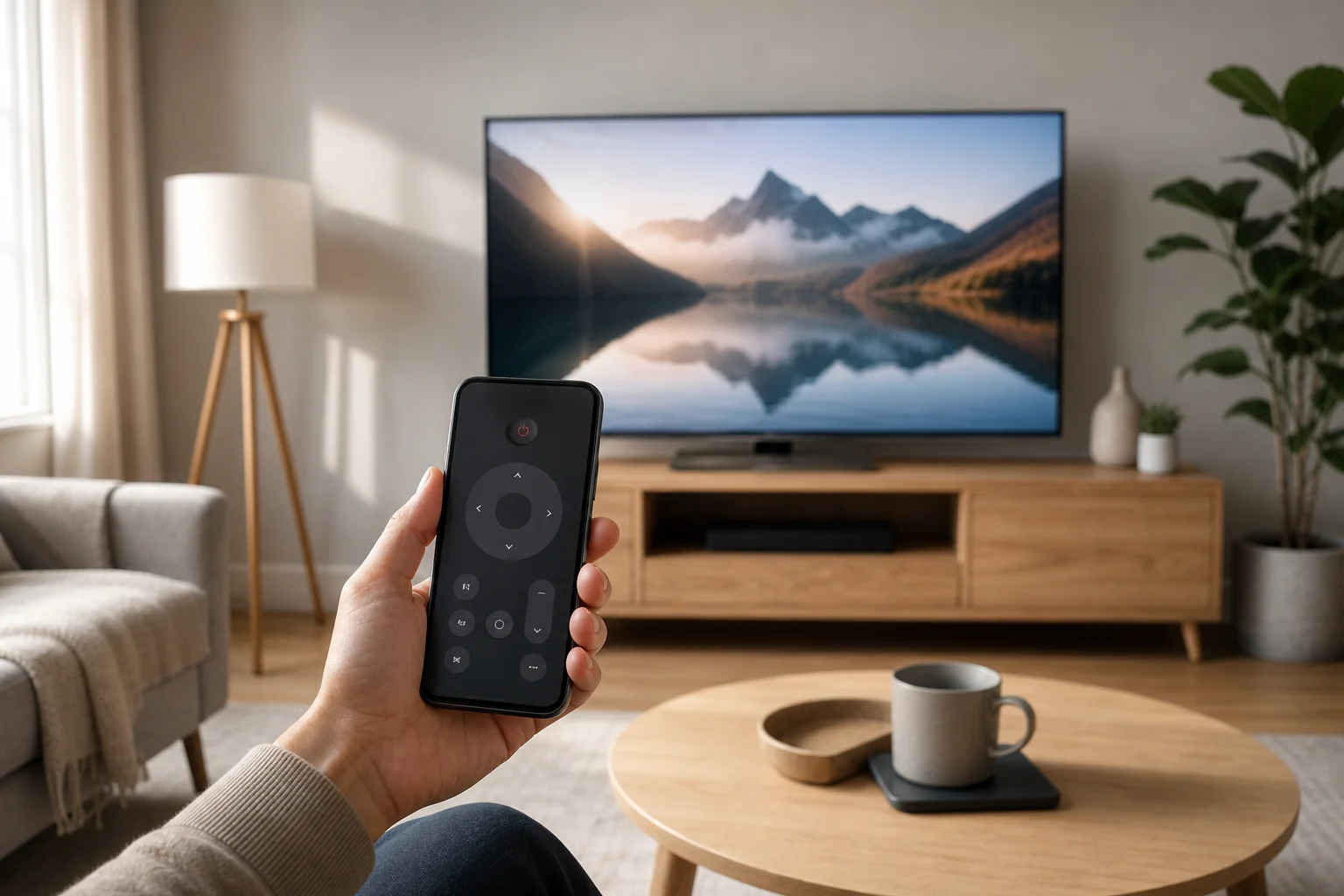
How iPhone TV remote control works
Your iPhone does not usually control a TV with infrared like many traditional remotes. Most iPhone models do not include an IR blaster. Instead, iPhone remote control apps typically work over Wi-Fi, Bluetooth, AirPlay, or a local network connection.
That means two things matter most:
- Your iPhone and TV or streaming device must usually be on the same Wi-Fi network.
- The TV, streaming box, or app must support remote control from iOS.
In some cases, you can also control playback through AirPlay, screen mirroring, or casting from apps such as YouTube, Netflix, Apple TV, and Spotify. However, playback controls are not the same as a full remote. A true remote app lets you navigate menus, change volume, type search terms, and select apps.
Best ways to use an iPhone as a TV remote
Different TV platforms use different remote systems. The table below gives a quick comparison.
| TV or device type | Best iPhone remote option | What it can control | Main requirement |
|---|---|---|---|
| Apple TV | Apple TV Remote in Control Center | Menus, playback, Siri, volume on supported setups | Same Wi-Fi network and paired device |
| AirPlay smart TV | Apple TV Remote or AirPlay controls | Playback and some TV functions | AirPlay support |
| Roku TV or Roku player | Roku official app | Menus, channels, private listening, typing | Same Wi-Fi network |
| Amazon Fire TV | Amazon Fire TV app | Menus, apps, Alexa voice control on supported devices | Same Wi-Fi network |
| Google TV or Android TV | Google TV app | Navigation, typing, voice search | Same Wi-Fi network and pairing code |
| Samsung smart TV | SmartThings app | Power, volume, channels, apps on supported models | Samsung account and same network |
| LG smart TV | LG ThinQ app | Power, volume, inputs, apps on supported models | LG account and compatible TV |
| Other smart TVs | Manufacturer app or universal remote app | Varies by model | App support and network access |
For most people, the official app from Apple, Roku, Amazon, Google, Samsung, or LG is safer and more reliable than a random “universal remote” app. Official apps are also less likely to show intrusive ads or request unnecessary permissions.
How to use the Apple TV Remote on iPhone
If you have an Apple TV streaming box, or a compatible smart TV that supports Apple TV Remote features, your iPhone already has a remote built into iOS. You do not need to download a separate app.
Step-by-step setup
- Connect to the same Wi-Fi network. Make sure your iPhone and Apple TV are using the same home network.
- Open Control Center. On iPhones with Face ID, swipe down from the top-right corner. On older models, swipe up from the bottom edge.
- Tap the Apple TV Remote icon. If you do not see it, go to Settings > Control Center and add Apple TV Remote.
- Select your Apple TV or smart TV. Choose the device from the list.
- Enter the pairing code. If a code appears on the TV screen, type it on your iPhone.
- Start controlling the TV. Use the touch area, play/pause button, back button, and keyboard when text entry appears.
The iPhone Apple TV Remote can be more convenient than the physical Siri Remote because typing passwords and search terms is much faster. Also, the iPhone may show a keyboard automatically when a text field appears on the TV.
What about volume control?
Volume control depends on your hardware. If your TV, receiver, or soundbar supports HDMI-CEC or AirPlay volume control, your iPhone’s volume buttons may work while the remote is open. If not, you may still need the original TV or soundbar remote for volume.
How to control a smart TV with an iPhone app
If you do not use Apple TV, the best approach is usually the official app for your TV brand or streaming platform.
Samsung TVs
For many Samsung smart TVs, use the SmartThings app. After signing in, add your TV as a device. Once paired, your iPhone can control power, volume, channels, inputs, and apps on supported models. Some functions depend on the TV year and region.
LG TVs
For LG smart TVs, use the LG ThinQ app. It can work as an iPhone remote for LG TV models that support ThinQ. You may need to accept a pairing request on the TV screen. Once connected, you can control volume, inputs, settings, and app navigation.
Roku TVs and Roku players
The Roku app is one of the most useful remote apps. It offers a directional pad, voice search where supported, keyboard input, and private listening with headphones connected to your iPhone. This is especially helpful at night.
Fire TV devices
The Amazon Fire TV app lets your iPhone control Fire TV Stick, Fire TV Cube, and Fire TV smart televisions. It includes navigation, keyboard input, and voice features on compatible devices. Your Fire TV and iPhone must be on the same Wi-Fi network.
Google TV and Android TV
For Google TV and many Android TV devices, use the Google TV app. Open the app, tap the remote option, choose your TV, and enter the pairing code shown on the screen. It is useful for typing searches, entering passwords, and navigating apps.
Can an iPhone replace every TV remote?
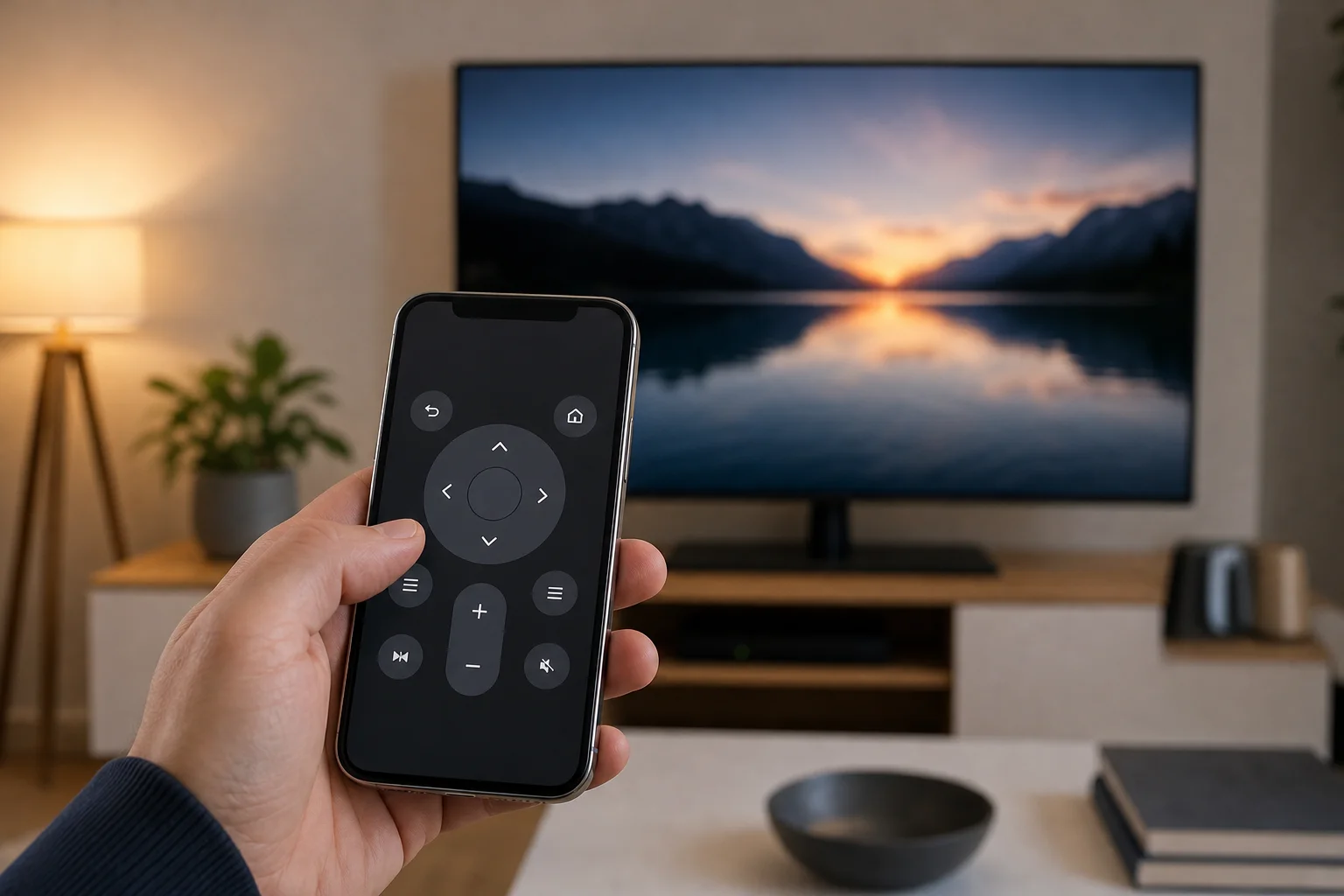
An iPhone can replace many daily remote tasks, but it may not replace every physical remote in every setup. The answer depends on your TV and connected devices.
An iPhone is usually great for:
- Opening streaming apps
- Browsing menus
- Playing and pausing video
- Searching with the iPhone keyboard
- Using voice search on supported platforms
- Adjusting volume in compatible setups
- Casting or using AirPlay from mobile apps
However, you may still need a physical remote for:
- Initial TV setup before Wi-Fi is configured
- Changing some advanced picture or service settings
- Controlling older TVs without smart features
- Switching certain receiver or soundbar modes
- Using devices that are on a different network
- Recovery tasks after a factory reset
So, yes, your iPhone can work as a TV remote for everyday use. Still, it is smart to keep the original remote in a safe place.
What you need before setting it up
Before trying to use your iPhone as a remote control for TV, check these basics:
- A compatible TV or streaming device. Smart TVs and streaming boxes are much easier to control than older TVs.
- The same Wi-Fi network. Most remote apps require local network access.
- Bluetooth enabled when required. Some devices use Bluetooth during pairing.
- The latest app version. Update the remote app from the App Store.
- Local network permission. In iPhone Settings, allow the app to find devices on your network.
- HDMI-CEC enabled. This helps with power and volume control across connected devices.
On many TVs, HDMI-CEC has a brand-specific name. Samsung calls it Anynet+, LG calls it SIMPLINK, Sony often calls it BRAVIA Sync, and other brands use similar names. Turning it on can improve control between the TV, streaming box, soundbar, and iPhone remote app.
How to fix iPhone TV remote problems
If your iPhone cannot find the TV or the remote stops working, start with simple checks. Most issues are network or permission related.
Check the Wi-Fi network
Make sure your iPhone and TV are on the same network name. If your router has separate 2.4 GHz and 5 GHz networks, connect both devices to the same one if possible. Also, avoid guest networks because they may block device discovery.
Allow local network access
On your iPhone, go to Settings, find the remote app, and make sure Local Network is enabled. Without this permission, the app may not see your TV even when both devices are online.
Restart the devices
Restart the iPhone, TV, streaming box, and router. This often clears temporary connection problems. After restarting, open the remote app again and try pairing from the beginning.
Update software
Install iOS updates and update your TV or streaming device firmware. Also update the remote app. Older software can cause pairing errors, missing features, or connection drops.
Re-pair the remote app
If the app was previously connected but stopped working, remove the TV from the app and pair it again. On the TV, you may also need to delete old mobile remote permissions or trusted devices.
Privacy and security tips
Remote apps can access your local network, and some may collect usage data. For that reason, choose official apps whenever possible. Avoid unknown apps that ask for unrelated permissions, such as access to contacts or photos.
Also, secure your home Wi-Fi with a strong password. If someone joins your network, they may be able to discover smart TVs and streaming devices. For extra control, review paired mobile devices in your TV settings and remove any you do not recognize.
FAQ about using iPhone as a TV remote
Can I use my iPhone as a remote for a non-smart TV?
Usually not directly. Most iPhones do not have infrared hardware. However, you can control a non-smart TV indirectly if it is connected to a device such as Apple TV, Roku, Fire TV, Chromecast with Google TV, or a compatible cable box.
Is there a free iPhone TV remote app?
Yes. Apple TV Remote is built into iOS, and official apps such as Roku, Amazon Fire TV, Google TV, SmartThings, and LG ThinQ are generally free to download. Some third-party universal remote apps offer paid features, so check before subscribing.
Can I turn on my TV with my iPhone?
Sometimes. It depends on the TV, app, network standby settings, and HDMI-CEC support. Many smart TVs can wake from standby through an official app, but older models may not respond when fully powered off.
Why does my iPhone remote not find my TV?
The most common reasons are different Wi-Fi networks, guest network isolation, disabled local network permission, outdated software, or a TV setting that blocks mobile control. Restarting the router and re-pairing the app often helps.
Can I use Siri to control my TV?
Yes, in supported setups. Siri can control Apple TV and some HomeKit-compatible TVs or accessories. You may be able to play content, pause video, open apps, or control power through the Home app, depending on your devices.
Conclusion
You can use iPhone as a remote for TV with built-in Apple tools, official smart TV apps, or streaming device apps. Start by identifying your TV platform, then install the matching app or open Apple TV Remote in Control Center. Connect both devices to the same Wi-Fi network, pair them, and enable permissions. Once set up, your iPhone can make searching, typing, playback, and everyday TV control faster and easier.