Remote control functions in the app: Complete guide to features and setup
Remote control functions in the app let you use a phone or tablet to control a TV, streaming device, media player, projector, or smart home device. Instead of looking for a physical remote, you can change volume, open apps, type text, browse menus, and manage playback from one screen. This guide explains the most useful app remote features, how they work, how to set them up, and what to check when the remote inside an app does not respond.
What app remote control means
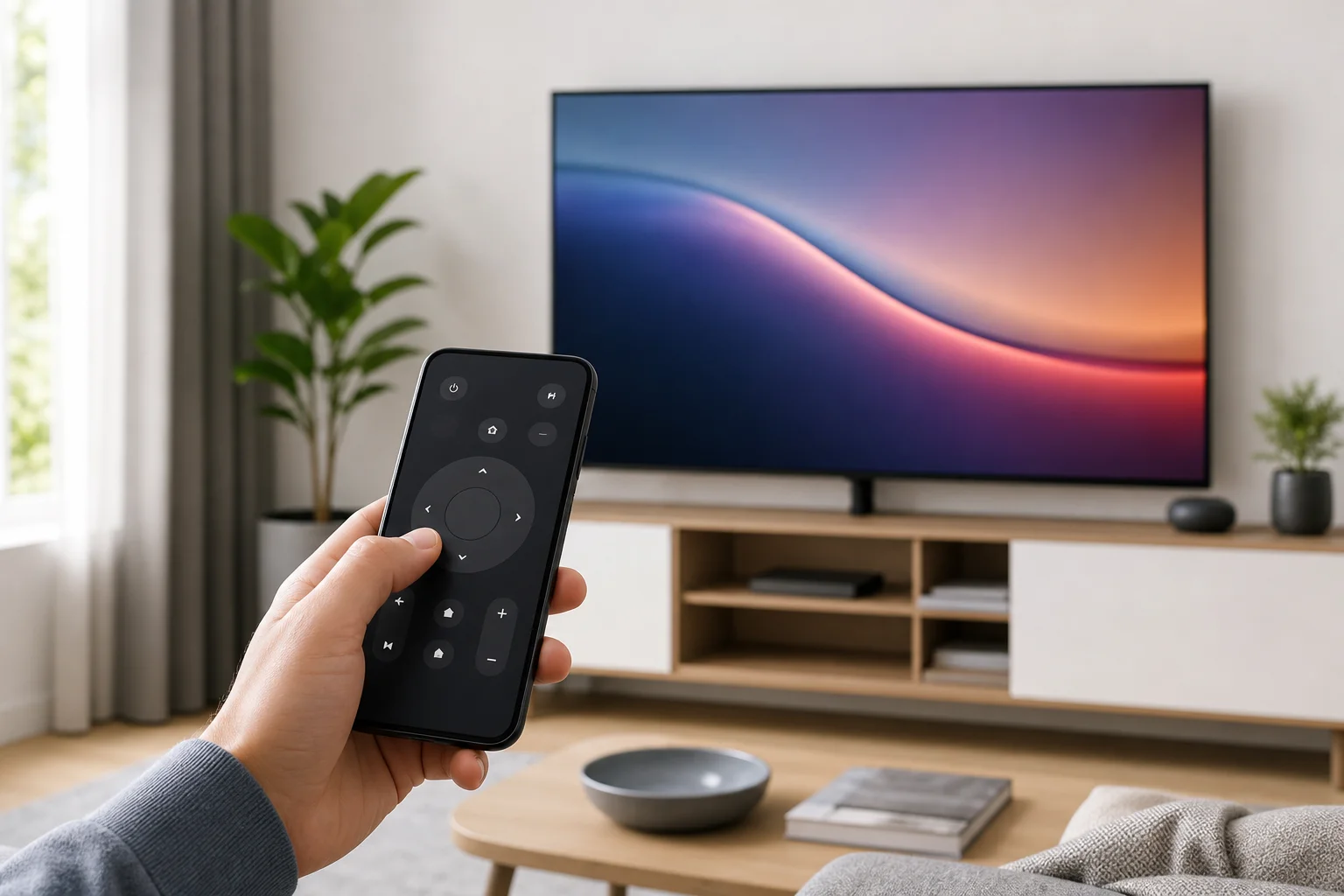
An app remote control is a software version of a physical remote. It usually connects to a device over Wi-Fi, Bluetooth, infrared, or a cloud account. Once paired, the app sends commands such as power, input, volume, play, pause, navigation, and search.
The exact features depend on the device and the official or third-party app you use. For example, a smart TV app may include channel controls and source switching. A streaming box app may focus on playback, voice search, and keyboard input. A smart home app may add scenes, routines, and device groups.
In most cases, the best experience comes from using the official app from the device maker. However, universal remote apps can be useful when you control several devices or need a backup option.
Core remote control functions in the app
Most remote apps include a similar set of controls. These features cover everyday use and often replace the physical remote completely.
Navigation controls
Navigation is the main remote function. The app may show arrow buttons, a touchpad, or a swipe area. You can move through menus, highlight items, go back, and confirm selections.
Common navigation tools include:
- Up, down, left, and right buttons
- OK or select button
- Back button
- Home button
- Menu or settings button
- Touchpad gestures for faster movement
A touchpad-style remote is helpful when browsing long rows of content. Button-based navigation is better if you prefer precise control.
Power and device wake controls
Many remote apps can turn a device on or off. In practice, this depends on the device’s standby mode and network settings. Some TVs and streaming devices can be woken over the local network. Others only respond after they are already on.
If the power button in the app does not work, check whether options such as “wake on Wi-Fi,” “network standby,” or “quick start” are enabled in the device settings.
Volume, mute, and audio controls
Volume control is one of the most used app remote features. The app may control the TV speakers, soundbar, receiver, or streaming device volume. Some apps also include mute, audio output selection, and sound mode options.
If volume controls do not respond, the app may be connected to the streaming device but not to the TV or speaker system. In that case, configure HDMI-CEC, Bluetooth audio control, or the device’s remote settings.
Playback controls
Playback buttons are essential for video, music, and live TV. Most apps include play, pause, rewind, fast forward, skip, and stop. Some also support timeline scrubbing, which lets you drag a progress bar to a specific moment.
Playback controls are especially useful when the physical remote has worn buttons or when you watch content from across the room.
Keyboard input and text entry
Typing with a physical TV remote can be slow. A remote app often solves this with a phone keyboard. When a search field or login form appears on the TV, the app can let you type on the phone instead.
This feature is useful for:
- Searching for movies, shows, and apps
- Entering email addresses
- Typing passwords
- Filling Wi-Fi network details
- Using web browsers on supported devices
For privacy, some apps hide password characters and may limit keyboard access on secure screens.
Voice search and assistant commands
Many remote apps include a microphone button. You can search for content, open apps, ask for weather, or control playback with voice commands. On supported platforms, voice input may work with assistants such as Google Assistant, Siri, or Alexa.
Voice control is useful when you know what you want to watch but do not want to type. However, it requires microphone permission on your phone and may need an internet connection.
App shortcuts and quick launch buttons
Some remote apps show shortcuts for installed apps, streaming services, inputs, or device settings. Instead of moving through several menus, you can tap one icon to open a service or switch to HDMI.
Useful shortcuts may include:
- Streaming apps
- Live TV
- HDMI inputs
- Screen mirroring
- Settings
- Recently opened apps
Shortcut availability depends on the device platform and app permissions.
Advanced functions worth using
Beyond basic controls, many apps include advanced features that make the phone remote more powerful than the original remote.
Screen mirroring and casting
Some remote apps include casting or screen mirroring options. Casting sends media from your phone to a TV or streaming device. Mirroring displays your phone screen on the larger screen.
Casting is best for videos, photos, and music. Mirroring is useful for presentations, mobile apps, or sharing content that does not support native casting. Performance depends on Wi-Fi quality and device compatibility.
Channel guides and content discovery
For live TV or IPTV services, the app may include a program guide. You can browse channels, view schedules, start playback, or add content to a watchlist. Some apps also recommend movies and shows based on your installed services.
This turns the app into more than a remote. It becomes a second-screen control center for finding what to watch.
Profiles, parental controls, and restrictions
Some remote apps let you switch user profiles or manage parental controls. This can help families control what children can access. You may be able to set viewing limits, block mature content, or require a PIN for purchases.
These features are usually tied to the streaming platform or TV operating system, not just the remote function.
Smart home and scene control
If the app supports smart home devices, you may control lights, speakers, cameras, thermostats, or scenes from the same interface. For example, a “movie night” scene could dim lights and switch the TV to a streaming input.
This is most common in ecosystem apps and universal remote hubs. It is less common in simple TV-only remote apps.
How to set up remote control functions in the app
The setup process is usually quick. Follow these steps before troubleshooting more complex issues.
- Install the correct app. Use the official app from the device maker or platform when possible. Download it from a trusted app store.
- Connect to the same network. Make sure your phone and the device are on the same Wi-Fi network, unless the app uses Bluetooth or infrared.
- Turn on the device. Some devices must be powered on for the first pairing.
- Open the remote section. Look for options such as “Remote,” “Devices,” “Control,” or “Connect.”
- Select your device. The app should scan nearby compatible devices. Choose the correct TV, box, or player.
- Confirm the pairing code. Many apps show a code on the TV. Enter it on your phone to approve access.
- Grant permissions. Allow local network, Bluetooth, microphone, or notification permissions only when needed for the features you plan to use.
- Test basic controls. Try navigation, volume, home, and playback before relying on advanced features.
If pairing fails, restart both devices and the router. Also check that VPN, guest Wi-Fi, or firewall settings are not blocking local device discovery.
Comparison of common app remote features
The table below shows what typical remote control functions do and when they are useful.
| Feature | What it does | Best use case |
|---|---|---|
| Navigation pad | Moves through menus and selects items | Everyday TV and streaming control |
| Touchpad | Uses swipes and taps instead of buttons | Fast browsing and menu scrolling |
| Keyboard | Lets you type from the phone | Searches, passwords, and account sign-in |
| Voice search | Uses microphone input for commands | Finding content quickly |
| Volume and mute | Controls sound level | Replacing physical audio buttons |
| Playback buttons | Plays, pauses, rewinds, and skips | Watching video or listening to music |
| App shortcuts | Opens services or inputs quickly | Reducing menu steps |
| Casting or mirroring | Sends phone content to the screen | Sharing photos, videos, or presentations |
| Device settings | Adjusts system options | Quick access to network, display, or audio settings |
Troubleshooting when the app remote does not work
Remote control functions in an app can fail for simple reasons. Start with the basics before reinstalling the app or resetting the device.
Check the network connection
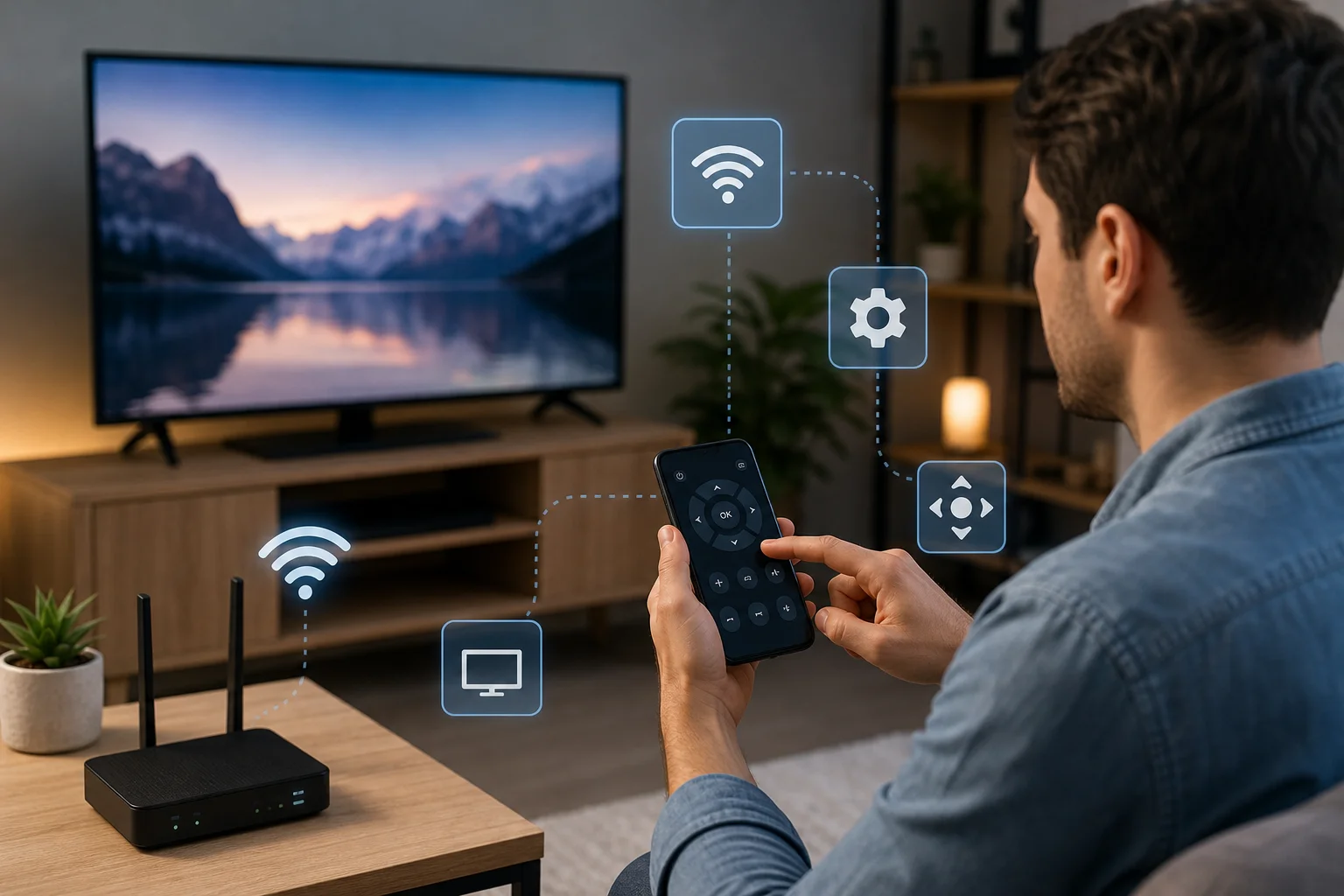
Most smart TV and streaming remotes need both devices on the same local network. If your phone is on mobile data or a guest Wi-Fi network, it may not find the TV. Switch to the main Wi-Fi network and try again.
Also, disable VPN temporarily if it blocks local network access. Some routers have client isolation settings that prevent devices from seeing each other.
Review app permissions
On modern phones, apps need permission to discover and control nearby devices. Check settings for local network access, Bluetooth, microphone, and notifications. Without these permissions, pairing, voice search, or device discovery may fail.
Restart and update
A simple restart often fixes stale connections. Restart the phone, the controlled device, and the router. Then update the app and the device firmware. Updates often improve pairing, stability, and compatibility.
Confirm device compatibility
Not every app works with every model. Older TVs may not support network remotes. Some require infrared hardware, which many phones do not include. Others need a specific operating system version or account login.
If an official app does not list your model, check the manufacturer’s support page before trying third-party alternatives.
Privacy and security tips
Because a remote app can control devices in your home, treat it like any other connected tool. Use trusted apps, limit permissions, and remove old paired devices when you no longer use them.
Follow these practical tips:
- Download remote apps only from trusted app stores.
- Prefer official apps for TVs, streaming boxes, and smart devices.
- Review permission requests before accepting them.
- Avoid granting microphone access unless you use voice features.
- Keep your phone and controlled device updated.
- Use a secure Wi-Fi password.
- Remove unknown devices from your account or pairing list.
These steps help protect your home network and reduce unwanted access.
FAQ about app remote control functions
Can I use my phone as a TV remote without Wi-Fi?
Yes, but only in some cases. If your phone has an infrared blaster and the app supports it, you can control compatible TVs without Wi-Fi. Bluetooth remotes may also work without Wi-Fi. Most smart TV remote apps, however, require both devices to be on the same network.
Why does the app find my TV but not control it?
The device may need pairing approval, a code confirmation, or a settings change. Check the TV screen for a prompt. Also make sure the app has local network permission and that both devices are on the same Wi-Fi network.
Can an app remote turn on my TV?
Sometimes. The TV must support wake over network, HDMI-CEC, Bluetooth wake, or a similar standby feature. If the TV fully powers down or disables network access in standby, the app may only work after the TV is already on.
Are third-party remote control apps safe?
Some are safe, but quality varies. Check reviews, permissions, developer information, and privacy policy. Avoid apps that request unnecessary access, show aggressive ads, or claim unrealistic compatibility with every device.
Why is there a delay when I use the remote app?
Lag usually comes from weak Wi-Fi, router congestion, Bluetooth interference, or an overloaded device. Move closer to the router, restart the device, close unused apps, and use a stable 5 GHz Wi-Fi connection if supported.
Conclusion
Remote control functions in the app can make daily viewing faster and more convenient, especially when you use keyboard input, voice search, shortcuts, casting, and playback controls. Start with the official app, pair it on the same network, test the core buttons, and adjust permissions for the features you need. If problems appear, check Wi-Fi, updates, and compatibility first. Set up the app today so your phone is ready as a reliable remote whenever you need it.