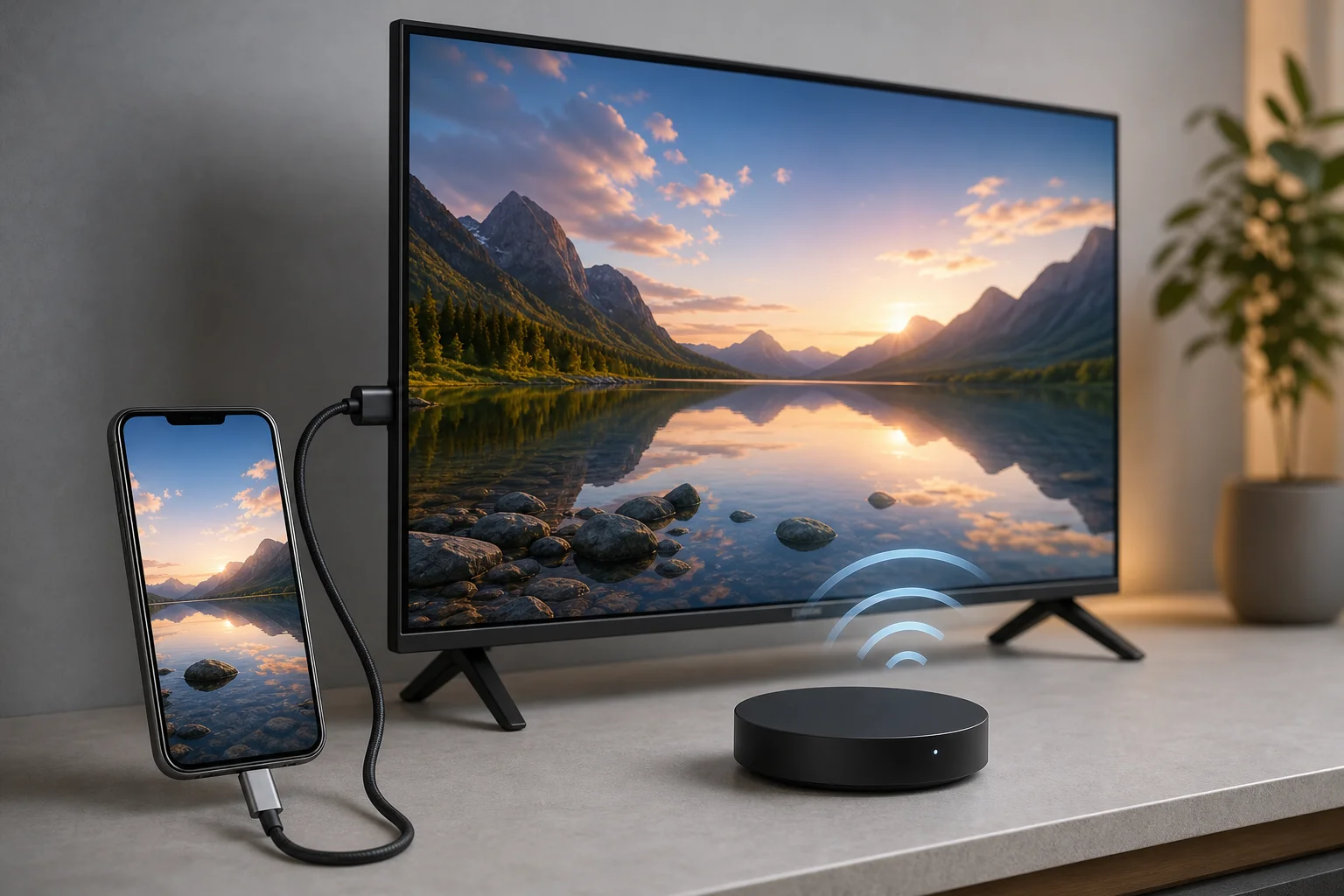
Connecting phone to TV is one of the easiest ways to watch videos, show photos, join video calls, play mobile games on a bigger screen, or present documents without a laptop. The best method depends on your phone, your TV, and whether you want to mirror the whole screen or cast only media. This guide explains the main wired and wireless options for Android phones and iPhones, plus practical steps to fix common connection problems.
Choose the best way to connect your phone to a TV
Before you start, check three things: your phone model, your TV features, and what you want to display. A recent smart TV may support screen mirroring, Chromecast, AirPlay, or a built-in casting app. An older TV may need an HDMI cable, an adapter, or a streaming device.
Use this quick comparison to choose the right option.
| Method | Best for | Works with | Main requirement | Internet needed |
|---|
| HDMI adapter or USB-C to HDMI | Stable video, gaming, travel | Many Android phones, iPhone with adapter | TV with HDMI port | No |
| Chromecast or Google Cast | YouTube, Netflix, photos, browser tabs | Android, iPhone, Chrome browser | Chromecast or Google TV device | Usually yes |
| AirPlay | iPhone, iPad, Apple apps | Apple devices | Apple TV or AirPlay-compatible TV | Usually yes |
| Miracast or wireless display | Full Android screen mirroring | Many Android phones and Windows devices | Miracast-compatible TV or adapter | No local internet required |
| USB cable | Viewing photos or files on some TVs | Some Android phones | TV USB port and file support | No |