How to find a remote for your TV
If you need to know how to find a remote for your TV, start by checking whether you are looking for a lost remote, a replacement remote, or a better universal option. The right choice depends on your TV brand, model number, control type, and smart TV platform. This guide explains how to identify the correct remote, compare original and universal remotes, use phone apps, and avoid buying an incompatible controller.
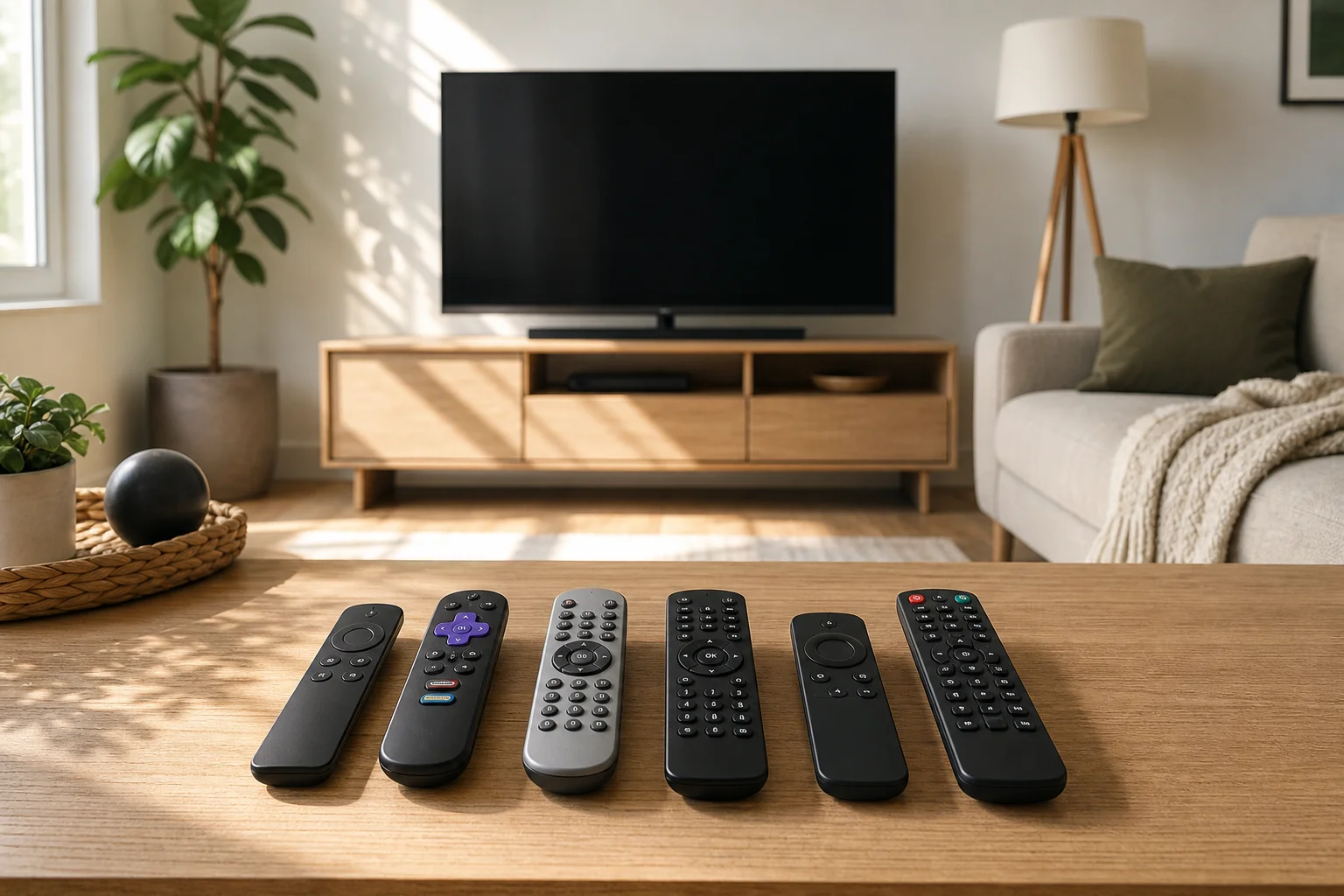
First, identify what kind of remote you need
Before buying anything, decide what problem you are solving. A remote that looks right is not always compatible, and a cheap universal remote may not support every smart TV feature.
You are likely in one of these situations:
- Your remote is lost: You need a temporary control method first, then a replacement if it does not turn up.
- Your remote is broken: You may need the same model, a compatible substitute, or a universal remote.
- You bought a used TV without a remote: You need to identify the TV model and match the correct controller.
- You want one remote for multiple devices: A universal remote or HDMI-CEC setup may be best.
- You only need smart features: A phone app might work if the TV is already connected to Wi-Fi.
This first step saves time because TV remotes use different technologies. Some use infrared, also called IR. Others use Bluetooth, radio frequency, or Wi-Fi-based control for voice search and smart menus.
Check the TV brand and model number
The fastest way to find a compatible TV remote is to locate the exact model number of your television. Do not rely only on the screen size or brand name. A 55-inch Samsung TV, for example, may use a different remote depending on the year, region, and smart platform.
Look for the model number in these places:
- On the back of the TV: Check the sticker or rating label. It usually lists the model, serial number, and power information.
- In the TV settings menu: If you can still control the TV, open settings and look for “About,” “Support,” “Device information,” or “System information.”
- On the original box or receipt: Retailers often print the full model code on the invoice.
- In the user manual: The model family and compatible accessory numbers may be listed.
- In your online store account: If you bought the TV online, your order history may show the exact model.
Write the model number exactly as shown. Include letters, numbers, and suffixes. These suffixes can matter when matching a remote.
Use this step-by-step method to find the right remote
Follow these steps if you want the most reliable result.
- Find the TV model number. Use the label on the back of the TV or the settings menu.
- Search for the brand plus model number plus “remote.” For example, search “Sony KD-55X remote” or “LG OLED remote replacement.”
- Compare button layout and features. Check whether the remote has voice control, a microphone button, number keys, app shortcuts, or a pointer function.
- Check the remote part number. If your old remote has a code inside the battery cover, search that code too.
- Confirm the control type. Make sure the listing supports IR, Bluetooth, or both, depending on your TV.
- Read the compatibility list. Look for your exact TV model, not only the brand.
- Check return terms. Choose a seller that allows returns if pairing fails.
- Test basic functions first. Power, volume, input, home, and menu buttons should work before you rely on advanced features.
This process is more dependable than buying the first remote that “looks similar.”
Original, universal, or app remote: which should you choose?
Different remote options suit different needs. Use this comparison to decide.
| Option | Best for | Advantages | Limits |
|---|---|---|---|
| Original manufacturer remote | Full feature support | Usually supports all TV functions, voice control, and smart menus | Can cost more and may be harder to find for older TVs |
| Compatible replacement remote | Basic everyday use | Often cheaper and easy to buy online | Some buttons or voice features may not work |
| Universal remote | Controlling several devices | Can control TV, soundbar, set-top box, or Blu-ray player | Setup codes may be needed, and smart features can be limited |
| Smartphone remote app | Temporary or smart TV control | Convenient if the TV is on the same network | Usually requires Wi-Fi setup and may not power on all TVs |
| HDMI-CEC control | Simple control through another device | Lets a streaming box or console remote control volume and power | Depends on TV and device support |
If you want the simplest answer, buy an original remote or a well-reviewed compatible replacement for your exact model. If you want fewer remotes on the coffee table, choose a universal remote or enable HDMI-CEC.
How to use your phone as a TV remote
A smartphone can be a useful temporary remote, especially for smart TVs. However, it works best when the TV is already connected to the same Wi-Fi network as your phone.
Common app options include:
- Google TV app: Works with many Android TV and Google TV devices.
- Apple Home or AirPlay controls: Useful for compatible smart TVs and Apple TV devices.
- Roku app: Controls Roku TVs and Roku streaming devices.
- Fire TV app: Works with Amazon Fire TV devices and Fire TV Edition televisions.
- Manufacturer apps: Samsung, LG, Sony, TCL, Hisense, and other brands may offer their own remote apps.
To set up a phone remote, install the official app, connect your phone to the same Wi-Fi network, and follow the pairing instructions. If the TV is not connected to Wi-Fi, you may need a physical remote, USB keyboard, Ethernet connection, or buttons on the TV to complete setup.
Check whether the remote uses IR, Bluetooth, or Wi-Fi
Understanding the control method helps you avoid compatibility problems.
IR remotes
Infrared remotes are common and simple. They need a clear line of sight to the TV. If your old remote has a small dark window at the front, it may be an IR remote. Many universal remotes support IR codes.
Bluetooth remotes
Bluetooth remotes are common on modern smart TVs. They do not need direct line of sight and may support voice control. However, they often require pairing. A Bluetooth remote may turn the TV on with IR but use Bluetooth for voice and smart controls.
Wi-Fi and app controls
Phone apps and some smart home controls use Wi-Fi. They are convenient but depend on the TV being connected to the network. They are not always suitable as the only setup tool for a new or reset TV.
Where to buy a replacement TV remote
Once you know the TV model and remote type, you can shop with more confidence. Reliable places to check include:
- The TV manufacturer’s official parts store or support site
- Authorized service centers
- Major electronics retailers
- Reputable online marketplaces
- Specialty remote-control replacement sellers
- Local repair shops or second-hand electronics stores
When buying online, inspect photos carefully. Check the button layout, battery type, pairing notes, and compatible model list. Be cautious with vague listings such as “works with all smart TVs.” Some do, but many only support basic power and volume functions.
How to pair a replacement remote
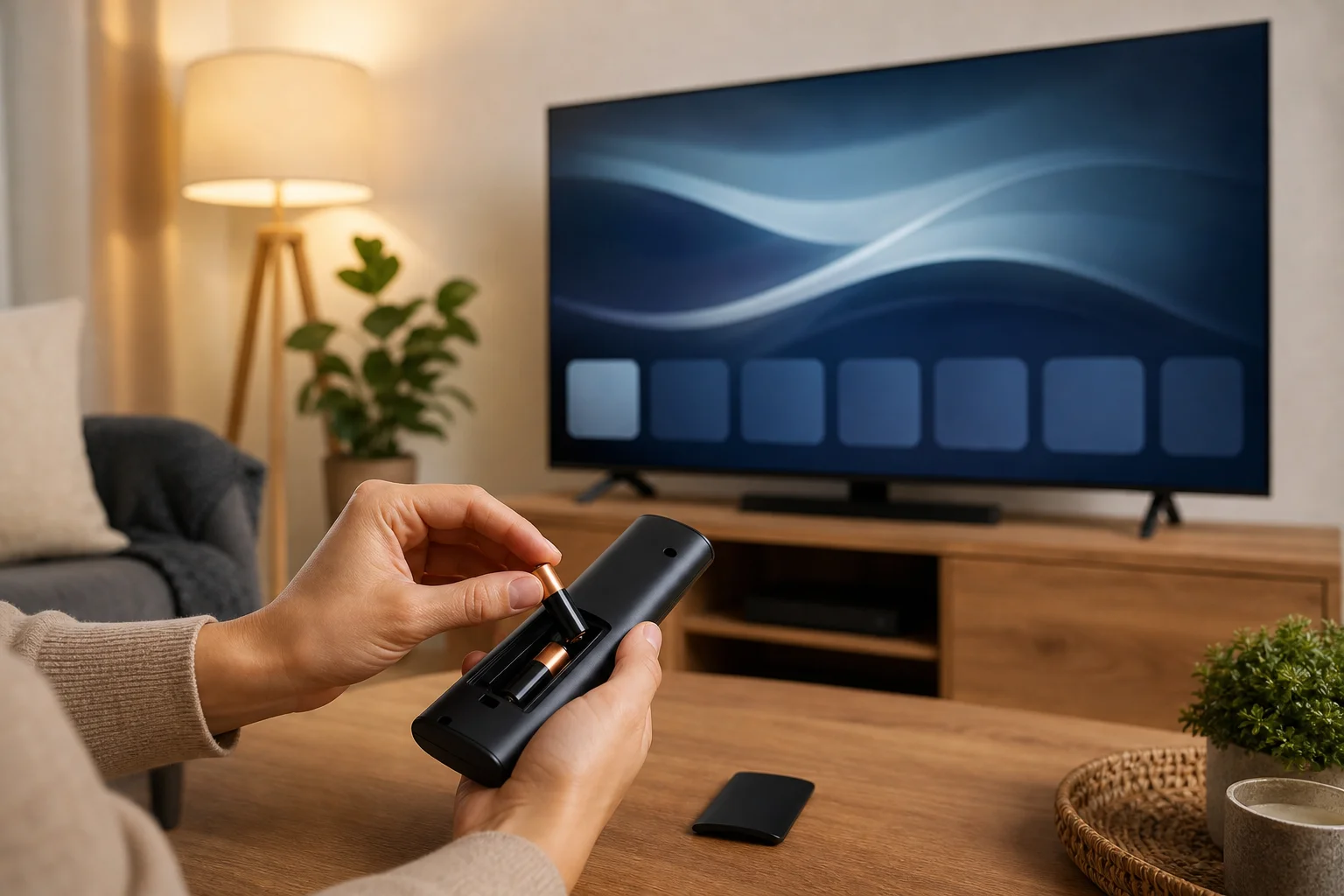
Pairing steps vary by brand, but the process is usually simple. First, insert fresh batteries. Then stand close to the TV and try the basic power button. If the remote has Bluetooth or voice control, you may need to pair it manually.
Common pairing methods include:
- Holding Back and Home together for several seconds
- Holding Return and Play/Pause together
- Pressing a dedicated Pairing button inside the battery compartment
- Opening the TV’s settings menu and selecting “Remote,” “Accessories,” or “Bluetooth devices”
- Restarting the TV, then holding the pairing buttons when prompted
If pairing fails, remove the batteries, unplug the TV for one minute, plug it back in, and try again. Also make sure the remote is not already paired with another device.
What to do if you lost the remote at home
If you are trying to find a lost TV remote, use a systematic search rather than checking the same places repeatedly.
Start with the areas where remotes usually hide:
- Between sofa cushions
- Under blankets, pillows, and magazines
- Behind or under the sofa
- On nearby shelves or side tables
- In the kitchen, bedroom, or bathroom
- In children’s play areas
- Inside bags, laundry baskets, or drawers
Next, retrace your last viewing session. Think about whether you carried snacks, answered the door, or moved to another room. If your remote supports a “find my remote” feature, check the TV menu or companion app. Some streaming devices and premium remotes can make the remote beep.
For the future, attach a Bluetooth tracker, use a bright silicone cover, or keep the remote in a fixed tray near the TV.
Common compatibility mistakes to avoid
Several mistakes cause people to buy the wrong TV remote.
Avoid these errors:
- Buying only by screen size
- Assuming all remotes from the same brand are identical
- Ignoring the TV’s full model suffix
- Choosing a remote without voice support when you need voice search
- Buying a Bluetooth remote when the TV only supports IR
- Buying an app-based solution when the TV is not connected to Wi-Fi
- Forgetting that soundbars and cable boxes may need separate control
Also check whether you need direct TV control or control for a streaming device. A Roku TV remote and a Roku streaming stick remote may not be the same. Likewise, a Fire TV remote may control the streaming interface but not every TV setting.
FAQ about finding a TV remote
Can I use any remote with my TV?
No. Some universal remotes can control many TVs, but you still need the right code or compatibility profile. Smart features, voice search, and app buttons may require a specific remote.
How do I find the remote model number?
Open the battery compartment and look for a printed code on the label or plastic shell. You can also search your TV model number plus “remote part number.”
Is an original TV remote better than a universal remote?
Usually, yes, if you want every feature to work. A universal remote is better if you want to control several devices and only need common functions.
Can I control my TV without a remote?
Yes. You may be able to use buttons on the TV, a smartphone app, HDMI-CEC from a streaming device, a USB keyboard, or a universal remote. Availability depends on your TV model.
Why does my replacement remote turn the TV on but not control the menu?
The power button may use IR, while menu, voice, or pointer controls may require Bluetooth pairing. Pair the remote through the TV settings or follow the button combination in the manual.
What is the safest way to buy a remote online?
Search by the exact TV model number, compare the button layout, read the compatibility list, and choose a seller with clear return terms. If possible, buy from the manufacturer or an authorized seller.
Conclusion
To find the right remote for your TV, begin with the exact TV model number, then choose between an original remote, a compatible replacement, a universal remote, or a phone app. Check the control type, confirm compatibility, and review return options before you buy. If the remote is simply lost, search methodically and use an app or TV buttons as a temporary fix. Take these steps now, and you can restore control of your TV without wasting money on the wrong remote.