How to transfer a TV remote to phone and control your TV easily
Transferring a TV remote to phone control is one of the easiest ways to replace a lost remote, reduce clutter, or type faster on a smart TV. In most cases, you only need your phone, the right remote app, and a shared Wi-Fi network. This guide explains the best methods for Android, iPhone, Google TV, Samsung, LG, Roku, Fire TV, and other popular devices. You will also learn what to do if pairing fails, when infrared matters, and how to keep your TV secure.
What it means to use your phone as a TV remote
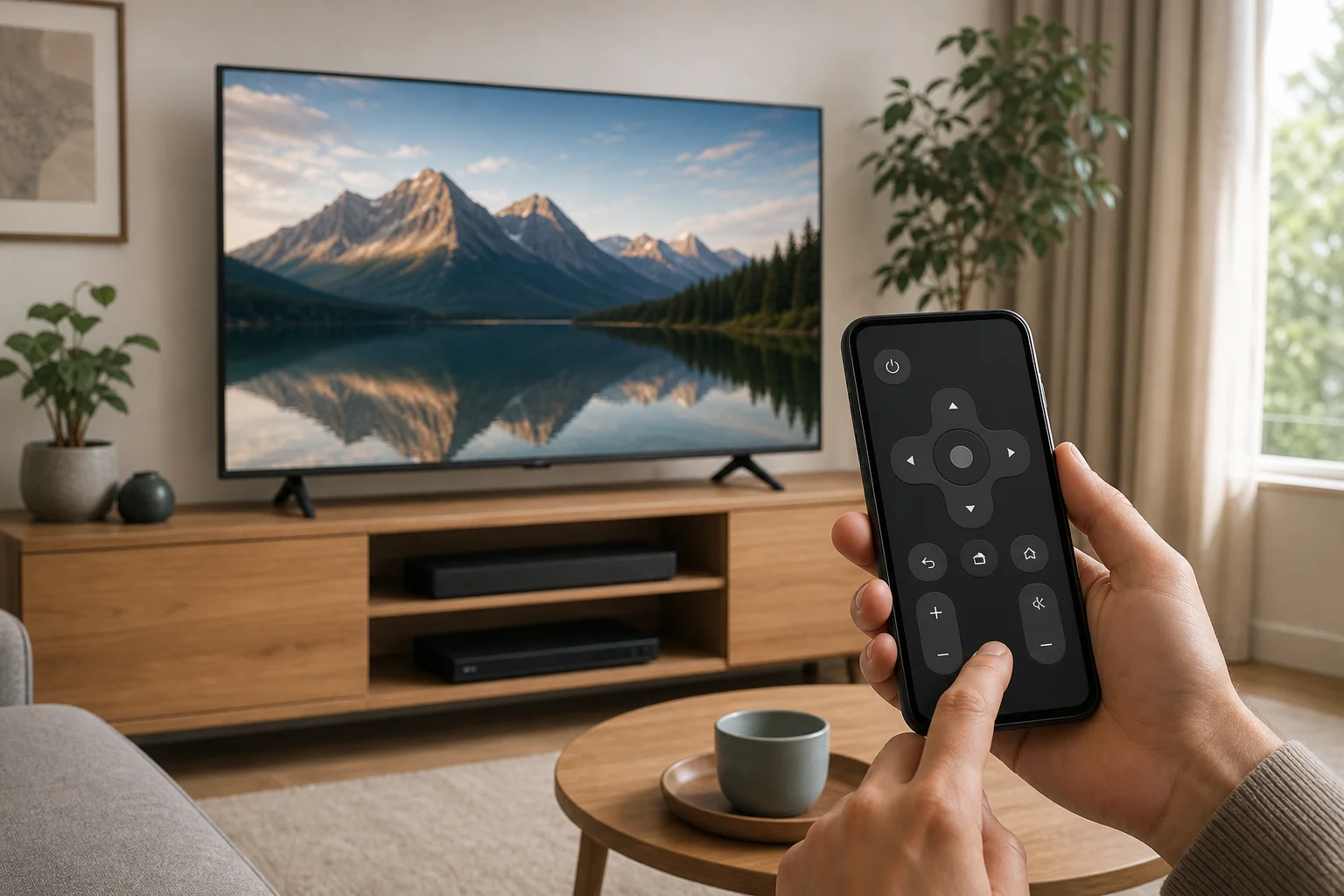
Using your phone as a TV remote means your smartphone sends control commands to the television or streaming device. These commands can travel in two main ways:
- Wi-Fi or Bluetooth: Common on smart TVs, streaming sticks, and TV boxes. Your phone and TV usually need to be on the same network.
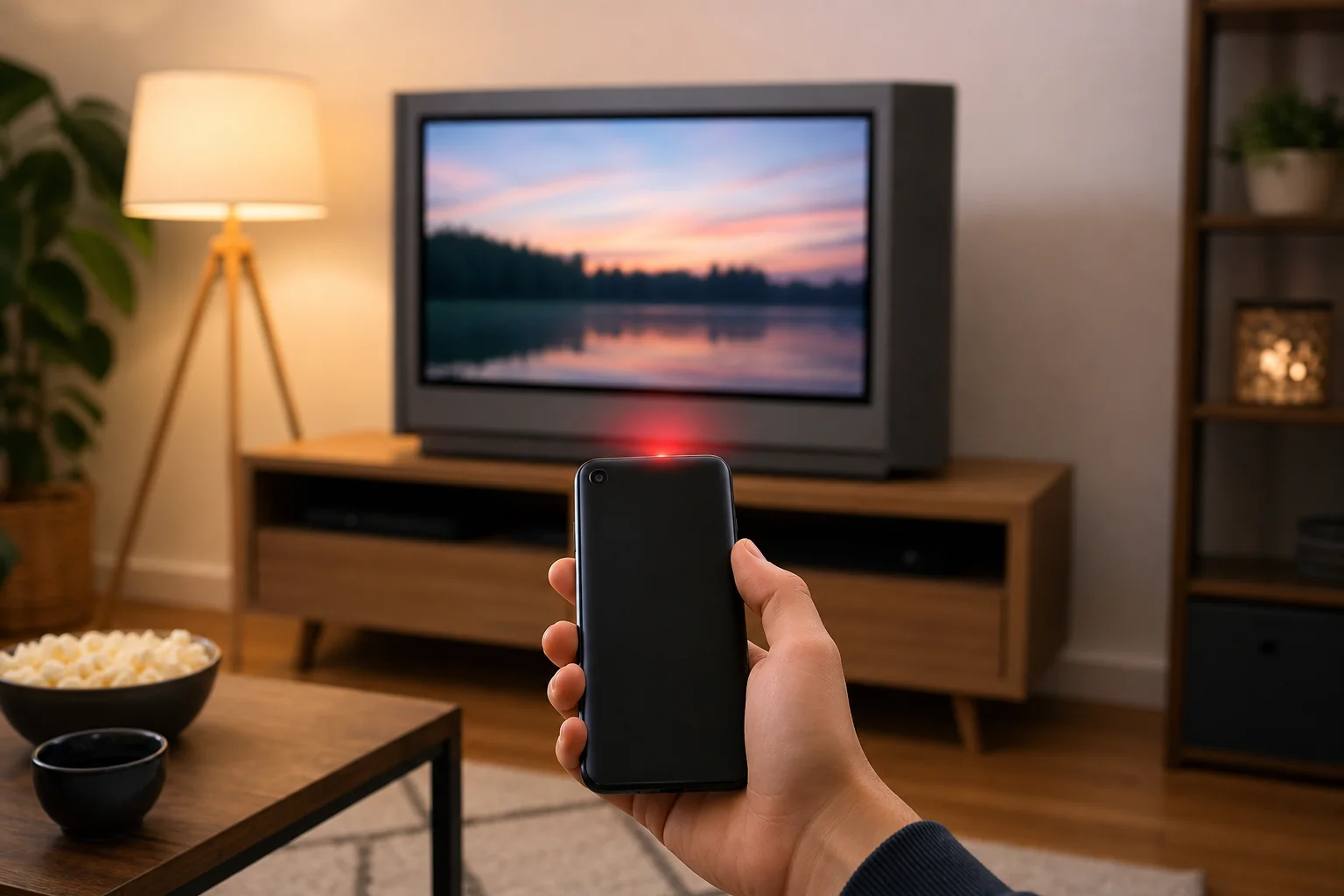
- Infrared, also called IR: Used by many older TVs. Only some Android phones have an IR blaster. iPhones do not include one.
For most modern homes, Wi-Fi control is the best option. It supports navigation, volume, app launching, voice search, and text input. However, it only works if the TV is connected to your network and supports remote control through an app.
Quick comparison of TV remote apps
The best app depends on the TV brand or streaming platform. Start with the official app when possible, because it is usually safer and more reliable than generic remote apps.
| Device or TV type | Recommended phone app | Works on Android | Works on iPhone | Best for |
|---|---|---|---|---|
| Google TV or Android TV | Google TV app | Yes | Yes | Most Android TV models and Google TV devices |
| Samsung smart TV | SmartThings | Yes | Yes | Samsung TVs, smart home control, device automation |
| LG smart TV | LG ThinQ | Yes | Yes | LG webOS TVs and connected appliances |
| Roku TV or Roku player | Roku app | Yes | Yes | Roku navigation, private listening, channel control |
| Amazon Fire TV | Amazon Fire TV app | Yes | Yes | Fire TV sticks, Fire TV Cube, voice search |
| Apple TV | Apple TV Remote in Control Center | No | Yes | Apple TV and AirPlay setups |
| Older non-smart TV | IR remote app, if phone supports IR | Sometimes | No | Basic power, volume, channel buttons |
If you are unsure which platform your TV uses, check the home screen. Menus such as Google TV, Roku, Fire TV, webOS, and Tizen are easy clues. You can also look up your TV model number in the manufacturer’s support pages.
How to transfer a TV remote to phone step by step
Follow these steps to set up your phone as a remote for most smart TVs and streaming devices.
- Connect the TV to the internet. Use Wi-Fi or Ethernet. The TV must be online for app-based control.
- Connect your phone to the same Wi-Fi network. Many remote apps cannot find the TV if the phone is on mobile data or a guest network.
- Install the official remote app. Use Google Play or the Apple App Store. Choose the app for your TV brand or platform.
- Open the app and sign in if needed. Some apps require a Google, Samsung, LG, Roku, or Amazon account.
- Allow local network access. On iPhone, this permission is essential. On Android, approve nearby device or network permissions if requested.
- Select your TV from the device list. The app should scan your network and show compatible TVs.
- Enter the pairing code. Many TVs display a code on screen. Type it into the phone app.
- Test basic controls. Try power, volume, navigation, back, home, and text input.
- Save the remote shortcut. Add the app to your home screen or quick settings if you use it often.
After setup, the phone remote should reconnect automatically when both devices are on the same network. If it does not, restart the app or check whether the TV changed networks.
Setup guides for popular TV platforms
Google TV and Android TV
For Google TV or Android TV, the Google TV app is usually the simplest option. Install it on Android or iPhone, then open the remote feature. Your TV and phone must be on the same Wi-Fi network.
If the app finds your TV, tap it and enter the pairing code shown on the screen. Once connected, you can use a directional pad, swipe controls, keyboard input, and voice search where supported. This method works with many Sony, TCL, Hisense, Philips, Nvidia Shield, Chromecast with Google TV, and other Android TV devices.
If the TV does not appear, check that both devices use the same router band or subnet. Some routers separate 2.4 GHz and 5 GHz networks, which may block discovery.
Samsung smart TV
Samsung TVs use the SmartThings app. Install SmartThings, sign in with a Samsung account, and add your TV as a device. The app may find the TV automatically. If not, tap the add device option and choose TV.
Once paired, SmartThings can control power, volume, input selection, apps, and basic navigation. It can also group your TV with other smart home devices. For best results, keep the TV firmware updated and allow remote management in the TV settings if the option appears.
LG smart TV
LG smart TVs usually work with the LG ThinQ app. Install the app, create or sign in to your LG account, and add the TV. The TV may show a pairing code that you need to enter on your phone.
LG ThinQ can control webOS navigation, volume, apps, inputs, and power features on supported models. If your TV supports wake-on-LAN or similar network standby settings, enable them if you want the phone to turn the TV on from standby.
Roku TV and Roku streaming devices
The Roku app is a strong replacement for a physical Roku remote. It supports navigation, voice search in supported regions, channel launching, and private listening through headphones connected to your phone.
To connect, install the Roku app and make sure your phone and Roku are on the same network. Open the app, tap devices, and select your Roku. If it does not show up, restart the Roku device and disable VPN or private relay features on the phone temporarily.
Amazon Fire TV
For Fire TV Stick, Fire TV Cube, and Fire TV smart TVs, use the Amazon Fire TV app. Sign in with the same Amazon account used on the Fire TV if possible. Then choose your device and enter the code shown on screen.
The app includes touch navigation, app launching, text entry, and Alexa voice control in supported regions. It is especially helpful when typing passwords or searching for shows.
Apple TV
On iPhone, Apple TV Remote is built into Control Center. Open Control Center, tap the remote icon, choose your Apple TV, and enter the pairing code if requested. If you do not see the remote icon, add it in iPhone settings under Control Center.
Apple TV Remote supports navigation, playback, Siri where available, and keyboard entry. Android phones do not have the same built-in Apple TV remote feature.
When you need infrared instead of Wi-Fi
Some older TVs cannot connect to Wi-Fi and do not support smart remote apps. In that case, you may need infrared. IR works like a classic remote: the phone must send invisible light signals directly to the TV sensor.
This only works if your phone has an IR blaster. A few Android models include one, but many modern phones do not. iPhones do not include IR blasters. If your phone lacks IR, you can buy a small external IR adapter, a universal remote hub, or a replacement remote.
IR remote apps can be useful for basic controls such as power, volume, mute, input, and channel changes. Still, they rarely offer smart features like keyboard typing or app browsing.
Troubleshooting when the phone remote will not connect
Connection problems are common, but most are easy to fix. Try these checks in order.
Make sure both devices are on the same network
Your phone and TV should connect to the same home Wi-Fi. If your phone is using mobile data, the remote app may not detect the TV. Also, guest Wi-Fi networks often block device discovery.
Restart the TV, phone, and router
A simple restart can refresh network discovery. Turn the TV off, unplug it for about 30 seconds, then plug it back in. Restart your phone and router if needed.
Check app permissions
On iPhone, allow local network access for the remote app. On Android, allow nearby devices, Bluetooth, location, or network permissions if the app requests them. These permissions often help the app find devices on your network.
Update the app and TV software
Outdated apps may fail to pair with newer TV firmware. Update the remote app from the app store. Then check the TV settings for system updates.
Disable VPN temporarily
A VPN can block local network discovery. If your TV remote app cannot find the TV, turn off the VPN on your phone and try again. After pairing, you can test whether the remote still works when the VPN is enabled.
Check router isolation settings
Some routers use settings called AP isolation, client isolation, or guest isolation. These features stop devices from seeing each other. Disable them on your main home network if you want phone remote control to work.
Security and privacy tips
A phone remote is convenient, but it also gives your phone control over your TV. Use a few simple habits to keep access safe.
- Install only official or well-reviewed apps from trusted app stores.
- Avoid remote apps that request unrelated permissions, such as contacts or SMS.
- Protect your phone with a passcode, fingerprint, or face unlock.
- Keep your Wi-Fi password private.
- Remove old paired devices from the TV settings if you no longer use them.
- Update the TV firmware and remote app regularly.
Also, be careful with public or shared networks. Pairing your TV remote app on a hotel or office network may expose the device to other people on the same network.
Frequently asked questions
Can I use my phone as a TV remote without Wi-Fi?
Yes, but only in some cases. If your phone has an IR blaster, you can use an infrared remote app without Wi-Fi. For most smart TV remote apps, Wi-Fi is required because the phone and TV communicate over the local network.
Can I transfer any TV remote to my phone?
Not exactly. You do not usually copy the physical remote into the phone. Instead, you install an app that controls the TV. Smart TVs and streaming devices support this well. Older TVs may need IR support or a universal remote hub.
Why does my TV not show up in the remote app?
The most common reasons are different Wi-Fi networks, guest network isolation, blocked app permissions, outdated software, or an active VPN. Restart both devices and confirm they are on the same home network.
Is there one universal remote app for all TVs?
There are universal remote apps, but official apps are usually more reliable. A single generic app may not support every feature or every TV model. For the best experience, use the app made for your TV brand or platform.
Can a phone remote turn on the TV?
Sometimes. Many TVs can be turned on by a phone only if network standby, wake-on-LAN, or a similar setting is enabled. If the TV fully disconnects from the network in standby, the phone may control it only after it is turned on manually.
Best practices for everyday use
Once you set up your phone as a TV remote, make it easy to access. Place the remote app on your first home screen. On Android, check if your phone offers a quick settings tile for TV remote control. On iPhone, add Apple TV Remote to Control Center if you use Apple TV.
For families, pair more than one phone if the TV supports it. This avoids problems when one person leaves the room with the only remote. However, remove old phones when they are sold, lost, or no longer used.
Finally, keep the physical remote if you still have it. It can help with recovery if your Wi-Fi goes down, the app stops working, or the TV needs a factory reset.
Conclusion
Transferring a TV remote to phone control is simple when you choose the right app and keep both devices on the same network. Start with the official app for your TV or streaming platform, pair it with the on-screen code, and test the key buttons. If your TV is older, check for infrared support or use a universal remote hub. Set it up today, and your phone can become a practical backup or full-time remote in minutes.