Samsung tv remote on phone: setup, apps, and troubleshooting
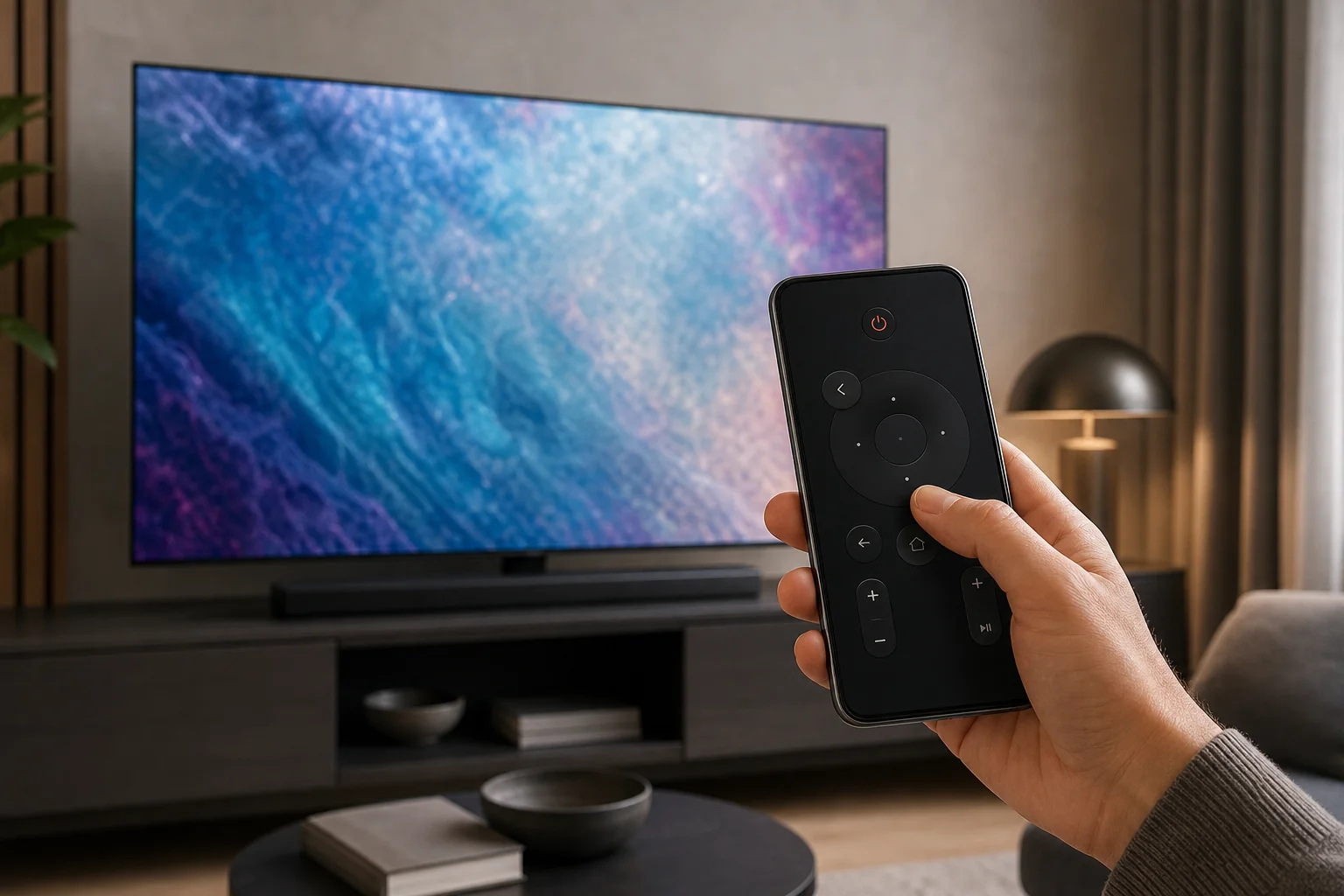
A Samsung TV remote on phone is one of the easiest ways to control your TV when the original remote is lost, broken, or across the room. With the right app, your Android phone or iPhone can change channels, adjust volume, open apps, type search terms, and sometimes mirror content. This guide explains the best options, how to set them up, what to do if pairing fails, and how to choose between Samsung SmartThings, an IR remote app, and third-party remote control apps.
The best way to use your phone as a Samsung TV remote
For most modern Samsung Smart TVs, the best option is the Samsung SmartThings app. It is Samsung’s official smart home app and works as a remote over Wi-Fi. It supports many Samsung TVs from recent years and is available for both Android and iOS.
SmartThings is usually the safest starting point because it comes from Samsung, does not need an infrared sensor, and can offer more than basic buttons. Depending on your TV model, you may get a touchpad, app shortcuts, source control, voice features, and keyboard input.
However, SmartThings is not the only option. If your TV is older, not connected to Wi-Fi, or not compatible with SmartThings, an Android phone with an IR blaster may work like a traditional remote. Some third-party apps can also control Samsung TVs over the local network, but you should choose them carefully and review permissions before installing.
What you need before you start
Before installing apps or changing settings, check a few basics. This prevents most setup issues.
You will need:
- A Samsung Smart TV connected to your home network
- An Android phone or iPhone connected to the same Wi-Fi network
- The Samsung SmartThings app for the official method
- A Samsung account for SmartThings setup
- Permission to approve the connection on the TV screen
- For IR control, an Android phone with a built-in infrared blaster
If your physical remote is completely missing, setup can be harder because many TVs ask you to confirm the first connection on the TV. In that case, use the TV’s physical buttons, a USB keyboard, or a compatible replacement remote to approve the pairing request.
How to set up SmartThings as a Samsung TV remote
Follow these steps to turn your phone into a Samsung TV remote using the official app.
-
Connect the TV to Wi-Fi
Make sure your Samsung TV is connected to the same home network as your phone. If your TV supports Ethernet, a wired connection can also work as long as it is on the same local network. -
Install Samsung SmartThings
Download SmartThings from Google Play on Android or the App Store on iPhone. Open the app and sign in with your Samsung account. -
Add your TV
Tap the plus button, choose Device, then look for your Samsung TV. You may find it under Samsung devices or by scanning nearby devices. -
Approve the connection on the TV
Your TV may show a pop-up asking whether to allow the phone to connect. Select Allow. If you cannot see the prompt, wake the TV and check that both devices are on the same network. -
Open the remote control screen
After the TV appears in SmartThings, tap it. Choose the remote option. You should see controls for power, volume, channels, navigation, home, back, and other functions. -
Test the main buttons
Try volume, mute, navigation, and app launching. If some buttons do not respond, restart the app and TV, then try again.
Once paired, SmartThings can often turn the TV on if the TV supports network wake features. If power-on does not work, turn the TV on manually and then use the phone remote.
SmartThings vs IR remote apps vs third-party apps
The right Samsung TV remote app depends on your TV model, phone hardware, and privacy preferences. Here is a quick comparison.
| Option | Best for | Requirements | Main benefits | Limits |
|---|---|---|---|---|
| Samsung SmartThings | Most Samsung Smart TVs | Same Wi-Fi network and Samsung account | Official app, broad smart TV controls, Android and iPhone support | May require TV approval and compatible model |
| IR remote app | Older TVs or no Wi-Fi | Android phone with IR blaster | Works like a normal remote, no Wi-Fi needed | Rare on modern phones, usually not available on iPhone |
| Third-party Wi-Fi remote app | Extra layouts or backup control | Same Wi-Fi network | Can be simple and quick to install | Quality, ads, and permissions vary |
| HDMI-CEC via streaming device app | TVs connected to Apple TV, Chromecast, or Fire TV | Compatible streaming device | Useful when controlling media apps | Does not always control full TV settings |
In general, start with SmartThings. Use an IR app only if your phone has the hardware. Consider third-party apps only if the official method does not meet your needs.
How to use a Samsung TV remote app effectively
After pairing, your phone can do more than replace the volume and channel buttons. Many users find it better for search and streaming apps.
Common controls include:
- Navigation: Move through menus with a directional pad or touchpad.
- Volume and mute: Control sound without reaching for the remote.
- Channel changes: Switch channels on live TV or cable input.
- Home and back: Open the Samsung home screen and return to previous menus.
- Input selection: Change between HDMI devices, apps, and TV sources.
- Keyboard typing: Enter passwords and search terms faster than with arrow keys.
- App launching: Open streaming apps directly from the phone interface.
For the smoothest experience, keep your phone and TV on a stable Wi-Fi network. Also, disable aggressive battery-saving settings for the remote app if your phone keeps disconnecting.
Can an iPhone be used as a Samsung TV remote?
Yes. An iPhone can work as a Samsung TV remote if the TV supports SmartThings or another compatible network remote method. Install SmartThings from the App Store, sign in, add the TV, and approve the connection.
The main limitation is infrared. iPhones do not include built-in IR blasters, so they cannot act like a traditional infrared remote by themselves. If your Samsung TV is not a smart model and has no network remote support, an iPhone is unlikely to control it directly unless you use an external accessory or a connected streaming device.
Can an Android phone control a Samsung TV without Wi-Fi?
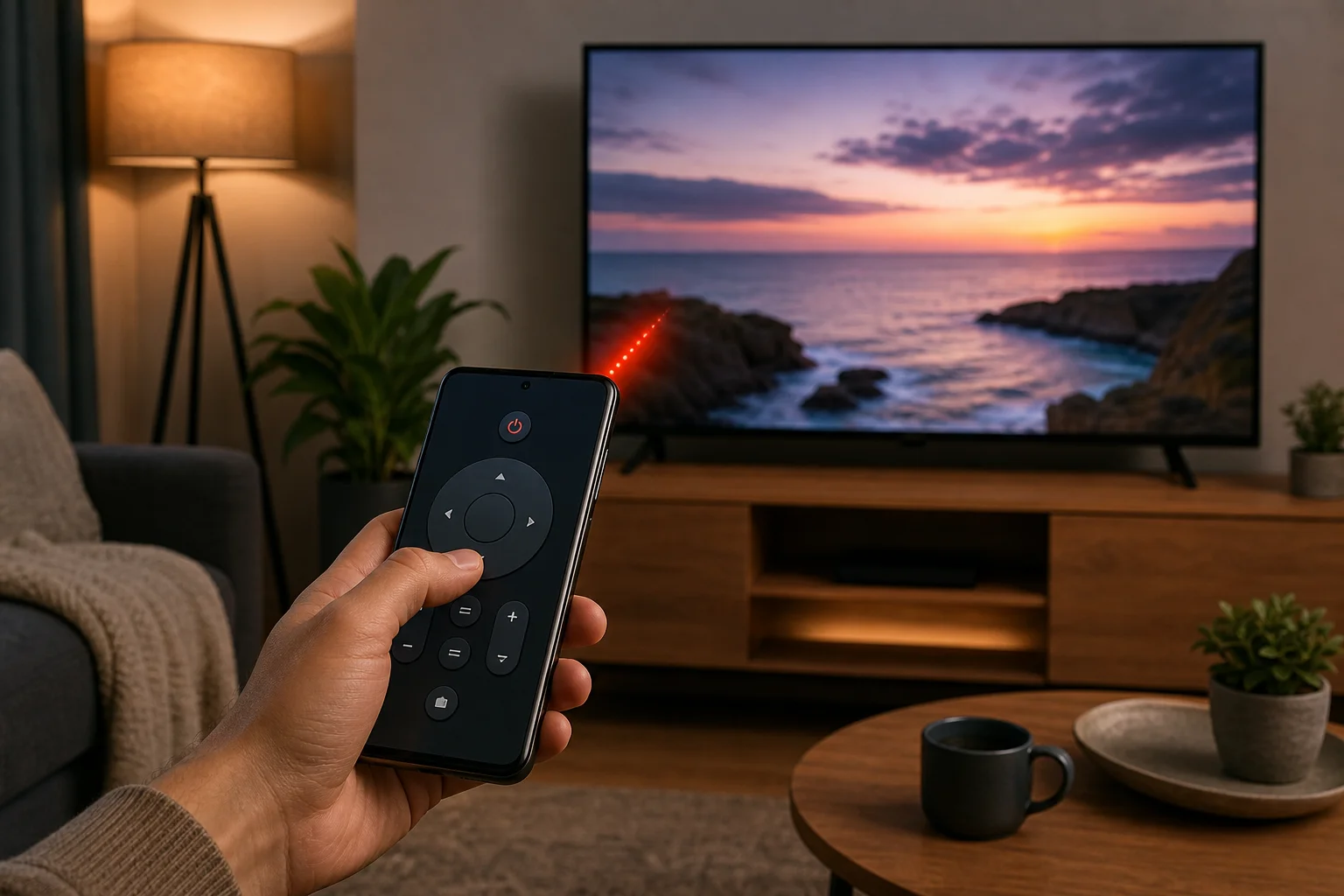
Sometimes. An Android phone can control a Samsung TV without Wi-Fi only if it has an IR blaster and you use an infrared remote app. The phone sends the same type of signal as a physical remote.
To check, search your phone specifications for “IR blaster” or “infrared.” Some Xiaomi, Huawei, and older Android models include it, but many Samsung Galaxy phones and Google Pixel phones do not. If your phone does not have IR, you will need Wi-Fi control, a replacement remote, or a compatible smart home device.
Troubleshooting when your phone remote does not connect
Connection problems are common, but they are usually easy to fix. Try these steps in order.
Make sure both devices are on the same network
Your phone and TV should be on the same Wi-Fi network. If your router has separate 2.4 GHz and 5 GHz names, connect both devices to the same one. Also avoid guest networks, because they often block device discovery.
Restart the TV, phone, and router
Turn the TV off, unplug it for about 30 seconds, and then plug it back in. Restart your phone and router if needed. This refreshes local network discovery and often fixes pairing failures.
Check TV permissions
Samsung TVs can remember blocked devices. Go to your TV’s external device manager or connection settings and look for a device connection manager. Remove denied devices or allow your phone again. Menu names vary by model and software version.
Update the app and TV software
Install the latest SmartThings app update. Then check for TV firmware updates in the TV settings. Updates can improve compatibility and fix connection bugs.
Disable VPN or private network features temporarily
A VPN, private relay feature, firewall app, or strict router setting may stop your phone from finding the TV. Temporarily disable these features while pairing. Turn them back on after setup if everything still works.
Re-add the TV in SmartThings
If the TV appears offline, remove it from SmartThings and add it again. This can clear old pairing data. Make sure you can see the TV screen during setup so you can approve the request.
Privacy and safety tips for remote control apps
A TV remote app should not need access to your contacts, messages, microphone, or precise location for basic control. Some permissions may be used for device discovery, Bluetooth setup, or voice features, but you should still be cautious.
Use these safety tips:
- Prefer Samsung SmartThings for Samsung Smart TVs.
- Download apps only from Google Play or the App Store.
- Check recent reviews before installing third-party remote apps.
- Avoid apps with excessive permissions or intrusive ads.
- Remove old paired phones from your TV if you sell or share the TV.
- Keep your TV and phone software updated.
These steps help protect your account, local network, and viewing data.
FAQ about using a phone as a Samsung TV remote
What is the best Samsung TV remote app for a phone?
For most users, Samsung SmartThings is the best Samsung TV remote app because it is official, works on Android and iPhone, and supports many Samsung Smart TVs over Wi-Fi.
Can I use my phone if I lost my Samsung TV remote?
Yes, if your TV is already connected to the network and you can approve the phone connection. If approval is required and you have no remote, try the TV’s physical buttons, a USB keyboard, or a temporary replacement remote.
Why is my Samsung TV not showing in SmartThings?
Usually, the phone and TV are not on the same network, the TV is offline, device discovery is blocked, or the TV model is not compatible. Restart both devices and check Wi-Fi settings first.
Does a Samsung TV remote on phone work without internet?
It can work without external internet if both devices are on the same local network and the app supports local control. However, setup, account sign-in, and some features may require internet access. IR control does not require internet.
Can I turn on my Samsung TV with my phone?
Often, yes, but it depends on the TV model and settings. Some Samsung TVs support wake over network. If yours does not, you may need to turn it on manually before the phone remote connects.
Conclusion: set up your phone remote now
A Samsung TV remote on phone is a practical backup and, in many cases, a better everyday controller. Start with Samsung SmartThings, pair your TV on the same Wi-Fi network, and test the main buttons. If your TV is older, check whether your Android phone has an IR blaster. With the right setup, you can control volume, apps, inputs, and search from the device that is already in your hand.