TV remote via QR code: how to pair and use your phone
A TV remote via QR code lets you connect a phone to a supported smart TV by scanning a code on the screen. In many cases, this is faster than typing a pairing code, searching for the TV on Wi-Fi, or setting up a physical remote again. This guide explains how QR pairing works, when it is available, how to set it up safely, and what to do if the scan does not work.
QR remote control is useful when the original remote is lost, the buttons are broken, or you want easier text input from your phone. However, it is not magic. A QR code only starts the pairing process. Your TV, phone, and app must still support remote control.
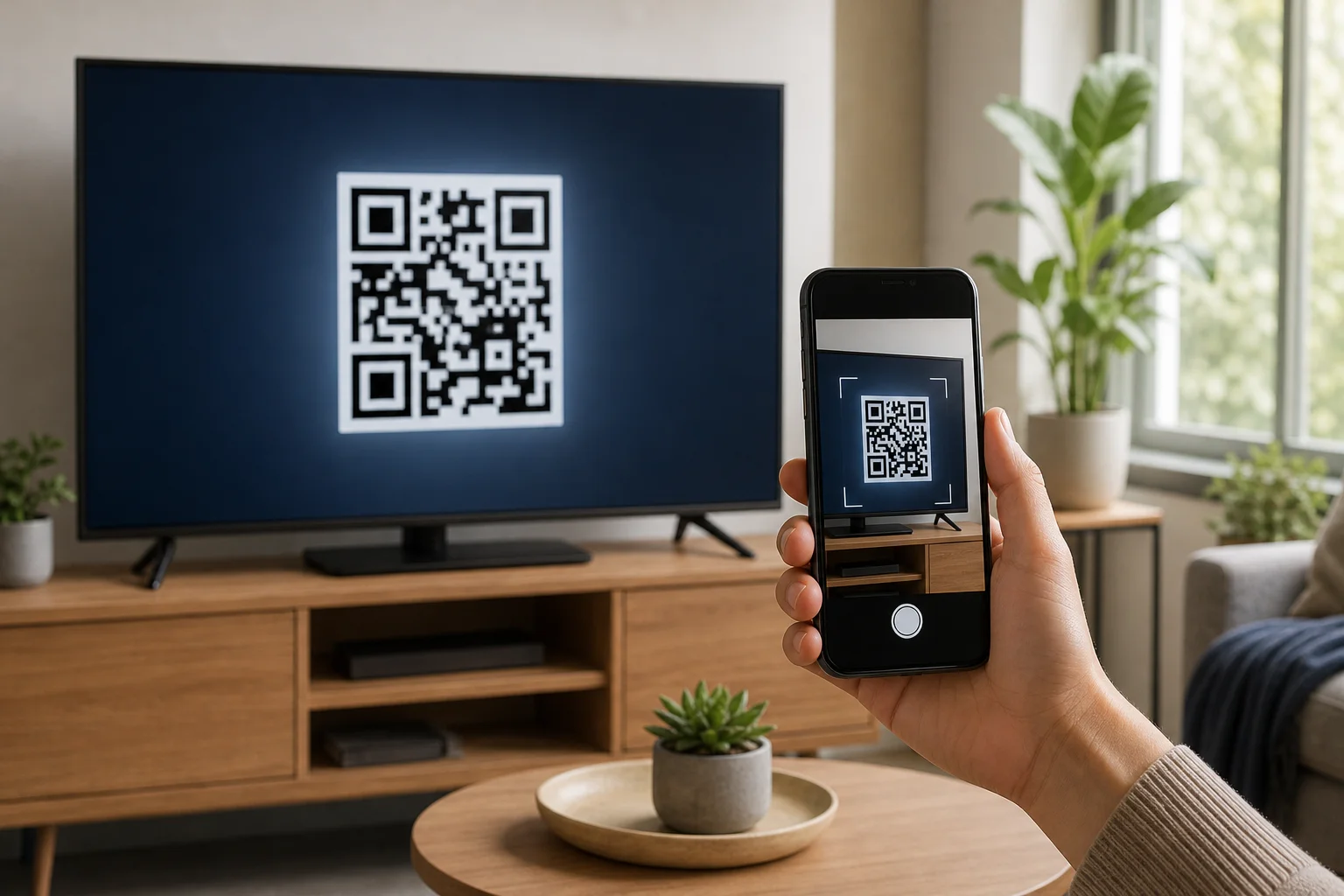
What a TV remote via QR code means
A QR-based TV remote is usually a mobile remote app, web remote, or casting control that pairs with your television after you scan a QR code. The code may appear during setup, in the TV settings menu, inside a streaming app, or on a web page shown on the TV.
After pairing, your phone may work as a remote with buttons such as:
- Power, volume, and mute
- Directional navigation and OK/select
- Back, home, and menu
- Keyboard input for search and passwords
- Playback controls such as play, pause, rewind, and fast forward
- App shortcuts, depending on the TV platform
The exact features depend on the TV brand and app. For example, a Google TV device may support phone control through the Google TV app, while some manufacturers offer their own remote apps. Other TVs use a browser-based remote that opens after scanning a QR code.
How QR code pairing works
QR pairing is designed to reduce manual steps. Instead of typing a long code, your phone reads a machine-readable pattern and receives the pairing link or temporary setup information.
In most systems, the process follows this flow:
- The TV displays a temporary QR code.
- You scan it with your phone camera or a supported remote app.
- The phone opens an app, web page, or pairing screen.
- The TV and phone confirm they are on the same network or account.
- The app requests permission to control the TV.
- The TV accepts the connection and stores the paired device.
For security, many QR codes expire after a short time. Some also require a confirmation prompt on the TV. This helps prevent someone nearby from pairing without your permission.
Step-by-step setup for a phone remote
Use these steps when your TV shows a QR code for remote control or mobile pairing.
1. Check that the TV supports mobile remote control
Open the TV settings and look for options such as Remote app, Mobile remote, Device connection, Pair accessory, Network remote, or QR pairing. If you cannot find these options, check the TV manual or the support page for your model.
Also confirm whether the TV needs a specific app. Many brands require their official app, while streaming boxes may use platform apps such as Google TV, Roku, Fire TV, or Apple TV Remote in Control Center on iPhone.
2. Connect the TV and phone to the same Wi-Fi network
Most phone remote features work over local Wi-Fi. Connect both devices to the same home network. If your router has separate 2.4 GHz and 5 GHz network names, try using the same one for both devices.
Avoid guest Wi-Fi if possible. Guest networks often block devices from seeing each other, which can prevent pairing.
3. Open the QR pairing screen on the TV
Go to the remote pairing or mobile control section on the TV. Select the option that displays a QR code. Keep this screen open while you set up the phone, because the code may expire.
If the QR code appears during first-time setup, leave it on screen and continue on your phone.
4. Scan the QR code with your phone
Use the phone camera first. On most modern iPhone and Android phones, the camera can detect QR codes automatically. Tap the link or notification that appears.
If nothing happens, open the official TV remote app and look for a scan option inside the app. Some brands use QR codes that only their app can understand.
5. Confirm pairing and permissions
Follow the instructions on the phone. You may need to sign in, choose your TV, or allow local network access. On iPhone, local network permission is often required for remote apps.
Then look at the TV. If a confirmation message appears, approve it with the physical remote or TV buttons. Once confirmed, test navigation, volume, and text input.
Comparison of QR remote methods
Different TVs use QR codes in different ways. The table below can help you choose the right setup path.
| Method | Best for | What you need | Common limitation |
|---|---|---|---|
| Official brand app | Samsung, LG, Sony, TCL, Hisense, and other smart TVs | Compatible TV, phone app, same Wi-Fi | Features vary by model and region |
| Platform app | Google TV, Android TV, Roku, Fire TV, Apple TV | Correct platform app or built-in phone feature | May not control all TV hardware functions |
| Web remote through QR code | Hotel TVs, presentations, shared screens, some smart TVs | Browser link from QR code | May expire or work only on the local network |
| Casting app controls | YouTube, Netflix, Spotify, and similar apps | Same app or same account on both devices | Controls only that app, not the whole TV |
| IR blaster app | Older non-smart TVs | Phone with infrared hardware | QR pairing usually does not apply |
This is why it is important to identify the TV platform first. If the TV is not a smart TV and your phone has no infrared blaster, scanning a QR code alone will not create remote-control support.
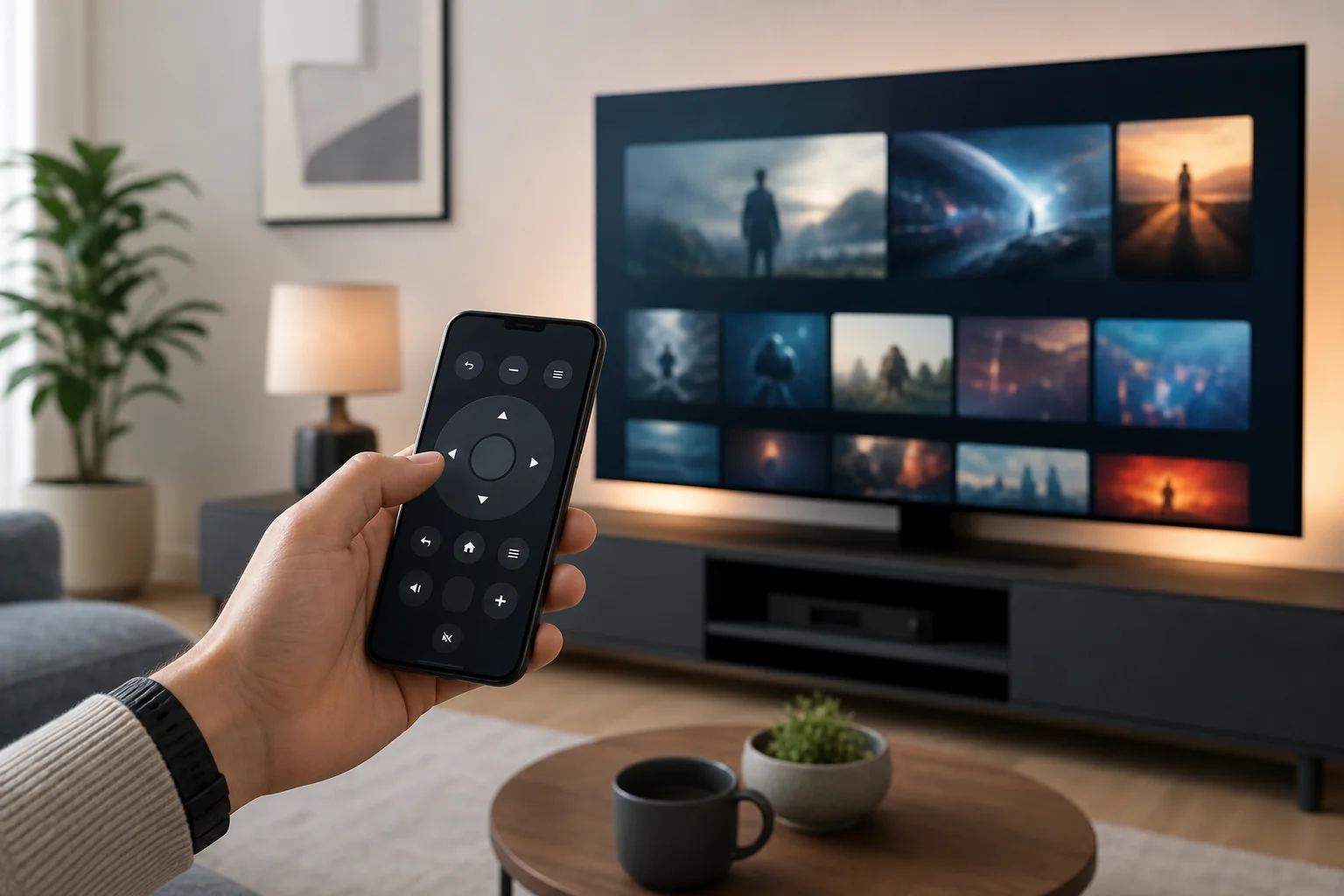
When a QR code remote is most useful
A QR code remote can save time in several common situations.
First, it helps when the original remote is missing. If the TV is already on and connected to Wi-Fi, you may be able to pair your phone without buying a replacement immediately.
Second, it makes typing easier. Entering passwords, email addresses, and search terms with a TV remote is slow. A phone keyboard is faster and more accurate.
Third, it is useful in shared spaces. Some hotels, offices, and classrooms show a QR code so users can control a screen without touching a shared remote. In these cases, the QR code often opens a temporary web remote.
Finally, it can help with accessibility. A phone screen may be easier to use than small remote buttons, especially if the app supports larger text, voice input, or assistive features.
Security and privacy tips
QR remote pairing is convenient, but you should still use it carefully.
Only scan QR codes shown by your own TV or by a trusted display. A malicious QR code can open a phishing page or install an unwanted app. Before signing in, check that the app or website is official.
In addition, review permissions. A TV remote app may ask for local network access, Bluetooth, notifications, or account sign-in. These can be normal, but camera, contacts, or location access may not be needed for basic remote control.
You should also remove old paired phones when you sell a TV, move out, or stop using a shared device. Look in the TV settings for paired devices, mobile remote access, or network control, then delete devices you no longer recognize.
Troubleshooting when the QR code does not work
If scanning fails or the phone remote cannot connect, try these fixes in order.
The QR code will not scan
Clean the TV screen area and increase brightness if possible. Stand straight in front of the code and avoid glare. If the QR code is very small, move closer or use the TV zoom/accessibility settings if available.
Also try the official remote app scanner instead of the standard phone camera. Some pairing codes are not ordinary web links.
The app cannot find the TV
Make sure the phone and TV are on the same Wi-Fi network. Disable mobile data temporarily to force the phone to use Wi-Fi. If you use a VPN on your phone, pause it during setup because it may block local device discovery.
Restart the TV, phone, and router if discovery still fails. Then open the pairing screen again and scan a fresh QR code.
The remote pairs but buttons do not work
Check whether the TV is asking for confirmation. Some systems show a prompt that must be accepted before full control starts.
If volume or power buttons do not work, the app may control only the streaming platform, not the television hardware. In that case, use the manufacturer app or set up HDMI-CEC if you are controlling a streaming box connected to a TV.
The QR code has expired
Return to the previous menu and generate a new code. Temporary codes are normal and help protect your TV from unwanted pairing.
FAQ about TV remotes through QR codes
Can I use any QR code scanner as a TV remote?
No. A QR scanner only reads the code. To control the TV, the link must open a supported remote app, web remote, or pairing process.
Do I need Wi-Fi for a QR code TV remote?
Usually, yes. Most smart TV remote apps use the local Wi-Fi network. Some setups may use Bluetooth for pairing, but Wi-Fi is still common for control.
Can a QR code remote turn on a TV that is off?
Sometimes. It depends on the TV and app. Wake-on-LAN, Bluetooth wake, or standby network control must be supported and enabled. If the TV is fully powered off, the phone may not be able to turn it on.
Is QR pairing available on older TVs?
Older non-smart TVs usually do not support QR pairing. You may need a replacement remote, a universal remote, a streaming device, or a phone with an infrared blaster.
Is it safe to scan a QR code on a TV screen?
It is safe if the code comes from your TV settings, a trusted app, or a known service. Do not sign in through suspicious pages, and avoid installing apps from unknown sources.
Conclusion
A TV remote via QR code is one of the easiest ways to pair a phone with a supported smart TV. Start by checking your TV platform, use the official app when possible, keep both devices on the same Wi-Fi network, and confirm permissions carefully. If pairing fails, refresh the QR code, disable VPN temporarily, and restart your devices. With the right setup, your phone can become a practical remote for navigation, search, and everyday viewing.