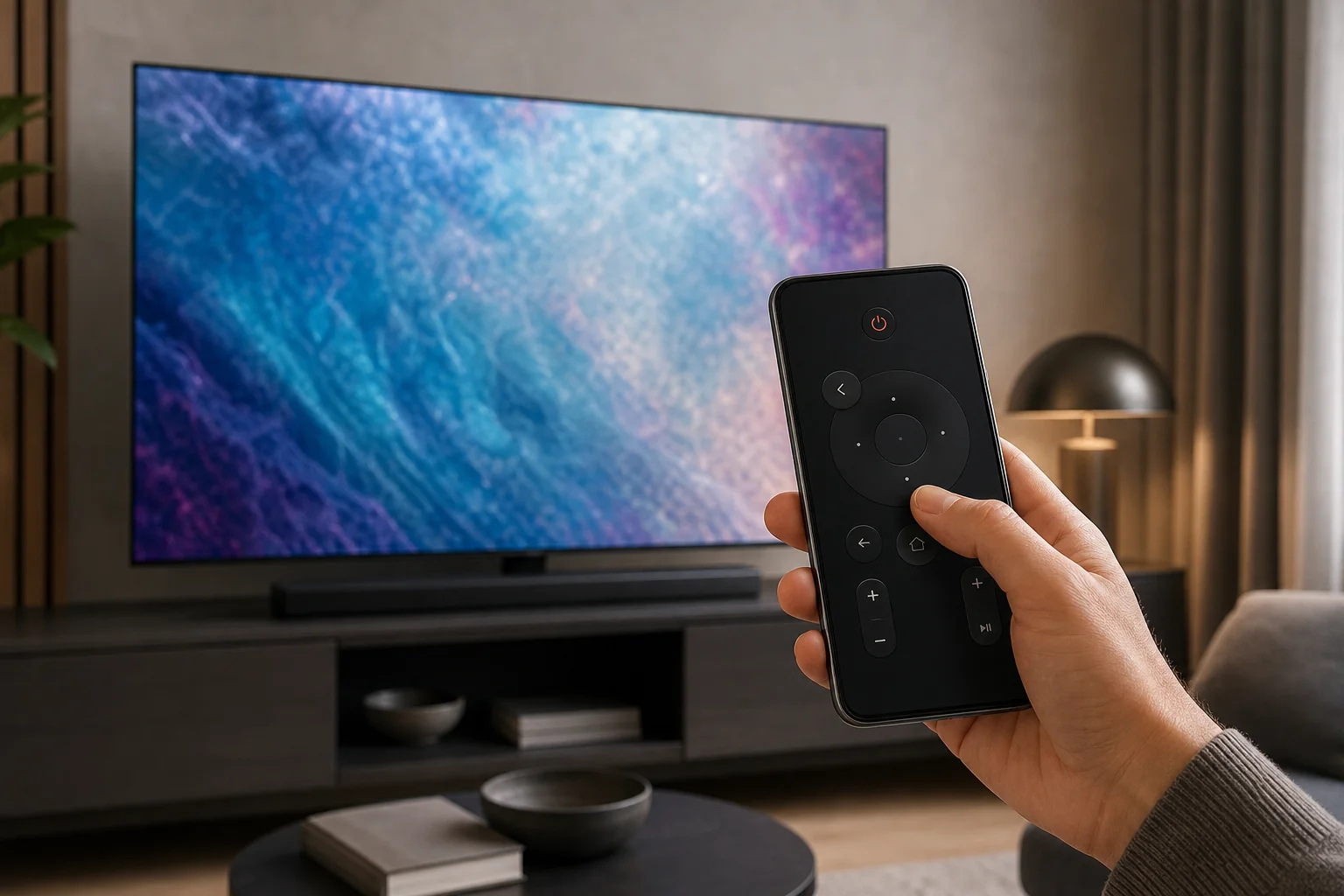
Samsung tv remote on phone: setup, apps, and troubleshooting
A Samsung TV remote on phone is one of the easiest ways to control your TV when the original remote is lost, broken, or across the room. With the right app, your Android phone or iPhone can change channels, adjust volume, open apps, type search terms, and sometimes mirror content. This guide explains the best options, how to set them up, what to do if pairing fails, and how to choose between Samsung SmartThings, an IR remote app, and third-party remote control apps.
The best way to use your phone as a Samsung TV remote
For most modern Samsung Smart TVs, the best option is the Samsung SmartThings app. It is Samsung’s official smart home app and works as a remote over Wi-Fi. It supports many Samsung TVs from recent years and is available for both Android and iOS.
SmartThings is usually the safest starting point because it comes from Samsung, does not need an infrared sensor, and can offer more than basic buttons. Depending on your TV model, you may get a touchpad, app shortcuts, source control, voice features, and keyboard input.
However, SmartThings is not the only option. If your TV is older, not connected to Wi-Fi, or not compatible with SmartThings, an Android phone with an IR blaster may work like a traditional remote. Some third-party apps can also control Samsung TVs over the local network, but you should choose them carefully and review permissions before installing.