20 posts tagged with "Remote control"

View All Tags

How to choose a remote control app for your TV and smart devices

· 10 min read

Choosing the right remote control app can turn your phone into a practical replacement for a lost TV remote, a faster way to type on a streaming box, or a simple controller for several devices at once. The best choice depends on your device brand, phone features, home network, privacy expectations, and the functions you use most. This guide explains what to check before installing an app, how to compare options, and which features matter for TVs, streaming sticks, set-top boxes, and smart home media devices.

remote control app on phone

How to find a remote for your TV

· 11 min read

If you need to know how to find a remote for your TV, start by checking whether you are looking for a lost remote, a replacement remote, or a better universal option. The right choice depends on your TV brand, model number, control type, and smart TV platform. This guide explains how to identify the correct remote, compare original and universal remotes, use phone apps, and avoid buying an incompatible controller.

TV remote replacement guide

Samsung TV remote on phone: setup, apps, and troubleshooting

· 10 min read

A Samsung TV remote on phone is one of the easiest ways to control your TV when the original remote is lost, broken, or across the room. With the right app, your Android phone or iPhone can change channels, adjust volume, open apps, type search terms, and sometimes mirror content. This guide explains the best options, how to set them up, what to do if pairing fails, and how to choose between Samsung SmartThings, an IR remote app, and third-party remote control apps.

The best way to use your phone as a Samsung TV remote​

For most modern Samsung Smart TVs, the best option is the Samsung SmartThings app. It is Samsung’s official smart home app and works as a remote over Wi-Fi. It supports many Samsung TVs from recent years and is available for both Android and iOS.

SmartThings is usually the safest starting point because it comes from Samsung, does not need an infrared sensor, and can offer more than basic buttons. Depending on your TV model, you may get a touchpad, app shortcuts, source control, voice features, and keyboard input.

However, SmartThings is not the only option. If your TV is older, not connected to Wi-Fi, or not compatible with SmartThings, an Android phone with an IR blaster may work like a traditional remote. Some third-party apps can also control Samsung TVs over the local network, but you should choose them carefully and review permissions before installing.
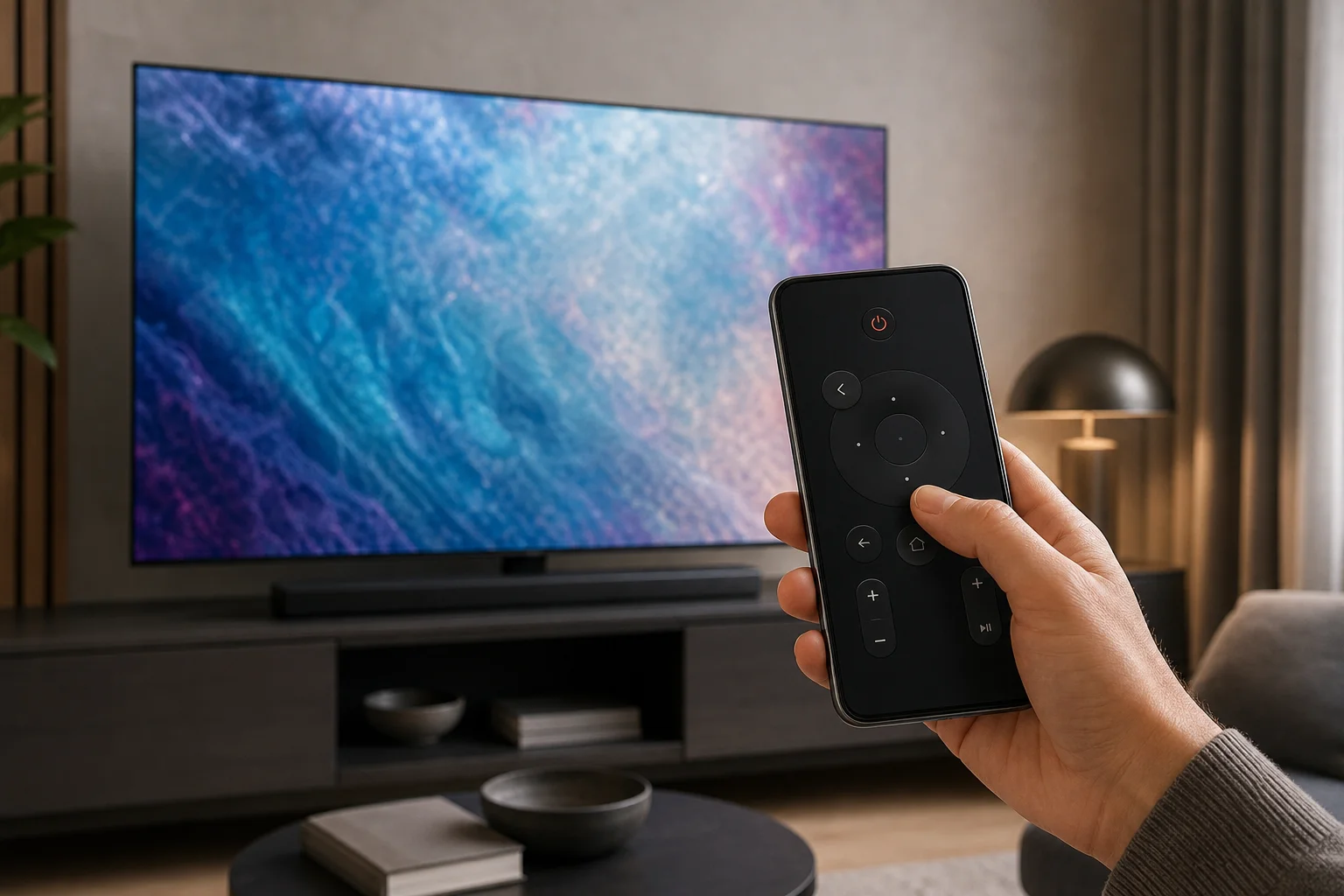
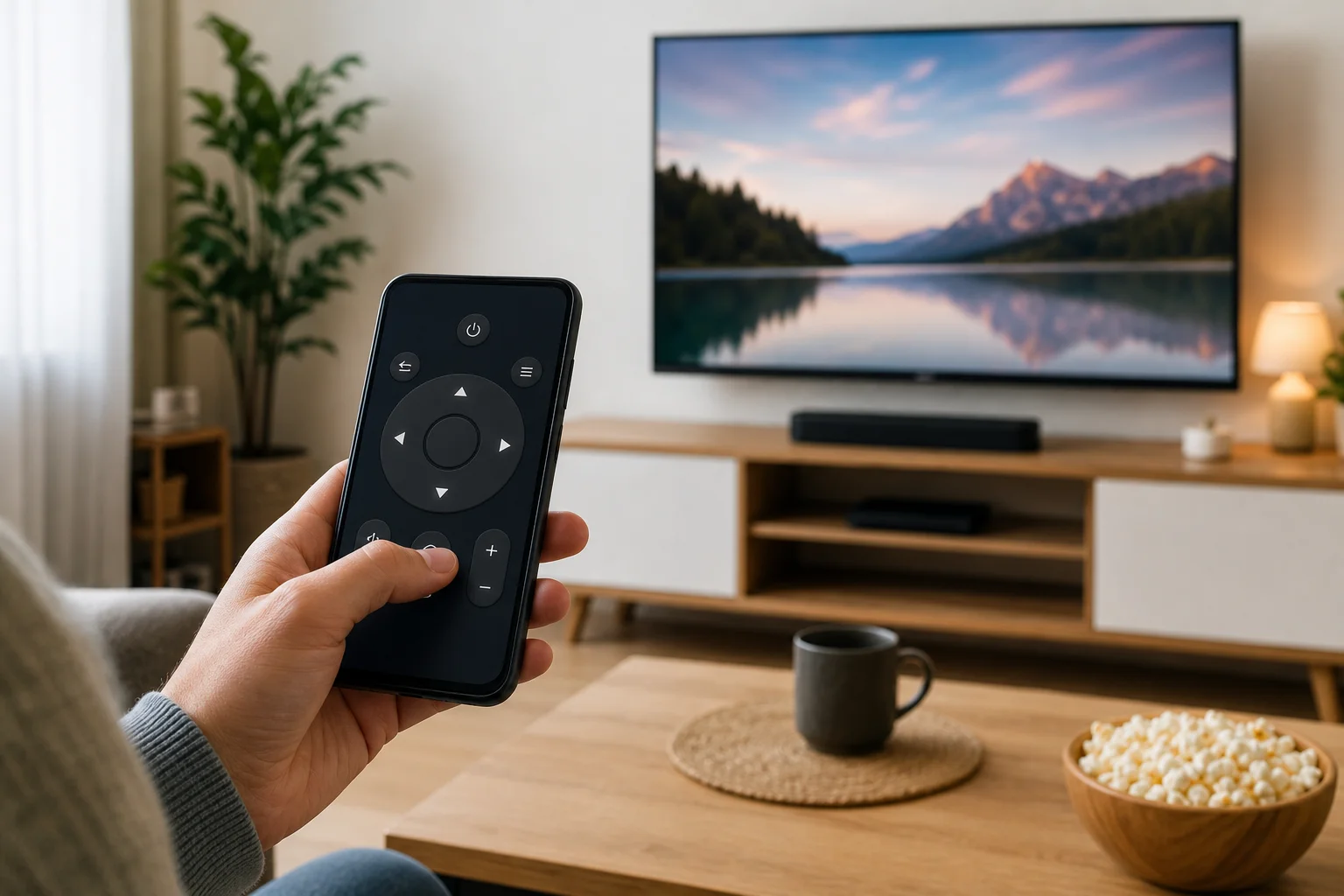
Samsung TV remote on phone setup

Remote for smart TV on iOS: how to use your iPhone as a TV remote

· 9 min read

A remote for smart TV on iOS turns your iPhone or iPad into a practical TV controller when the original remote is lost, broken, or across the room. With the right app, you can adjust volume, open streaming services, type searches faster, and navigate menus from your phone. This guide explains which iOS TV remote app to choose, how to set it up, what features to expect, and how to fix common connection problems.

iOS smart TV remote

How to use your phone as a remote for TV

· 9 min read

Using your phone as a remote for TV is one of the easiest ways to replace a lost remote, type searches faster, and control streaming apps without extra hardware. In most cases, you only need the right app, the same Wi-Fi network, and a quick pairing code from the TV screen. This guide explains the best options for Android phones, iPhones, smart TVs, streaming sticks, and older TVs with infrared support.

phone remote for TV setup

Android TV remote control guide for Android phones

· 10 min read

An Android TV remote can be a physical handset, a mobile app, or a voice-enabled controller built into your Android phone. This guide explains how to use your phone as a TV remote, which apps work best, how to pair them, and what to do when the remote does not connect. You will also learn when a replacement remote is better than an app.

Using a phone as a remote is practical. It is helpful when the original remote is lost, the batteries are dead, or typing a password with arrow keys feels too slow. However, the best option depends on your TV system, network, and the features you need.

What an Android TV remote is​

An Android TV remote is any remote control method designed for a TV or streaming device running Android TV or Google TV. It can be:

  • A standard infrared or Bluetooth remote supplied with the TV.
  • The remote feature inside the Google TV app.
  • A manufacturer app from brands such as Sony, Philips, TCL, Xiaomi, Hisense, or Nvidia Shield.
  • A third-party remote control app for Android.
  • A universal remote that supports Android TV devices.

Android TV and Google TV are closely related. Google TV is a newer interface built on Android TV. In many cases, the same remote apps and pairing steps work for both.

Android TV remote on phone

Пульт на телефон для смарт ТВ: how to control your smart TV from a phone

· 10 min read

A пульт на телефон для смарт ТВ is a practical way to control your television when the physical remote is lost, broken, or simply out of reach. With the right app, your Android phone or iPhone can change channels, adjust volume, type search queries, launch streaming apps, and even use voice control. This guide explains the best options, how to set them up, what to do when pairing fails, and how to choose the safest app for your smart TV.

What a phone remote for smart TV can do​

A phone remote turns your smartphone into a touchscreen controller for your TV. In most cases, it works over the same Wi-Fi network as your smart TV. Some phones and TVs also support Bluetooth, infrared, or platform-specific pairing.

Depending on your TV model and app, you may be able to:

  • Turn the TV on or off.
  • Change volume and mute sound.
  • Navigate menus with a touchpad or directional buttons.
  • Open Netflix, YouTube, Prime Video, and other installed apps.
  • Type passwords and search terms using your phone keyboard.
  • Use voice search through Google Assistant, Siri, Alexa, or the TV platform.
  • Cast photos, videos, and music from your phone.
  • Control streaming devices such as Chromecast, Roku, Fire TV, or Apple TV.

However, not every app supports every feature. Power-on control, for example, often depends on whether the TV supports wake over Wi-Fi, Bluetooth, or HDMI-CEC.

phone remote for smart TV

Can you use iPhone as a remote for TV?

· 10 min read

Yes, you can use iPhone as a remote for TV in several ways. The best method depends on your television model, streaming device, and Wi-Fi setup. If you use Apple TV or an AirPlay-compatible smart TV, the built-in Apple TV Remote in Control Center is usually the easiest option. For Samsung, LG, Sony, TCL, Roku, Fire TV, and Google TV devices, official apps often provide full remote controls. This guide explains the main options, setup steps, limitations, and fixes when your iPhone remote is not working.

iPhone as TV remote

How to download a remote to your phone safely

· 10 min read

If you want to know how to download a remote to your phone, the safest option is to install an official remote control app from Google Play or the Apple App Store. Your phone can then control a smart TV, streaming device, set-top box, or even some air conditioners, depending on the app and hardware. This guide explains which app to choose, how to install it, how to connect it to your device, and what to do if the virtual remote does not work.

What a phone remote app can control​

A remote control app turns your Android phone or iPhone into a virtual remote. Most apps work over Wi-Fi, Bluetooth, or infrared. The right method depends on the device you want to control.

Common uses include:

  • Controlling a smart TV from Samsung, LG, Sony, TCL, Hisense, Philips, or other brands.
  • Navigating Android TV or Google TV devices.
  • Controlling streaming sticks and boxes such as Roku, Fire TV, Chromecast with Google TV, and Apple TV.
  • Typing search terms and passwords faster with your phone keyboard.
  • Casting media or opening streaming apps.
  • Replacing a lost or broken physical remote.

However, not every app works with every device. For example, a Roku remote app will not control an LG TV menu unless the TV also supports Roku features. Before downloading anything, identify the exact device you want to control.

phone remote app for smart TV

How to use phone as remote for TV

· 10 min read

If you want to know how to use phone as remote for TV, the good news is that most modern TVs and streaming devices support it. You can control volume, open apps, type searches, navigate menus, and cast content from an Android phone or iPhone. In most cases, you only need the right app, the same Wi-Fi network, and a quick pairing code. This guide explains the best methods for smart TVs, Roku, Fire TV, Apple TV, Google TV, and older TVs with an infrared sensor.

Before you start​

Using your phone as a TV remote is easiest when your TV and phone can communicate over the same network. Before installing apps, check these basics:

  • Your TV or streaming device is turned on.
  • Your phone and TV are connected to the same Wi-Fi network.
  • Bluetooth is enabled if the remote app asks for it.
  • Your TV software is up to date.
  • You know the brand and model of your TV or streaming box.
  • You can see the TV screen to enter or confirm a pairing code.

Some TVs also support control through an infrared blaster, often called an IR blaster. This is a small sensor on certain Android phones that works like a traditional remote. iPhones do not include built-in IR blasters, so they usually need Wi-Fi, Bluetooth, AirPlay, or a brand-specific app.

phone as TV remote setup