TV apps for smartphones: how to watch television on your phone

· 9 min read

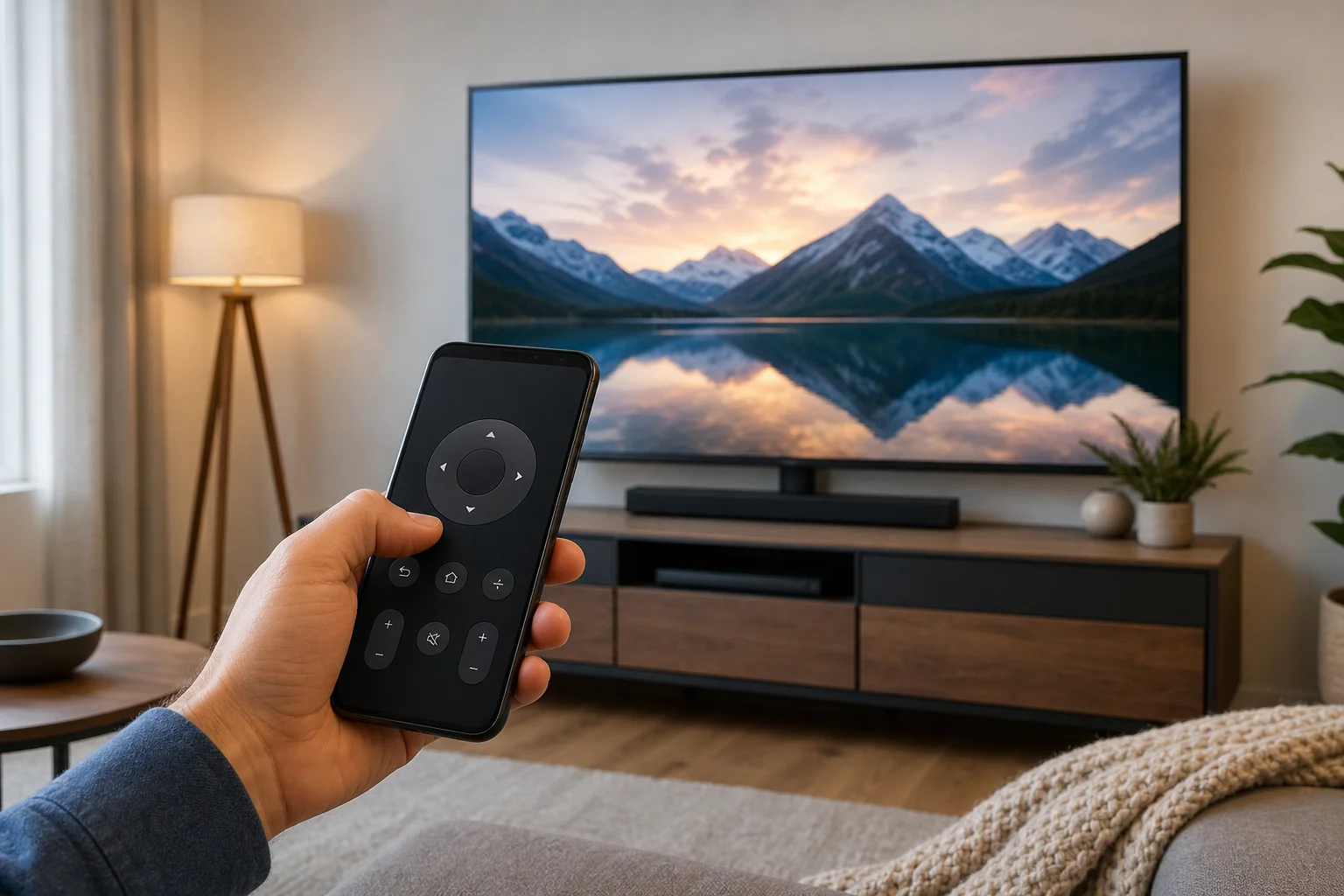
TV apps for smartphones make it easy to watch live channels, catch-up TV, sports, news, and on-demand shows without a traditional television. The best choice depends on your country, budget, data plan, and whether you want free channels, premium subscriptions, or access to your existing TV provider. This guide explains the main types of mobile television apps, how to compare them, how to set them up safely, and what to check before you stream on Android or iPhone.

TV apps on smartphone

How to use your phone as a remote for TV

· 9 min read

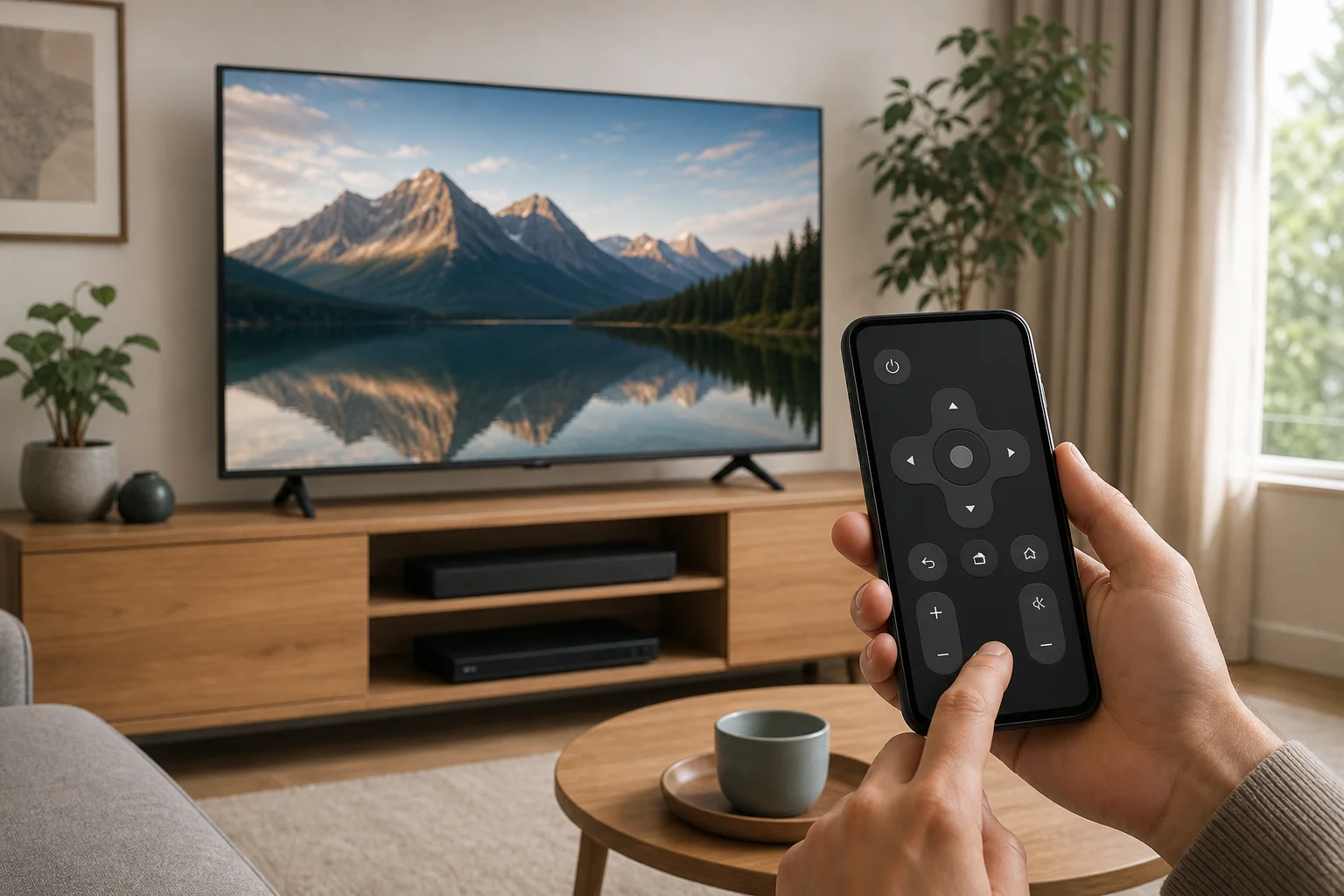
Using your phone as a remote for TV is one of the easiest ways to replace a lost remote, type searches faster, and control streaming apps without extra hardware. In most cases, you only need the right app, the same Wi-Fi network, and a quick pairing code from the TV screen. This guide explains the best options for Android phones, iPhones, smart TVs, streaming sticks, and older TVs with infrared support.

phone remote for TV setup

How to transfer a TV remote to phone and control your TV easily

· 12 min read

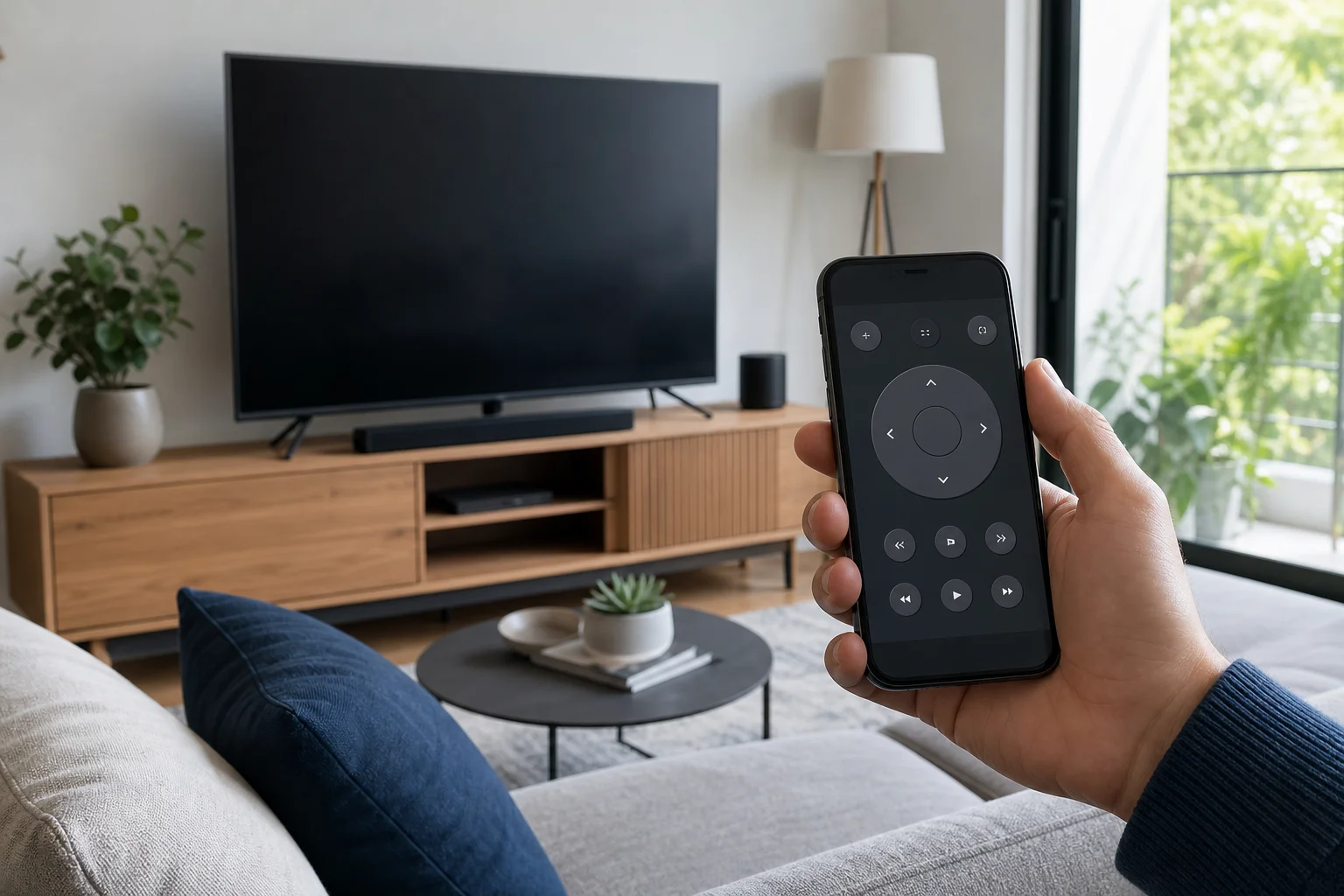
Transferring a TV remote to phone control is one of the easiest ways to replace a lost remote, reduce clutter, or type faster on a smart TV. In most cases, you only need your phone, the right remote app, and a shared Wi-Fi network. This guide explains the best methods for Android, iPhone, Google TV, Samsung, LG, Roku, Fire TV, and other popular devices. You will also learn what to do if pairing fails, when infrared matters, and how to keep your TV secure.

What it means to use your phone as a TV remote​

Using your phone as a TV remote means your smartphone sends control commands to the television or streaming device. These commands can travel in two main ways:

  • Wi-Fi or Bluetooth: Common on smart TVs, streaming sticks, and TV boxes. Your phone and TV usually need to be on the same network.
  • Infrared, also called IR: Used by many older TVs. Only some Android phones have an IR blaster. iPhones do not include one.

For most modern homes, Wi-Fi control is the best option. It supports navigation, volume, app launching, voice search, and text input. However, it only works if the TV is connected to your network and supports remote control through an app.

TV remote to phone setup

TV remote over WiFi: setup, apps, and troubleshooting

· 10 min read

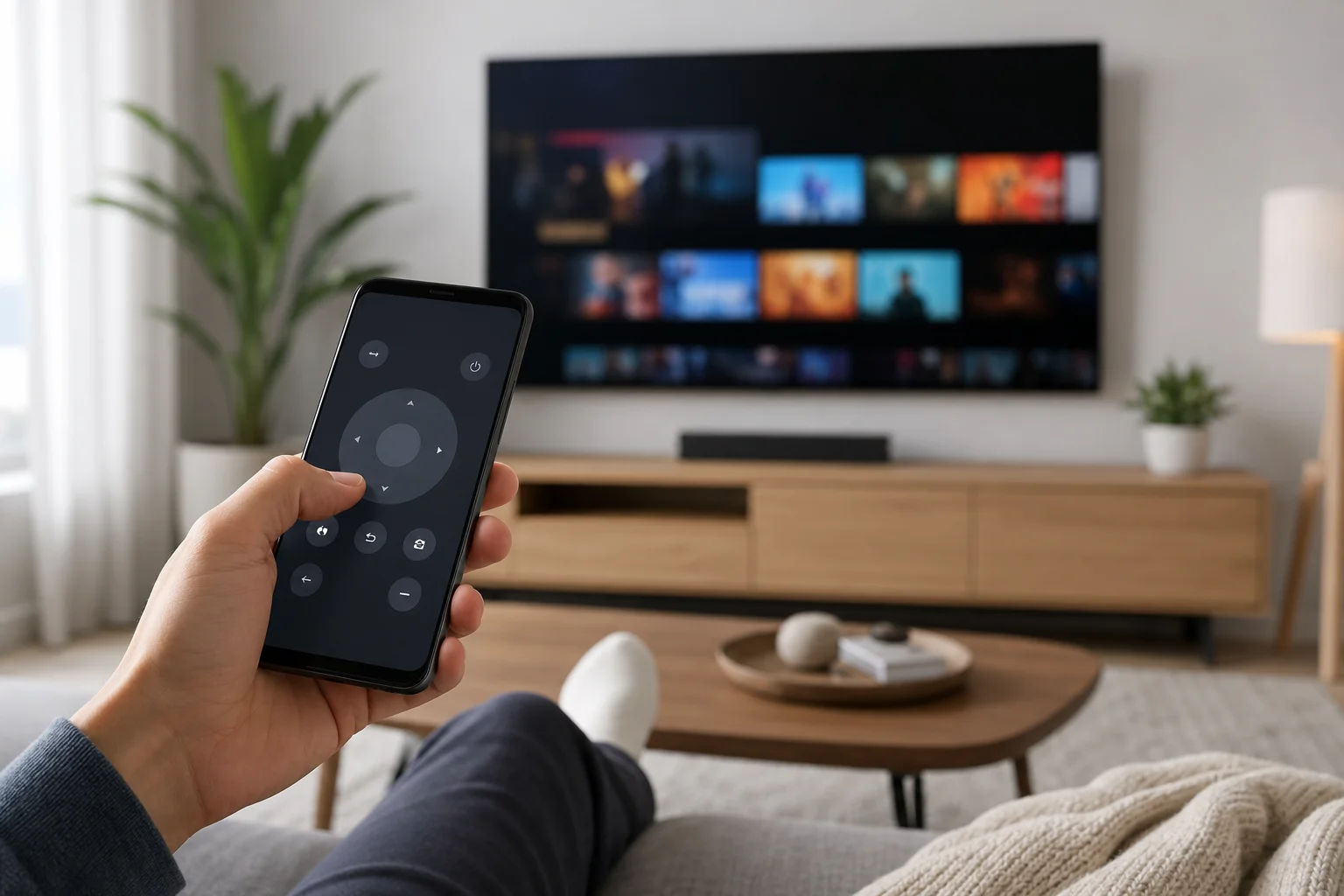
A TV remote over WiFi lets you use a phone, tablet, or smart speaker to control a compatible television through your home network. It is useful when the original remote is lost, the batteries are dead, or you want easier typing for searches and passwords. This guide explains how WiFi TV remote apps work, which devices support them, how to set one up, and what to do when your phone cannot find the TV.

TV remote over WiFi app

Android TV remote control guide for Android phones

· 10 min read

An Android TV remote can be a physical handset, a mobile app, or a voice-enabled controller built into your Android phone. This guide explains how to use your phone as a TV remote, which apps work best, how to pair them, and what to do when the remote does not connect. You will also learn when a replacement remote is better than an app.

Using a phone as a remote is practical. It is helpful when the original remote is lost, the batteries are dead, or typing a password with arrow keys feels too slow. However, the best option depends on your TV system, network, and the features you need.

What an Android TV remote is​

An Android TV remote is any remote control method designed for a TV or streaming device running Android TV or Google TV. It can be:

  • A standard infrared or Bluetooth remote supplied with the TV.
  • The remote feature inside the Google TV app.
  • A manufacturer app from brands such as Sony, Philips, TCL, Xiaomi, Hisense, or Nvidia Shield.
  • A third-party remote control app for Android.
  • A universal remote that supports Android TV devices.

Android TV and Google TV are closely related. Google TV is a newer interface built on Android TV. In many cases, the same remote apps and pairing steps work for both.

Android TV remote on phone

Пульт на телефон для смарт ТВ: how to control your smart TV from a phone

· 10 min read

A пульт на телефон для смарт ТВ is a practical way to control your television when the physical remote is lost, broken, or simply out of reach. With the right app, your Android phone or iPhone can change channels, adjust volume, type search queries, launch streaming apps, and even use voice control. This guide explains the best options, how to set them up, what to do when pairing fails, and how to choose the safest app for your smart TV.

What a phone remote for smart TV can do​

A phone remote turns your smartphone into a touchscreen controller for your TV. In most cases, it works over the same Wi-Fi network as your smart TV. Some phones and TVs also support Bluetooth, infrared, or platform-specific pairing.

Depending on your TV model and app, you may be able to:

  • Turn the TV on or off.
  • Change volume and mute sound.
  • Navigate menus with a touchpad or directional buttons.
  • Open Netflix, YouTube, Prime Video, and other installed apps.
  • Type passwords and search terms using your phone keyboard.
  • Use voice search through Google Assistant, Siri, Alexa, or the TV platform.
  • Cast photos, videos, and music from your phone.
  • Control streaming devices such as Chromecast, Roku, Fire TV, or Apple TV.

However, not every app supports every feature. Power-on control, for example, often depends on whether the TV supports wake over Wi-Fi, Bluetooth, or HDMI-CEC.

phone remote for smart TV

How to use a TV remote on phone

· 9 min read

A TV remote on phone is a simple way to control your television when the physical remote is lost, broken, or out of reach. In most cases, you only need a compatible app, the same Wi-Fi network, and a smart TV or streaming device. This guide explains the best options for Android and iPhone, how to set them up, when infrared matters, and how to fix common connection problems.

Using your phone as a remote can be more convenient than a standard handset. You can type passwords faster, search by voice, switch apps, adjust volume, and control streaming devices from one screen. However, the right setup depends on your TV model and phone hardware.

How a phone can control a TV​

A smartphone can work as a TV remote in two main ways: over Wi-Fi or by using an infrared blaster.

Wi-Fi control is the most common option today. Your phone and TV connect through the same home network. The app sends commands to the TV, streaming stick, or set-top box. This method works with many smart TVs and devices such as Google TV, Android TV, Roku, Amazon Fire TV, and Apple TV.

Infrared, often called IR, works like an old-style remote. The phone sends an invisible light signal directly to the TV. Only some Android phones include an IR blaster. iPhones do not have one. If your phone has IR, it may control older TVs that are not connected to the internet.
TV remote on phone setup

Can you use iPhone as a remote for TV?

· 10 min read

Yes, you can use iPhone as a remote for TV in several ways. The best method depends on your television model, streaming device, and Wi-Fi setup. If you use Apple TV or an AirPlay-compatible smart TV, the built-in Apple TV Remote in Control Center is usually the easiest option. For Samsung, LG, Sony, TCL, Roku, Fire TV, and Google TV devices, official apps often provide full remote controls. This guide explains the main options, setup steps, limitations, and fixes when your iPhone remote is not working.

iPhone as TV remote

How to choose a remote for your TV

· 2 min read
The SmartTvRemote team

Choose a remote app based on the platform of your television or streaming box. A single brand can make different types of devices, so start with the “About” section in your TV settings.

Connecting Pultio to Android TV

· 2 min read
The SmartTvRemote team

To connect Pultio, you need a compatible Android TV or Google TV television or streaming box, a phone and your home Wi-Fi network. Normal pairing does not require developer mode or manual ADB configuration.