Smartphone as a TV remote: functions, setup, apps, and troubleshooting
Using a smartphone as a TV remote is one of the easiest ways to control a television, streaming box, or media player when the original remote is missing, broken, or simply out of reach. A phone can change channels, adjust volume, launch apps, type search queries, mirror content, and control playback. This guide explains how phone remote control works, which features to expect, how to set it up, and what to do when your TV does not respond.
What your phone can do as a TV remote
A modern phone can replace many everyday remote-control functions. In some cases, it can do more than a standard remote because it has a touchscreen, keyboard, microphone, and app ecosystem.
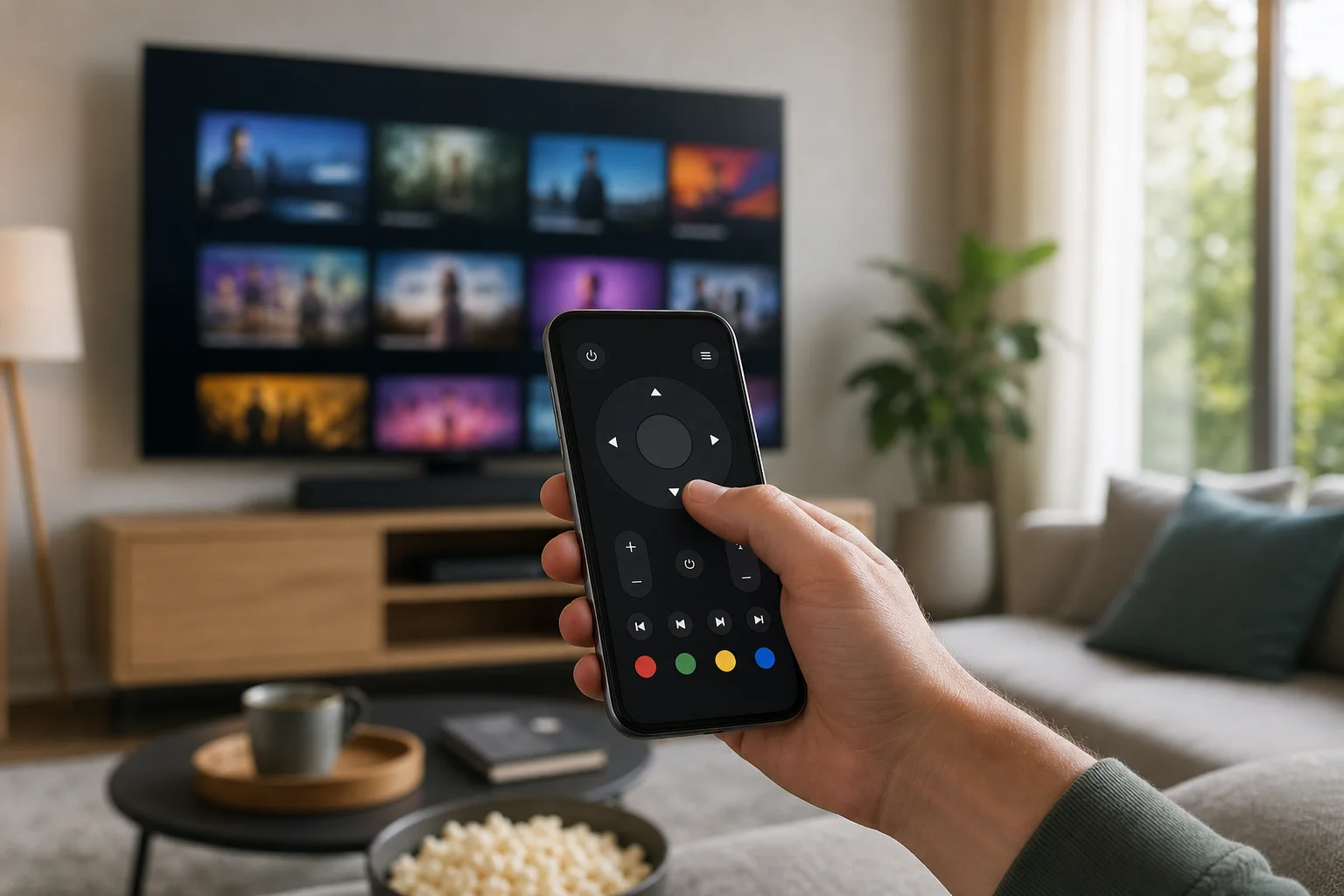
Common smartphone TV remote functions include:
- Power and standby control, if supported by the TV or connected device.
- Volume and mute controls for the TV, soundbar, or receiver.
- Channel switching on supported TVs and set-top boxes.
- Navigation buttons for menus, settings, and streaming apps.
- Playback controls such as play, pause, rewind, fast-forward, and skip.
- App launching for services like Netflix, YouTube, Prime Video, or Disney+.
- Text input using the phone keyboard, which is faster than typing with arrow keys.
- Voice search through Google Assistant, Siri, Alexa, or the TV brand’s app.
- Screen casting or mirroring from your phone to the TV.
- Private listening, available on some platforms such as Roku.
The exact feature set depends on the TV model, mobile app, operating system, and whether the phone connects by Wi-Fi, Bluetooth, infrared, or casting technology.
How a smartphone as a TV remote works
There are several ways a phone can control a TV. Knowing the difference helps you choose the right setup.
Wi-Fi remote control
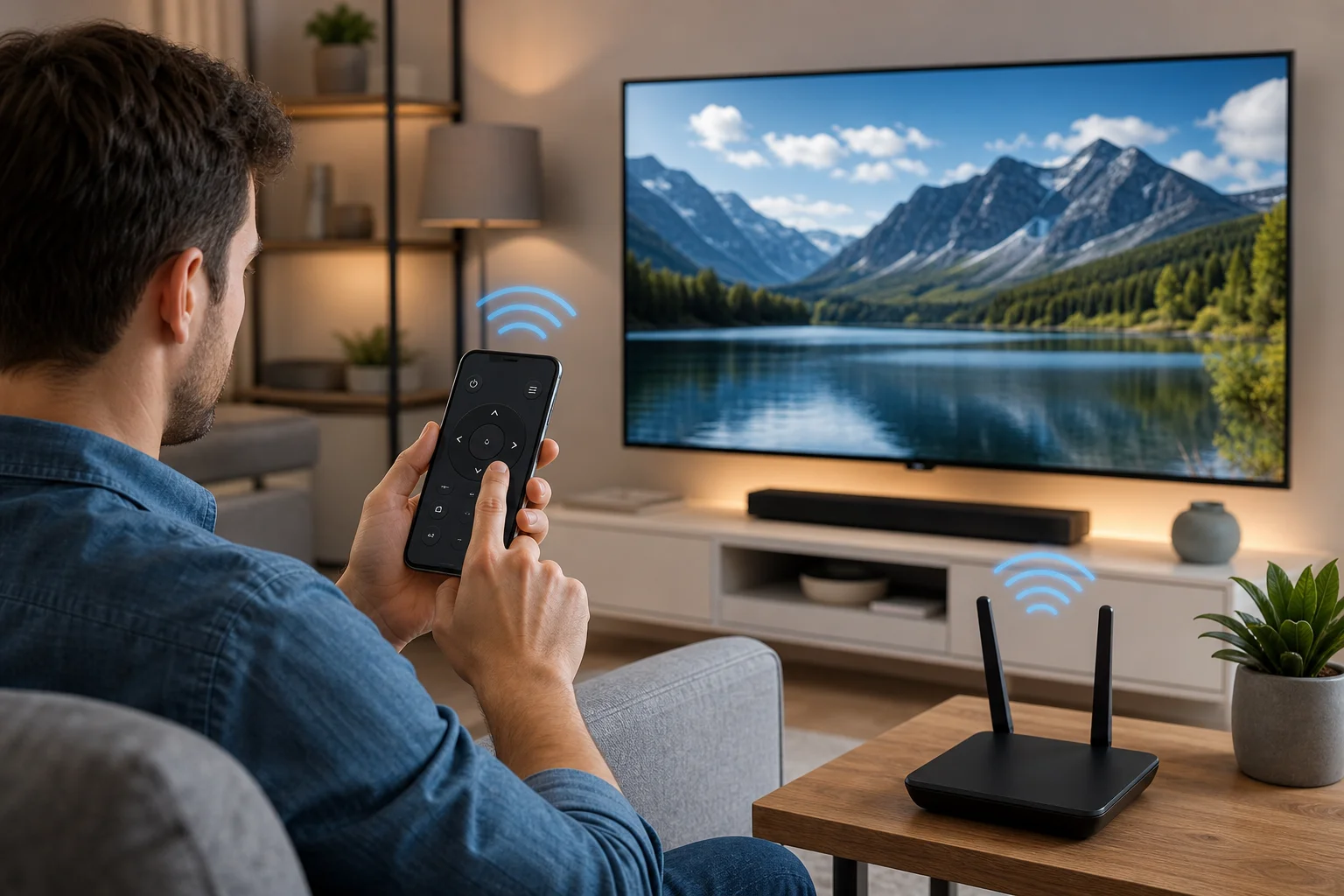
Most smart TVs and streaming devices use Wi-Fi control. Your phone and TV connect to the same home network. Then an official app sends commands over the network.
This method is common for Google TV, Android TV, Apple TV, Roku, Fire TV, Samsung TVs, LG TVs, and many modern smart TVs. It usually supports navigation, app launching, typing, and playback controls. However, the TV must be connected to the network and awake enough to receive commands.
Infrared control
Some Android phones include an IR blaster. This lets the phone send infrared signals, like a traditional remote. IR control can work with older TVs that do not have Wi-Fi.
The downside is that few new phones include IR hardware. Also, infrared needs a clear line of sight between the phone and TV. It usually supports basic controls, but not advanced smart features like app typing or voice search.
Bluetooth control
Some streaming devices and TVs use Bluetooth for remote functions. Bluetooth can help with pairing, voice input, and direct device control. It does not always replace the full remote, but it may be used together with a Wi-Fi app.
Casting and media control
Casting is not the same as a full remote, but it is often enough. When you cast from YouTube, Spotify, Netflix, or another supported app, your phone becomes a playback controller. You can pause, skip, change volume, or stop casting.
Casting works well for media, but it may not control the TV’s settings, channels, or home screen unless your device also supports a full remote app.
Best apps and platforms for phone remote control
The best remote app is usually the official app for your TV or streaming device. It is safer and more reliable than random third-party apps.
| TV or device | Recommended app or feature | Typical functions |
|---|---|---|
| Google TV or Android TV | Google TV app or Android TV remote feature | Navigation, keyboard, voice search, app control |
| Apple TV | Apple TV Remote in iPhone Control Center | Navigation, Siri, typing, playback, power options |
| Roku | Roku mobile app | Remote, keyboard, private listening, channel launch |
| Amazon Fire TV | Amazon Fire TV app | Navigation, voice search, typing, playback |
| Samsung smart TV | SmartThings app | Remote controls, device management, automation |
| LG smart TV | LG ThinQ app | Remote controls, app launching, smart home features |
| TVs with Chromecast built in | Google Home and cast-enabled apps | Casting, playback, volume, device management |
If your TV is older, search the manufacturer’s site for its supported mobile app. Avoid apps that ask for unnecessary permissions, show aggressive ads, or require payment before confirming compatibility.
How to set up your phone as a TV remote
Follow these steps to connect a phone remote app. The process may vary slightly by brand, but the basic flow is similar.
- Connect both devices to the same Wi-Fi network. Your phone and TV or streaming device usually need to be on the same home network.
- Install the correct remote app. Use the official app for your TV brand or streaming platform.
- Turn on the TV or streaming device. Some apps cannot discover a device that is fully powered off.
- Open the app and scan for devices. Select your TV from the list when it appears.
- Confirm the pairing code. Many TVs show a code on screen. Enter it on your phone.
- Allow useful permissions. Microphone access may be needed for voice search. Local network access may be needed on iPhone.
- Test basic controls. Try volume, navigation, home, back, and keyboard input.
- Save the device as a favorite. This makes it easier to reconnect later.
If the app cannot find the TV, restart both devices and check that they are on the same network band or router. Guest networks and VPN connections can block local device discovery.
Useful functions beyond basic remote control
A phone remote is not only a backup. It can improve the way you use your TV every day.
Faster search and typing
Typing with a TV remote is slow. A smartphone keyboard makes it easier to search for films, enter passwords, rename inputs, or log in to streaming services. This is one of the biggest benefits of using a mobile TV remote.
Voice commands
Many apps support voice search. You can ask for a movie, open an app, find a genre, or search YouTube. Voice support depends on the platform and region, but it is often more convenient than scrolling through menus.
Casting photos, videos, and music
Your phone can send media to the TV through Chromecast, AirPlay, Miracast, or app-based casting. This is useful for family photos, presentations, music playlists, and videos. For best results, keep both devices on a stable Wi-Fi connection.
Smart home integration
Some TV apps connect with smart home systems. For example, Samsung SmartThings and LG ThinQ can manage compatible appliances and TVs from one place. Google Home and Apple Home can also include TVs or streaming devices in routines, depending on support.
Accessibility features
A phone can help users who find small physical remotes difficult to use. Larger touch controls, voice input, keyboard access, and screen reader support may make TV control easier. Check your phone’s accessibility settings and the TV app’s options.
Limitations you should know
A smartphone remote is convenient, but it is not perfect.
First, your phone battery matters. If your phone is dead, you lose the remote. Second, Wi-Fi control may fail when the router is down. Third, some TVs do not allow full power-on control from an app unless a setting such as “quick start,” “mobile TV on,” or “network standby” is enabled.
Also, not every feature is available on every model. A budget TV may support only basic controls. A streaming box may not adjust your TV volume unless HDMI-CEC or infrared control is configured. Finally, third-party universal remote apps may be less reliable than official apps.
Troubleshooting when the phone remote is not working
If your smartphone remote app does not control the TV, try these fixes in order.
Check the network
Make sure the phone and TV are on the same Wi-Fi network. If your router has separate 2.4 GHz and 5 GHz names, connect both devices to the same one. Also disable guest network isolation if it is enabled.
Restart the devices
Restart the phone, TV, streaming stick, and router. This clears many discovery and pairing problems.
Update the app and TV software
Install the latest version of the remote app. Then check for TV or streaming device firmware updates. Updates often fix connection problems and pairing bugs.
Enable remote control settings
Look in the TV settings for options such as mobile device control, network standby, wake on LAN, quick start, HDMI-CEC, or device discovery. Names vary by brand.
Re-pair the phone
Remove the TV from the app and pair it again. If the TV has a list of paired devices, delete old entries and start fresh.
Review VPN and firewall settings
A VPN on your phone can stop it from finding local devices. Firewalls, privacy tools, and some router settings can do the same. Temporarily disable them to test the connection.
Privacy and security tips
Remote apps can see and control devices on your home network, so use them carefully.
Download apps only from trusted stores and prefer official apps. Review permissions before approving them. A TV remote app should not need access to your contacts or SMS messages. Keep your TV and phone updated. Also, avoid pairing your TV with unknown phones on shared networks, such as in rentals or offices.
If you sell or give away a TV, reset it and remove linked accounts. This prevents someone else from accessing your apps or casting history.
FAQ about using a phone as a TV remote
Can any smartphone work as a TV remote?
Most smartphones can control modern smart TVs through Wi-Fi apps or casting. However, controlling older non-smart TVs usually requires an Android phone with an IR blaster or an external infrared accessory.
Can I turn on my TV with my phone?
Sometimes. It depends on the TV and settings. Enable options such as network standby, quick start, wake on LAN, or mobile power-on if available. If the TV is fully powered off, the app may not wake it.
Do I need Wi-Fi to use my phone as a remote?
For most smart TV remote apps, yes. Infrared control can work without Wi-Fi, but only if your phone has IR hardware and the app supports your TV.
Is a third-party universal remote app safe?
Some are safe, but many are ad-heavy or unreliable. Use the official app whenever possible. If you try a third-party app, check reviews, permissions, and the developer before installing it.
Why does volume control not work from my phone?
Volume control may require HDMI-CEC, TV audio control, or a supported soundbar setup. Check the TV audio settings and the app’s device settings. Also confirm that your phone is controlling the TV, not only a casting session.
Conclusion
A smartphone as a TV remote can simplify everyday viewing, speed up searches, and add useful features like voice control, casting, and keyboard input. Start with the official app for your TV or streaming device, pair it on the same Wi-Fi network, and enable remote control settings for the best experience. Set it up now, test the key controls, and keep a physical remote or IR option as a backup for power and network issues.