Home theater remote on phone: सेटअप, ऐप्स, और समस्याओं का समाधान
A home theater remote on phone can replace a lost controller, reduce clutter, and make your TV, streaming box, soundbar, or AV receiver easier to manage. The best option depends on your equipment: some systems use Wi-Fi apps, others use Bluetooth, HDMI-CEC, or an IR blaster. This guide explains what works, which apps to try, how to set everything up, and how to fix common connection problems.
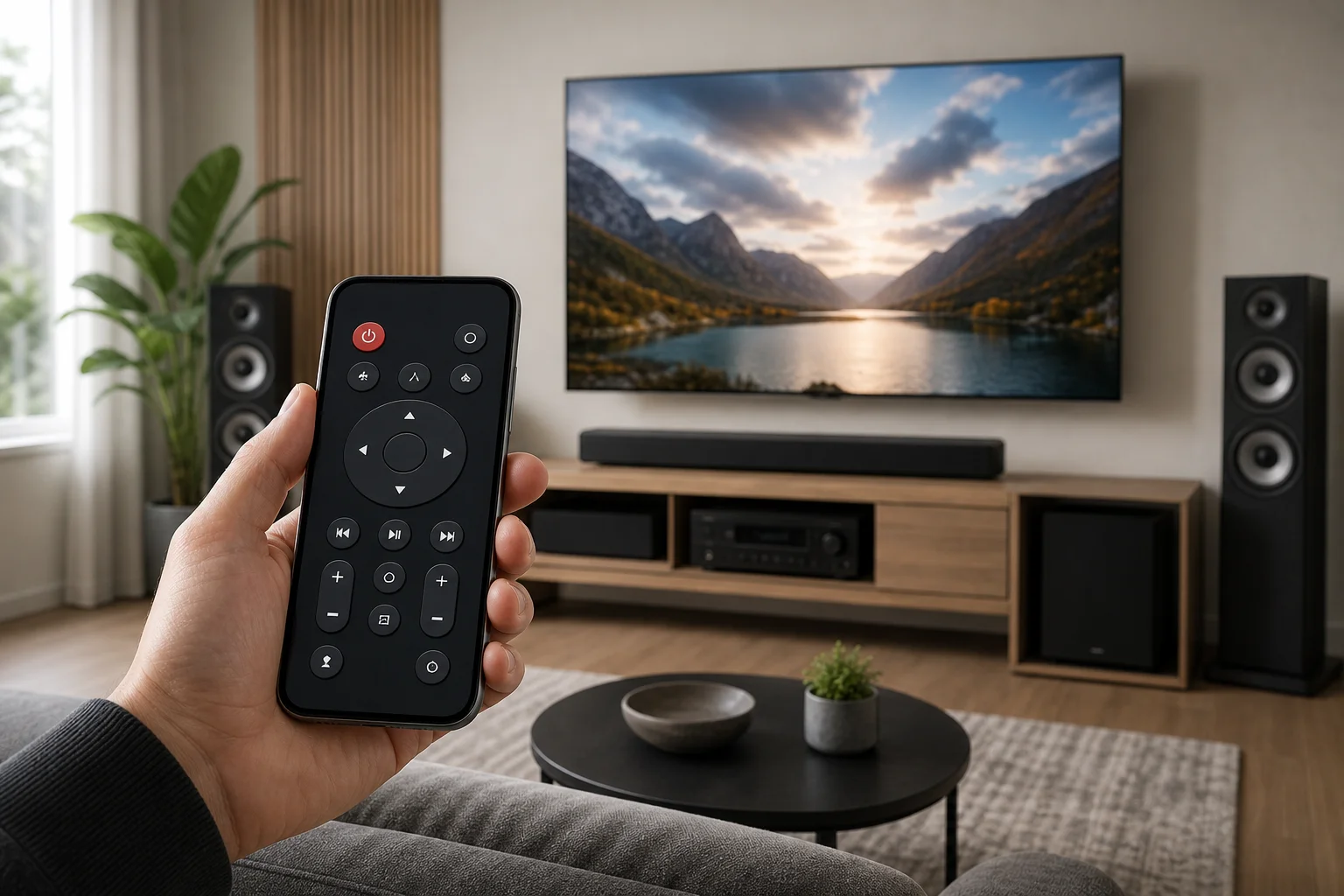
फोन रिमोट क्या नियंत्रित कर सकता है
A phone can control many home theater devices, but not always in the same way. Before choosing an app, check the brand, model, and connection options for each component.
Common devices you can control include:
- Smart TVs from Samsung, LG, Sony, TCL, Hisense, and other brands
- Streaming devices such as Roku, Apple TV, Fire TV, Chromecast with Google TV, and Nvidia Shield
- AV receivers from Denon, Marantz, Yamaha, Sony, Onkyo, Pioneer, and others
- Soundbars with Wi-Fi, Bluetooth, or app support
- Blu-ray players and media players, depending on model support
- Projectors with network control or IR support
In many setups, the phone does not need to control every device separately. For example, HDMI-CEC can let your TV remote commands adjust the soundbar volume or power on a streaming box. When this works well, one phone app can feel like a universal remote.
फोन रिमोट कैसे काम करते हैं
A phone remote app needs a control path to your equipment. The most common methods are Wi-Fi, Bluetooth, IR, and HDMI-CEC.
Wi-Fi और नेटवर्क नियंत्रण
Wi-Fi control is the most useful option for a modern home theater. Your phone and device connect to the same home network. The app then sends commands over that network.
This method is common for smart TVs, streaming boxes, AV receivers, and whole-home audio systems. It usually supports more than basic buttons. You may get input selection, playback controls, volume, sound modes, app launching, and sometimes keyboard entry.
Bluetooth नियंत्रण
Bluetooth is often used during setup or for simple media controls. It is common with streaming devices, soundbars, and some projectors. Bluetooth can be reliable at short range, but it may not offer the full control set of a Wi-Fi app.
IR ब्लास्टर नियंत्रण
Traditional remotes use infrared signals. Some Android phones include an IR blaster, though this feature is much less common than it used to be. iPhones do not include built-in IR.
If your phone has IR, you can use a universal remote app to control older TVs, receivers, and disc players. If it does not, you may need a separate smart IR hub.
HDMI-CEC नियंत्रण
HDMI-CEC is not a phone remote system by itself. Instead, it lets devices connected by HDMI pass basic commands to each other. Brands use different names for it, such as Anynet+ for Samsung, Simplink for LG, Bravia Sync for Sony, and Viera Link for Panasonic.
When HDMI-CEC is enabled, a phone app for your TV or streaming box may also control receiver volume, power, or input switching.
Home theater remote on phone के लिए बेहतरीन ऐप विकल्प
There is no single best app for every system. Start with the official app for your main device, then add receiver or smart home apps if needed.
| Device type | App to try first | Best for | Notes |
|---|---|---|---|
| Apple TV | Apple TV Remote in Control Center | Navigation, playback, keyboard input | Built into iPhone and iPad |
| Google TV or Android TV | Google TV app | Navigation, search, keyboard input | Works when phone and TV are on the same network |
| Roku | Roku mobile app | Remote control, private listening, channels | Supports many Roku TVs and players |
| Fire TV | Amazon Fire TV app | Navigation, Alexa voice control, keyboard input | Useful if the physical remote is lost |
| Samsung TV | SmartThings | TV control and smart home scenes | Requires a Samsung account for many features |
| LG TV | LG ThinQ | TV remote, inputs, app controls | Model support varies |
| Denon or Marantz receiver | Denon AVR Remote, Marantz AVR Remote, or HEOS | Volume, zones, inputs, sound modes | Same-network setup is required |
| Yamaha receiver | Yamaha AV Controller or MusicCast | Receiver control and multi-room audio | App depends on receiver generation |
| Mixed older equipment | Smart IR hub app | IR control from phone | Requires hardware such as an IR hub |
If you use a universal remote platform or smart home hub, check whether it supports your exact models. Compatibility matters more than the number of brands listed on an app store page.
अपने फोन को होम थिएटर रिमोट के रूप में सेटअप कैसे करें
Follow these steps before buying extra hardware. In many cases, you can create a working phone remote in a few minutes.
-
Identify your main control device
Decide whether your TV, streaming box, or AV receiver should be the center of control. For most people, the smart TV or streaming device is the easiest starting point. -
Connect everything to the same network
Put your phone and home theater devices on the same Wi-Fi network. Avoid mixing a guest network with your main network, because guest networks often block device discovery. -
Install the official app
Download the app recommended by the device maker. Examples include Roku, Google TV, SmartThings, LG ThinQ, Fire TV, HEOS, or Yamaha MusicCast. -
Enable network control if needed
Some TVs and receivers require settings such as “mobile app control,” “network standby,” “remote start,” or “IP control.” Enable these only on your trusted home network. -
Pair the phone with the device
Open the app and follow the pairing prompt. You may need to enter a code shown on the TV or receiver display. -
Turn on HDMI-CEC
Enable HDMI-CEC on the TV, receiver, and connected devices. This helps power, input, and volume commands pass between components. -
Test common commands
Check power, volume, mute, input switching, playback, and menu navigation. If one command fails, the app may still be useful for the rest. -
Create shortcuts or widgets
If the app supports widgets, favorites, or quick tiles, add the controls you use every day. This reduces tapping and makes the phone remote feel faster.
जब आपको स्मार्ट IR हब की आवश्यकता हो
A smart IR hub is useful when your home theater includes older equipment with no Wi-Fi or Bluetooth control. The hub receives commands from your phone over Wi-Fi, then sends infrared signals to your devices.
This can help with:
- Older TVs and projectors
- Legacy AV receivers
- DVD and Blu-ray players
- Cable or satellite boxes
- Devices hidden in cabinets, if the hub has the right IR placement
However, an IR hub has limits. It often cannot know whether a device is already on or off unless the equipment supports status feedback. For reliable automation, use discrete commands such as “power on,” “power off,” and direct input selection when available.
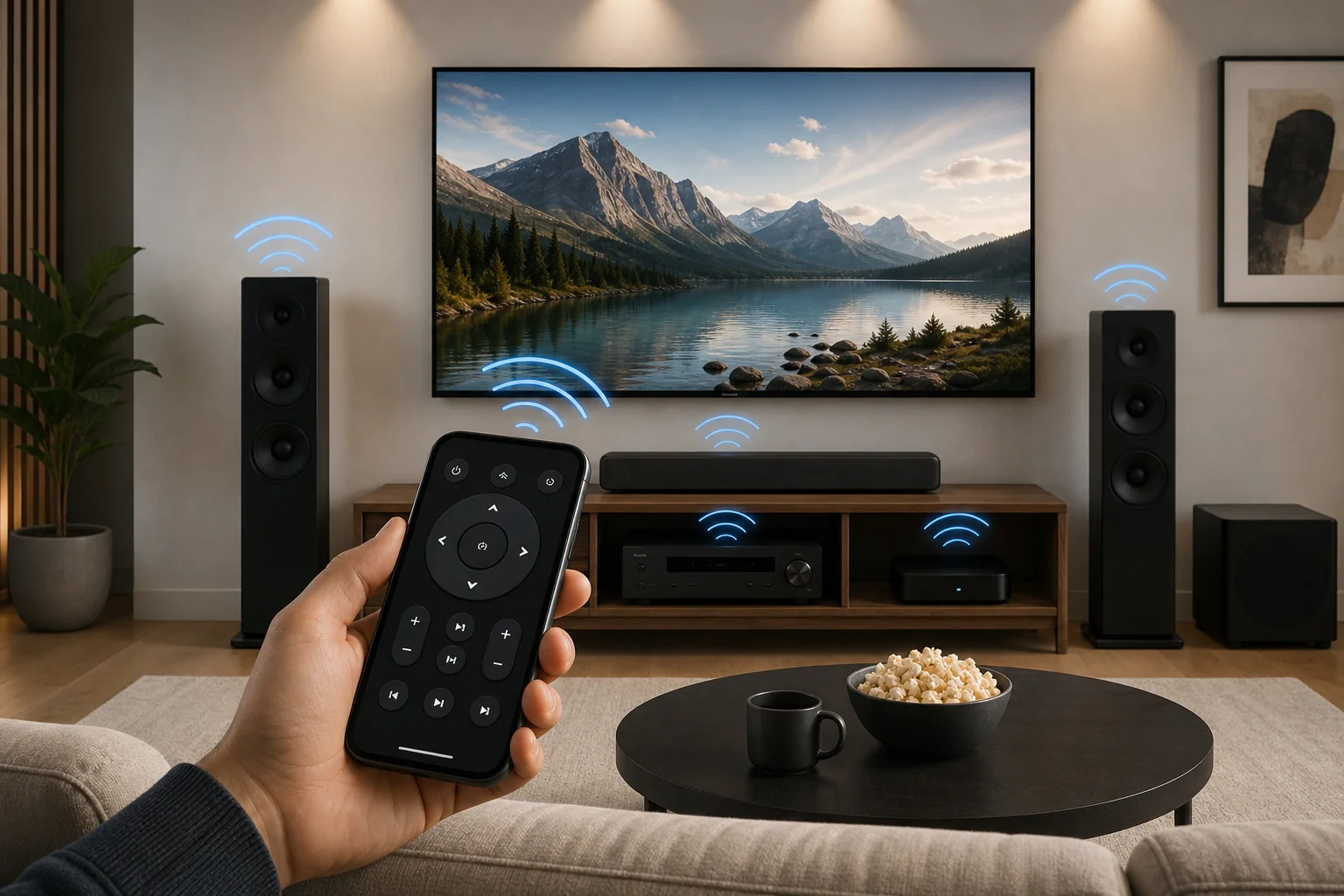
फोन रिमोट अनुभव को सुगम बनाने के टिप्स
A phone remote can be excellent, but it works best when your network and settings are stable.
Use these practical tips:
- Give key devices strong Wi-Fi or connect them by Ethernet.
- Keep TV, receiver, and streaming device firmware updated.
- Use 2.4 GHz Wi-Fi for some older smart devices if 5 GHz pairing fails.
- Rename devices clearly, such as “लिविंग रूम टीवी” and “डेनन रिसीवर।”
- Enable network standby only for devices you want to wake from your phone.
- Keep a basic physical remote nearby for emergency access and setup menus.
- Avoid unknown remote apps that request excessive permissions.
Also, remember that phone remotes can be slower than physical remotes because you must unlock the phone and open an app. Widgets, lock-screen controls, and voice assistants can reduce that friction.
सुरक्षा और गोपनीयता के विचार
Remote control apps need access to your local network. That is normal, but you should still be careful.
Download apps from official app stores, and prefer apps from the device manufacturer or a trusted platform. Review permissions before approving them. A TV remote app should not need access to contacts, call history, or unrelated personal data.
For most homes, remote control should stay inside the local network. If an app offers control from outside your home, use a strong account password and multi-factor authentication when available. Do not expose receiver or TV control ports directly to the internet.
सामान्य समस्याओं का समाधान
मेरा फोन मेरे टीवी या रिसीवर को क्यों नहीं ढूंढ सकता?
First, confirm that both devices are on the same Wi-Fi network. Then turn off VPN apps temporarily, because some VPNs block local device discovery. Restart the phone, router, and device. Finally, check whether network control is enabled in the TV or receiver settings.
ऐप वॉल्यूम को नियंत्रित क्यों कर रहा है लेकिन पावर को नहीं?
Power control often requires network standby, HDMI-CEC, or a separate wake setting. Some devices disconnect from the network when fully off. Enable the manufacturer’s remote start option if available, or use HDMI-CEC through a connected streaming device.
फोन रिमोट का उपयोग करते समय क्यों देरी हो रही है?
Delays usually come from weak Wi-Fi, a busy router, or an app reconnecting after sleep. Move devices closer to the router, use Ethernet for the TV or receiver, and keep the remote app updated.
क्या मैं पूरे होम थिएटर के लिए एक ऐप का उपयोग कर सकता हूं?
Sometimes. If your TV, streaming box, and audio system support HDMI-CEC, one app may cover daily controls. For advanced receiver settings, sound modes, or multi-zone audio, you may still need the receiver’s own app.
क्या iPhone IR रिमोट के रूप में काम कर सकता है?
Not by itself. iPhones do not have built-in IR transmitters. You can still control many devices over Wi-Fi or Bluetooth, and you can add a compatible smart IR hub for infrared-only equipment.
फोन को होम थिएटर रिमोट के रूप में उपयोग करने के बारे में FAQ
फोन के लिए सबसे अच्छा होम थिएटर रिमोट ऐप क्या है?
The best app is usually the official app for your main device. Use Roku for Roku devices, Google TV for Google TV, Apple TV Remote for Apple TV, SmartThings for Samsung TVs, and the correct AVR app for your receiver brand.
क्या मुझे रिमोट के रूप में अपने फोन का उपयोग करने के लिए वाई-फाई की आवश्यकता है?
Usually, yes. Most modern phone remote apps use Wi-Fi. Some devices support Bluetooth, and older equipment may work through IR if your phone has an IR blaster or you use a smart IR hub.
क्या मेरा फोन एक यूनिवर्सल रिमोट को प्रतिस्थापित कर सकता है?
It can replace one for many daily tasks, such as volume, playback, input switching, and app navigation. However, a physical universal remote may still be better for guests, fast button access, and complex multi-device activities.
क्या फोन रिमोट प्रोजेक्टर सेटअप के लिए विश्वसनीय है?
It depends on the projector. Network-enabled projectors may have their own apps or web control. Older projectors often need IR, RS-232, or a control system. Check the manual for supported remote control methods.
निष्कर्ष
To turn your phone into a reliable home theater remote, start with the official app for your TV, streaming box, or AV receiver, then enable same-network control and HDMI-CEC. If your equipment is older, add a smart IR hub instead of replacing everything. Test the commands you use most, simplify your setup, and keep one backup remote nearby. With the right app and settings, your phone can become the everyday control center for your home theater.