Pusat kawalan di telefon untuk smart TV: how to control your smart TV from a phone
A pusat kawalan di telefon untuk smart TV is a practical way to control your television when the physical remote is lost, broken, or simply out of reach. With the right app, your Android phone or iPhone can change channels, adjust volume, type search queries, launch streaming apps, and even use voice control. This guide explains the best options, how to set them up, what to do when pairing fails, and how to choose the safest app for your smart TV.
What a phone remote for smart TV can do
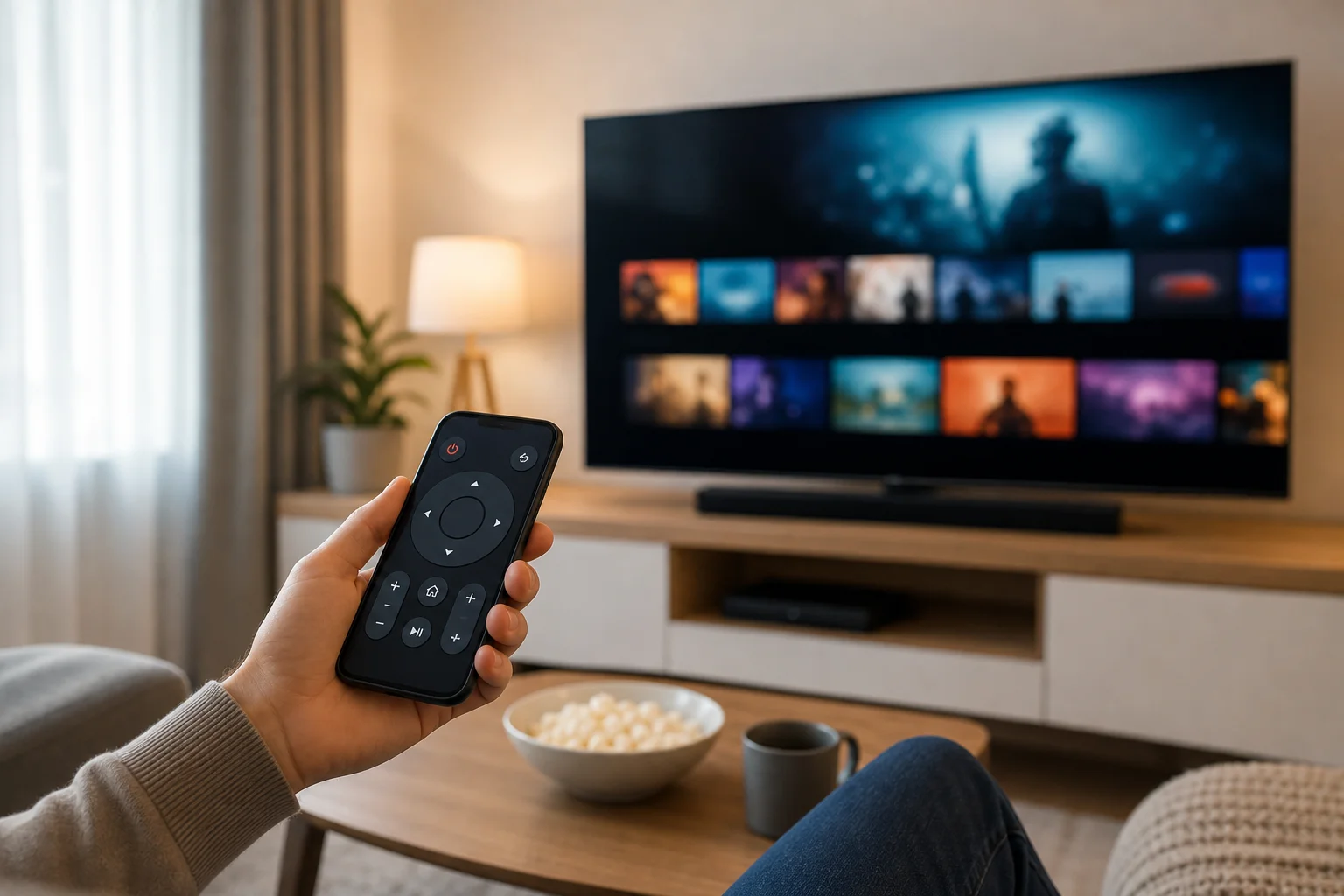
A phone remote turns your smartphone into a touchscreen controller for your TV. In most cases, it works over the same Wi-Fi network as your smart TV. Some phones and TVs also support Bluetooth, infrared, or platform-specific pairing.
Depending on your TV model and app, you may be able to:
- Turn the TV on or off.
- Change volume and mute sound.
- Navigate menus with a touchpad or directional buttons.
- Open Netflix, YouTube, Prime Video, and other installed apps.
- Type passwords and search terms using your phone keyboard.
- Use voice search through Google Assistant, Siri, Alexa, or the TV platform.
- Cast photos, videos, and music from your phone.
- Control streaming devices such as Chromecast, Roku, Fire TV, or Apple TV.
However, not every app supports every feature. Power-on control, for example, often depends on whether the TV supports wake over Wi-Fi, Bluetooth, or HDMI-CEC.
Best types of remote apps for a smart TV
There are three main ways to use a phone as a remote for smart TV: an official brand app, a platform app, or a universal remote app. The best choice depends on your TV brand and operating system.
Official TV brand apps
Official apps are usually the safest first option because they are made or approved by the TV manufacturer. They often support advanced features for that brand.
Common examples include:
- Samsung SmartThings for many Samsung smart TVs.
- LG ThinQ for LG webOS TVs.
- Sony Bravia Connect or Google TV controls for supported Sony models.
- TCL Home or Roku app, depending on the TCL TV system.
- Hisense apps or Google TV controls, depending on the model.
These apps may also manage other smart home devices. If you want a reliable remote control app for daily use, start with your TV manufacturer’s official app.
Platform remote apps
Many smart TVs run a common TV platform. In that case, the platform app may work better than a brand-specific app.
| TV platform or device | Recommended phone remote option | Best for |
|---|---|---|
| Google TV or Android TV | Google TV app or Google Home | Voice search, keyboard input, Chromecast controls |
| Apple TV | Apple TV Remote in iPhone Control Center | Smooth iPhone integration and AirPlay |
| Roku TV or Roku device | Roku mobile app | Private listening, app shortcuts, simple pairing |
| Amazon Fire TV | Amazon Fire TV app | Alexa voice control and Fire TV navigation |
| Samsung Tizen | SmartThings | Samsung account features and device control |
| LG webOS | LG ThinQ | LG TV settings and webOS navigation |
If your TV has Chromecast built in, the Google Home app can also help with casting and basic device controls.
Universal remote apps
Universal remote apps claim to work with many brands. Some use Wi-Fi. Others use an infrared blaster if your Android phone has one. iPhones do not include IR blasters, so they normally rely on Wi-Fi, Bluetooth, AirPlay, or platform controls.
Be careful with unknown universal apps. Some are overloaded with ads, request unnecessary permissions, or require subscriptions for basic features. Before installing one, check reviews, permissions, developer information, and whether your TV is listed as supported.
How to set up a remote on your phone for smart TV
Follow these steps to connect your phone remote to most smart TVs. The exact names may vary, but the process is similar across Samsung, LG, Google TV, Android TV, Roku, Fire TV, and Apple TV.
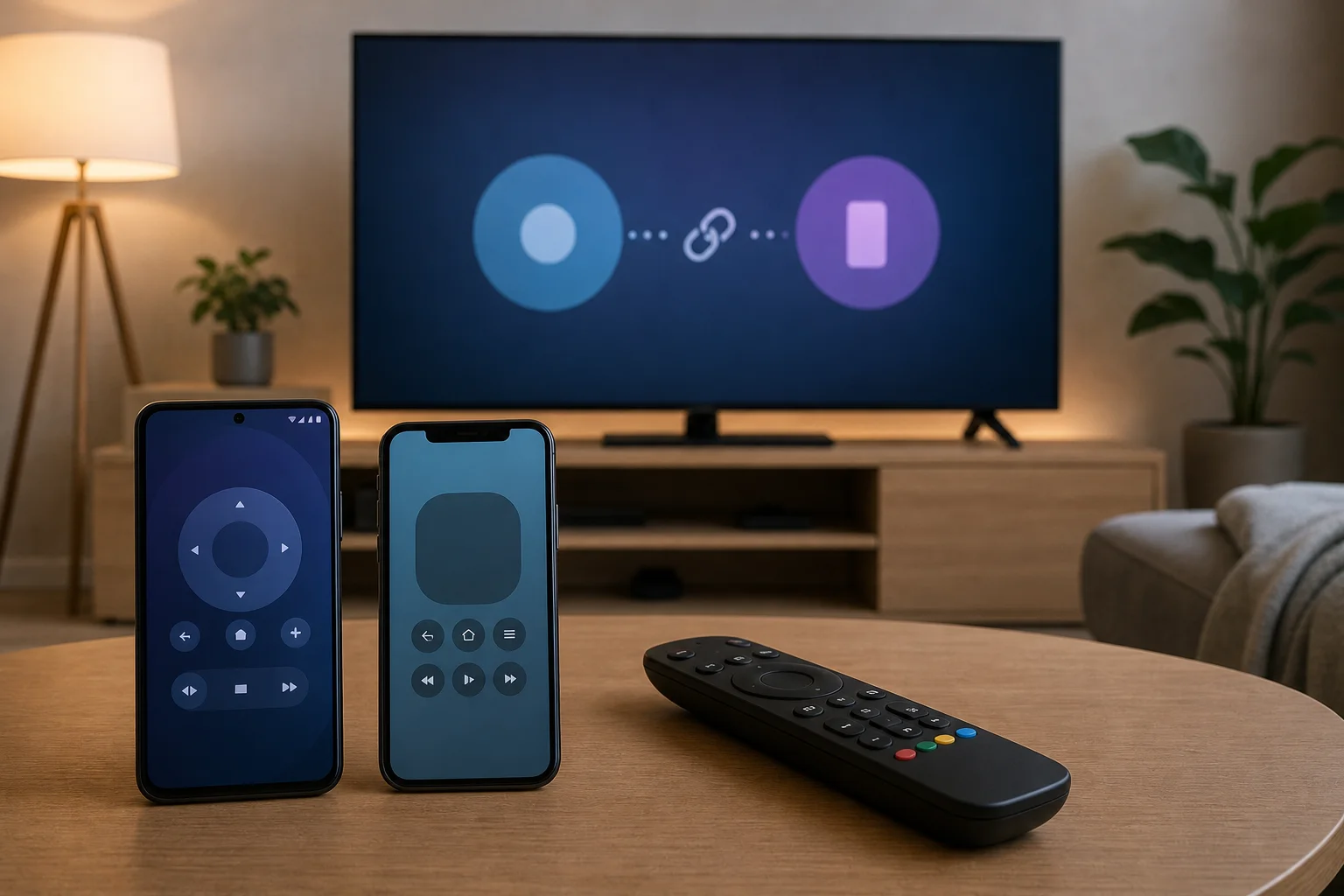
- Connect both devices to the same Wi-Fi network. Your phone and TV usually need to be on the same home network. If your router has separate 2.4 GHz and 5 GHz names, connect both devices to the same one if pairing fails.
- Install the correct app. Choose the official brand app or platform app from Google Play or the Apple App Store. Avoid downloading APK files from unknown websites.
- Turn on the TV and open the app. Make sure the TV is awake and connected to the internet.
- Allow local network access. On iPhone, the app may ask for permission to find devices on your local network. On Android, it may request nearby device or location permissions for discovery.
- Select your TV from the device list. The app should display available TVs or streaming devices.
- Enter the pairing code. Many TVs show a code on the screen. Type it into your phone to confirm that you are connecting to the right device.
- Test basic controls. Try volume, navigation, home, back, and keyboard input.
- Enable extra features if needed. For power control, voice commands, or smart home automation, open the app settings and check available options.
If the TV does not appear, restart the TV, restart the phone, and reboot your router. Then try again.
Android phone versus iPhone remote control
Both Android phones and iPhones can work well as smart TV remotes. Still, there are a few differences.
Android phones often offer more variety. Some models include an IR blaster, which can control older TVs and set-top boxes without Wi-Fi. Android also integrates well with Google TV, Chromecast, and Google Home.
iPhones work especially well with Apple TV and AirPlay-compatible devices. The Apple TV Remote is built into Control Center on modern iOS versions, so you may not need to install anything. For Samsung, LG, Roku, Fire TV, and Google TV, you can still install the appropriate app from the App Store.
In short, choose based on your TV ecosystem. Use Google apps for Google TV and Chromecast, Apple controls for Apple TV, SmartThings for Samsung, LG ThinQ for LG, and the Roku or Fire TV app for those devices.
Troubleshooting when the phone remote does not work
A phone remote app usually fails for simple reasons. Check these fixes first.
The TV is not found in the app
Make sure the TV and phone are on the same Wi-Fi network. Disable mobile data temporarily if your phone keeps switching networks. Also check that VPN, guest Wi-Fi, or router isolation is not blocking local devices from seeing each other.
Pairing code does not appear
Restart the TV and open the app again. On some TVs, remote pairing must be enabled in settings. Look for options such as mobile device connection, external device manager, remote app control, or network remote control.
Volume or power buttons do not work
Some TVs limit power and volume control through apps. If you use a streaming stick, the app may control the stick but not the TV speakers. Enable HDMI-CEC on your TV and streaming device. TV brands use different names for this feature, such as Anynet+, Simplink, Bravia Sync, or CEC.
The app disconnects often
Weak Wi-Fi is a common cause. Move the router closer, reduce interference, or use a stronger mesh network. Also update the TV firmware and the phone app. If the TV uses power-saving mode, it may disconnect from Wi-Fi when idle.
Safety and privacy tips before installing a remote app
A remote control app may need access to your local network and nearby devices. That is normal. But it should not need unrelated permissions such as contacts, call logs, or full file access for basic remote control.
Use these rules:
- Prefer official apps from the TV brand or platform.
- Download only from Google Play or the Apple App Store.
- Read recent reviews, not only the star rating.
- Avoid apps that require payment before testing basic controls.
- Deny permissions that do not match the app’s purpose.
- Keep your TV firmware and phone operating system updated.
- Remove old remote apps you no longer use.
Also, secure your home Wi-Fi with a strong password. Anyone on the same network may be able to discover compatible smart TVs, depending on your settings.
FAQ about using a phone as a smart TV remote
Can I use my phone as a remote without Wi-Fi?
Yes, but only in some cases. If your Android phone has an infrared blaster, it can control many TVs like a traditional remote. Bluetooth may also work with some devices. Most smart TV remote apps, however, need Wi-Fi.
What is the best app for a smart TV remote?
The best app is usually the official one for your TV or platform. Use SmartThings for Samsung, LG ThinQ for LG, Google TV or Google Home for Google TV and Android TV, Roku for Roku devices, Fire TV for Amazon devices, and Apple TV Remote for Apple TV.
Can a phone remote turn on a TV?
Sometimes. The TV must support wake over Wi-Fi, Bluetooth, HDMI-CEC, or another standby control feature. If the TV fully disconnects from the network when off, the app may only work after you turn it on manually.
Is a universal remote app safe?
Some universal apps are safe, but others are not ideal. Check permissions, reviews, developer details, and subscription terms. If an app asks for unrelated access or shows aggressive ads, choose another option.
Can I type on the TV with my phone keyboard?
Yes, many official and platform apps support keyboard input. This is one of the biggest benefits of using a phone remote, especially for passwords and search fields.
How to choose the right setup
If you only need basic controls, start with the official app. It is the simplest and safest path. If you use a streaming device more than the built-in TV apps, install the remote app for that device instead. For example, a Roku app may be more useful than a TV brand app if all your streaming happens through Roku.
For homes with several TVs, choose apps that can save multiple devices. Rename each TV clearly in its settings, such as living room TV or bedroom TV. This makes switching faster and prevents accidental control of the wrong screen.
Finally, keep your physical remote if you still have it. A phone remote is convenient, but a traditional remote may still be needed for first-time setup, factory resets, or when Wi-Fi is down.
Conclusion
A pusat kawalan di telefon untuk smart TV is easy to set up and can make everyday TV control faster, especially for search, typing, casting, and app navigation. Start with your TV brand’s official app or the correct platform app, connect both devices to the same Wi-Fi network, pair with the on-screen code, and test the main controls. If something fails, check Wi-Fi, permissions, HDMI-CEC, and firmware updates. Choose a trusted app today, and your phone can become a reliable smart TV remote in minutes.