IOS용 스마트 TV 리모컨: iPhone을 TV 리모컨으로 사용하는 방법
A remote for smart TV on iOS turns your iPhone or iPad into a practical TV controller when the original remote is lost, broken, or across the room. With the right app, you can adjust volume, open streaming services, type searches faster, and navigate menus from your phone. This guide explains which iOS TV remote app to choose, how to set it up, what features to expect, and how to fix common connection problems.
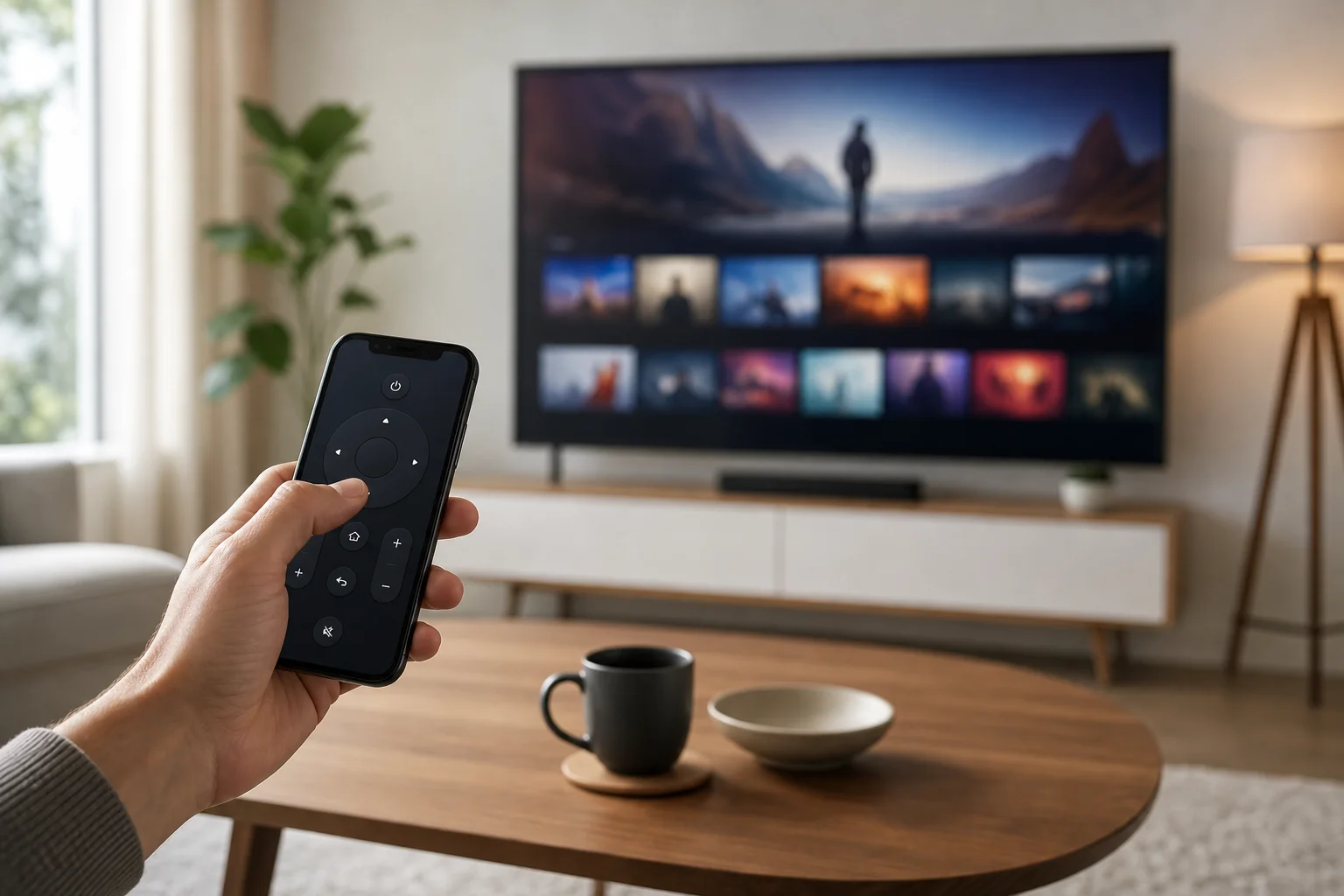
iOS 스마트 TV 리모컨이 할 수 있는 것
A smart TV remote app uses your local Wi-Fi network, Bluetooth, or a device account to control the television. In most homes, Wi-Fi control is the standard method. Your iPhone and TV must usually be connected to the same network.
Depending on the brand and app, you can use your iPhone to:
- Power the TV on or off, if the TV supports network wake features.
- Change volume and mute sound.
- Move through menus with a touchpad, directional pad, or swipe gestures.
- Launch installed apps such as Netflix, YouTube, Prime Video, or Disney+.
- Type text with the iOS keyboard, which is much faster than using arrow buttons.
- Use voice search when supported by the TV platform.
- Cast photos, videos, or music in some manufacturer apps.
However, not every feature works on every model. Older smart TVs may support only basic controls. Also, iPhones do not include an infrared blaster, so they cannot control most non-smart TVs by IR without extra hardware.
iOS용 스마트 TV의 가장 좋은 리모컨 옵션
The best choice depends on your TV brand and operating system. Official apps are usually safer and more reliable, while universal remote apps can be useful if you control several devices.
| TV 또는 기기 유형 | 추천 iOS 앱 | 최적용 | 비고 |
|---|---|---|---|
| Samsung 스마트 TV | SmartThings | Samsung TVs and smart home devices | Requires TV and iPhone on the same network and a Samsung account for some features |
| LG 스마트 TV | LG ThinQ | LG webOS TVs | Offers remote control, input switching, and device management |
| Roku TV 또는 Roku 기기 | The Roku app | Roku TVs, streaming sticks, and boxes | Includes private listening on supported devices |
| Google TV 또는 Android TV | Google TV app | TVs and streaming devices running Google TV or Android TV | Remote is usually available after pairing with a code |
| Apple TV | Apple TV Remote in Control Center | Apple TV 4K and Apple TV HD | Built into iOS, no separate app needed |
| 여러 브랜즈 | 신뢰할 수 있는 범용 리모컨 앱 | Mixed TV setups | Check privacy policy, ratings, and subscription terms before installing |
공식 제조업체 앱
Official apps are often the first option to try. They are built for a specific brand, so they usually support more TV functions. For example, Samsung SmartThings can manage compatible Samsung devices beyond the TV, while LG ThinQ can integrate with other LG appliances.
The trade-off is that you may need to sign in. Some features may also depend on the TV model, region, or firmware version.
내장 Apple TV 리모컨
If you use an Apple TV, iOS already includes a remote in Control Center. Open Control Center, tap the remote icon, select your Apple TV, and enter the pairing code if asked. This remote supports navigation, playback controls, Siri input in supported regions, and text entry.
If the icon is missing, go to Settings > Control Center and add Apple TV Remote.
범용 리모컨 앱
Universal smart TV remote apps can control many brands from one interface. This is convenient if you have more than one TV at home. Still, be careful. Some apps use aggressive ads or subscriptions. Before installing, check whether the app clearly lists supported brands, offers a free trial, and explains what data it collects.
iOS용 스마트 TV 리모컨 설정 방법
Follow these steps to connect your iPhone remote app to a smart TV. The exact screens may differ by brand, but the process is usually similar.
- Connect both devices to the same Wi-Fi network. Make sure your iPhone and smart TV use the same router. If your router has separate 2.4 GHz and 5 GHz network names, try placing both devices on the same one.
- Update your TV software. Open the TV settings and check for firmware updates. Updates often improve app pairing and network control.
- Install the correct iOS app. Choose the official app for your TV brand when possible, such as SmartThings, LG ThinQ, the Roku app, or Google TV.
- Open the app and add your TV. The app should scan for nearby devices. Select your TV when it appears.
- Confirm the pairing request. Your TV may show a code or permission prompt. Enter the code on your iPhone or approve the request with the physical remote.
- Test basic controls. Try volume, navigation, back, home, and text entry. If one feature fails, test another before resetting anything.
- Enable network wake if needed. If you want to turn the TV on from your iPhone, look for settings such as “Wake on LAN,” “Mobile TV on,” “Quick start,” or “Start TV with mobile.” Names vary by brand.
After setup, keep the app on your home screen or in a folder with other media apps. This makes it easier to use when the physical remote is not nearby.
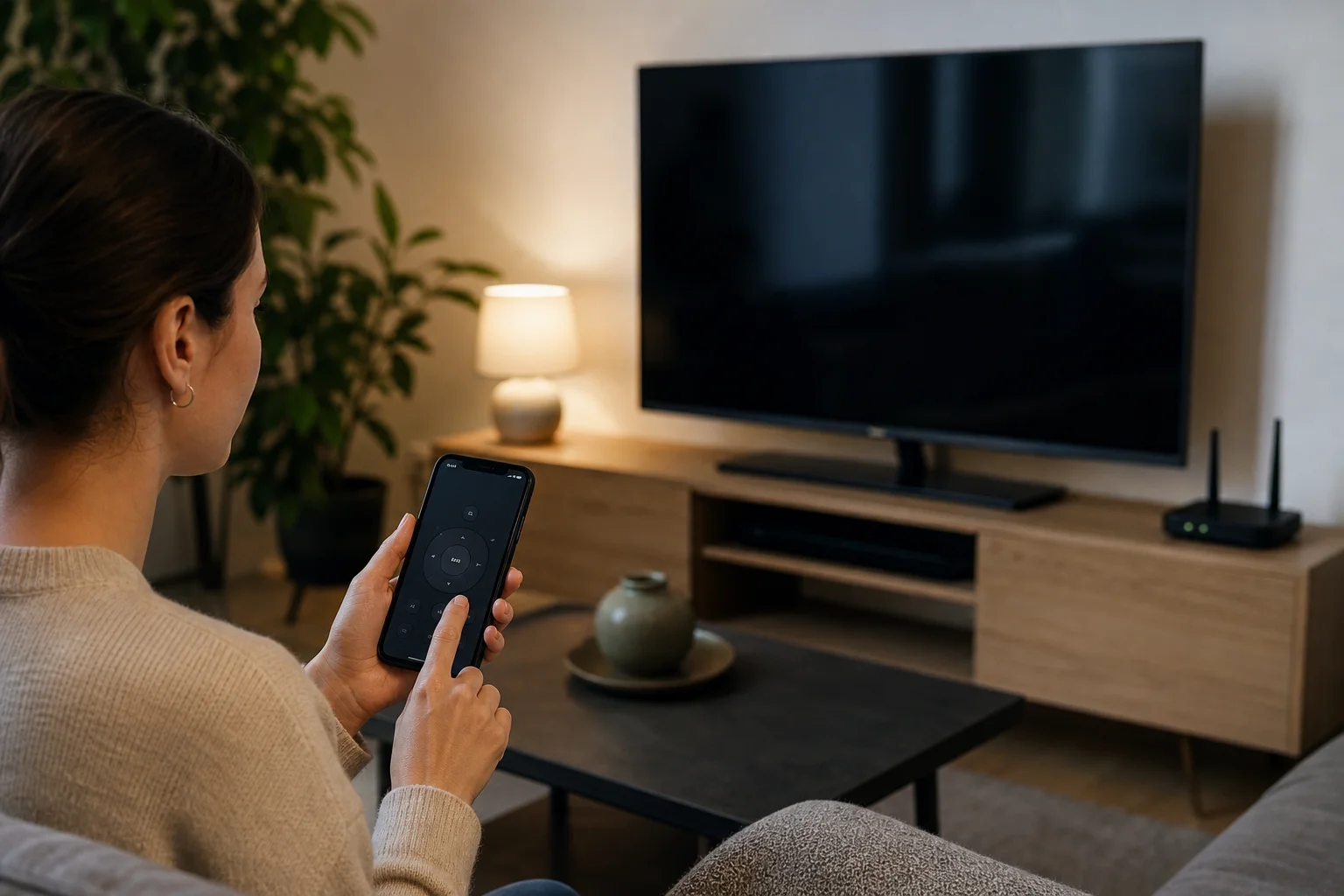
아이폰 TV 리모컨 앱을 선택할 때 중요한 기능
A good iPhone remote should be simple, stable, and clear about permissions. Before you settle on one app, compare these features.
빠른 페어링
The app should find your TV quickly and show simple pairing instructions. If it requires many manual steps, it may become frustrating for daily use.
키보드 입력
This is one of the biggest advantages of using an iPhone as a smart TV remote. Searching for movies, entering passwords, and typing app names is much easier with the iOS keyboard.
볼륨 및 전원 제어
Basic controls matter most. Confirm that the app can change volume and, if supported, power the TV on and off. Some TVs allow power off through the network but require a special setting for power on.
앱 바로가기
Many remote apps include shortcuts to installed streaming services. This saves time, especially if your original remote does not have the buttons you use most.
개인정보 보호 및 가격
Remote apps may request access to your local network, Bluetooth, microphone, or media library. Local network access is normal for TV discovery. Other permissions should match the feature you want to use. Also, check whether a subscription is required for basic controls. In many cases, official apps are free.
연결 문제 해결
If your iOS remote app cannot find or control your smart TV, start with simple fixes before reinstalling everything.
First, confirm that both devices are on the same Wi-Fi network. Guest networks often block device discovery. Next, restart the TV and iPhone. A quick reboot can clear stale network sessions.
If that does not work, check these points:
- 로컬 네트워크 권한: On iPhone, go to Settings > Privacy & Security > Local Network and allow the remote app.
- VPN 설정: A VPN on the iPhone can sometimes block local device discovery. Pause it briefly while pairing.
- 라우터 격리: Disable settings such as AP isolation, client isolation, or guest mode if you want devices to see each other.
- TV 권한: Some TVs list paired mobile devices in settings. Remove old pairings and pair again.
- 펌웨어 버전: Update both iOS and the TV software.
- 전원 절약 모드: Deep sleep modes can stop the TV from responding when turned off.
If the TV still does not appear, test with the official manufacturer app. This helps you learn whether the issue is the TV, the network, or a third-party app.
스마트 TV 리모컨 앱 사용 시 보안 팁
Because a remote app can control a device in your home, choose it carefully. Download apps only from the App Store, and prefer official apps from the TV manufacturer or platform owner.
Also, review permissions before accepting them. A remote app may need local network access to discover the TV. It does not normally need your contacts. If an app asks for unrelated access, consider an alternative.
Finally, secure your Wi-Fi network with a strong password. Anyone on the same network may be able to attempt pairing with compatible devices. Most TVs ask for confirmation, but a protected network reduces risk.
아이폰을 스마트 TV 리모컨으로 사용할 때 자주 묻는 질문
아이폰을 모든 스마트 TV의 범용 리모컨으로 사용할 수 있나요?
You can use an iPhone with many smart TVs, but not every model is supported. For best results, use the official app for your TV brand or the app for its platform, such as Roku or Google TV.
아이폰에 TV 제어를 위한 적외선이 있나요?
No. iPhones do not have a built-in infrared blaster. Most iOS TV remote apps work over Wi-Fi, Bluetooth, or account-based pairing, not IR.
리모컨 앱이 TV가 이미 켜졌을 때만 작동하는 이유는 무엇인가요?
Some TVs turn off network control in standby mode. Enable settings such as quick start, wake on LAN, or mobile power-on if your model supports them.
iOS용 스마트 TV에 무료 리모컨 앱이 있나요?
Yes. Many official apps, including SmartThings, LG ThinQ, the Roku app, Google TV, and the built-in Apple TV Remote, are free. Some third-party universal apps charge for advanced features or remove ads through subscriptions.
아이폰 리모컨 앱으로 볼륨을 제어할 수 있나요?
Usually, yes. Most official smart TV remote apps support volume controls. However, if your TV uses an external soundbar or receiver, volume control may depend on HDMI-CEC, optical audio settings, or the audio device itself.
결론
The easiest way to get a reliable remote for smart TV on iOS is to start with the official app for your TV brand or platform. Connect your iPhone and TV to the same Wi-Fi network, pair them with the on-screen code, and test the controls you use every day. If you need one app for several TVs, compare universal remote apps carefully and check their privacy and pricing first. Set it up now, and your iPhone can become a convenient backup remote whenever you need it.